
Why can your iPhone read one Kindle book aloud while another book in the same library has no listening button? The difference usually isn't the phone. It's whether that particular title supports text-to-speech, has a matching audiobook, or can be accessed through another reading app.
Learning how to listen to Kindle books on iPhone starts with identifying which route your book qualifies for. Once you've checked that, the settings make much more sense.
Table of Contents
- Which Route Reads Your Kindle Book Aloud
- How to Turn On Assistive Reader in the Kindle App
- Listening to an Audible Narration Through Read & Listen
- When iPhone Accessibility Tools Are the Better Fallback
- Using a Third-Party App for Any Owned Kindle Book
- Why a Kindle Book Won't Read Aloud
- Pick Your Route and Start Listening Today
Which Route Reads Your Kindle Book Aloud
No single switch reads every Kindle title on an iPhone. You can use Kindle's Assistive Reader, compatible Audible narration, Apple's accessibility tools, or a third-party reader, but each route needs something different from the book.
Think of read-aloud as a friend reading the page to you at the kitchen table. Narration is a recording made for that book, like a film soundtrack that the subtitles follow. Read-aloud needs accessible text; synchronized narration needs a recording paired with the right edition.
Routes for listening to Kindle books on iPhone
| Route | What You Need | Best For | Main Limit |
|---|---|---|---|
| Assistive Reader | Kindle app and a book with Enhanced Typesetting | Reading and listening in one view with live highlighting | Only qualifying books and supported languages |
| Read & Listen (Audible narration) | Kindle and Audible editions in your libraries | A professionally narrated audiobook that follows your position | Only titles with a Read & Listen-ready listing |
| Speak Selection and Speak Screen | iPhone Spoken Content settings turned on | Reading selected text or the visible screen | Reads the page, not a full audiobook |
| VoiceOver | VoiceOver enabled on iPhone | Blind and low-vision users who navigate by screen | Built for navigation rather than casual listening |
| AudioBooks Unlimited to Kindle | App installed and an Amazon login | Owned Kindle books read with AI voices | Requires account access; not affiliated with Amazon |
Match the route to the book
Start with what you want to hear. If you want to follow the printed words while a synthetic voice reads, check Assistive Reader eligibility. If a narrator's performance matters, look for a compatible Audible companion rather than changing the iPhone's speech settings.
For a passage you need to hear immediately, Speak Selection or Speak Screen may be enough. VoiceOver serves a different need: navigating the reading interface without relying on sight. An account-connected third-party reader offers another path for owned titles without matching audiobook recordings.
Say you have a novel with an Audible companion and a reference book without one. The novel may support recorded narration, while the reference book needs text-to-speech. Owning both Kindle editions doesn't give them identical audio options.
Practical rule: Check what the book supports before changing your iPhone settings. Formatting, language, and access rights often explain a missing listening control.
How to Turn On Assistive Reader in the Kindle App
Assistive Reader lets you hear a qualifying Kindle book while following highlighted text in the same reading view. It's the most direct built-in route because you stay inside the Kindle app.
Amazon's Assistive Reader guide confirms that the feature works in the free Kindle app for iPhone and iPad, uses the device's operating-system text-to-speech engine, and includes speed controls and a 30-second rewind. You don't need to find or purchase a separate narration recording to use it.
Check the book before opening the controls
The book needs Enhanced Typesetting, and its language must be supported by the iPhone's text-to-speech system. Check the Kindle product details for the formatting information rather than assuming that every book downloaded into the app qualifies.
Eligible access can include purchases, Kindle+ or Prime Reading loans, partner-source loans, and Family Library titles. Those categories aren't blanket guarantees: the individual book still needs compatible formatting, language, and access rights.
The illustrated sequence shows where to look:
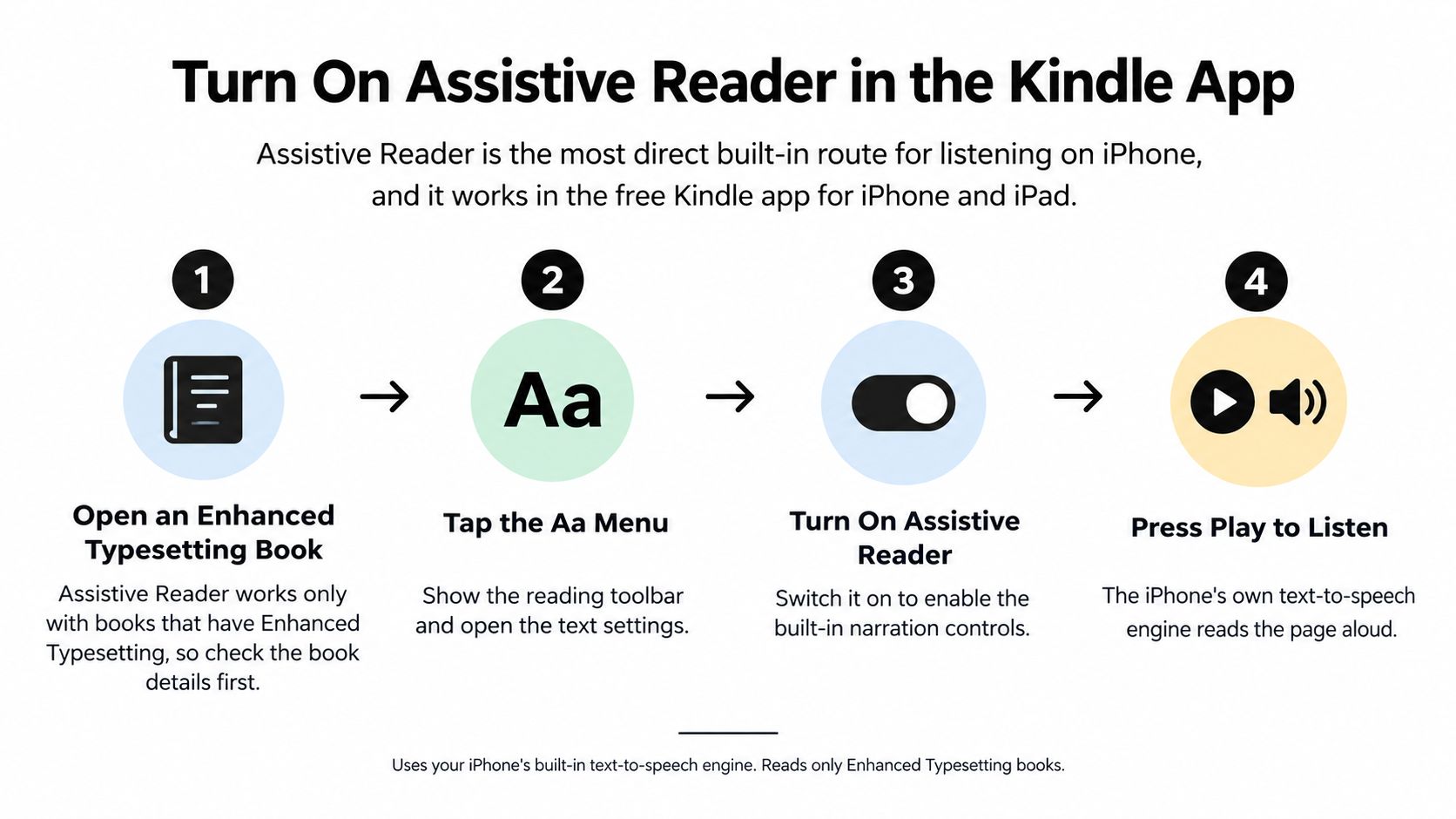

Enable it inside the book
- Open a supported book in the Kindle app so you're looking at its reading page, not the library.
- Tap the top-center of the page to reveal the reading controls.
- Tap Aa to open the reading-settings menu.
- Choose More to find the additional reading options.
- Turn on Assistive Reader to enable its audio controls.
- Press play, then adjust the speed to a pace you can comfortably follow.
Text should highlight in real time as the voice reads. Start at a familiar paragraph so you can tell whether the spoken words and highlighted text match.
If the voice feels rushed, lower the playback speed before deciding whether the feature suits you. A comfortable pace for a novel may feel too fast for a technical explanation, especially when you need time to understand unfamiliar terms.
Assistive Reader pauses when you leave the reading context, such as opening navigation or making an annotation. Treat it as focused reading with audio support, not as a promise of uninterrupted background playback with the screen locked.
Your final check is simple: the highlight moves through the text, playback responds when you pause, and the speed control changes the pace. Those signs confirm that the feature is working for that book.
Listening to an Audible Narration Through Read & Listen
With Read & Listen, the voice comes from a professionally recorded audiobook rather than your iPhone's speech engine. The Kindle text remains available for synchronized display, so the narrator's recording drives the highlighting.
This illustration represents the recorded-audio route:
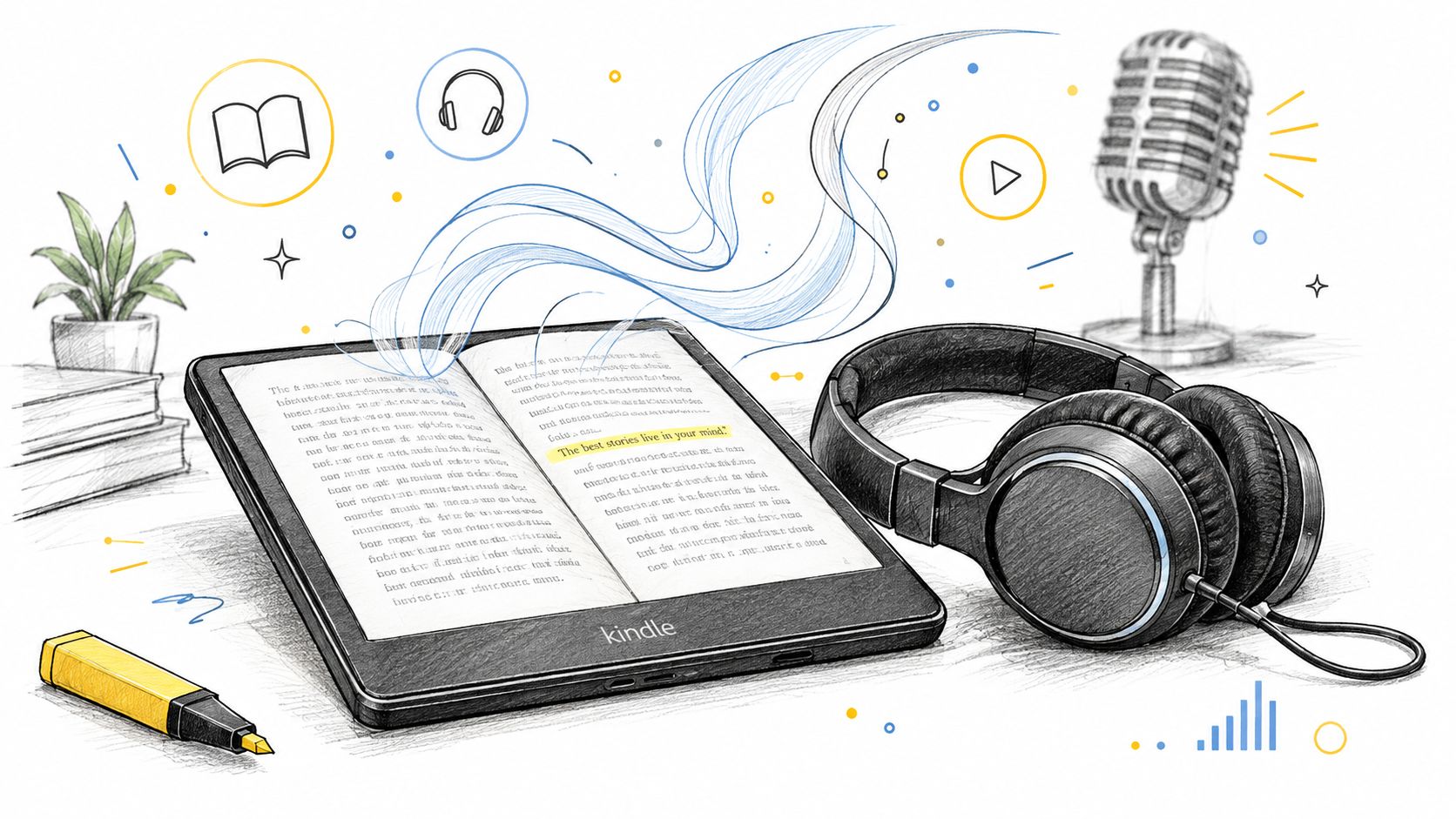

Add the matching narration
The first place readers get stuck is finding an audiobook with the same title and assuming it will synchronize. You need a compatible companion for your Kindle edition, not merely any recording of the same work.
- Open the Kindle book and look for audiobook availability.
- Add or purchase the compatible companion so you have access to both editions.
- Download the narration in the Kindle app, preferably over Wi-Fi.
- Tap the headphones icon to open the narration controls.
- Check the highlighting and reading position by listening, pausing, and switching back to reading.
- Verify synchronization before going offline rather than discovering a mismatch during your journey.
The Bristol sensory support guide for Kindle on iPhone and iPad explains this companion-audiobook workflow and notes that audiobook downloads can exceed 100 MB. Check local storage before downloading several books, especially if your iPhone already holds substantial video or music downloads.
Confirm the download, not just the purchase
The next common stopping point is an audiobook that appears in your library but hasn't finished downloading. Access to a title and a locally available audio file aren't the same thing. Wait for the download to complete before relying on it away from your connection.
Test the handoff between reading and listening while you still have time to fix it. A visible audiobook cover doesn't confirm that your position is synchronized.
If no compatible companion exists, there isn't a recorded narration for that pairing to activate. VoiceOver is a principal native accessibility fallback; an eligible book may also work with Assistive Reader.
An external reader can process legally accessible EPUB, PDF, web, or notes content, but Kindle file protection may prevent direct extraction. Don't assume that owning a Kindle edition means you can export its text into any reading app.
The position check is particularly useful before a commute. Hear a recognizable passage, return to the text, and confirm that you're still in the right place.
When iPhone Accessibility Tools Are the Better Fallback
Apple's speech tools are useful when you need to hear text without a compatible Kindle listening option. They also serve readers who need broader accessibility support rather than an audiobook-style player.
Apple's Spoken Content guide distinguishes Speak Selection, which reads highlighted text, from Speak Screen, which reads the visible screen. Enable the relevant option under Settings > Accessibility > Read & Speak; the settings label may differ on older software.
Choose what you want spoken
- For a selected passage: Highlight text and tap Speak. This is useful when you want to hear a paragraph rather than everything on the page.
- For the displayed page: Turn on Speak Screen, open the Kindle page, and swipe downward with two fingers from the top of the screen.
- For playback handling: Use Speech Controller when you need more accessible controls for starting, stopping, and pacing speech.
- For a different presentation: Accessibility Reader can display supported text in a full-screen layout with adjustable fonts, colors, and backgrounds.
Think of Speak Screen as a reading lamp illuminating the current page. VoiceOver is more like a guide describing the layout and controls, helping you move through the app as well as hear content.
Choose VoiceOver for navigation
The Kindle iOS app supports VoiceOver, including compatible controls and audio support for many books and features. That makes it an important option for blind and low-vision readers, not just another play button.
VoiceOver changes how you interact with the screen, so it's sensible to learn its gestures before starting a long reading session. If you only want a short passage spoken and otherwise move around the page by sight, Speak Selection or Speak Screen is usually the more direct choice.
Neither tool guarantees that every Kindle title becomes a conventional audiobook. Page layout, selectable text, DRM restrictions, and book compatibility can affect the result. Choose these tools when accessible navigation or immediate page reading matters more than a dedicated listening interface.
Using a Third-Party App for Any Owned Kindle Book
For owned books without Audible companions, an account-connected reader offers another approach. Our AudioBooks Unlimited to Kindle app from TTS Pro uses AI text-to-speech for owned Kindle books and Kindle Unlimited titles, with voice choices and adjustable speed.
Set the expectation before you begin: the voice is synthetic, not a studio narrator performing a recorded edition. The app is available in English, and it isn't affiliated with or endorsed by Amazon.
The illustration below represents listening through a separate reading app:
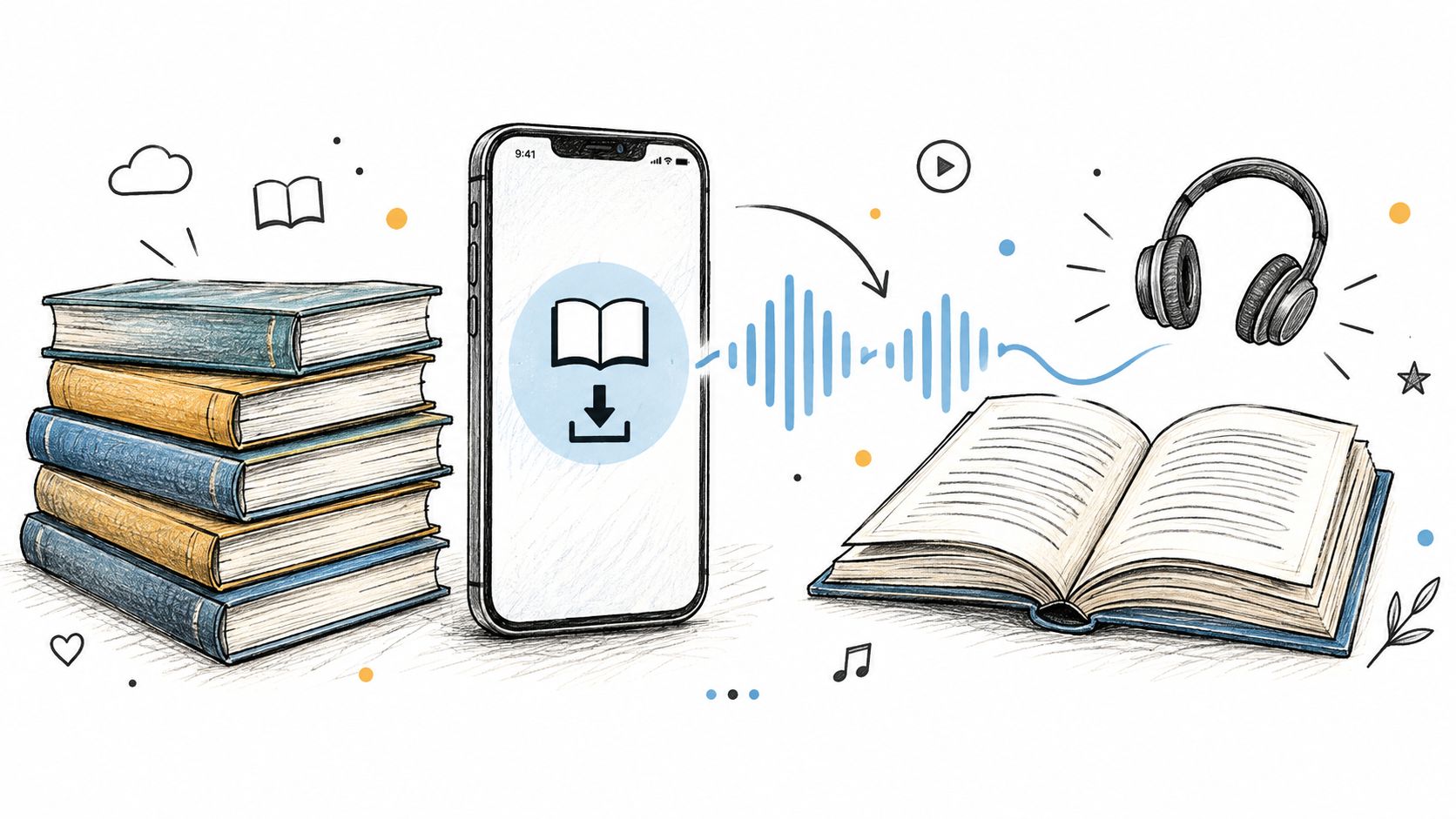

Connect the library and test a book
- Install the app from the App Store on iPhone. Google Play is the corresponding option for Android.
- Sign in with your Amazon account, using the account that holds the book you want.
- Choose an owned Kindle book or Kindle Unlimited title from your library.
- Pick a voice and listening speed that suit the material.
- Start playback and check that the book opens fully, rather than stopping after the cover or loading screen.
Try a familiar passage first. Dialogue, names, and specialized vocabulary make useful tests because you'll quickly hear whether the selected voice and pace work for you.
Understand why the login matters
The access model is like hiring a narrator for books already on your shelf. The app works through your account access rather than asking you to pull protected files out of Kindle storage.
That distinction matters when a book won't load. If the account connection has expired, changing the voice won't restore access to the text. First confirm that you're signed into the Amazon account containing the intended title.
Before committing to a listening session: Open the actual book and hear a passage. A populated library doesn't prove that every title has opened successfully.
This route covers a wider range of owned titles than relying only on matching audiobook editions or Kindle's built-in eligibility. Still, treat any owned book as something to test, not a reason to skip the access check. Built-in routes offer fewer account connections and a cleaner setup when your title qualifies; a third-party reader is useful when those routes don't meet your needs.
Why a Kindle Book Won't Read Aloud
A missing Assistive Reader option is usually a book-formatting or language issue, not evidence that your iPhone's speaker has failed. Start with the symptom you can see, then check book eligibility, edition and account, and finally device and network.
Symptoms, causes and fixes for Kindle listening
| Symptom | Likely Cause | Fix |
|---|---|---|
| Assistive Reader missing from the menu | Book lacks Enhanced Typesetting or uses an unsupported format | Try another edition or use Speak Screen for that page |
| Read & Listen headphones icon absent | No narration linked to the edition or the title isn't Read & Listen-ready | Check product details for the Read & Listen indication before buying |
| Narration starts or stops at the wrong place | Listening position sync turned off in the Audible app | Turn on the sync listening position setting, then reopen both apps |
| Text is in the wrong language or doesn't read | Book language isn't supported by the iPhone text-to-speech voices | Choose a supported-language edition or a different route |
| Third-party app books fail to load | Amazon login has expired | Refresh the login by signing out and back in |
| Audiobook download stalls | Large file on cellular data or low storage | Switch to Wi-Fi, free storage, and retry |
Separate missing access from failed synchronization
Audible's Read & Listen help explains that qualifying product details display the Read & Listen or former Whispersync for Voice-ready indication, and both editions must be in the relevant libraries. It also identifies the Audible app's sync listening position setting as a check when progress doesn't update.
A missing companion is an eligibility or entitlement problem. An available companion opening at the wrong passage is a synchronization problem. Reinstalling an app before distinguishing those symptoms can leave the underlying issue untouched.
For our account-connected reader, an expired Amazon login can stop books from opening. Sign out and back in to refresh it; our support can show you how if the connection still fails.
Questions that come up before a trip
Can I listen offline?
Download the narration over Wi-Fi while online. Then turn on airplane mode and start playback to confirm that the required audio is available before you travel.
Why did playback restart at the wrong location?
Check that sync listening position is enabled in Audible, then reopen both apps. Confirm the current passage before continuing.
What happens after a Kindle edition is revised?
An edition update can disrupt the pairing for an individual title, as described in the GadgetsFeed Whispersync troubleshooting guide. Update the content in Kindle and resynchronize before listening again.
A missing option isn't a device failure until you've checked the book, the edition, and the account.
Pick Your Route and Start Listening Today
Use the route table to choose a candidate, then run this eligibility checklist before changing settings:
- Formatting: Does the book show Enhanced Typesetting?
- Narration: Does its product page carry the Read & Listen indication?
- Language: Does the book's language match an available iPhone voice?
- Account: Are the relevant apps connected to the same Amazon account?
Reading progress syncs between the Kindle app and TTS Pro. The app requires iOS 16.4 or later on iPhone and iPadOS 16.4 or later on iPad; it's free to download with in-app purchases, some of which may support Family Sharing when enabled.
For installation, use the iPhone App Store listing or the Android Google Play listing. If you prefer a visual demonstration, watch the Kindle listening walkthrough video.
Open one book you own, run the checks, choose the matching route, and listen for ten minutes before your next commute. That small test is more useful than configuring your whole library at once.
TTS Pro offers AI read-aloud for owned Kindle books, along with voice choices and speed controls for comfortable listening. Visit TTS Pro to explore the Kindle listening option and try it with a book already in your library.


No Comments
Leave a comment Cancel