
Why can one Kindle book read aloud on your iPhone while another offers no listening button at all? The missing piece usually isn't a setting you've overlooked. It's whether that particular edition supports device-generated speech, a matching audiobook, or another reading route.
You can listen to Kindle books on iPhone, but choosing the right method before buying or setting up a book saves frustration. Start with the title's compatibility, then choose the controls and voice you actually want.
Table of Contents
- Which Way to Listen to Kindle Books on iPhone
- Check a Title Before You Buy or Set Up
- How to Turn On Assistive Reader in the Kindle App
- Use VoiceOver and Speak Screen Hands-Free
- How to Switch Between Kindle Text and Audible Narration
- Common Problems and How to Fix Them
- Choose Your Route Before You Start Listening
Which Way to Listen to Kindle Books on iPhone
Yes, an iPhone can read Kindle books aloud, but there are five routes, not one universal audio switch.
Kindle listening routes on iPhone compared
| Route | Voice source | What you need | Works with | Main limit |
|---|---|---|---|---|
| Kindle Assistive Reader | iPhone system text-to-speech | Kindle app, Enhanced Typesetting, supported book language | Purchased or officially borrowed eligible books | Not offered on every title |
| VoiceOver | iPhone screen reader | Settings > Accessibility > VoiceOver enabled | Accessible text displayed by Kindle | Also reads menus; unfamiliar gestures |
| Speak Screen | iPhone spoken-content voice | Settings > Accessibility > Spoken Content > Speak Screen enabled | Readable text on the current screen | Page-focused, without Kindle book controls |
| Audible Read & Listen | Professional Audible narrator | Kindle ebook and matching audiobook in the same account | Editions with supported audiobook pairing | A matching, compatible audiobook must exist |
| Third-party Kindle listening app | AI text-to-speech | Amazon login; iOS 16.4 or later for AudioBooks Unlimited to Kindle | Owned Kindle books and Kindle Unlimited titles | Not affiliated with Amazon; in-app purchases |
The important distinction is professional narration versus generated speech. Audible plays a separately produced recording. Text-to-speech reads the ebook's words using a speech engine, so the voice, pronunciation, and navigation experience differ.
Amazon's Kindle iPhone app listing describes a catalog of more than 6 million books, including titles with Audible narration. That catalog size doesn't mean every book includes audio.
Match the route to the job
Assistive Reader offers book-focused speech with highlighting. VoiceOver adds eyes-free navigation across the phone, while Speak Screen is a simpler fallback for visible page text. Audible Read & Listen connects eligible ebook and audiobook editions, and a third-party reader offers another generated-voice option for supported library content.
Third-party tools are separate from Amazon's own accessibility and audiobook features. AudioBooks Unlimited to Kindle is not affiliated with or endorsed by Amazon.
Practical rule: Check the exact edition before choosing a listening method. A Kindle purchase alone doesn't establish audio compatibility.
Check a Title Before You Buy or Set Up
How can you tell whether a specific book will work before paying for it? Check audiobook availability and ebook read-aloud compatibility separately. Neither guarantees the other.
Check the listing, then test the sample
- Look for an audiobook edition. Open the book's Amazon page and look for Audible narration or an audiobook listing. If none appears, don't buy the ebook expecting an Audible switch; even when an audiobook exists, confirm that the editions support synchronization.
- Download the free sample, when available, and open it in Kindle. A sample gives you a useful opportunity to inspect the actual reading interface rather than relying on the cover or format label.
- Tap the page center, then Aa > More. Look for Assistive Reader and check the listing for Enhanced Typesetting information. Amazon's Assistive Reader compatibility guidance identifies Enhanced Typesetting and device-language support as requirements.
- Check that the iPhone's speech system supports the book's language. Your phone's general interface language isn't, by itself, proof that the correct reading voice is available.
- Inspect difficult passages. Try ordinary paragraphs alongside footnotes, tables, captions, and illustrated pages. Listen for skipped text, awkward reading order, or repeated interruptions.
Treat a successful sample as a useful check, not a promise about every layout later in the book. Complex pages deserve their own test.
If Assistive Reader appears and reads cleanly, use its setup below. If a compatible narrated edition exists, choose Audible; otherwise, test VoiceOver or Speak Screen against the displayed text before committing to a longer session.
How to Turn On Assistive Reader in the Kindle App
Assistive Reader is the most direct place to start when its option appears inside your book. It uses the iPhone's operating-system speech engine rather than purchasing or playing an Audible recording.
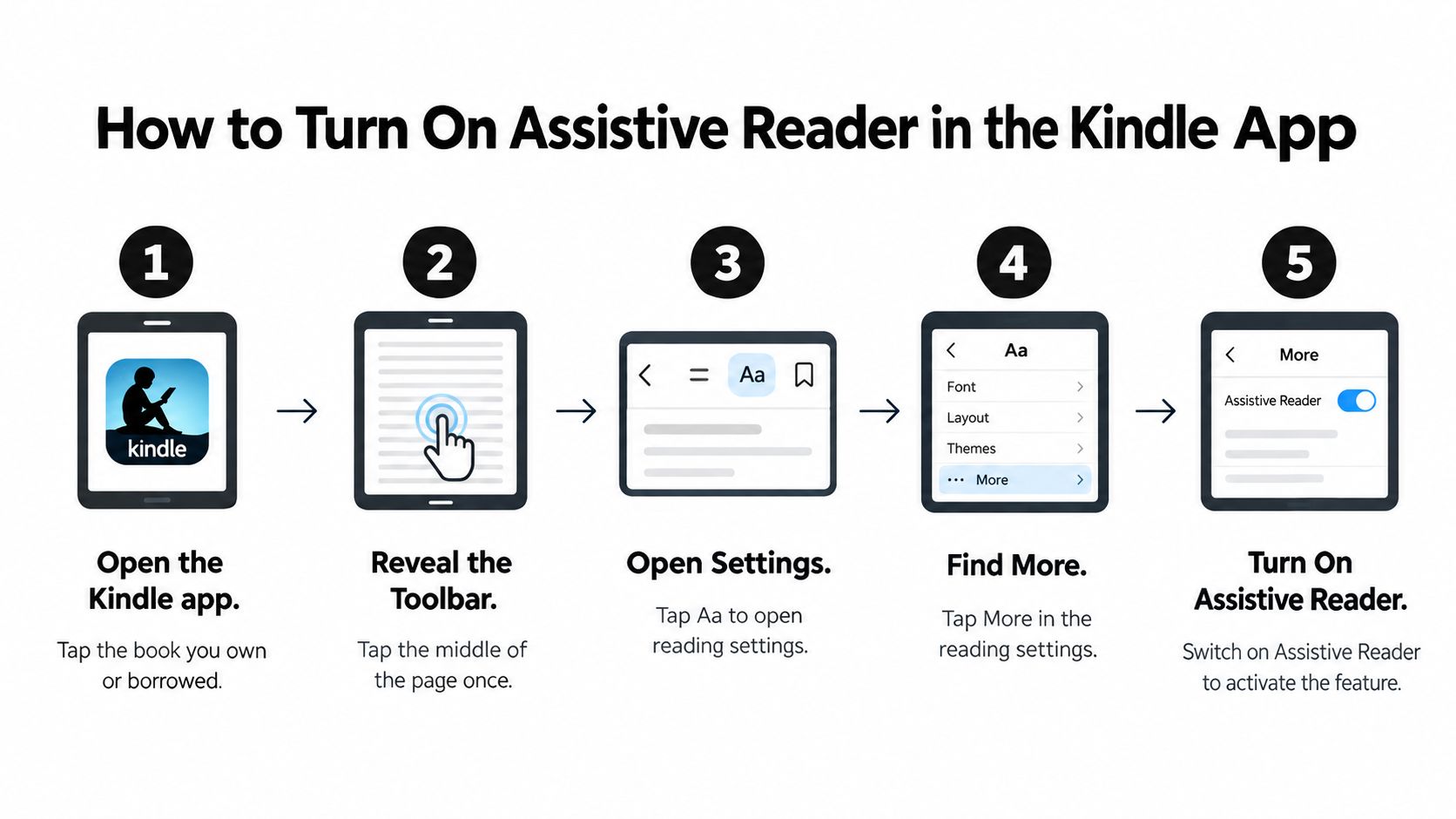
The visual below shows the route through Kindle's reading settings.

Enable the reader inside the book
- Open Kindle and select a book you own or officially borrowed. Open the reading page itself, not the store listing or library menu. The listening setting belongs to the book's reading interface.
- Tap the middle of the page once to reveal the toolbar. Tapping near an edge can turn the page instead, leaving you looking for controls that haven't appeared.
- Tap Aa to open reading settings. This is the reading-format menu, not the iPhone's Settings app. If the interface looks different, inspect the available reading controls rather than assuming the feature has moved somewhere universal.
- Select More. If that tab or the expected option isn't present, revisit the title compatibility check instead of repeatedly changing unrelated display settings.
- Enable Assistive Reader. If the switch is absent, stop this setup and use a fallback. An unsupported edition won't become compatible because you change font size or page color.
- Tap play and watch the text highlighting. Confirm that the spoken passage matches the highlighted words, rather than judging success only by whether you hear a voice.
- Adjust the speed and try rewind. Amazon documents adjustable speed and a 30-second rewind in its Assistive Reader feature guidance. Test both while you can still look at the screen.
Validate the session before putting the phone away
Listen across the opening pages, including a page transition. Check whether the voice suits the language and whether names, abbreviations, or punctuation make the passage hard to follow.
A supported language matters more than just matching the iPhone's interface language to the book. If speech sounds wrong or fails, investigate language support rather than trying to compensate by slowing playback alone.
Don't make your first real test after you've put the phone in a pocket and started your commute.
Lock the phone and then connect the Bluetooth headphones you plan to use. Check whether playback remains usable in that configuration; don't assume background behavior from a successful on-screen test.
A working session should keep the spoken passage and highlighting aligned, respond to speed adjustments, and continue sensibly through page changes. If any of those checks fail, resolve the specific problem before relying on hands-free listening.
Use VoiceOver and Speak Screen Hands-Free
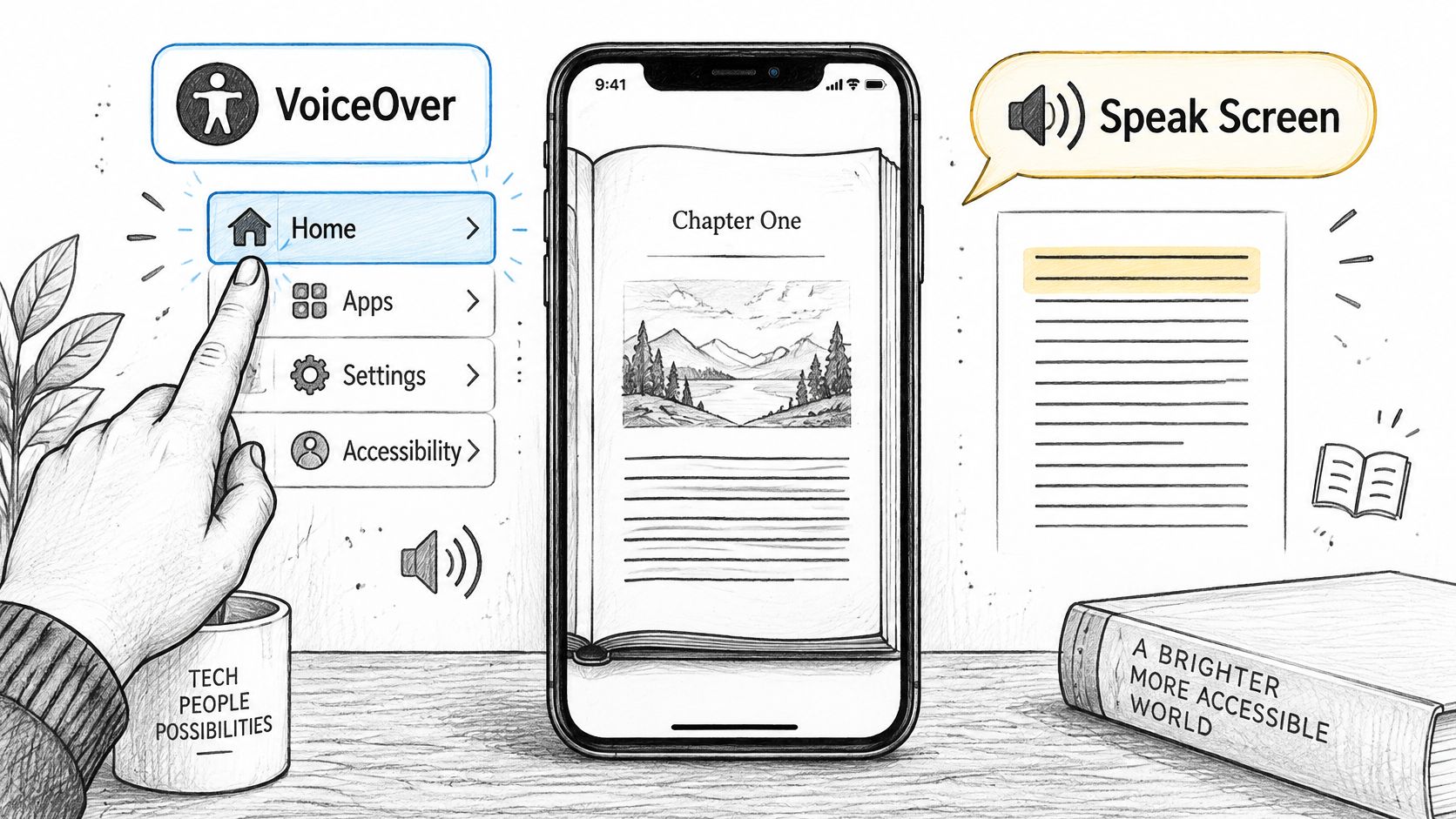
VoiceOver and Speak Screen are accessibility tools, not dedicated Kindle audiobook players. VoiceOver can announce buttons, menus, and navigation elements as well as book text. Speak Screen focuses on readable content displayed on the current screen.
Amazon confirms VoiceOver support in its Kindle iOS accessibility guidance, although book availability remains title-dependent. These tools are useful when Assistive Reader is absent, but they still need a real-text test.
The interaction matters as much as the voice when you're choosing an accessibility route.

Set up VoiceOver for eyes-free navigation
- Open Settings > Accessibility > VoiceOver and turn it on. Be prepared for touch interaction to change immediately.
- Optionally configure Accessibility Shortcut so a triple-click of the side button, or Home button on applicable models, toggles VoiceOver. Establishing an easy exit is useful before learning unfamiliar gestures.
- Open Kindle and the target book. Confirm that VoiceOver speaks the passage, not just the book title or toolbar.
- Move through several pages and listen for reading order. A readable opening paragraph doesn't establish that every element on the next page will behave well.
- Practice the rotor. Rotate two fingers on the screen as though turning a dial, then swipe up or down to use the selected navigation setting.
- Turn VoiceOver off after reading if you don't need it for general phone use. Otherwise, ordinary taps may continue behaving differently than you expect.
VoiceOver is the stronger choice when you need to move around the whole phone without looking. Its broader scope is also why casual listeners sometimes find it cumbersome.
Use Speak Screen for the displayed page
Open Settings > Accessibility > Spoken Content > Speak Screen and enable it. If your iPhone uses a different accessibility label, look for the spoken-reading settings rather than changing Kindle's font controls.
- Start reading: Open a Kindle page and swipe down from the top of the screen with two fingers.
- Check the result: Listen for the passage you intended, including whether the reading order is sensible.
- Manage page changes: Expect page-focused reading and be ready to turn pages manually rather than treating it as a continuous audiobook.
Run the same headphone and lock-screen checks described above. Neither tool can guarantee that inaccessible text or a complicated page will become cleanly readable just because it's visible.
How to Switch Between Kindle Text and Audible Narration
This route uses a professionally narrated audiobook, so a matching audio edition must exist. Owning the Kindle ebook alone isn't enough.
Amazon calls the synchronized experience Read & Listen, formerly Whispersync for Voice. Its Read & Listen explanation distinguishes paired ebook-and-audiobook playback from text-to-speech.
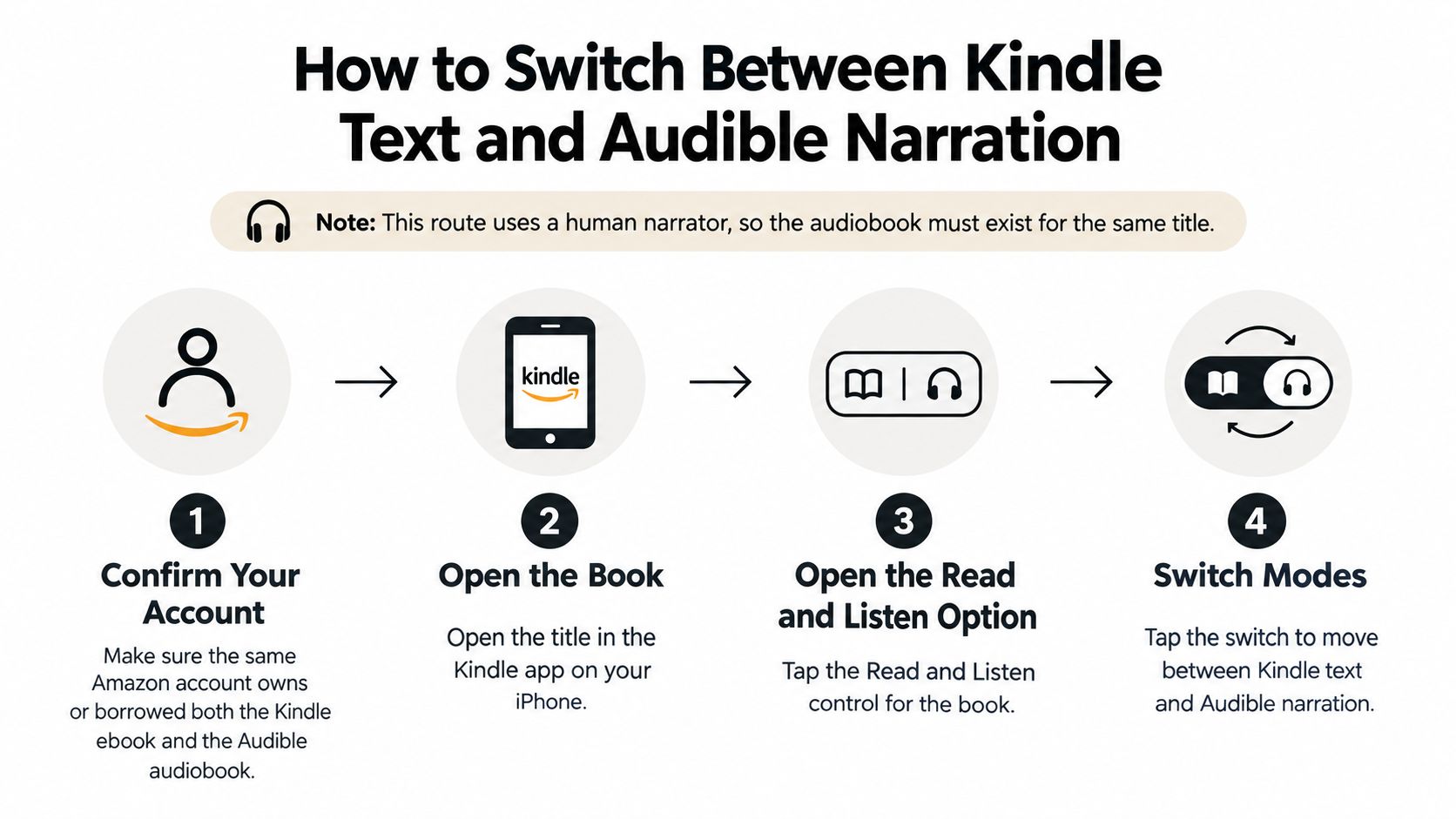
The illustration shows the pairing concept. Available in-book controls depend on the title, so the separate-app workflow below is useful when no obvious switch appears.

Pair the editions and verify your place
- Confirm both formats are in the same account. Your Kindle library needs the ebook, and your Audible library needs its matching, sync-compatible audiobook. A similar title, different edition, or separate Amazon account can prevent the expected connection.
- Install the free Audible app for iPhone and sign in. Check that the audiobook is in your library before attempting to switch from Kindle.
- Read in Kindle and pause at an identifiable passage. The end of a paragraph works well because you can recognize the surrounding words when audio begins.
- Open Audible and play the matching audiobook. Confirm that it resumes near the same passage rather than assuming the presence of both formats proves synchronization is working.
- Return to Kindle and verify the reverse handoff. If positions diverge, open Audible's Profile > Settings > Player, then toggle Sync device position off and back on. This is the troubleshooting sequence in Audible's position-sync guidance.
Know what the extra format buys you
A professional narrator usually provides more consistent pronunciation and performance than a general-purpose screen reader. That matters when character voices, phrasing, or an author's delivery contribute to the experience.
Buying check: An audiobook listing establishes that audio exists. It doesn't, on its own, establish that your particular ebook and audiobook editions synchronize.
The limitation is availability, not a missing speech setting. If no compatible audiobook exists, Audible can't generate one from the Kindle text.
Before paying for another edition, confirm the pairing rather than purchasing solely because the cover and author match. If your goal is only hearing an existing ebook, a text-to-speech route may be the more appropriate choice.
Common Problems and How to Fix Them
A missing Assistive Reader option is a compatibility question first, not a reason to keep searching every Kindle menu. Return to the title check, then choose a supported fallback instead of repeating the same setup.
Symptoms, causes and fixes for Kindle listening on iPhone
| Symptom | Likely cause | Fix |
|---|---|---|
| Assistive Reader missing from Aa | Title lacks Enhanced Typesetting, or required language support is unavailable | Check another edition, or test VoiceOver or Speak Screen |
| Audible switch option missing | Matching audiobook isn't in the library, or formats use different accounts | Confirm eligibility and acquire the matching audiobook in the same account |
| Third-party app won't load books | Amazon login may have expired | Refresh the Amazon login inside the app |
| VoiceOver feels slow or reads menus | Its whole-phone navigation is interrupting the reading task | Practice rotor navigation, or turn VoiceOver off when finished |
Separate access problems from reading problems
An empty third-party library doesn't necessarily mean the book is unsupported. Our Kindle-sync workflow requires signing in to your Amazon account, and our support can show you how to refresh that login when books fail to load.
Likewise, VoiceOver announcing a toolbar isn't evidence that the ebook contains no readable text. Check where navigation focus sits before abandoning the route.
- Preview a full chapter: Before a long commute with a new book, listen long enough to encounter headings, dialogue, and unfamiliar names. A pleasant opening sentence isn't a sufficient voice-quality test.
- Refresh before reinstalling: If a third-party app stops loading books, sign out and back in before deleting the app. Test the library again after refreshing access.
If nothing works, try VoiceOver or Speak Screen first because they operate on screen content rather than requiring an Audible pairing. They're still limited by what the app exposes as readable text, so verify the actual passage instead of assuming every visible page is accessible.
Choose Your Route Before You Start Listening
Choose Assistive Reader when the option appears and you want book-focused playback. Choose VoiceOver when eyes-free phone navigation matters, or Speak Screen when you mainly need the current page spoken without adopting VoiceOver's navigation model.
Choose Audible Read & Listen when performance matters and a compatible narrated edition exists. The right choice isn't always the voice that sounds best in a short preview; it's the route that remains practical through your actual reading session.
When a third-party reader fits
For owned Kindle books without a suitable built-in route, TTS Pro's Kindle-sync app, AudioBooks Unlimited to Kindle, offers hands-free AI narration, voice choices, and adjustable speed. It reads owned Kindle books and Kindle Unlimited titles, making it an option for listening while commuting, cooking, or exercising.
The app requires iOS 16.4 or later on iPhone and iPadOS 16.4 or later on iPad. It's free to download with in-app purchases and uses the separate Amazon-login workflow noted above.
- For iPhone: Review the iPhone app page before installing.
- For Android: Use the Google Play app listing.
- For a visual walkthrough: Watch the Kindle listening setup video.
Start with a book you already own: open it in Kindle, tap Aa > More, and choose your listening route from what that edition supports.
TTS Pro offers Kindle-library syncing and AI voices for listening to books you already own, with adjustable playback speed and voice options. Visit TTS Pro to explore a Kindle listening workflow that fits your iPhone and the books you want to hear.


No Comments
Leave a comment Cancel