
Android has no single Kindle listen button, so the route depends on the book and your listening goal: Assistive Reader is the default for supported Kindle titles, while a TTS app is a fallback for owned books that fail the compatibility check. You can also use TalkBack for eyes-free navigation or Read & Listen when you have the matching Audible audiobook.
What gap do many readers miss when they search for a play button? Kindle listening on Android is really four different products, and a route that works for one title may not work for another. Check the book's requirements first, then choose the listening experience you want.
Table of Contents
- Four Ways to Hear a Kindle Book on Android
- How to Turn On Assistive Reader Step by Step
- Which Kindle Books Read Aloud and Which Do Not
- How to Use TalkBack to Hear Kindle Books
- When Read & Listen Makes Sense
- Syncing Your Kindle Library with a TTS App
- Choose Your Route Based on Your Situation
Four Ways to Hear a Kindle Book on Android
| Route | Best for | Main requirement |
|---|---|---|
| Assistive Reader | Following highlighted text while listening, including dyslexia support | Enhanced Typesetting turned on in the book |
| TalkBack | Eyes-free navigation of the whole Kindle app | TalkBack turned on in Android Accessibility settings |
| Read & Listen (Audible) | Professional human narration and switching between reading and listening | Both the Kindle ebook and matching Audible audiobook in your libraries |
| TTS app with Kindle library sync | Hands-free listening to owned Kindle books, including on the move | Signing in to your Amazon account inside the app |
Assistive Reader is Kindle's built-in text-to-speech for eligible ebooks, with highlighting that follows the spoken words. TalkBack is Android's screen reader, designed to speak app controls and support eyes-free navigation. Read & Listen plays professional narration only when you have the matching Audible audiobook for the Kindle title. A TTS app such as TTS Pro can read Kindle books in your library after you sign in to your Amazon account, using AI voices.
The first three routes don't require an extra app download. A TTS app adds an installation and may include in-app purchases. Start with the compatibility check before paying for an audiobook or choosing another tool.
How to Turn On Assistive Reader Step by Step
Assistive Reader reads supported Kindle text aloud using your Android device's text-to-speech engine. The words highlight as the voice reads, and the book advances while playback continues. It's included in the free Kindle app, so you don't need to buy an audiobook to try it.
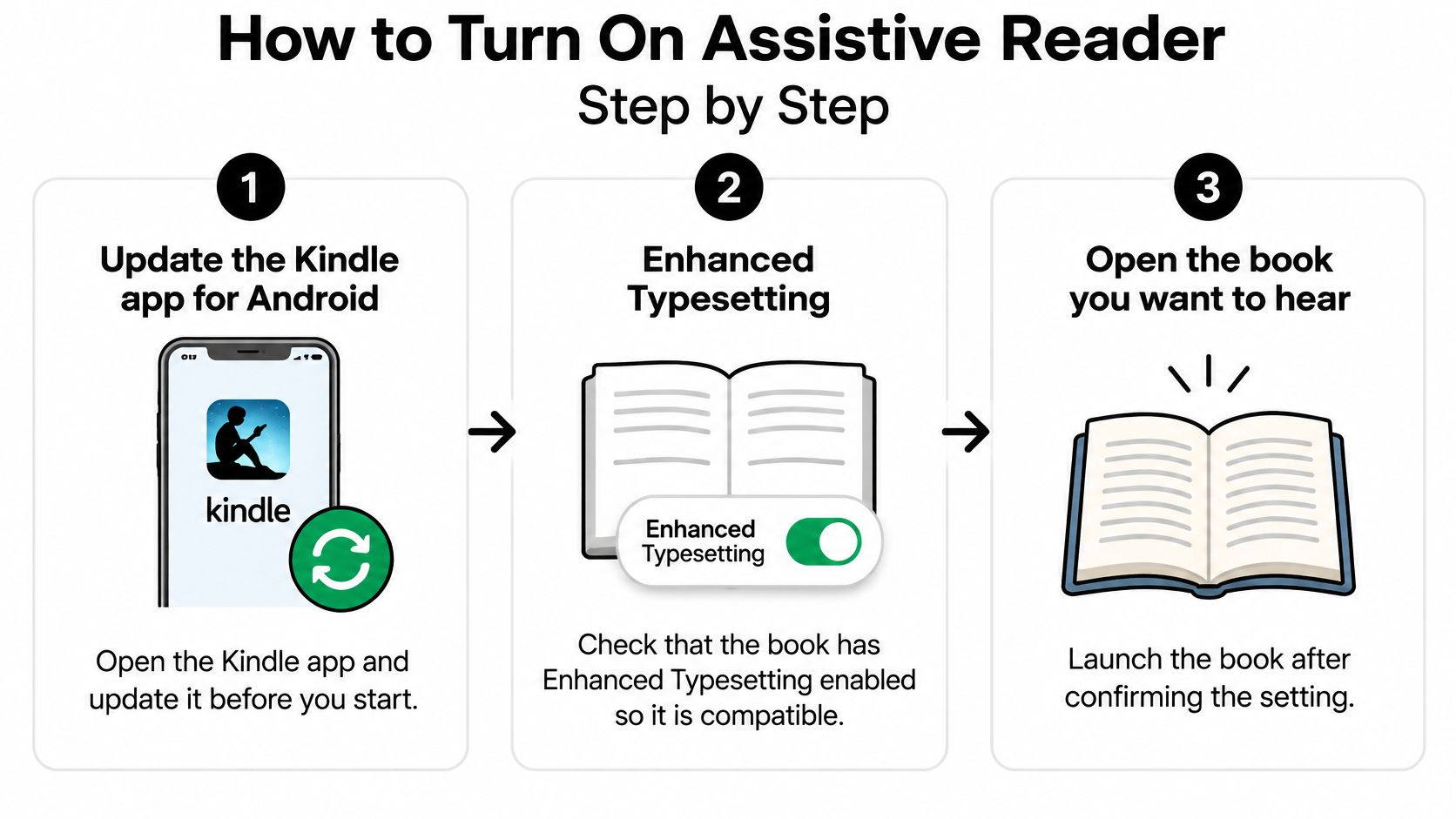

Update the Kindle app and open your book. Install any available update, then open the title you want to hear. Updating is a sensible first check, but it doesn't make an unsupported book compatible.
Check Enhanced Typesetting. This is the requirement that most often determines whether Assistive Reader appears. Amazon says the feature works with eligible books that have Enhanced Typesetting enabled, including qualifying Kindle Store purchases, borrowed titles, books from official Kindle partner sources, and books shared through a Family Library. The setting is more decisive than the app update: if the book doesn't support Enhanced Typesetting, updating won't add the option.
Open the reading controls and find Assistive Reader. Tap the book to reveal its controls, then look in the reading settings for Assistive Reader. If the option is available, turn it on and start playback from your current position, so you don't have to listen through pages you've already read.
Use playback controls as you read. Pause or resume the audio, adjust the speed, and rewind by 30 seconds if you miss a passage. The text highlight should track the voice, and pages should move forward during playback.
Resume after navigating or annotating. Playback pauses when you open a navigation menu or create an annotation. That pause lets you interact with the book without losing track of the passage; start playback again when you're ready.
Amazon's Assistive Reader help page notes that availability also depends on whether your Android device's text-to-speech engine supports the book's language. So if the option is missing, check both the book's Enhanced Typesetting support and the phone's voice-language support.
Which Kindle Books Read Aloud and Which Do Not
The most common reason Assistive Reader won't start is that the title doesn't meet its Enhanced Typesetting requirement. Read & Listen has a separate requirement: the matching audiobook must also be available in your library.
| Book situation | Assistive Reader | Read & Listen | What to check |
|---|---|---|---|
| Kindle Store purchase with Enhanced Typesetting on | Works | Works only if the Audible version is also owned | Confirm the feature in the book's settings |
| Kindle Store purchase with Enhanced Typesetting off | Not available | Works only if the Audible version is also owned | Look for another edition of the title |
| Borrowed through Kindle+ or Prime Reading | Works if typesetting is on | Works only if the audiobook is also borrowed | Confirm the borrowed title shows the feature |
| Shared through a Family Library | Works if eligible | Requires the audiobook to be shared too | Confirm the book is in the shared library |
| Language not supported by the phone's voice engine | Not available | Requires narration in a supported language | Check the phone's text-to-speech language setting |
Before troubleshooting the book, check the phone's speech settings. Open Settings, find the text-to-speech output section, and confirm the selected engine and language match the book's language. Android menu names can differ by device, so use Settings search for “text-to-speech” if the option isn't immediately visible.
Fix a missing Assistive Reader option
Work through these checks in order:
Confirm Enhanced Typesetting for that edition. Check the Kindle book's details or reading settings. If the option is off or unavailable, the title may not support Assistive Reader.
Look for another edition. A different Kindle edition of the same title may have the required formatting. Check the book listing before buying another copy.
Check the phone's voice language. Choose a text-to-speech voice that supports the book's language. A mismatch can prevent playback even when the book itself is eligible.
Update the Kindle app. An update is worth checking, especially if you've ruled out book and language compatibility.
If none of those checks works, don't keep trying to force Assistive Reader onto that title. Use a TTS app that can access the book or get the corresponding narrated audiobook if one is available.
How to Use TalkBack to Hear Kindle Books
TalkBack is the right choice when you need speech for the whole Kindle app, not just a book's reading mode. It gives spoken feedback for navigation and can read book content, though the experience depends on the book's structure and accessibility support.
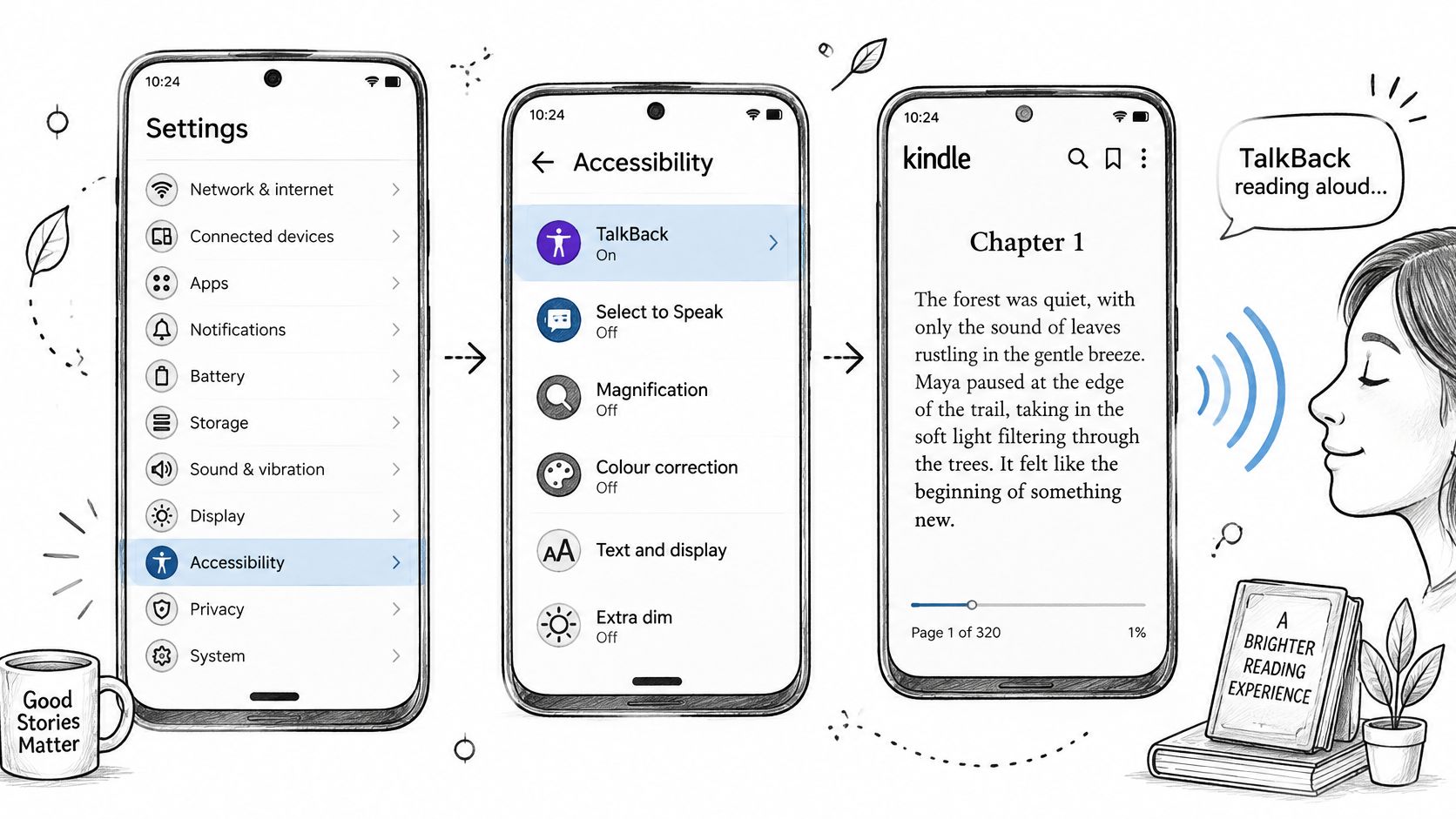

Turn on TalkBack. Open Android Settings > Accessibility > TalkBack and enable it. Spoken feedback starts immediately, and the change affects how you interact with the phone.
Open Kindle and focus on the text. Go into the book and move the TalkBack focus to the place you want it to begin reading.
Open the TalkBack menu. Swipe down and then right to bring up the menu. Choose Read from focused item to start continuous reading; TalkBack can move through content as pages turn.
Stop or pause when needed. Use the TalkBack menu and its controls to manage reading. If you're new to TalkBack, practise navigation on the Kindle library screen before opening a book, since its gestures change how the whole phone responds.
Amazon's Kindle accessibility instructions for TalkBack describe the continuous-reading command and note that the reading experience can vary with book structure and accessibility support.
TalkBack is useful if you need to move through the library, menus, and controls without looking at the screen, or if you already use Android accessibility gestures. It isn't the same as Assistive Reader: TalkBack speaks interface elements and accessible content through the system screen reader, while Assistive Reader has dedicated in-book playback controls, including speed adjustment and a 30-second rewind.
Turn TalkBack off again through Settings > Accessibility > TalkBack when you no longer need it. Leaving it on changes navigation across other apps as well as Kindle.
When Read & Listen Makes Sense
Ownership rule: You need both the compatible Kindle ebook and its matching audiobook, owned or borrowed, for the title-specific Read & Listen feature to work.
Read & Listen is the choice for professional narration, not a way to turn an ebook into audio at no extra step. An ebook by itself doesn't include its narrated version, and the audiobook must be one that supports Read & Listen. When the versions are compatible, you can switch between reading and listening while your position syncs across supported devices.
Use a simple buy-or-skip test before paying. Check the title's listing for Read & Listen compatibility, then confirm that the matching audiobook is in your library. If you already own it, try switching between the Kindle and Audible apps to see whether your position follows.
Amazon's Read & Listen guidance explains that the feature works with compatible ebook and audiobook versions and synchronizes the reading and listening position across supported devices.
This pairing makes sense if you want a human narrator, often alternate between reading and listening, or already have the audiobook. It's not the best fit if you only want your phone to speak the ebook, you have only the Kindle edition, or the title has no matching audiobook. In those cases, try Assistive Reader if the book qualifies, or use a TTS app for a supported Kindle title.
Syncing Your Kindle Library with a TTS App
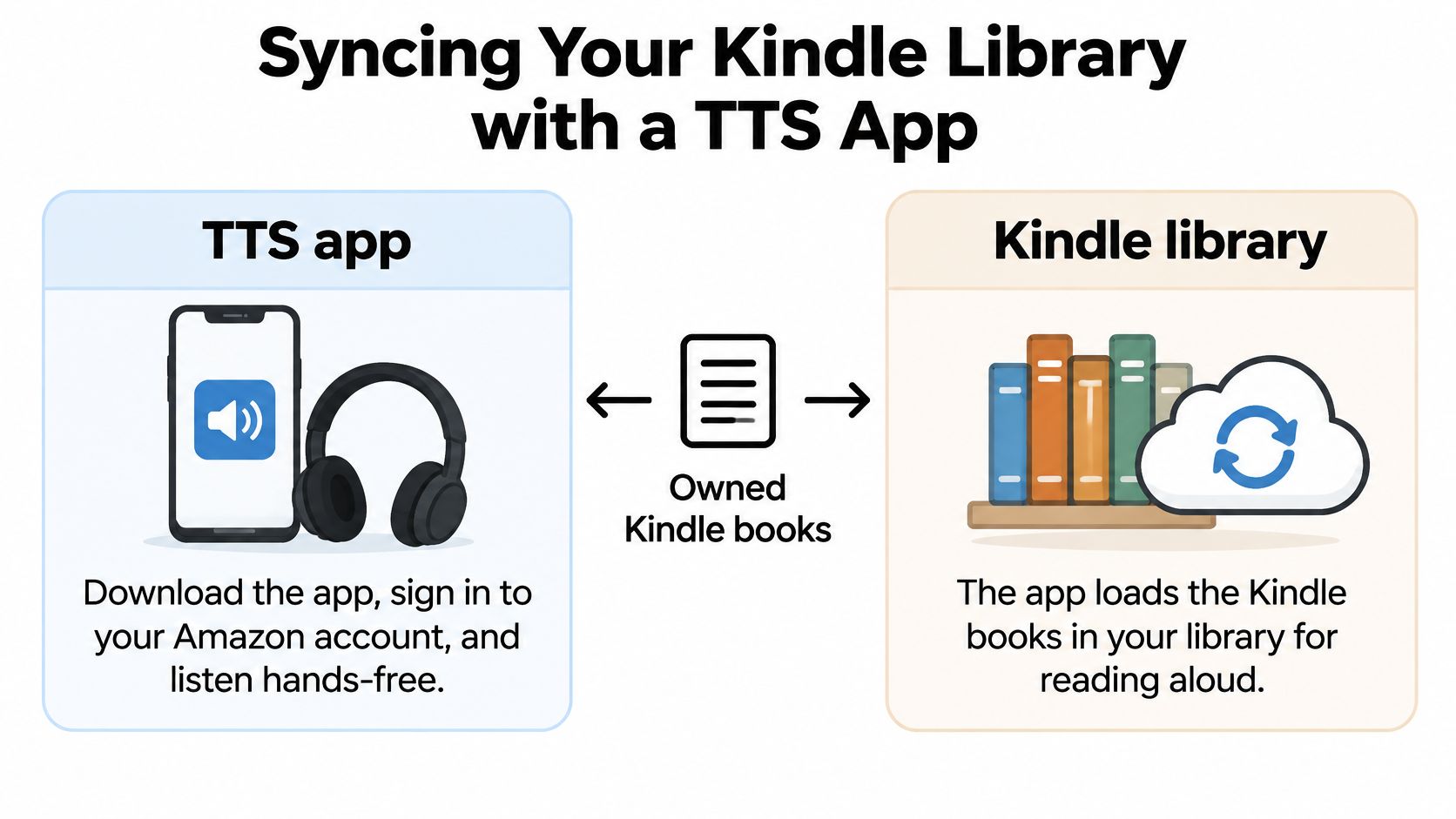
A Kindle library-sync app is a different route from Android's built-in reader. With TTS Pro, you download the app, sign in to your Amazon account, and load Kindle books in your library for hands-free listening. The app uses AI-generated voices, not professional human narration.
If books don't load after you sign in, refresh the Amazon login and try again. TTS Pro offers several AI voice choices and adjustable listening speed; reading progress syncs between the Kindle app and TTS Pro. Some in-app purchases may be shared with a family group when Family Sharing is enabled, and the app isn't affiliated with or endorsed by Amazon.

Kindle's accessibility overview describes Assistive Reader as text-to-speech with synchronized highlighting, intended to support readers including people with dyslexia or other disabilities. That built-in reading experience is useful when following words on screen matters; a library-sync app is aimed at listening to owned Kindle books hands-free.
| Criterion | Assistive Reader | TTS Pro |
|---|---|---|
| Cost | Included with the free Kindle app | Free to download, with in-app purchases |
| Voice | The phone's text-to-speech voice | Several AI voices, not human narrators |
| Speed control | Set inside the book | Adjustable listening speed |
| Library coverage | Books with Enhanced Typesetting | Kindle books you own |
| Sign-in | Your Kindle account only | Amazon account login, refreshed if books fail to load |
| Reading progress | Synced with your Kindle reading position | Synced between the Kindle app and TTS Pro |
The trade-off is straightforward. Assistive Reader is a strong first try when you want synchronized highlighting and prefer not to add another app or account sign-in. It won't cover every title, though, and the spoken voice comes from the phone's text-to-speech engine.
TTS Pro is a practical alternative when you want hands-free playback from your owned library, especially while commuting, cooking, or exercising. It adds an app and an Amazon login, and its voices are AI rather than a narrator performing the audiobook. To compare the Android setup with the app's listing, see TTS Pro on Google Play and its App Store listing.
Choose Your Route Based on Your Situation
If you have dyslexia or want to follow each word as it's spoken, start with Assistive Reader on a compatible title. Its synchronized highlighting can keep your place visually; first confirm that Enhanced Typesetting is enabled and that the phone supports the book's language.
If you need eyes-free control of the library, menus, and book content, choose TalkBack. It changes how you move through Android, so use it when system-wide screen-reader access is what you need, rather than as a like-for-like substitute for Assistive Reader.
If you want a professional narrator and already own or borrow the matching audiobook, use Read & Listen. Amazon's Audible Whispersync guidance describes switching between text and narration while keeping the listening position synchronized on supported apps.
If you own many Kindle books and want to listen while commuting, cooking, or exercising, try a TTS app that syncs your library. Before choosing, confirm Enhanced Typesetting, check the phone's supported voice language, verify whether you have the matching audiobook, and test Assistive Reader on one book before paying for anything. TTS Pro is free to download with in-app purchases and isn't affiliated with Amazon.
For a first look at library syncing, visit the TTS Pro listing on Google Play or watch this Kindle listening walkthrough video, then run the compatibility check on your first title.
TTS Pro can sync your Kindle library for hands-free listening with AI voices, and reading progress syncs between TTS Pro and the Kindle app. If that fits how you want to listen on Android, visit TTS Pro to get started.


No Comments
Leave a comment Cancel