
You're halfway through a Kindle chapter when you need to leave, cook dinner, or give your eyes a break. You want your iPhone to keep reading, but there's no obvious play button, and switching on an accessibility setting doesn't always produce uninterrupted audio.
Kindle text-to-speech on iPhone works, but speaking a page and playing a book are different jobs. The useful question is which route reads your titles, keeps your place, and needs the least intervention.
Table of Contents
- Which iPhone Method Reads Kindle Books Aloud
- How to Turn On Speak Screen for Kindle Pages
- Using Kindle's Own Read-Aloud and VoiceOver Modes
- Fixing Kindle Read-Aloud Problems on iPhone
- Dedicated Audiobook Apps Versus Built-In Tools
- Which Setup Fits Your Reading Situation
- Test One Book Before Choosing Your Setup
Which iPhone Method Reads Kindle Books Aloud
An iPhone can read Kindle books aloud through Speak Selection, Speak Screen, VoiceOver, Kindle's Assistive Reader, or a dedicated app. They reach text differently, and only some are designed around extended listening rather than operating the screen.
Ways to hear Kindle text on iPhone
| Method | What It Reads | Hands-Free Playback | Highlighting | Best For |
|---|---|---|---|---|
| Speak Selection | Only text you select | Manual, one passage at a time | Word or sentence highlighting | Studying excerpts |
| Speak Screen | Whole visible page | Page by page after a two-finger swipe from the top | Optional, set in Spoken Content | Hands-free reading of Kindle chapters |
| VoiceOver in the Kindle app | Page content plus interface controls | Gesture-driven, often line by line | Not the main feature | Blind and low-vision readers |
| Kindle Assistive Reader | Titles that support it in the Kindle app | Inside the app, title-dependent | Synchronized highlighting | Readers who want to stay in Kindle |
| AudioBooks Unlimited to Kindle | Owned Kindle books, as advertised | App playback with AI voices | Confirm in the app before relying on visual tracking | Turning full books into audio |
Read each row from the text it can reach to the hands-free column. Selecting a paragraph is sufficient for reviewing a difficult argument, but it isn't a practical replacement for chapter playback during a workout.
The constraint behind every built-in and in-app route is accessible text. The app must expose readable words, not merely display a page that looks readable to you. A silent page can signal a page-structure problem rather than a broken phone, particularly when another book reads normally.
Choose for the task, not the voice
Start with Speak Selection for excerpts and Speak Screen for a chapter you can monitor. Try Assistive Reader when your title supports it and you want to remain inside Kindle.
VoiceOver belongs first in an accessibility workflow, where navigating the library and operating controls matter alongside narration. A dedicated app is worth testing when full-book playback matters most, but its advertised library coverage still needs checking against your actual books.
Practical rule: Don't choose a listening route because it speaks the opening paragraph. Choose it because it survives a page turn, an interruption, and a return to the book.
How to Turn On Speak Screen for Kindle Pages
Speak Screen is the easiest system-level starting point if you don't need VoiceOver's navigation features. Keep the Kindle page visible during setup so you can separate a speech-setting problem from a book-specific problem.
Use this setup overview before testing the chapter.
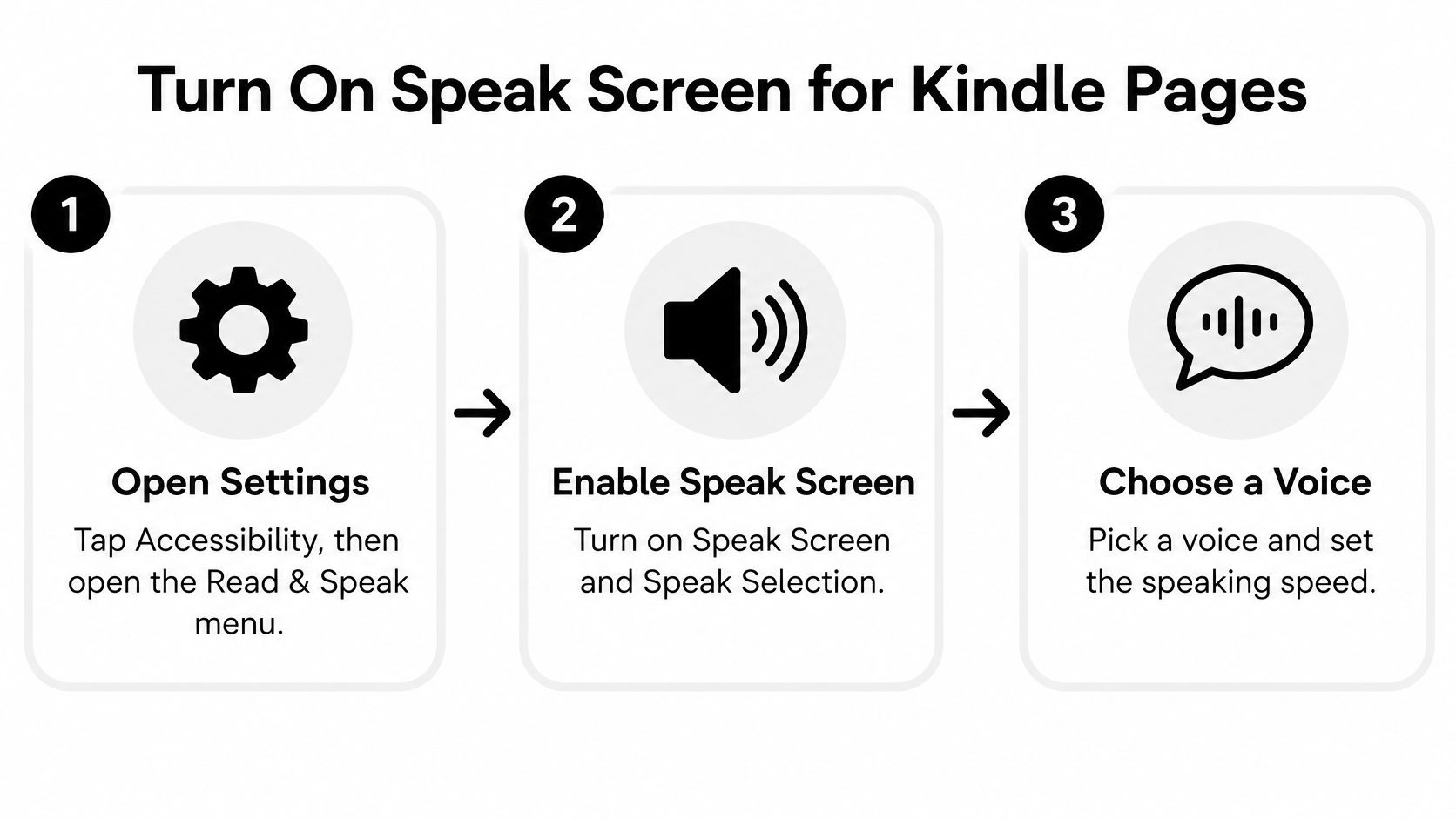

Enable speech and make the controls usable
Open Settings, then Accessibility, then Read & Speak. Some iOS versions use the name Spoken Content instead. This is the system speech menu, so you don't need to hunt for a universal Kindle playback switch.
Turn on Speak Screen and Speak Selection. Speak Screen handles the visible page, while Speak Selection gives you a more controlled way to hear an excerpt. Enabling both gives you a fallback when a whole page reads poorly but its paragraphs remain selectable.
Choose a voice and adjust the speaking rate. The VoiceFinch Kindle text-to-speech guide reports Apple's support for more than 80 voices and over 60 languages and locales, so don't assume the default voice is the best match. Enable Speech Controller to keep pause, rate, and forward or backward controls available on screen.
Turn on word or sentence highlighting if you'll follow visually. Word highlighting helps you locate the spoken term; sentence highlighting gives more context around it. Pick the option that makes tracking easier rather than covering the page with distracting movement.
Start with a clean Kindle page
Open a chapter and swipe down from the top with two fingers. Dismiss Kindle's menus first so the reading surface is visible. Speak Screen follows the screen's accessible content, so an open toolbar can introduce controls you didn't intend to hear.
Listen for narration moving into the next line and paragraph. Watch what happens at the bottom of the page, too. Continued listening requires the reading surface to advance; a successful start doesn't establish automatic chapter progression.
Use pause and skip to check recovery. Move backward to replay a sentence, then forward again without dragging through the book. These controls are useful only if you can recover your position without repeatedly reopening the chapter.
Keep the rate comfortable during this first run. Dense nonfiction needs enough space between clauses for you to distinguish a heading, a sentence, and a parenthetical note.
A working hands-free setup sounds like uninterrupted narration from page to page, without interface labels inserted between sentences. If it reads the current screen correctly but stops at the bottom, speech is working; continuous book playback hasn't passed the test yet.
Using Kindle's Own Read-Aloud and VoiceOver Modes
Kindle's VoiceOver support is an accessibility route, not simply an audiobook player hidden in the app. Amazon's Kindle accessibility help documents continuous reading, page navigation, and gesture controls, but you must enable the system screen reader to use that workflow.
VoiceOver also speaks controls and interface labels. That's essential when you need to operate Kindle without seeing the screen, but it can interrupt a sighted reader who only wants narration while cooking.
Assistive Reader keeps audio connected to the page
Amazon's accessibility overview describes Assistive Reader as text-to-speech audio with synchronized highlighting in Kindle apps for iOS and Android, Fire tablets, and current-generation Kindle devices. Following the highlighted passage makes it easier to return to a technical term or switch between listening and visual reading.
The connection between speech and text is the important distinction.
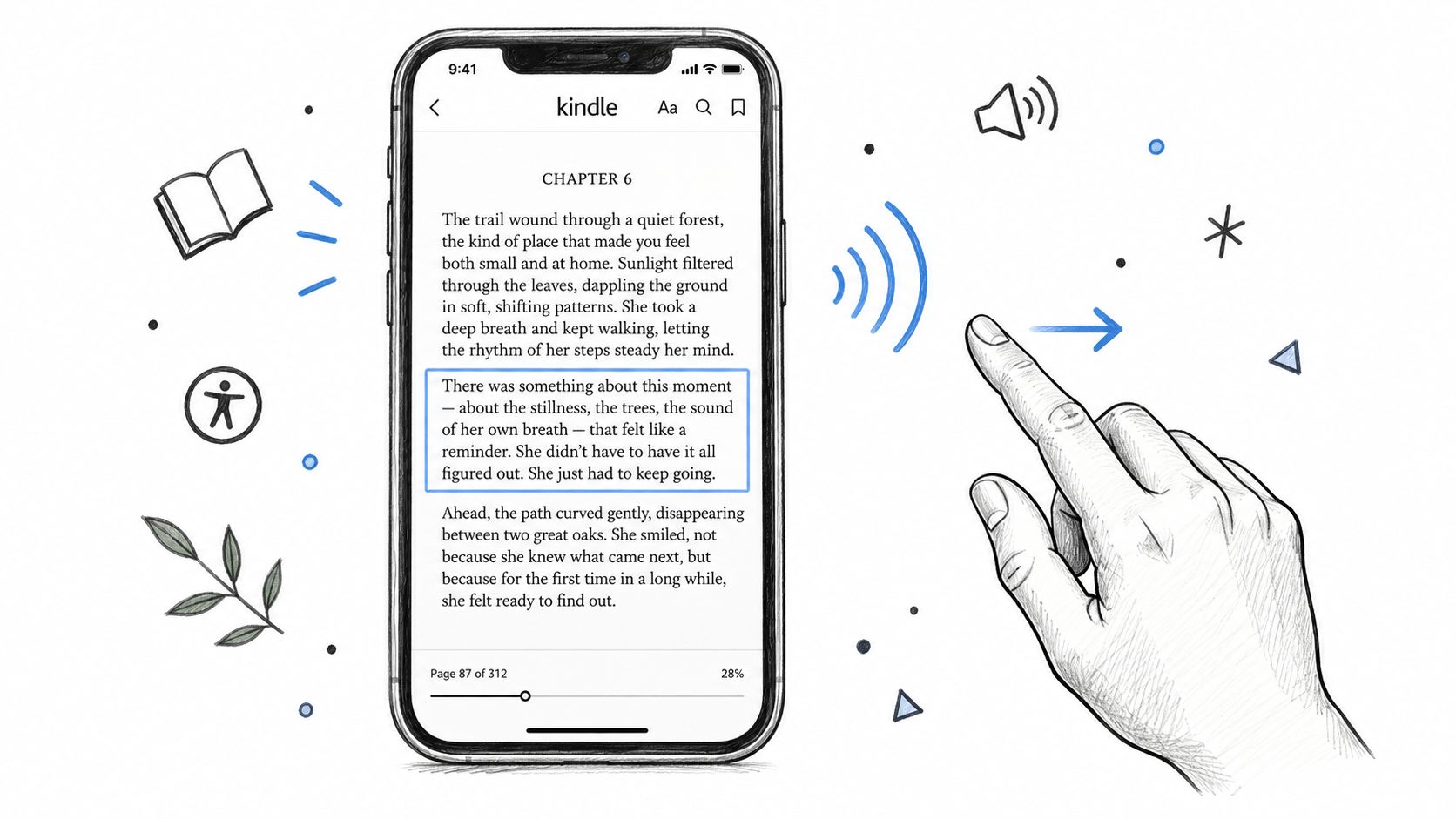

Open the book, reveal Kindle's reading controls, and look in its reading settings for Assistive Reader. Publisher-controlled restrictions can affect availability, so finding it in one purchase doesn't establish support across your library.
Test checklist for Kindle read-aloud by book type
| Book Type | What to Check | Good Result |
|---|---|---|
| Reflowable fiction | Audio starts and continues across page turns | Playback resumes at the last position after closing the app |
| Nonfiction with footnotes | How footnotes and notes are read | Narration stays in reading order without repeating notes |
| Fixed-layout or image-heavy title | Whether any text is exposed for speech | Clear result: audio works, or the title reports no read-aloud support |
| Technical or table-heavy title | Whether tables and lists read in order | Structure is announced without losing your place |
Reduce gesture friction before a long session
With VoiceOver, speech can stop after a line when you're navigating individual items rather than continuously reading. An unfamiliar swipe can also move focus or change pages when you meant to resume.
Lower the speaking rate, learn the gestures for continuous reading, pause, and navigation, and keep the screen on during the first trial. Apple's generic Spoken Content remains a fallback when the title offers no in-app audio. Use the final book test to establish which route completes your reading material.
Fixing Kindle Read-Aloud Problems on iPhone
When Speak Screen is silent on a Kindle page, first check whether that page exposes text. Try selecting a sentence, then open an ordinary prose page in another book. If the other book speaks, don't keep changing system voices to solve a document problem.
A scanned or image-only page may contain no selectable words. Speak Selection can help only when there's a real text layer; it can't turn a picture of a paragraph into accessible prose by itself.
Match the fix to the symptom
Kindle read-aloud symptoms, causes and fixes
| Symptom | Likely Cause | Fix |
|---|---|---|
| Speak Screen is silent on a page | The page has no exposed text, such as a scanned or image-only page | Try Speak Selection if text is selectable, or try Kindle's Assistive Reader |
| Narration stops after one page | Speak Screen reads only the visible screen | Re-trigger with a two-finger swipe down from the top and check that the page changes |
| Playback pauses when the screen locks | The current app or speech route limits background playback | Check for an app background-audio setting; test a dedicated audiobook app if locking is essential |
| Highlighting drifts after page turns | Synchronization has been lost on that title | Reopen the book; persistent drift means the title and route haven't passed the synchronization test |
| No audio option for a title | Publisher feature restrictions may apply | Test a different title to distinguish book restrictions from an app-wide problem |
| Swipes navigate instead of reading | Accidental VoiceOver gestures | Learn the gestures you need and avoid unrelated navigation gestures |
| PDF or Books file reads poorly | Document structure isn't exposed to the system | Use a PDF with a usable text layer; VoiceOver quality depends on the file |
| AudioBooks Unlimited to Kindle won't open | Installation or compatibility problem | Check device requirements and update the operating system if required |
Separate quick fixes from route changes
Quick fixes include dismissing an open menu, repeating the Speak Screen gesture, reopening the book, or disabling an unused accessibility shortcut that you keep triggering. If VoiceOver is active unintentionally, turn it off before testing ordinary Speak Screen gestures.
Route changes are appropriate when playback repeatedly stops at page boundaries or fails whenever you lock the phone. Don't assume every reading app has a background-audio switch. If no such setting exists, test another route rather than searching indefinitely.
For PDFs, the Apple iPhone User Guide confirms that VoiceOver can read PDFs in Books and Files and describe structured elements such as forms, tables, and lists. That capability doesn't guarantee correct reading order in a poorly structured file.
AudioBooks Unlimited to Kindle requires iOS 16.4 or later on iPhone and iPadOS 16.4 or later on iPad. Check compatibility before treating a launch failure as a Kindle-library problem.
If a title stays silent across the built-in routes, use the final test to establish whether a dedicated app can handle that same title. Repeating setup on the same inaccessible page won't prove much.
Dedicated Audiobook Apps Versus Built-In Tools
A dedicated app earns its place when you want whole-book playback without learning screen-reader gestures. Its value isn't just a more appealing voice. It needs to reduce the work of advancing pages, recovering your position, and restarting after interruptions.
This comparison shows the intended difference in workflow. Treat locked-screen playback as something to verify on your own phone, not an automatic property of every dedicated app.
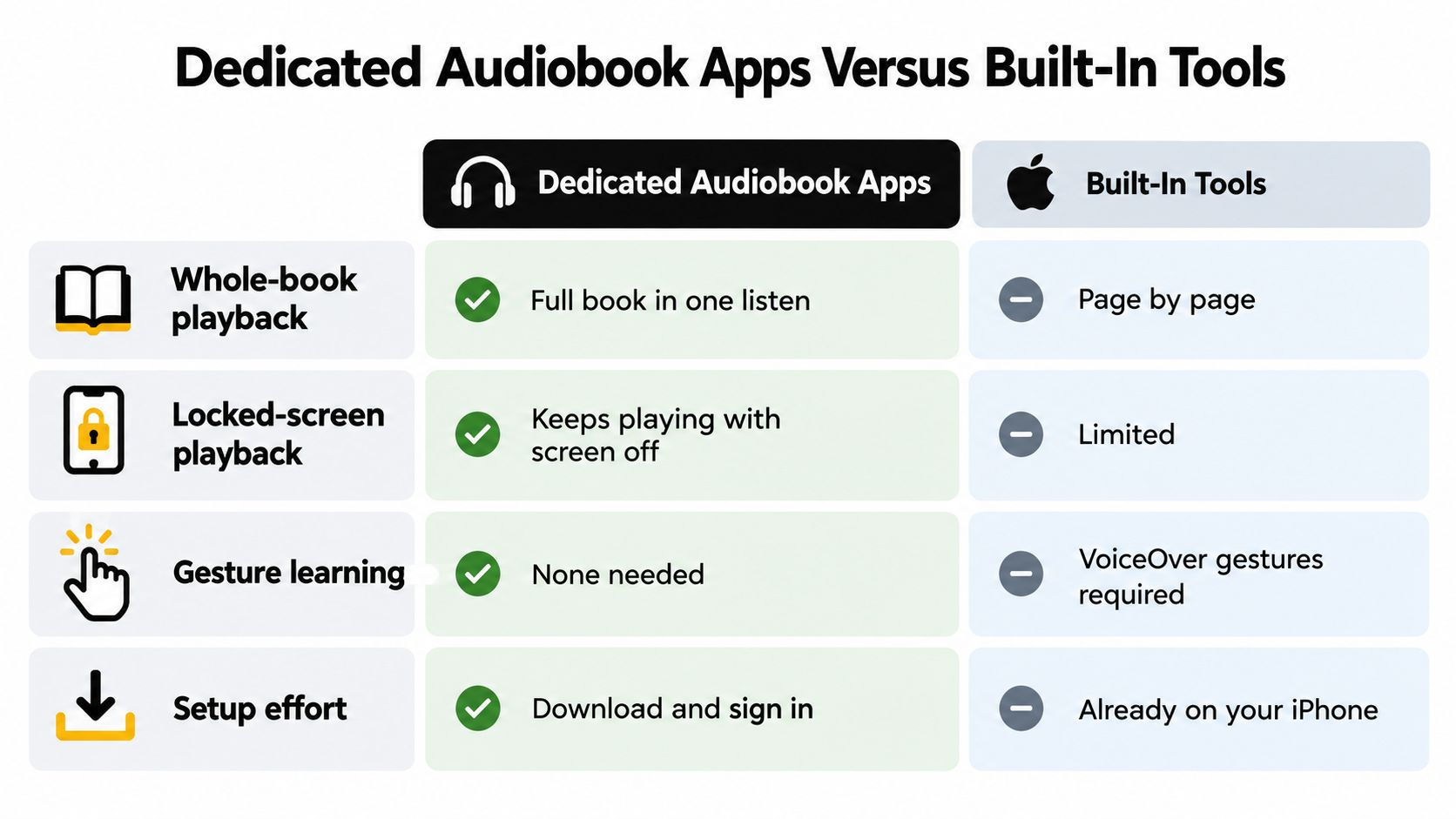

Compare playback, coverage, setup, and controls
For whole-book playback, a dedicated reader should handle the transition between screens without your intervention. Built-in tools are free and immediately available, but Speak Selection is passage-based and Speak Screen can require page handling. VoiceOver can provide continuous reading, although it comes with a different interaction model.
For title coverage, accessible text matters more than the size of your library. The Google Play listing for AudioBooks Unlimited to Kindle advertises converting Kindle books, including Kindle Unlimited titles, into narrated audio with AI-generated voices. Those are advertised claims, not independent verification that every title can be converted.
For setup effort, built-in speech avoids another installation and account workflow. Dedicated playback introduces setup, but it may save repeated intervention during later listening. The iPhone version is available through the AudioBooks Unlimited to Kindle App Store listing; Android readers can use its English Google Play page.
For voice and speed control, the app offers voice choices and adjustable listening speeds. Its voices are AI-generated rather than human narration, so audition dialogue and difficult vocabulary instead of judging only a smooth introductory paragraph. AudioBooks Unlimited to Kindle is not affiliated with or endorsed by Amazon.
Judge the controls before committing
Watch the AudioBooks Unlimited to Kindle demonstration to understand the proposed workflow. Then repeat it with a book you own, including a pause, a page transition, and a return after closing the app.
A dedicated app wins on continuous listening, while built-in tools win on control and single passages.
If your reading includes PDFs, EPUB files, and articles alongside Kindle books, weigh our TTS Reader Pro as a second option. The useful comparison is whether one workflow handles your mixed reading better than separate tools, not whether its feature list is longer.
A dedicated reader should pass the same practical test as a built-in route. If you still need to watch the screen and repair playback frequently, it hasn't delivered the hands-free advantage you installed it for.
Which Setup Fits Your Reading Situation
Commuters and workout listeners need playback they can leave alone. Try a dedicated app or Assistive Reader on a supported title, then test with the screen locked and your usual headphones connected. Don't discover during a journey that narration requires the display to stay awake.
The right choice should fit how you carry and use your phone.

Match the route to the reading task
Students reviewing notes and papers need precise boundaries. Use Speak Selection for an argument or quotation and Speak Screen for a chapter. Choose a clear rate that leaves time to process terminology, and check whether footnotes interrupt the main text.
Readers with dyslexia or screen fatigue need easier tracking, not necessarily a dark screen. Try Speak Screen with word highlighting, or Assistive Reader when synchronized highlighting helps you stay on the line. If moving highlights distract you, use sentence-level tracking or listen without following visually.
Blind and low-vision readers need navigation as well as narration. VoiceOver is the appropriate starting point for operating the library, opening a book, and moving through content. Learn unfamiliar Kindle gestures in a quiet session, and keep Spoken Content available when it suits a particular reading task.
The real question isn't whether an iPhone can speak Kindle text, but whether the route you choose keeps your place for the whole book.
Account for language and library access
Language learners need the voice to match the text. Apple's speech accessibility overview describes support for more than 60 languages and locales. Listen to names, accents, and punctuation before increasing the speed; a fluent-sounding voice in the wrong language won't help comprehension.
Kindle Unlimited readers need title-level checks. Advertised library coverage doesn't establish that a particular borrowed book will play correctly. Test the title you intend to finish, especially when its layout differs from the prose books that already work.
Test One Book Before Choosing Your Setup
Start with a ten-minute listening trial, then use brief spot checks to expose layout and navigation problems. This is a screening method, not proof that every chapter in your library will behave identically.
Keep a simple record beside the phone: route used, where speech stopped, whether page turns worked, and where playback resumed. A familiar book makes omissions and repeated passages easier to catch.
Run the same material through each candidate
Choose a familiar reflowable title and nonfiction with footnotes. Familiar prose lets you judge continuity instead of concentrating entirely on new content. The nonfiction title checks whether the reader handles interruptions in the reading order.
Run Speak Screen on the prose chapter for ten minutes. Note every manual page change and unexpected stop, then close and reopen the book to check your position.
Check the same title for Assistive Reader. Start narration if it's available and watch the highlighting through a page turn. Pause and resume rather than testing only the initial playback.
Add a fixed-layout or image-heavy book. Check whether speech starts at all, and distinguish a clear unsupported result from missing or jumbled narration.
Repeat the important checks with the nonfiction title. Choose the route that completes your material with the least intervention; if none succeeds, test a dedicated app on those same titles.
Test checklist for Kindle read-aloud by book type
| Book Type | What to Check | Good Result |
|---|---|---|
| Reflowable fiction | Audio starts and continues across page turns | Playback resumes at the last position after closing the app |
| Nonfiction with footnotes | How footnotes and notes are read | Narration stays in reading order without repeating notes |
| Fixed-layout or image-heavy title | Whether any text is exposed for speech | Clear result: audio works, or the title reports no read-aloud support |
| Technical or table-heavy title | Whether tables and lists read in order | Structure is announced without losing your place |
Keep a benchmark and a fallback
Our app can sync a Kindle library for hands-free reading with AI voices, and reading progress syncs between the Kindle app and TTS Pro. We also offer a free version, so use your benchmark title to evaluate the workflow before committing.
Choose a primary route, keep a tested book as your benchmark, and write down the fallback you'll use for unsupported material. That gives you a repeatable decision instead of another round of settings changes whenever a new book behaves differently.
TTS Pro offers Kindle-library syncing, AI-voice reading, and progress syncing with the Kindle app, alongside speech for PDFs, EPUB files, and web pages. Visit TTS Pro to try the free version with your benchmark book and check whether it delivers the hands-free listening you need.


No Comments
Leave a comment Cancel