
Turning on VoiceOver is not the best first step for everyone who wants the Kindle app to read aloud on an iPhone. It is a full screen reader that changes how you use the phone, not just a play button for books.
Start with the book instead. Check whether it supports Kindle's own narration controls, then choose between device speech, a dedicated text-to-speech app, and a separately narrated audiobook.
Table of Contents
- Three Different Things Called Read Aloud on iPhone
- Which Read-Aloud Method Fits Your Kindle Book
- How to Turn On Assistive Reader in a Kindle Book
- How to Use VoiceOver and Speak Screen on iPhone
- Common Kindle Read-Aloud Problems and How to Fix Them
- Alternatives to Kindle Read Aloud Compared
- Matching a Text-to-Speech Option to Your Situation
- Test One Book Before Choosing Your Method
Three Different Things Called Read Aloud on iPhone
A Kindle book can be read aloud on an iPhone through book-specific narration, device screen reading, or audiobook playback. Only the first operates as a text-to-speech feature built into the Kindle book's reading controls.
These routes solve different problems:
- Kindle Assistive Reader narrates eligible books inside Kindle, with synchronized highlighting and automatic page turns.
- Device speech includes VoiceOver continuous reading and Speak Screen. These tools speak text that iOS can access, rather than supplying a recorded edition.
- Audiobook playback uses a separately produced narration, such as an Audible edition. Whispersync can coordinate your reading position between compatible formats.
The distinction matters before you buy anything. Owning an ebook doesn't automatically give you its audiobook, but you may not need an audiobook to hear the ebook's text. Amazon's Kindle accessibility announcement establishes that VoiceOver can provide spoken access to Kindle content through Apple's accessibility technology.
Support still needs checking book by book. Amazon describes VoiceOver support for many books and features, not every title or every element.
Practical rule: Choose the reading method for the title you actually want to hear, not for Kindle as a whole.
The useful questions are whether your book supports narration, how to enable the appropriate controls, and what to try if playback fails. The comparison below applies the same criteria to each route.
Which Read-Aloud Method Fits Your Kindle Book
Kindle read-aloud methods on iPhone compared
| Method | Where it works | How to start it | Best for |
|---|---|---|---|
| Kindle Assistive Reader | Kindle app, eligible books only | Tap screen, tap Aa, tap More, activate Assistive Reader | Eligible Kindle books with synced highlighting |
| VoiceOver continuous reading | Most iPhone apps with readable text | Turn on VoiceOver, then swipe down with two fingers | Users who already rely on VoiceOver |
| Speak Screen | Any screen with readable text | Enable Spoken Content, then swipe down from the top with two fingers | Quick reading of visible pages |
| Speak Selection | Highlighted text only | Enable Speak Selection, select text, tap Speak | Short passages and notes |
| Audible with Whispersync | Compatible titles with both an ebook and an audiobook | Buy or borrow both formats and sync position | Full narrated audiobook listening |
| AudioBooks Unlimited to Kindle | Kindle books you own and Kindle Unlimited titles | Install the app and sign in to Amazon | Kindle titles without an Audible edition |
Before changing settings, make these checks:
- Book eligibility: Does Assistive Reader appear in the book's reading controls?
- Narrated edition: Is there an Audible edition, and do you want a human performance rather than synthetic speech?
- Phone interaction: Are you comfortable changing the whole phone's gestures, or do you only want audio inside a reading session?
Choose for the listening session
Assistive Reader is the closest book-specific option. It keeps you in the familiar Kindle reading environment instead of making you manage a separate listening library.
Device-level tools are the fallback, but they aren't interchangeable. Speak Selection suits a quotation you want to review. Speak Screen is useful for a visible page. VoiceOver is appropriate when you also need accessible navigation.
For a long listening session, test more than voice quality. Check whether narration advances beyond the current page, resumes at the right passage, and behaves acceptably when you switch apps or lock the phone. Don't assume those behaviors are identical across methods.
Amazon's Kindle accessibility guidance distinguishes supported accessibility reading from the separate ebook-and-audiobook arrangement used for synchronized listening. Whispersync coordinates positions; it doesn't generate speech from an ebook.
A dedicated app introduces another trade-off: you gain listening controls and voice choices, but you also introduce a separate app and, for Kindle access, an Amazon sign-in. Review the app's permissions and privacy information before connecting your library.
How to Turn On Assistive Reader in a Kindle Book
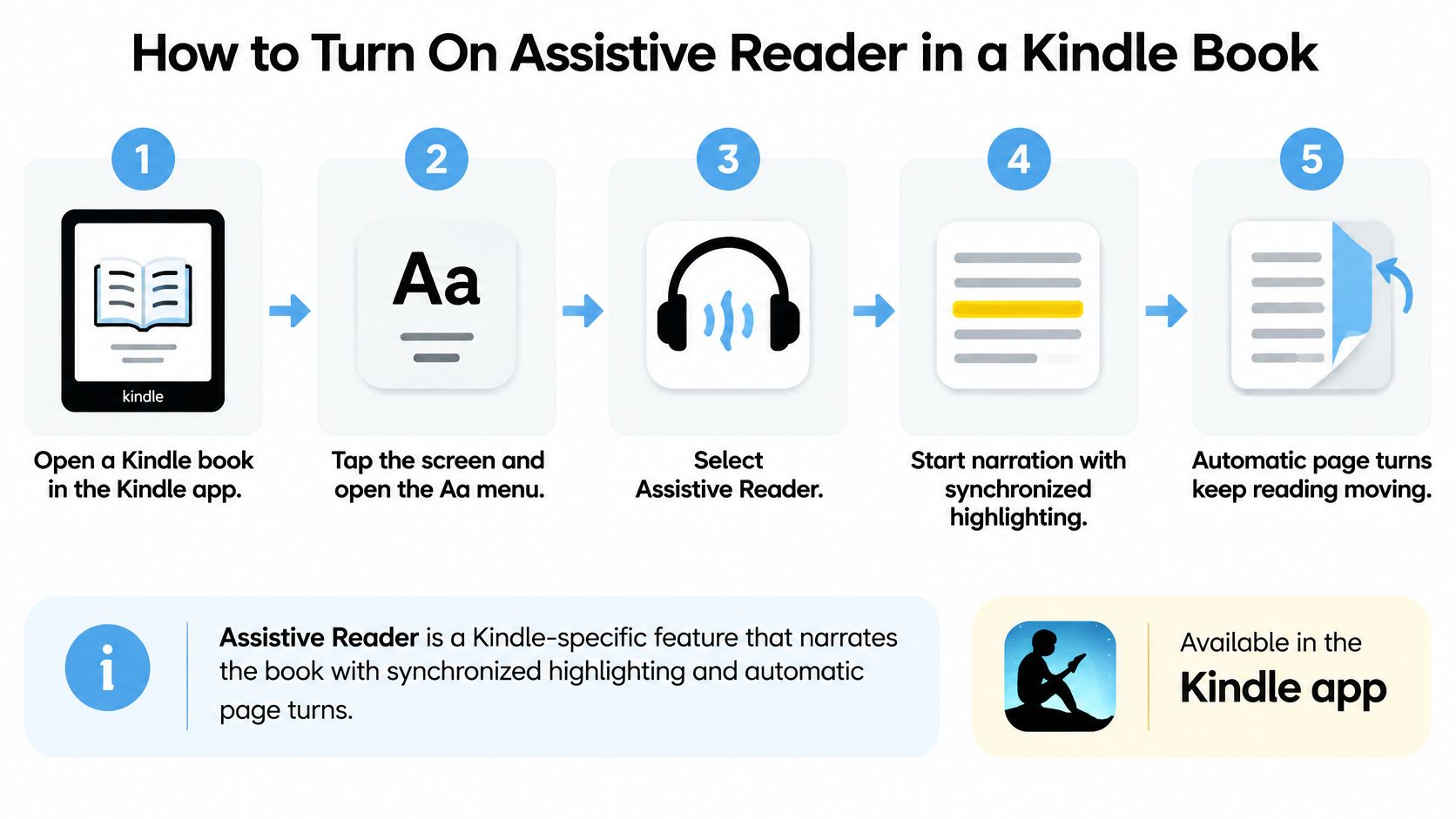
Assistive Reader is the Kindle-specific feature to try before enabling a whole-phone screen reader. It coordinates narration with the book rather than speaking whatever interface text happens to be visible.
Amazon's accessibility overview describes text-to-speech audio, real-time synchronized highlighting, and automatic page turns across its supported Kindle apps and devices, including iOS, Android, Fire tablets, and current-generation Kindle devices.
Enable it inside the book
- Open the Kindle book on your iPhone.
- Tap the center of the page to show the reading controls.
- Tap Aa.
- Tap More.
- Activate Assistive Reader and start playback.
If Assistive Reader doesn't appear, the title isn't eligible for the feature in your current setup. Try a different book to distinguish a title-specific limitation from an app-wide problem; updating Kindle is also sensible before you rule the feature out.
The setup follows this reading-control path:

Check formatting and voices
Amazon's Assistive Reader guidance identifies the Aa > More pathway and explains that book formatting and language support affect availability. Some books need Enhanced Typesetting support, while the available speech languages depend partly on voices installed on the device.
Check the book's Kindle Store product details for Enhanced Typesetting information. Treat that as a compatibility clue, not a promise that every illustration, equation, footnote, or table will sound sensible.
The iPhone generates synthetic speech rather than playing a studio recording. That distinction is especially noticeable in dialogue, abbreviations, character names, and passages that depend on visual arrangement.
A book that sounds clear during an ordinary paragraph may still become confusing at a table or a footnote. Test the difficult pages, not just the opening.
For a useful first test, start in ordinary body text and let narration reach a page boundary. Then try a passage with punctuation, a heading, and an unfamiliar name.
If you need to follow visually, watch whether highlighting stays aligned with the spoken text. For study, that alignment can matter more than whether the voice sounds expressive.
How to Use VoiceOver and Speak Screen on iPhone
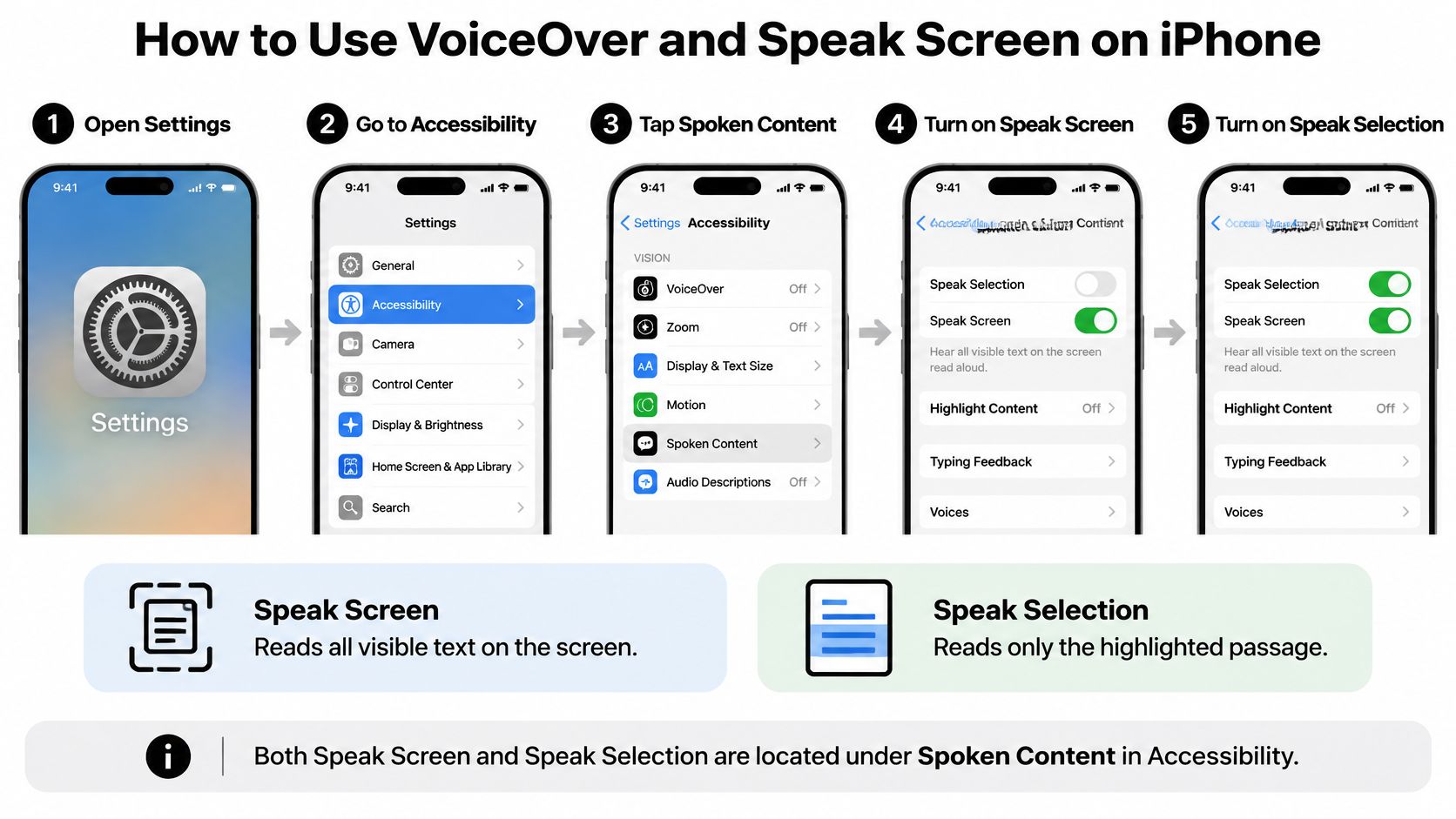
Apple separates screen speech from full screen-reader navigation. Speak Screen reads accessible text on the screen, while Speak Selection speaks a highlighted passage without requiring VoiceOver.
The Apple iPhone Spoken Content guide documents these controls, including the gesture for starting screen speech and the playback controls for pausing and adjusting the speaking rate. On newer iOS versions, look for Read & Speak if your Accessibility settings don't show Spoken Content.
Set up screen speech and continuous reading
- Open Settings > Accessibility > Spoken Content, or Read & Speak if that's the label on your iPhone.
- Turn on Speak Selection and Speak Screen.
- Open your Kindle book, then swipe down from the top of the screen with two fingers to hear accessible page text.
- Use the playback controls to pause narration and adjust the speech rate.
- For VoiceOver continuous reading, open Settings > Accessibility > VoiceOver and turn it on.
- With focus on the book text, swipe down with two fingers to start reading from the current position.
- Under Settings > Accessibility > Accessibility Shortcut, select VoiceOver so a triple-click of the side button can toggle it.
For an easier exit, configure that shortcut before you first enable VoiceOver. If several accessibility features are assigned to the shortcut, a triple-click opens a chooser rather than immediately switching VoiceOver off.
The screen-speech settings are separate from VoiceOver:

Use the right gesture for the active feature
Speak Screen starts with a swipe from the top edge. VoiceOver's continuous-reading gesture operates within its screen-reader navigation system, so first make sure focus is on the passage you want.
For Speak Selection, press and hold readable text, adjust the selection handles, and choose Speak from the selection menu. If Kindle doesn't expose that action for the passage, enabling the setting won't force the menu to appear.
The Speech Controller can make repeat Speak Screen use less fiddly. Enable it within the same speech settings if you prefer an onscreen control to repeating the edge gesture.
VoiceOver changes interaction throughout the phone: a tap selects an item, a double-tap activates it, and scrolling uses different gestures. That's valuable for readers who need full accessibility, but disruptive for casual listening. Neither VoiceOver nor Speak Screen can reliably narrate text the app doesn't expose to iOS, so protected or inaccessible pages may remain unreadable.
Common Kindle Read-Aloud Problems and How to Fix Them
A missing Assistive Reader option is the first failure to check. If it isn't in the book's Aa > More controls, don't keep changing the phone's volume or Bluetooth settings. Try another title or test Speak Screen instead.
Kindle read-aloud symptoms, causes and fixes
| Symptom | Likely cause | Fix |
|---|---|---|
| Assistive Reader missing from the Aa menu | Book isn't eligible for the feature | Try another title or use Speak Screen |
| Book fails to load in a third-party reader | Amazon login has expired | Sign out and sign back in to refresh the login |
| Voice reads in the wrong language | Required language voice isn't installed or selected | Download and select the voice in Spoken Content settings |
| Text is skipped or jumbled | Complex layout, images, or formatting | Check Enhanced Typesetting support or use a different edition |
| Playback stops at the end of a page | Continuous reading hasn't started, or the method only reads the current screen | Start continuous reading with a two-finger swipe down; use a book-aware method if it still stops |
| Phone gestures behave differently | VoiceOver is switched on | Triple-click the side button if VoiceOver is assigned to the accessibility shortcut |
| Names or terms are mispronounced | Synthetic voice interprets them incorrectly | Adjust pronunciations in the app's settings where supported |
Separate access problems from audio problems
If the play controls advance but you hear nothing, check the media volume and audio destination. The sound may be routed to headphones or a Bluetooth speaker rather than the iPhone.
If the book itself won't open in a connected reader, refresh the Amazon session. Sign out inside that app, sign back in, and reopen the same title. Reinstalling shouldn't be your first response to an expired login.
AudioBooks Unlimited to Kindle lets you adjust pronunciations in its settings. That's a practical fix for recurring names and technical jargon, rather than repeatedly changing voices and hoping one guesses correctly.
Recognize the limits settings can't remove
For missing speech languages, open Settings > Accessibility > Spoken Content > Voices, or the corresponding Read & Speak menu. Download the appropriate voice, select it, and retest a passage written in that language.
A voice download won't repair a scanned page whose words exist only as an image. Complex layouts can also produce the wrong reading order, such as a sidebar interrupting the main paragraph or table values losing their headings.
Stop troubleshooting when the text itself is inaccessible. Choose a better-formatted edition, a supported document-reading tool, or the narrated edition instead.
Synthetic speech also doesn't guarantee correct pronunciation or interpretation. Even after correcting a name, equations, source code, and densely formatted reference material may be more useful visually than as uninterrupted audio.
Alternatives to Kindle Read Aloud Compared
Text-to-speech options for Kindle books on iPhone
| Option | Cost | Voice type | Languages | Main limit |
|---|---|---|---|---|
| Built-in Speak Screen | Free | Device system voices | Installed speech languages | Reads only text iOS can access |
| Kindle Assistive Reader | Included in the Kindle app | Device speech | Supported installed voices | Eligible books only |
| Audible with Whispersync | Separate audiobook access required; price not established here | Human narration | Edition-specific; coverage not established here | Requires compatible ebook and audiobook |
| AudioBooks Unlimited to Kindle | Free download with in-app purchases | AI voices | English only | Requires iOS 16.4 or later and an Amazon login |
| TTS Pro | Pricing not confirmed | Premium AI voices | Confirm current supported list | Confirm input and language support before subscribing |
Built-in tools or a separate audiobook
Speak Screen costs nothing extra and is useful when you don't want another account. Its weakness is the reading surface: accessible visible text is a more limited starting point than a book-aware playback system.
Kindle Assistive Reader keeps reading and listening inside Amazon's reader. Choose it when the title supports the feature and the device voice is comfortable enough for the material.
Audible with Whispersync suits readers who want performance, pacing, and character interpretation from a human narrator. Confirm that the editions are compatible before buying both; a matching title alone isn't a guarantee of synchronized positions.
Dedicated text-to-speech apps
AudioBooks Unlimited to Kindle narrates owned Kindle books and Kindle Unlimited titles with AI-generated voices. It offers voice choices and adjustable listening speeds, syncs with Kindle Unlimited, and is not affiliated with or endorsed by Amazon.
Its English-only availability is an important distinction for multilingual readers. Also check your iPhone's software compatibility before installing rather than discovering the requirement after choosing the app.
TTS Pro covers inputs beyond Kindle, including PDFs, EPUB and TXT files, and web pages. Our app can sync a Kindle library for hands-free AI narration, and reading progress syncs between Kindle and our reader.
We also offer several voice choices and adjustable listening speeds. Confirm current pricing and the particular language you need before committing; a broad feature list doesn't answer whether your own document will read cleanly.
The practical trade-off is straightforward: Assistive Reader preserves the Kindle workflow, while a dedicated app can bring books, documents, and articles into one listening tool. Before connecting an Amazon account, read the dedicated app's privacy disclosures and understand what access you're granting.
Matching a Text-to-Speech Option to Your Situation
Match the reader, not just the book
Kindle owners without an Audible edition: Start with Assistive Reader. If it isn't offered, AudioBooks Unlimited to Kindle provides another route for owned books and Kindle Unlimited reading. The deciding check is whether the chosen reader can open and narrate your actual title.
Visually impaired or dyslexic readers: VoiceOver supports phone navigation as well as reading, while Assistive Reader can pair speech with highlighted book text. Choose around your access needs rather than assuming the least disruptive interface is always best. Check whether the title supports Assistive Reader and whether its controls are accessible to you.
Students reviewing mixed material: A dedicated app such as TTS Pro is more practical when your queue includes notes, PDFs, and articles rather than only ebooks. Our reader accepts those broader inputs. The deciding check is whether your particular file imports with the right reading order.
Choose the method that handles your hardest everyday document, not the one that sounds best on a short sample.
Match the listening environment
Commuters who want a human narrator: Audible with Whispersync is the better fit for moving between reading and a performed audiobook. Check that a compatible audiobook edition exists before purchasing.
Language learners: Choose a reader with the target language and a voice you can understand at a comfortable speed. Don't mistake an English-language app listing for confirmation of multilingual narration. The deciding check is the supported voice list for the language you're studying.
Readers checking a few pages: Speak Selection avoids turning a short task into a new app setup. It's especially useful for proofreading a passage or hearing a dense paragraph twice. The deciding check is whether Kindle exposes selectable, speakable text for that passage.
Test One Book Before Choosing Your Method
Use a title you already own before buying an audiobook or starting a subscription. Keep the test small enough that you can compare methods on exactly the same passage.
Run a one-book check
- Open an owned title in the Kindle app.
- Open Aa > More and check for Assistive Reader.
- If it's missing, enable Speak Screen under Spoken Content and test a page.
- Listen for skipped text, incorrect pronunciation, and the wrong voice language.
- If the book won't load in a connected app, sign out and back in to refresh the Amazon login.
- Compare the passage with a dedicated app's free download or available trial, checking any purchase terms before proceeding.
Include a page boundary and a difficult passage in the test. For documents, notes, or non-English listening, test the exact input and voice you intend to use rather than relying on a general demonstration.
Installation and demonstration resources
- iPhone installation: Open the AudioBooks Unlimited to Kindle App Store listing.
- Android installation: Use the Google Play app listing.
- Setup demonstration: Watch the read-aloud demonstration video.
AudioBooks Unlimited to Kindle is free to download with in-app purchases, and its yearly subscription is listed at $49.99 per year. The app has 680 App Store ratings averaging 4.5 out of 5; those figures describe that app, not the publisher's broader reader.
Our broader reader's pricing isn't established here. Judge the result by whether you can understand the content and continue listening without repeated intervention.
For Kindle listening alongside PDFs, notes, and web articles, TTS Pro offers AI narration, Kindle library synchronization, and reading-progress sync with Kindle. Visit the site to explore the reader, then test a book or document you already use before choosing your listening setup.


No Comments
Leave a comment Cancel