
You can listen to a Kindle book on Android through Assistive Reader for eligible Kindle text, Audible Read and Listen when a matching audiobook sits on the same account, and Select to Speak, TalkBack, or a Kindle-sync reader when the title stays silent. Assistive Reader also gives you a 30-second rewind, so one missed sentence does not send you back to the start of the chapter.
The platform is two minutes away and the book is already on your phone. You want earbuds, not a menu hunt after the doors close. The file you own decides the route. A novel bought last night may speak as soon as one setting is on. A textbook, a comic, or an older scan may stay quiet because it is a picture of a printed page, or because no studio recording exists.
Table of Contents
- Four Official Routes Plus One Fallback
- Check the Book Before You Tap Play
- Turn On Assistive Reader in the Kindle App
- Switch to Audible Read and Listen
- Use Select to Speak or TalkBack
- Fix a Kindle Book That Will Not Read Aloud
- Listen With a Kindle Sync App When Amazon Cannot
Four Official Routes Plus One Fallback
You already own the Kindle book. What you need before the next stop is a voice, and a clear pick among five paths.
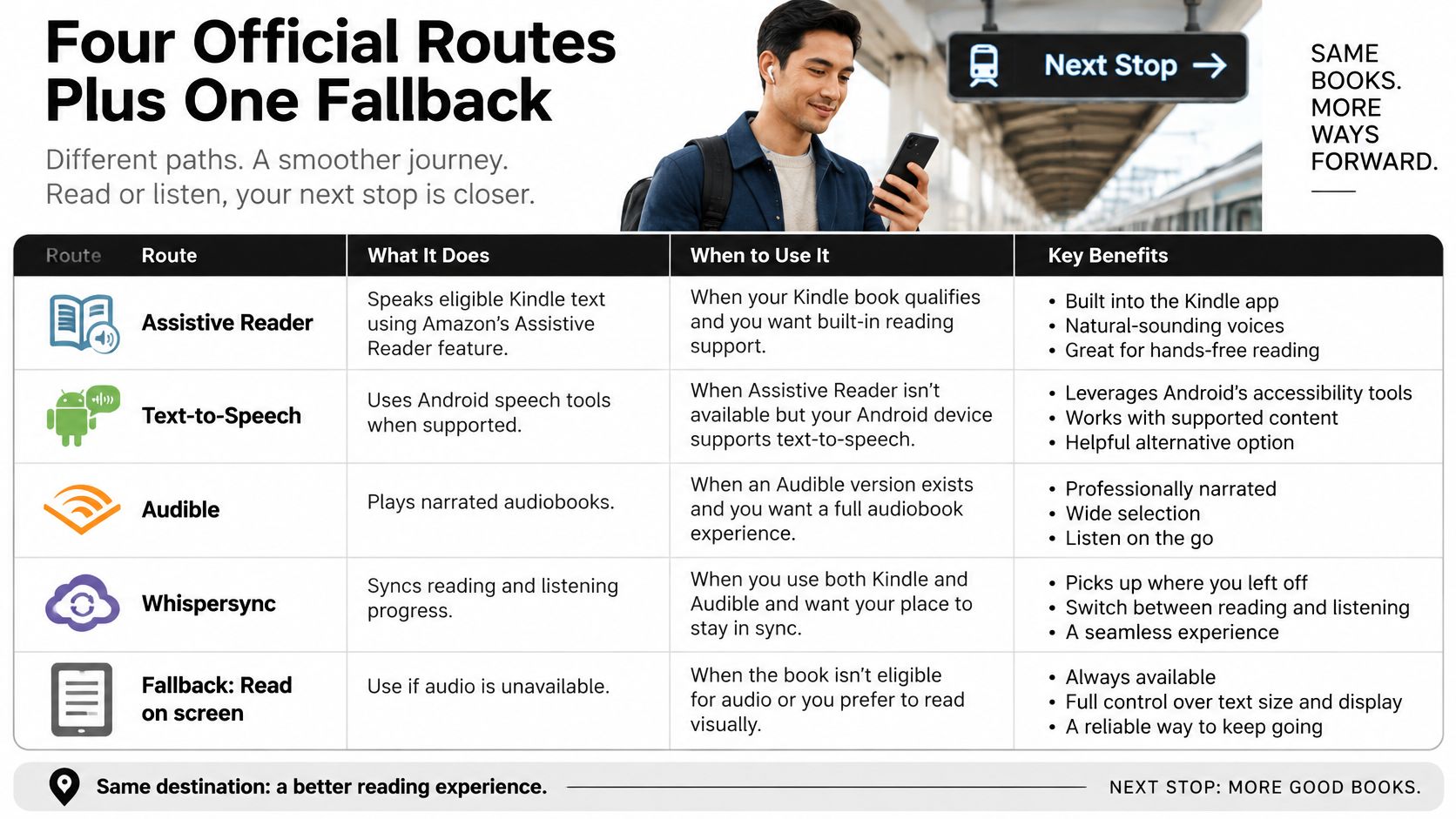

| Route | Voice you hear | What you need | Full-chapter hands-free | Usual limit |
|---|---|---|---|---|
| Assistive Reader | Android text-to-speech | Eligible Enhanced Typesetting Kindle title in a supported language | Yes while the reading screen stays open | Pauses if you leave the page; not every title qualifies |
| Read and Listen | Professional Audible narrator | Matching Kindle ebook and Audible audiobook on the same account | Yes in the Audible app | Missing companion audiobook means no option |
| Select to Speak | Android voice on selected text | Accessibility shortcut turned on | No, you select again as pages change | Menus, images, and protected text may be skipped |
| TalkBack | Android screen reader | TalkBack enabled in Accessibility | Partial, depends on the title | Also speaks interface controls, not only the story |
| Kindle-sync reader app | AI or premium app voices | Amazon login in an app that can open owned Kindle titles | Yes for titles the app can load | Not an Amazon feature; login can expire |
Assistive Reader speaks eligible Kindle text with the phone's text-to-speech engine. You get playback controls, adjustable speed, and that 30-second rewind. Speech pauses when you leave the page for navigation or a note.
Read and Listen plays a professional Audible narration and keeps one place between the Kindle and Audible apps. It works only when that companion audiobook is on the same Amazon account.
Select to Speak reads a passage you tap or drag across. TalkBack speaks interface prompts and supported book text for eyes-free use. A Kindle-sync reader is the extra path when no Audible match exists and Assistive Reader never appears.
Use the matching Audible edition when natural narration matters. Use Assistive Reader when the book has Enhanced Typesetting and the phone supports its language. Otherwise use accessibility selection or a synced reader.
That one-time phone setup pays off if you listen often. In 2024, audiobook listeners in the United States consumed an average of 6.8 titles during the year, compared with 6.3 titles in the previous survey, according to Edison Research for the Audio Publishers Association.
Pick the row that matches the book in your bag. Assistive Reader is the Kindle-app speech path. Read and Listen is the studio path. Select to Speak and TalkBack are the phone's accessibility tools. The sync app is only for a title Amazon cannot speak.
Check the Book Before You Tap Play
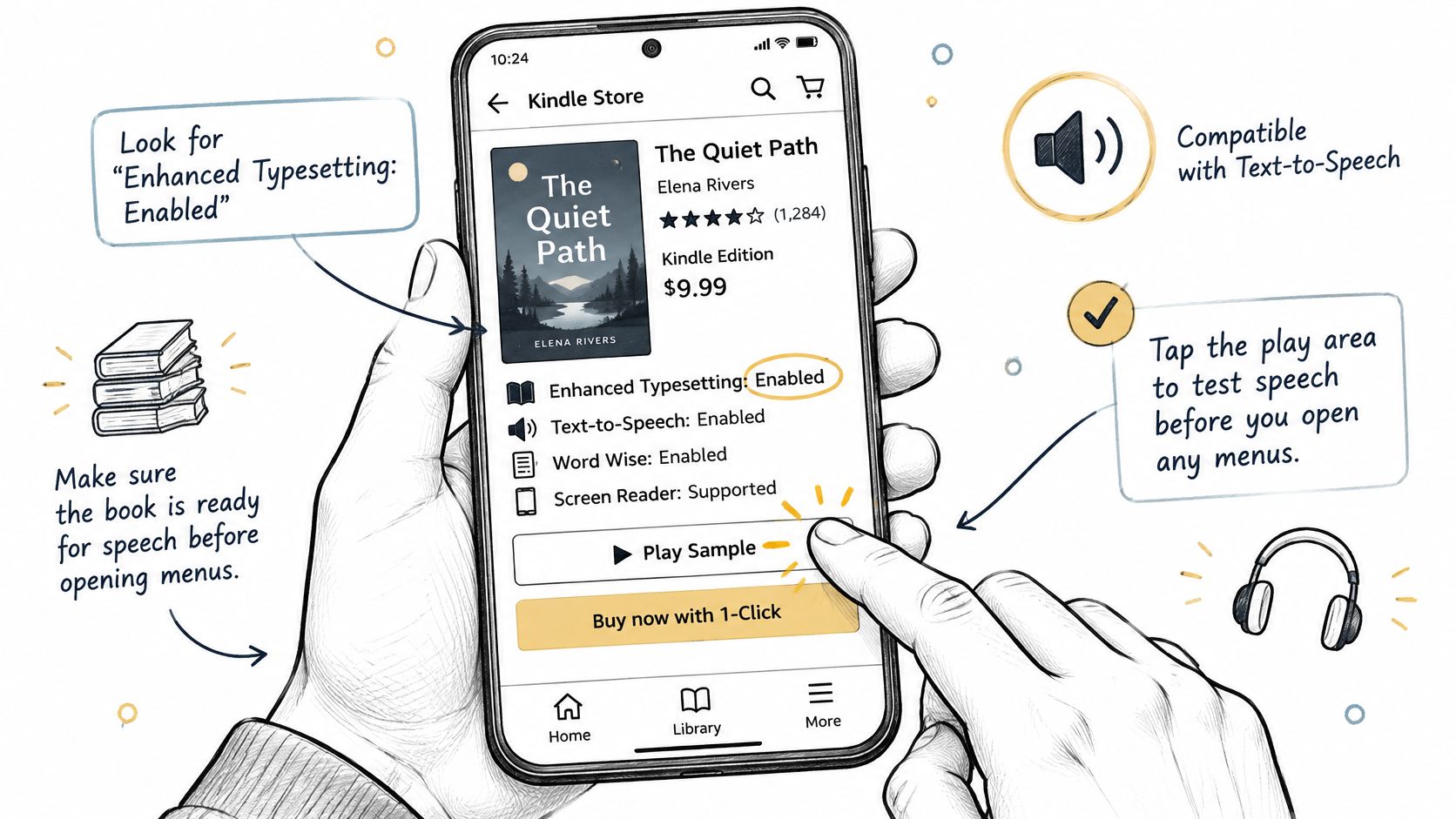

Your commute is starting, but the book may not have a speech button. Check the route first: a matching Audible edition uses professional narration, Kindle's Assistive Reader speaks eligible text, and phone accessibility tools can read selected text.
Four checks on the listing
- Look for Enhanced Typesetting: Enabled. It indicates the book's text can reflow, like lines moving to fit a smaller screen. Assistive Reader needs supported text, not a photo of a printed page.
- Check the listing's readability label: Readable, Partially readable, or Not readable. A print-replica or fixed-picture layout may not speak, even if the book opens normally.
- Check that the book's language is supported by a voice in Android's text-to-speech settings. The phone supplies that voice. An English voice cannot read French aloud correctly.
- For professional narration, look for a companion Audible audiobook on the same Amazon account. Read and Listen uses that separate audio file and keeps your place between Kindle and Audible. Without a match, there is no Audible file to play.
Choose Read and Listen when the listing has a matching Audible edition. Choose Assistive Reader when the book has enabled Enhanced Typesetting and its language is supported. If neither route is available, try an accessibility tool; if Amazon cannot speak the book, use a Kindle-sync reader.
What counts as a real Kindle copy
A file added from outside the Kindle store may not behave like a Kindle book. A store purchase, eligible borrow, official partner file, or family share may work, depending on the title. Scanned pages and comics with fixed layouts can leave the reader without speakable text.
Amazon and Audible announced the sync technology in September 2012, letting readers switch between Kindle text and professionally narrated audio without losing their place. Amazon's Matchmaker feature scans a Kindle library for books with companion Audible editions. On Android, you generally need both the Kindle ebook and its matching Audible audiobook. Eligible titles show Read and Listen, or the Kindle app offers Listen on Audible.
Turn On Assistive Reader in the Kindle App
This path is for a book that already passed the store check. You are turning on Kindle speech, not buying a second product.
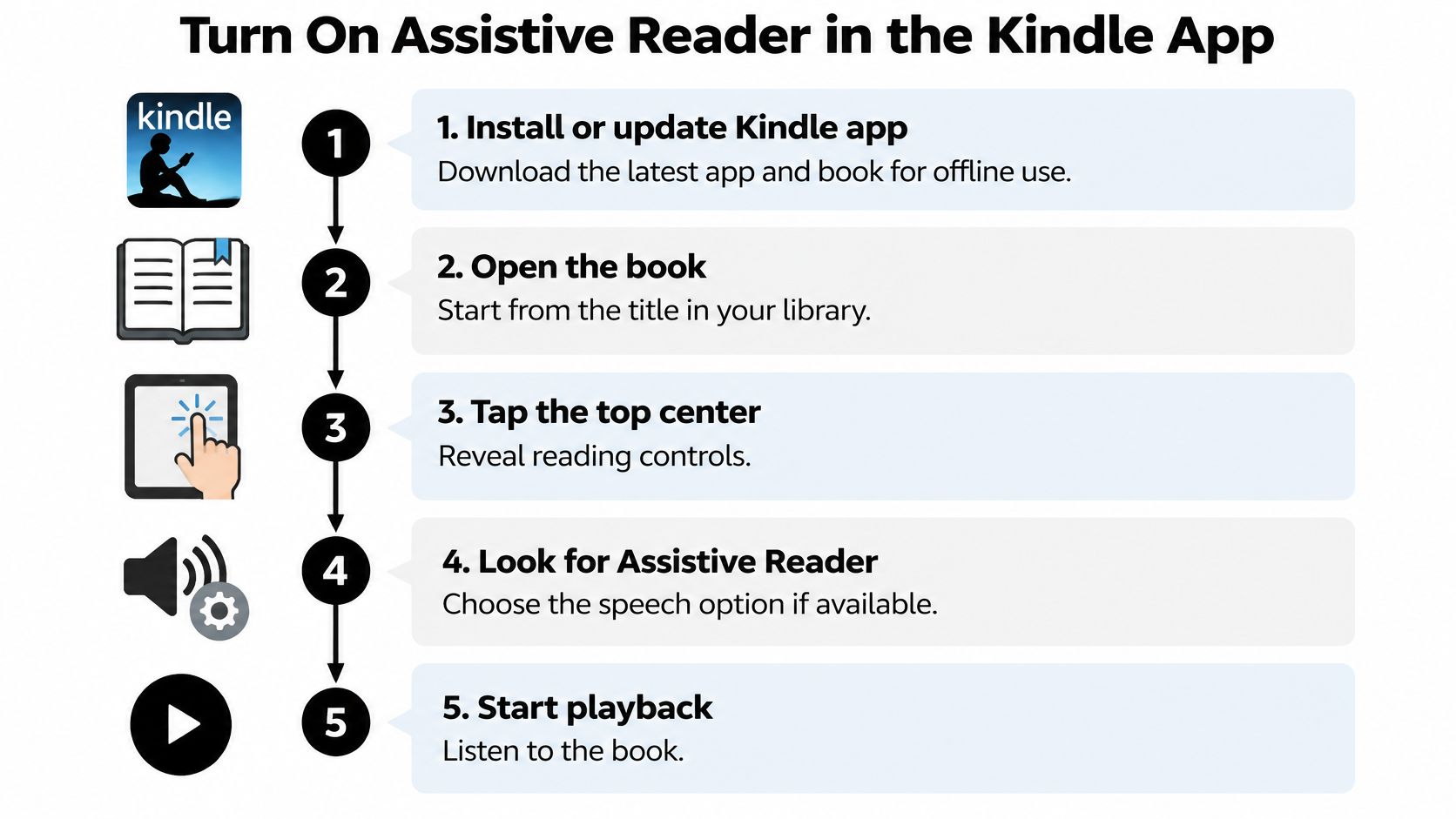

The taps, in order
- Install or update the Kindle app, then download the book so it opens offline if the commute has weak signal. A half-loaded chapter stops the moment the tunnel starts.
- Open the book from your library, not from a store preview. Speech follows the copy on the device.
- Tap the top center of the screen. That shows the chrome, the thin bar of reading tools that hides while you read.
- Tap the reading-settings menu marked Aa. Font size lives here, and so does the speech switch.
- Choose More. Assistive Reader is tucked on that extra page, not on the first font row.
- Enable Assistive Reader. If the switch is missing, the title failed the typesetting or language check. More tapping will not create it.
- Start playback, set a comfortable speed, and use the 30-second rewind when a sentence is missed. Real-time highlighting follows the spoken words, so you can glance up for a name and drop your eyes again.
About Amazon describes this as the Android app's built-in way to listen without a separate audiobook. The feature uses the phone's operating-system text-to-speech engine, with playback controls and adjustable reading speed.
Who the switch is for
The title must use Enhanced Typesetting. Eligible copies include a Kindle Store purchase, a borrow through Kindle+ or Prime Reading, a file from an official Kindle partner, or a share through Family Library. The book's language must be one the Android text-to-speech engine supports. A missing voice pack is a settings issue, not a broken book. Install that language under the phone's text-to-speech settings, then reopen the title.
Why it pauses
Playback pauses when you open navigation or make an annotation. This route is hands-free only while the reading view stays up. Screen lock and battery savers can also cut a long session. Leave the app in the foreground, and test one page before you rely on it for study or travel.
Success sounds like continuous speech, a highlight that moves with the words, and a speed you can follow without rewinding every line.
Switch to Audible Read and Listen
This is the studio-narration path. It is not a second copy of Assistive Reader, and it will not appear just because you own the ebook.
Six steps on one account
- Sign the Kindle app and the Audible app into the same Amazon account. Two logins means two libraries, and the place will not travel between them.
- Open the ebook in Kindle on Android.
- Look for a headphones icon, Read and Listen, or Listen on Audible.
- If the companion is offered but not owned, get that matching audiobook, then return to the title. Matchmaker is the library scan Amazon described for finding those pairs. Confirm the pair exists before you spend a credit.
- Play the narration in Audible for continuous, pocket-in listening. The audio is a separate studio file, not a clip stored inside the ebook.
- Switch back to the Kindle page later. The account stores the shared position, so you should not hunt for a paragraph.
Audible's Whispersync for Voice help lists Android and iOS apps among supported players. Synchronization still depends on that specific companion audiobook, not merely owning the ebook. Audible uses a professionally recorded performance. Android screen reading synthesizes visible text and may skip page elements a narrator would handle.
Where this earns its keep
Commuting, workouts, and cooking are the sweet spot, because leaving the Kindle page would pause Assistive Reader. You can read visually at the kitchen table, continue in Audible on the platform, and land back in the text at the same spot.
What it cannot invent
Academic books, indie titles, older editions, comics, and anything without a paired Audible edition will not grow a Listen button. Check the Audible page for that edition before you pay. If the companion is absent, stop. A credit will not attach narration to an unmatched ebook.
Use Select to Speak or TalkBack
Treat both tools as a flashlight, not a replacement audiobook. They light up the words on the screen. They do not carry a whole novel in your pocket the way Audible does.
Select to Speak for a short passage
Use this for a quote, a definition, or a revision pass.
- Open Settings, then Accessibility, then Select to Speak, and turn it on.
- Use the shortcut from the Kindle page.
- Tap a paragraph or drag across the lines you want.
- Press Play. The phone reads what is selected or visible.
It is less predictable for a whole novel because it depends on what the Kindle app exposes. Page layout, menus, images, footnotes, and protected or nonselectable text may interrupt the flow. You usually select again after a page turn.
Google's Select to Speak guide frames this as an accessibility layer. Amazon documents Assistive Reader, with synchronized highlighting, on Kindle apps for Android, and documents VoiceView on compatible Kindle hardware or Fire tablets. VoiceView is not the setup path on a standard Android phone. Searching Fire tablet menus will not turn speech on here.
TalkBack when the whole phone must speak
Use this when you cannot comfortably use ordinary visual controls.
- Open Settings, then Accessibility, then TalkBack.
- Turn it on. Spoken feedback starts immediately, including buttons you did not mean to focus.
- Move through the Kindle library and the open book with the gestures Android announces.
Amazon's Kindle accessibility help notes that the Kindle app provides audio prompts for navigating the interface, plus audio support for books and other features. The book itself still has to be accessible. A fixed-layout title can leave TalkBack describing controls while the story stays quiet.
Practical rule: Select to Speak for one passage you can see. TalkBack when every control has to be audible. A silent full book belongs in a format check, not in another pass over the same shortcut.
Fix a Kindle Book That Will Not Read Aloud
The same phone reads one novel and stays mute on the next. That is a file difference, not a broken speaker.
A short diagnostic
Check the Kindle Store listing for Enhanced Typesetting: Enabled. Confirm the copy was purchased, borrowed through an eligible Kindle program, or shared in Family Library. A side-loaded or unusual file may not behave like a store book. Confirm Android's text-to-speech settings include the book's language. If Read and Listen is absent, the library does not have a paired Audible edition. Matchmaker cannot invent one. Academic books, independent titles, older books, comics, and fixed-layout publications are the usual misses.
Kindle Direct Publishing's accessibility guidance says most reflowable Kindle books can be accessed by assistive technologies, but print-replica and image-based fixed-layout books are currently not readable in read-aloud and braille modes. Books with images, graphs, tables, or videos may be only partially accessible when they lack alt text, extended descriptions, transcripts, or captions. Amazon uses three labels.
- Readable: text and meaningful non-text content can work with read-aloud tools.
- Partially readable: pictures, graphs, tables, or video often lack descriptions or captions, so speech covers only part of the page.
- Not readable: many print-replica and image-based fixed-layout books, which are unsupported in read-aloud and braille modes.
Symptom, cause, next check
| Symptom | Likely cause | What to check or switch |
|---|---|---|
| No Assistive Reader under Aa then More | Title lacks Enhanced Typesetting or is fixed-layout | Store listing and the Readable, Partially readable, or Not readable label |
| One book speaks and the next does not | Language pack or format differs | Android text-to-speech language and Enhanced Typesetting on that title |
| Listen on Audible never appears | No matched companion audiobook | Audible page for that edition before spending a credit |
| Speech stops when a menu or note opens | Assistive Reader pauses outside the reading view | Stay on the page or use Audible for pocket listening |
| Select to Speak reads buttons instead of the story | Page text is not exposed or not selectable | Try Assistive Reader on a reflowable book, or a synced reader |
| Kindle and Audible places do not match | Different accounts or no companion link | Same Amazon account on both apps |
Install the language voice if the engine has no pack for that book. Stay on the reading screen if playback stops the moment a menu opens. Sign both apps into one account if the place does not match. Do not buy an Audible credit until a companion is shown. When neither official route supports the title, a synced reader is the remaining way to hear owned Kindle text.
Listen With a Kindle Sync App When Amazon Cannot
Move here only when this title has no working Amazon route. If Read and Listen is missing and Assistive Reader never appears, a Kindle-sync reader is the remaining way to hear text you already own. Do not spend an Audible credit on a book with no companion.
TTS Reader Pro from TTS Pro syncs a Kindle library, reads Kindle books you already own, and keeps reading progress aligned with the Kindle app. It is on Android and on iPhone and iPad. It is not affiliated with or endorsed by Amazon. Hands-free playback is available for titles the app can load, using AI or premium app voices.
- Open the library sync walkthrough and follow the sign-in shown there.
- Install the Android app.
- On iPhone or iPad, use the iOS app.
- Sign in with the Amazon account that owns the book.
- Load one owned title and play a single chapter before you change speed.
If the library stays empty after a sign-in, log in to that Amazon account again. An expired login is the usual failure, and support can show how to refresh it when books fail to load. This path is for a Not readable book, a title without a companion audiobook, or a book whose language and format still will not trigger Assistive Reader.
TTS Reader Pro turns Kindle books you already own into hands-free audio with AI voices, so a commute does not stop when Amazon has no Listen button for that title. You can sync the library, keep your place with the Kindle app, and listen on Android or iPhone. Visit TTS Pro and try one owned chapter before your next ride.


No Comments
Leave a comment Cancel