
Yes, the Kindle app for Android includes Assistive Reader, which reads the open book aloud and highlights each word as it's spoken, and you'll find it under the Aa menu, More tab. That's the shortest path from page to sound, so why do so many readers assume a missing button means their phone is broken?
Most confusion around Kindle text to speech on Android starts in the wrong place. People open Settings, change the voice, reinstall the app, and only later check whether the book itself can be read aloud at all. Reverse that order and the problem gets simpler. First identify the book's source and language, then choose a route that matches that book. A novel bought from the Kindle Store, a Prime Reading loan, and a shared family title can sit side by side in your library and behave completely differently when you tap play.
Table of Contents
- Kindle Text to Speech Routes on Android Compared
- How to Turn On Assistive Reader in the Kindle App
- Why Some Kindle Books Will Not Read Aloud
- Using TalkBack and Select to Speak as Fallbacks
- Adjusting the Android Voice, Speed and Language
- Fixing Playback Problems on Android
- Follow the Walkthrough Video Alongside the Steps
- Hands-Free Alternatives and Choosing Your Route
Kindle Text to Speech Routes on Android Compared
Yes, Kindle's Android app has a built-in option called Assistive Reader that reads the open book aloud and highlights each word as it's spoken. Amazon describes several routes across its ecosystem in its Kindle accessibility overview, including TalkBack support on Android and VoiceView on dedicated Kindle devices with compatible Bluetooth audio.
You don't need all five routes. You need the one that matches your book, your screen, and whether you want to look at the phone while it reads. The table puts them in the order most readers should try them.
Kindle text to speech routes on Android
| Route | Where to find it | Best for | Limitation |
|---|---|---|---|
| Assistive Reader | Kindle app, Aa menu, More tab | Synced highlighting while reading a Kindle book | Only books and languages that support it |
| TalkBack | Android accessibility services | Screen navigation and reading with a screen reader | Gesture-based, built for eyes-free use |
| Select to Speak | Settings > Accessibility > Select to Speak | Reading visible on-screen text aloud | Works page by page, needs text selected |
| Text-to-speech output | Settings > Accessibility > Text-to-speech output | Choosing engine, language, rate and pitch | Changes the voice only, does not start reading |
| VoiceView | Dedicated Kindle devices | Navigating and listening with Bluetooth audio | Not part of the Android Kindle app |
Two distinctions stop most mix-ups. TalkBack and Select to Speak are Android-wide accessibility tools, so they work outside Kindle and can read what's on screen when Kindle's own option isn't offered. Text-to-speech output starts nothing at all, it only sets the engine, language, rate, and pitch that the other tools speak with. VoiceView belongs to Kindle hardware, so phone and tablet readers can skip it entirely.
Practical rule: Use Assistive Reader when the book offers it, and fall back to Select to Speak when it doesn't.
How to Turn On Assistive Reader in the Kindle App
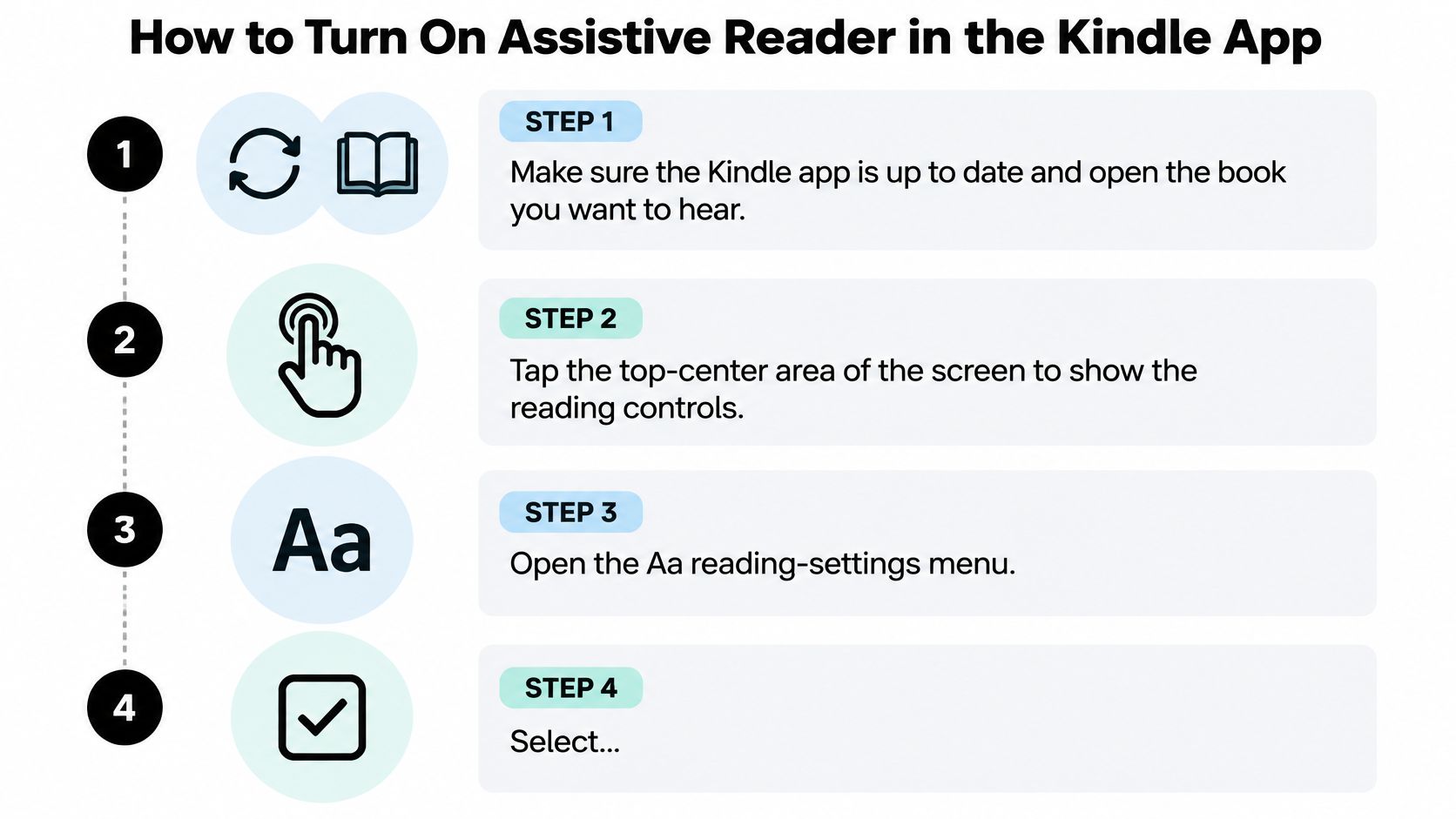
Start with the book you want to hear. Amazon's Kindle app help for Assistive Reader places the setting in the reading controls: open the book, tap the top-center of the screen, tap Aa, then look under More. Updating the app first can help ensure its reading settings are current.
- Update and open: Check that the Kindle app is up to date, then open the book.
- Show the controls: Tap near the top-center of the page. The reading controls appear over the text.
- Open reading settings: Tap Aa to display the book's font, layout, and accessibility options.
- Find Assistive Reader: Tap the More tab, then select Assistive Reader.
- Start playback: Press play. The highlight should follow the words as they are spoken.

Controls worth learning on your first session
Playback speed lets you adjust the pace for the material. You can also rewind a few seconds when your attention drifts or start reading from a selected word. That last option helps you return to a particular passage without restarting from the top of the page.
Why playback stops when you open a menu
Opening a navigation menu or creating an annotation pauses playback. Tap play again to resume after you finish interacting with the book.
If Assistive Reader does not appear under Aa, the book or its language may not support it. When playback is active, the text remains on screen and the highlight moves along with the spoken words.
Why Some Kindle Books Will Not Read Aloud
The most common reason a book won't read aloud is the book, not the app. Amazon's Assistive Reader help page states that the feature supports Kindle books that use Enhanced Typesetting and uses the Android device's operating-system text-to-speech engine instead of a separate narration track.
Eligibility is content-dependent. Supported books may include Kindle Store purchases, Kindle+ or Prime Reading loans, and books shared through a Family Library, provided the book is available in a language supported by the device's TTS engine. That's why two books on the same phone, with the same app and the same voice, can behave differently.
Book and language restrictions and what to do
| Restriction | What it means | What to do |
|---|---|---|
| Book without Enhanced Typesetting | Assistive Reader does not support the title | Try another edition or use Select to Speak |
| Language not supported by device engine | Voice inventory lacks the book's language | Install voice data for that language in Text-to-speech output |
| Kindle+ or Prime Reading loan | Eligible only while the loan is active and supported | Confirm the loan still shows the option |
| Family Library book | Eligibility depends on the shared book | Check the book is available through the shared library |
| Personal documents | Assistive Reader support is not confirmed | Test with a Kindle Store title first |
| Option missing from Aa > More | Book, app version or device does not offer it | Update the app and try another book |
Walk the table from the top. Say your purchased novel reads aloud but an older title from your library doesn't, the missing Enhanced Typesetting row explains it without any phone repair. Say a French textbook stays silent on a phone with only an English voice installed, the language row is your answer, and installing voice data is a five-minute fix rather than a new app.
Before you change any setting, test one purchased Kindle Store book first. If that book plays, your app and engine work, and the problem sits with the first book's restrictions. If nothing plays, then the app version or device support deserves attention. Either way, a restricted book isn't a dead end, because Android's own reading tools can handle text that's visible on screen.
Using TalkBack and Select to Speak as Fallbacks
When a book blocks Assistive Reader, Select to Speak is the fallback most sighted readers should try first. Google's Select to Speak support guide places it under Settings → Accessibility → Select to Speak, activated by a two-finger swipe upward, a three-finger swipe when TalkBack is enabled, or the Accessibility button.
- Open the setting: Go to Settings, then Accessibility, then Select to Speak.
- Turn it on: Switch the feature on so the shortcut becomes available across apps.
- Activate the shortcut: Use a two-finger swipe up, a three-finger swipe if TalkBack is on, or the Accessibility button.
- Tap one item: Tap a text item on the Kindle page to hear it read aloud, which suits a single paragraph or caption.
- Drag for more: Drag across several items to select a longer passage in one go.
- Tap Play: Use the Play control to read everything the system recognizes on the screen.
The page by page limit
Select to Speak works from what's currently on screen, so you may need to select text page by page depending on the device and app behavior. That's tolerable for a passage you want to hear twice, such as a definition you're studying. It's tiring for a full chapter on a commute, because each page turn asks for another selection. Expect some variation between apps too, since the tool reads recognized screen content rather than the book file itself.
When TalkBack fits better
TalkBack is Google's built-in screen reader. It works with the Kindle app's interface and reading content, so it reads menus, buttons, and book text as you move through the app by gesture. That suits readers who use the app entirely eyes-free, because nothing depends on seeing a control first.
Choose Select to Speak for a quick passage on the current page. Choose TalkBack when you need to move through the whole app without looking at the screen.
Adjusting the Android Voice, Speed and Language
Start at Settings → Accessibility → Text-to-speech output. The European Union accessible-publishing guidance for Android confirms the same four configuration points, your choice of speech engine, language, speech rate, and pitch. Change them in that order, because each one fixes a different problem.
Preferred engine and language
The preferred engine shapes pronunciation and intelligibility across the whole phone, not only inside Kindle, so switching engines can fix a robotic or muffled voice that no in-app setting touches. If one engine clips the endings off words, try the other before you blame the book.
Next, set the language to match the book. A Spanish novel read with an English voice produces confident, wrong pronunciation on every line, and you'll understand less the longer you listen. Install the voice data for that language while you're on Wi-Fi, before a commute, so playback works offline without a mid-chapter download.
Rate and pitch
- Speech rate: Slow dense material down, speed familiar fiction up, and test on a full page rather than the sample sentence.
- Pitch: Lower a voice that sounds shrill through earbuds, raise one that disappears into train noise.
Kindle's own speed control and the system speech rate both shape what you hear, so adjust one setting at a time. Change both together and you won't know which change helped or hurt. A simple test settles voice choice quickly, read the same page with two voices and keep the one you can still follow easily at the end of a full chapter. Clarity over a chapter beats a pleasant sample sentence every time.
Fixing Playback Problems on Android
The complaint readers report most often isn't a bug at all. Playback stops when a navigation menu opens or an annotation is created, because Kindle pauses the voice while you interact with the book. Tap play and it continues, so treat that pause as information rather than failure.
Genuine problems tend to fall into a short list of symptoms, and most take seconds to address. Work through the table in order, since it's arranged from the most common causes to the rarest, and the quick fixes come before restarts and updates.
Playback symptoms, causes and fixes
| Symptom | Likely cause | Fix |
|---|---|---|
| Voice sounds robotic or unclear | Weak or missing voice data | Choose another engine and install voice data |
| Wrong pronunciation | Voice language does not match the book | Set the voice language to match the book |
| Playback fails in a book that worked before | Outdated Kindle app or speech engine | Update both and restart the phone |
| Highlight drifts on long passages | Engine timing on long text | Reopen the page or lower the speed |
| Select to Speak reads nothing | Text not selected or not recognized | Drag across the text again or use Assistive Reader |
Notice how the first two rows point at the voice, not the book. A robotic voice and wrong pronunciation both live in Text-to-speech output, so that's where you fix them, in under a minute. The third row is different, a book that played last week and won't play today suggests something changed on the device, which is why updating the Kindle app and the speech engine, then restarting the phone, is the proportionate response.
Highlight drift deserves patience rather than alarm. On long passages the engine's timing can wander from the on-screen marker, and reopening the page or lowering the speed usually pulls them back together. With Select to Speak, silence almost always means the selection didn't land, so dragging across the text again costs nothing.
If every fix fails, open a different book and press play. If the other book reads aloud, your phone is fine and the first book's restrictions are the problem.
That single test separates a device issue from a book issue, which is the whole diagnostic question. Run it before you reset anything.
Follow the Walkthrough Video Alongside the Steps
Open the walkthrough video on YouTube on a second screen, or pause it while you work through the steps here. Treat it as a visual companion to the written path, not a replacement, because you'll still need to match each menu label on your own phone.
- Open a book you own: Start the Kindle app on your Android phone and open a book already in your library.
- Reveal the controls: Tap the top-center area, then open the Aa menu.
- Compare the More tab: Check for the Assistive Reader option and compare its position with what the video shows.
- Pause on labels: Stop at each menu label and note its exact wording so you can match it on your device.
- Check differences calmly: If labels differ, check your Kindle app version first, then compare the book's source against the restrictions table.
Watching the whole clip once takes little time. Rewinding only the Aa menu section gives you the layout to match on your phone before you change any setting, which prevents the common loop of tapping the wrong menu and concluding the feature doesn't exist.
Hands-Free Alternatives and Choosing Your Route
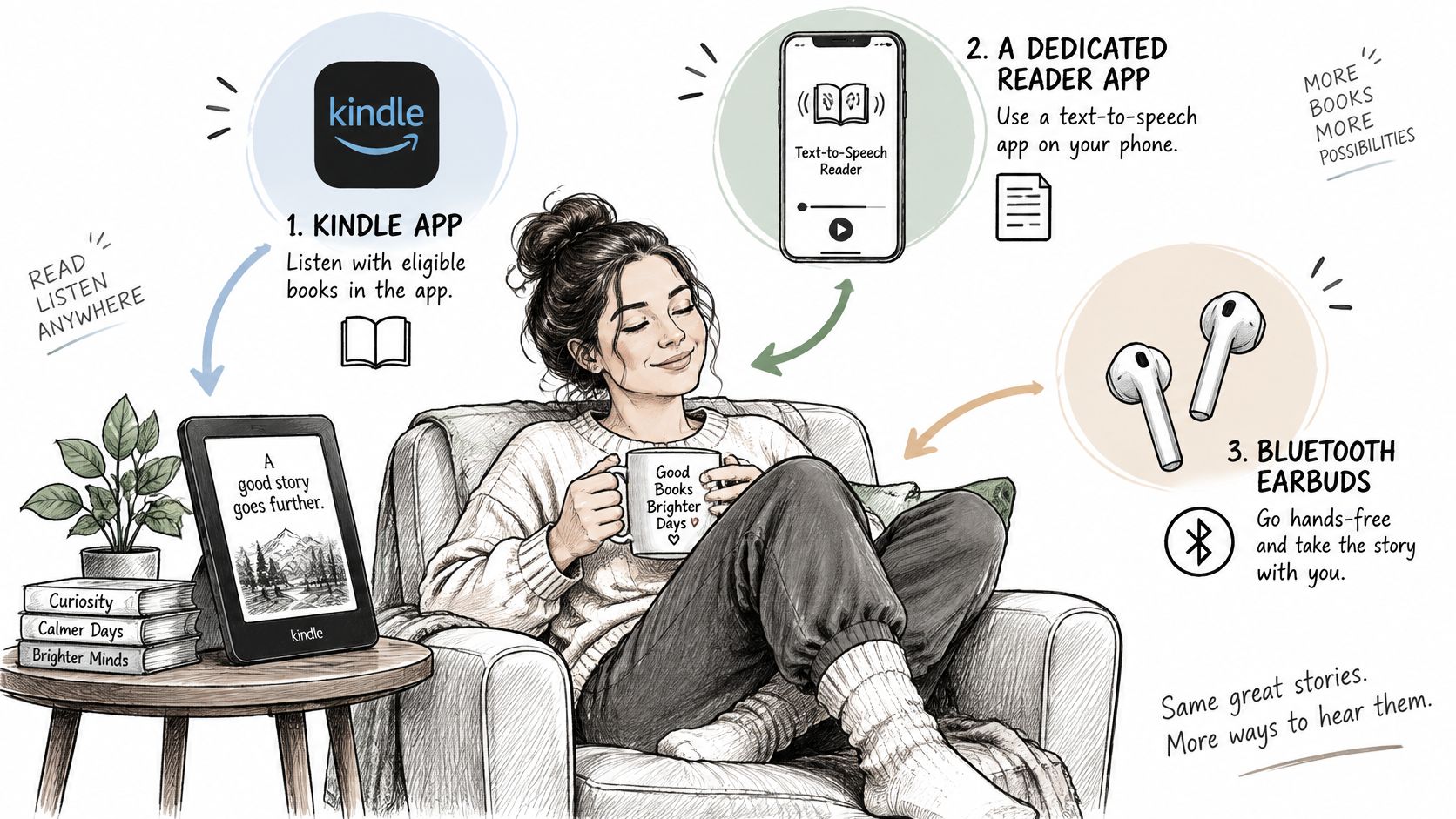
Which route fits depends first on the book, then on the listening experience you want. Kindle's built-in tools work only with eligible books. Dedicated text-to-speech readers can handle other formats, while an audiobook edition offers human narration when one is available.
Before changing Android settings, identify where the book came from and what language it uses. Those details can explain why Kindle's read-aloud option is missing; phone settings cannot remove a restriction tied to the book. Then compare reader apps by the formats they support, whether they can access your Kindle library, their voice and speed options, and whether they offer a free version to try.

A short checklist for picking your route
- Check the book: Open it in the Kindle app and look under Aa > More for Assistive Reader.
- Diagnose a missing option: Check the book's source and language against the restrictions table before changing phone settings.
- Try Android's built-in readers: If Kindle cannot read the book aloud, use Select to Speak or TalkBack. Set the voice under Text-to-speech output.
- Consider a dedicated reader: For other formats or hands-free listening from a Kindle library, TTS Pro is available on iOS and Android. It can sync a Kindle library for listening with AI voices, and reading progress stays in step between the Kindle app and TTS Pro.
Choose by trying the route with a book you already own. Listen to a full chapter and note whether the voice, speed controls, and hands-free playback suit you.
If you want to listen to Kindle books you own, TTS Pro can sync your library for hands-free reading with AI voices. Try a chapter during a commute or study session to see whether that route fits your routine.


No Comments
Leave a comment Cancel