
You're on a long commute, halfway through a grocery run, or mid-workout, and your Kindle library is sitting unopened on your phone. The books are already bought. The time to read them isn't. That's the gap many want to close when they try to convert a Kindle book to audio, and it's a reasonable one, because listening fits into parts of the day that reading can't.
The catch is that convert Kindle book to audio can mean three different things. Some tools export or generate a listenable version you control. Some read the book in place, inside Amazon's ecosystem or a browser. Others only provide screen-reader access, speaking menus and controls along with the text. Those aren't interchangeable, and choosing by brand name instead of by job is how people waste an evening.
The audience for this is no longer niche. The Audio Publishers Association findings reported by Publishers Weekly found that 52% of U.S. adults, nearly 149 million people, had listened to an audiobook at some point, and 38% had listened in the preceding year. Kindle itself is just as established. Amazon's look back at 10 years of Kindle notes the first device launched on November 19, 2007 with more than 90,000 books and sold out within 5.5 hours.
Start with what you need: a portable file, in-place narration, or spoken access. Then check whether your specific title, device, and rights support it. The list below is grouped by that logic, starting with the most flexible listening workflow and ending with the screen readers.
Table of Contents
- 1. TTS Pro
- 2. Kindle Assistive Reader
- 3. ElevenReader
- 4. Amazon Alexa
- 5. Speechify
- 6. NaturalReader
- 7. Kindle for Windows With a Screen Reader
- 8. VoiceOver on iPhone or iPad
- 9. TalkBack on Android
- 10. TTS Reader Pro
- How the Kindle Audio Options Compare
- Choosing the Method That Fits Your Books and Your Rights
1. TTS Pro
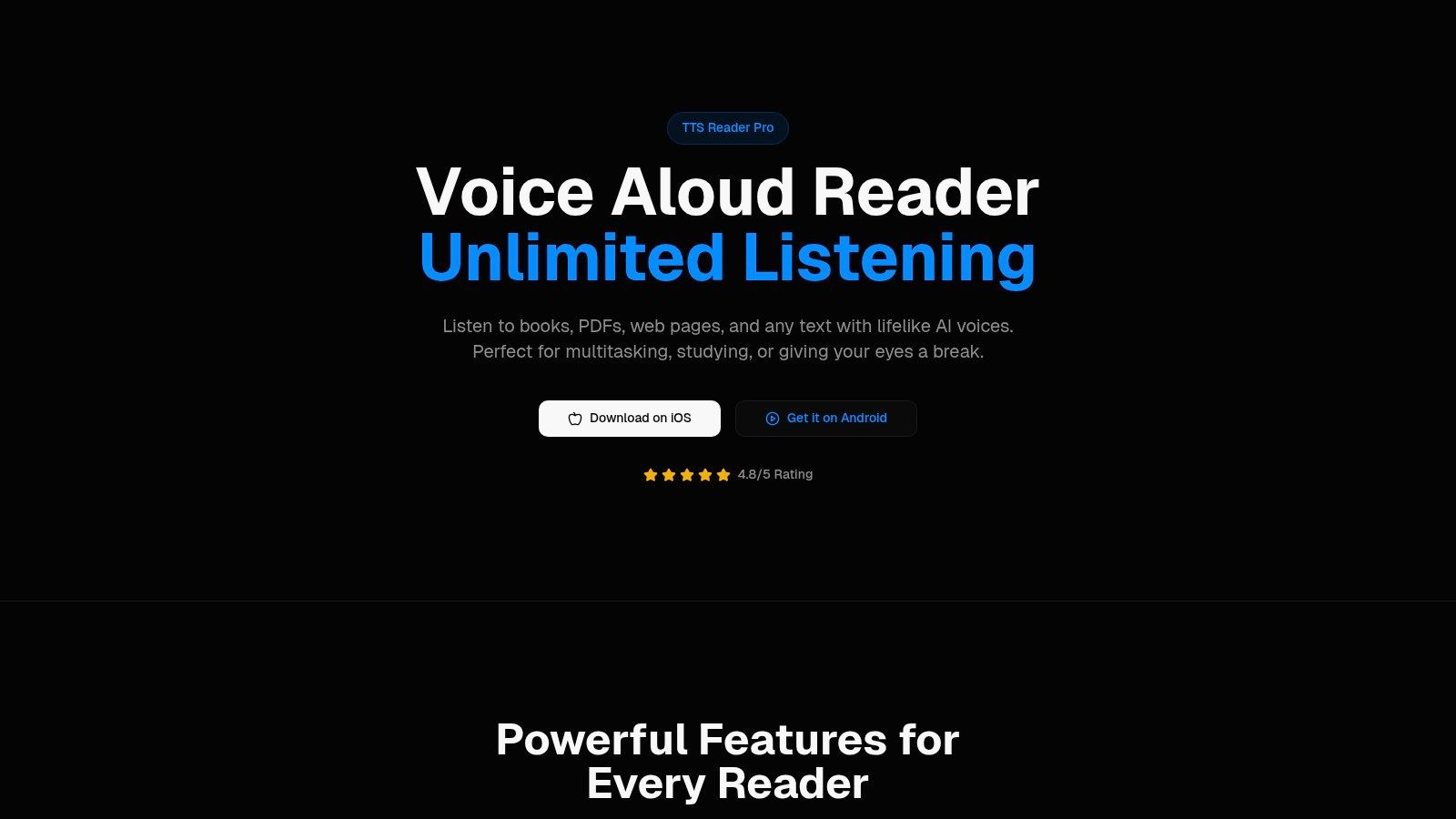

TTS Reader Pro reads Kindle books aloud in the app rather than exporting them as separate audio files. Log in to your Amazon account, sync your Kindle library, then choose a title you own and start listening with an AI voice. The app also syncs with Kindle Unlimited, and reading progress syncs between the Kindle app and TTS Pro.
To set it up, install the app from Google Play or the App Store, sign in to Amazon, select a book, and choose a voice and speed. If books fail to load, refresh your Amazon login first, and support can show you how to do that. Kindle book access depends on signing in to the Amazon account that holds the books.
What It Handles Beyond Kindle
The app can also read PDFs, EPUBs, TXT files, and web pages. Paste an article or webpage link to hear it narrated, or use smart scan technology to turn printed pages and notes into audiobooks. Its AI-generated voices are available in more than 50 languages, including English, Spanish, Japanese, and Vietnamese.
Several voice choices and adjustable speeds let you tailor playback. You can also change pronunciations in settings for names or technical terms. Kevin described the Kindle feature this way: “This app turns my entire Kindle library in to an audible library!” Mary said, “I'm able to enjoy my Kindle books that don't offer Audible versions now.”
Practical rule: Try the free version with the specific book you want to hear before paying. The app reads Kindle books you own, and its Kindle Unlimited sync supports titles available through that service.
For a setup walkthrough, watch the video showing the Kindle sync process. TTS Pro has a free version, and the in-app purchase named Unlimited Books costs $4.99.
Pros
- Format range: Reads Kindle books, PDFs, EPUBs, TXT files, web pages, and scanned printed text.
- Playback controls: Choose among several AI voices, adjust listening speed, and set pronunciations.
- Kindle sync: Syncs a Kindle library and reading progress with the Kindle app.
Cons
- Amazon login required: You must sign in to your Amazon account to load Kindle books.
- AI narration: Voices are AI-generated, not human narrators.
2. Kindle Assistive Reader
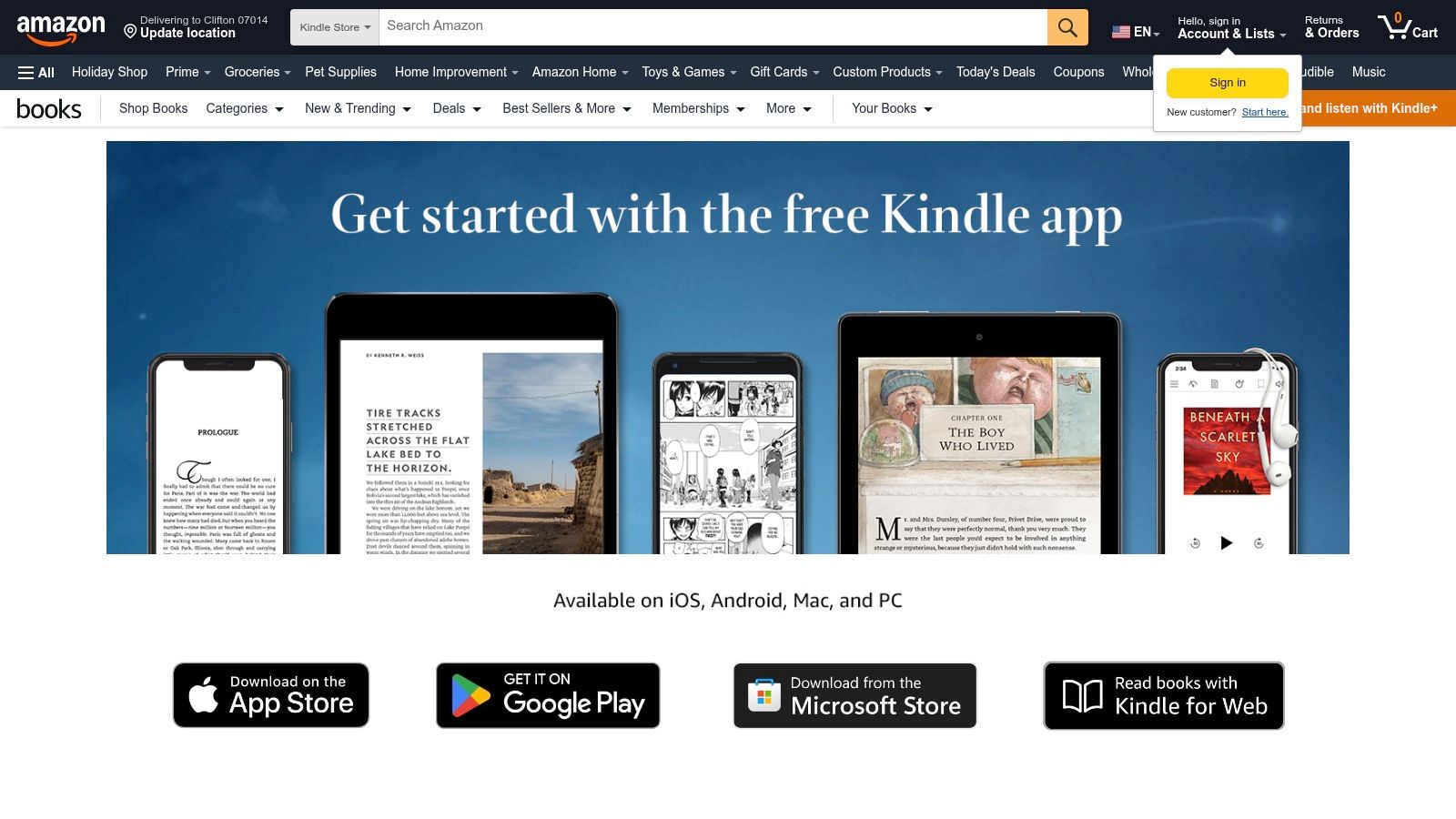

If you don't want another app or subscription, Amazon's own option is the first place to check. Kindle Assistive Reader is built into the free Kindle app on supported devices, and it reads eligible books aloud using your device's text-to-speech engine. You get playback controls, speed adjustment, and synchronized text highlighting, so you can follow along while you listen.
That highlighting is the strength here. For readers with dyslexia, low vision, or comprehension challenges, seeing the current passage marked while it's spoken reduces the chance of losing your place. It also keeps everything inside Amazon's ecosystem. No exports, no uploads, no account linking.
Eligibility is where it breaks down. Amazon's Kindle accessibility help page states that VoiceView can read only Kindle books marked as compatible with text-to-speech, and audiobook files themselves aren't supported by VoiceView. Assistive Reader works with eligible books that support Enhanced Typesetting, which means an older or fixed-layout title may refuse.
The Limits You Should Expect
Voice quality is whatever your device provides. A good phone voice sounds acceptable. A weak one sounds robotic within ten minutes, and you can't swap in a premium AI voice. There's also no audio file at the end. You're listening in place, on that device, in that app.
Check current device support through Amazon's Kindle app page before you assume your tablet qualifies. I recommend this as the zero-cost first test. If your book is eligible and the voice doesn't grate, you're done. If either fails, move on quickly rather than troubleshooting a feature Amazon controls.
Pros
- No extra cost: No additional subscription for eligible books.
- Synchronized highlighting: Easy to follow the text while listening.
Cons
- Eligibility gaps: Not all Kindle books work.
- No export: It doesn't create a downloadable audiobook file.
3. ElevenReader
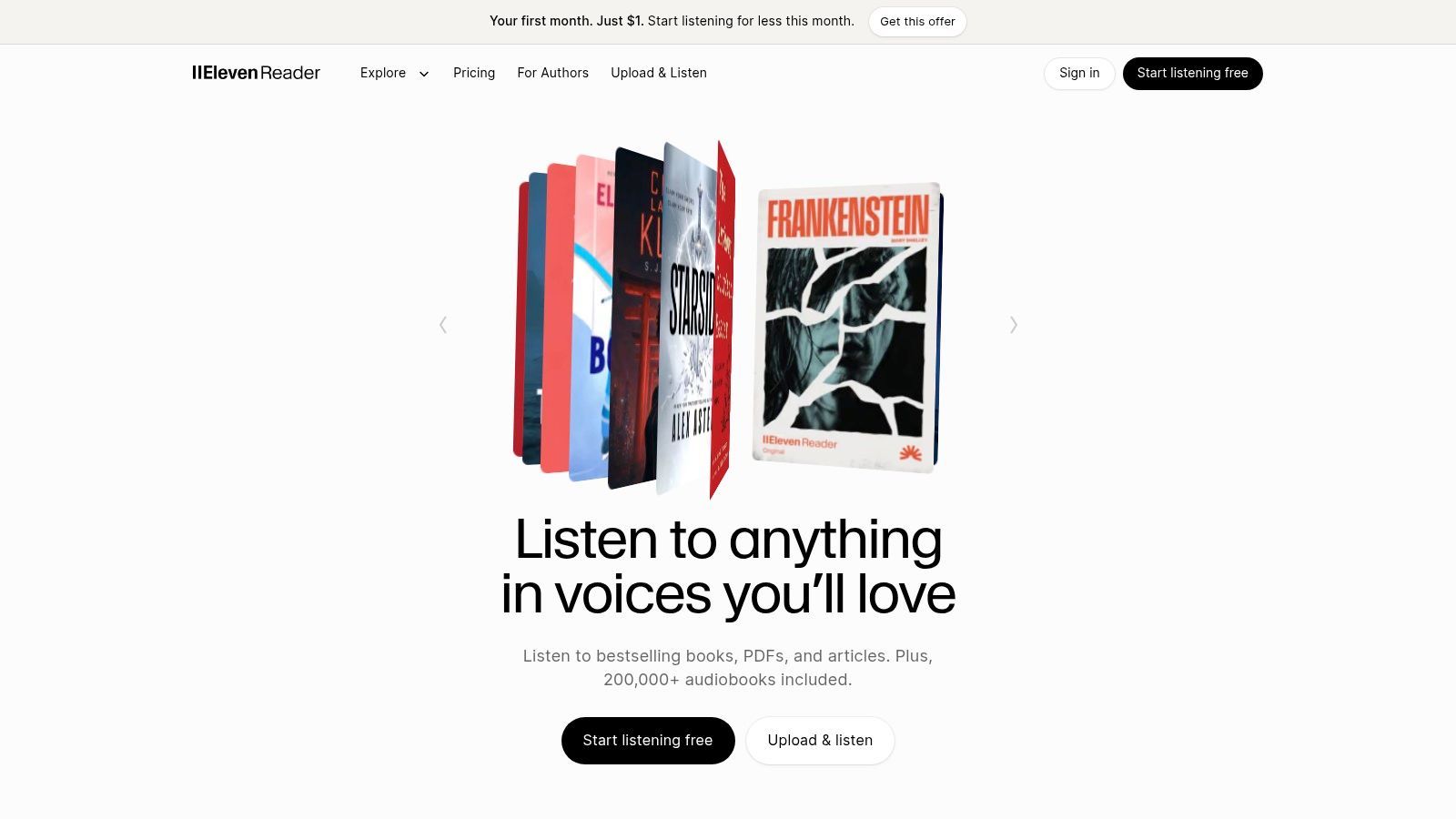

A Kindle reader who wants expressive AI narration without exporting a book can use ElevenReader's in-app browser to open supported Kindle ebooks and listen in place. This avoids uploading a DRM-protected Kindle file, but it does not create a separate audiobook file.
Voice quality is the main reason to choose it. Playback speed is adjustable, and the app is available on iOS, Android, and the web. It also supports EPUBs, PDFs, documents, and webpages, which suits readers who switch between Kindle titles and other material.
Where the Browser Workflow Pinches
Kindle web reading requires an internet connection, so it won't work offline. The free plan has a usage cap that a long book can use up quickly. Check the current limit in the app before starting a lengthy title.
The browser workflow streams narration rather than saving the Kindle book as a standalone audio file. If in-place listening works for your setup, ElevenReader is a voice-focused option. If you need an offline audio file, choose a method that exports one.
Pros
- Natural voices: Expressive AI narration for extended listening.
- Broad formats: Supports EPUBs, PDFs, documents, and webpages as well as Kindle titles.
Cons
- Online Kindle reading: The browser workflow requires an internet connection.
- Free-plan cap: Long books can use up the available listening time quickly. Check the current limit in the app.
4. Amazon Alexa


Say you want a book read aloud while you cook, fold laundry, or work in the garage, and you never want to touch a screen. That's Alexa's case. It reads eligible Kindle books from your Amazon library on Alexa-enabled devices, and you control everything by voice, including playback, speed, and navigation. You can also set a stop timer, which is useful if you listen before sleep.
There's nothing to export or convert. The book stays in your library, Alexa reads it with its text-to-speech voices, and you say pause when the timer on the oven goes off. For at-home, hands-busy listening, no other option on this list is simpler.
Amazon's own framing helps set expectations. In its post on Kindle accessibility features for all readers, Amazon describes these built-in tools as designed for eyes-free listening rather than creating a separate downloadable audiobook file. Alexa fits that description exactly.
What It Won't Do
It won't create a portable audiobook file you can take to another player. It also requires an Alexa-enabled device or the app, and availability depends on both book and device support, so an eligible title on one speaker may not behave identically elsewhere.
Voice quality is serviceable rather than expressive. For news-style nonfiction and rereads, that's fine. For dialogue-heavy fiction where you want character distinction, it can flatten the book. Check your devices against Amazon's Alexa page and test with a chapter you know well. You'll know within five minutes whether the voice works for you.
Pros
- Hands-free: Voice commands for playback, speed, and navigation.
- No export step: Reads straight from your Kindle library.
Cons
- Device dependent: Needs Alexa hardware or the app.
- No portable file: Listening stays inside Amazon's ecosystem.
5. Speechify
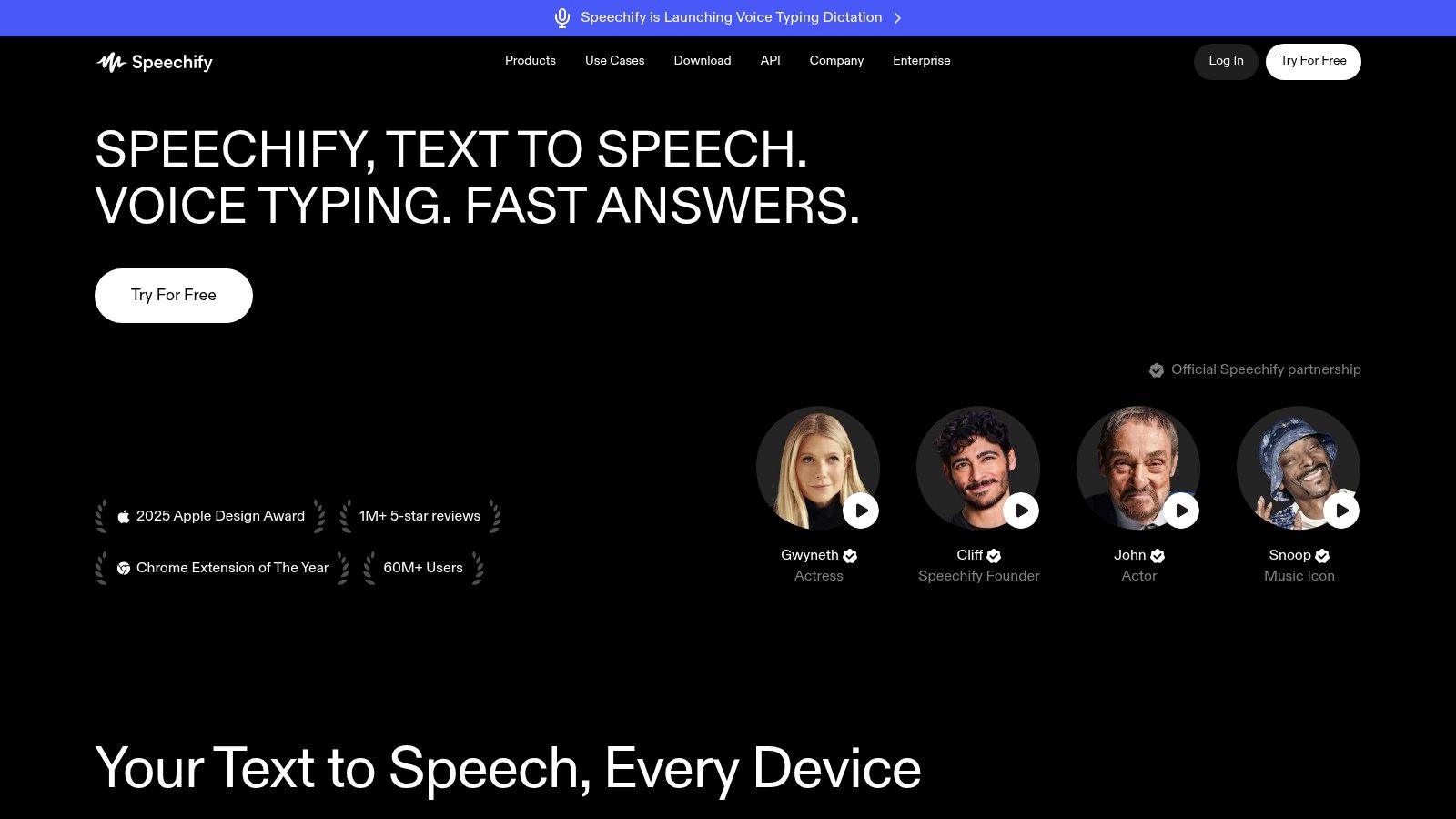

If you want one reader for Kindle titles, study materials, and saved articles, Speechify may fit. It offers web, mobile, and browser-based listening, premium voices, adjustable playback speed, and tools for scanning text. Premium supports a broad range of languages, so confirm yours is included before subscribing. Integrations with Google Drive, Dropbox, and OneDrive let you open documents stored in those services.
The broader document workflow is Speechify's main advantage. You can listen to articles, reports, and study materials, then adjust playback speed for review. A free tier lets you try its voices and controls before paying.
Kindle access is less predictable. Compatibility depends on the workflow available for your account and device, so check that your specific setup works before subscribing. Speechify is not a guaranteed way to convert DRM-protected Kindle files into portable audio.
How to Test It Honestly
Use a full chapter from the Kindle book you want to hear, on the device you plan to use. Listen for ten minutes. Check whether playback resumes at the right place, chapter breaks behave properly, and the voice stays clear at your preferred speed.
Speechify's premium subscription makes more sense if you will also use it for articles and documents. Try the chapter test on the free tier first, then review the Speechify website for its current plans.
Pros
- Broad document workflow: Listen to articles, study materials, scans, and cloud documents.
- Adjustable speed: Useful for reviewing or skimming dense material.
Cons
- Kindle uncertainty: Access depends on the app or browser workflow available to you.
- Subscription cost: Less suitable if you only want to listen to Kindle books.
6. NaturalReader
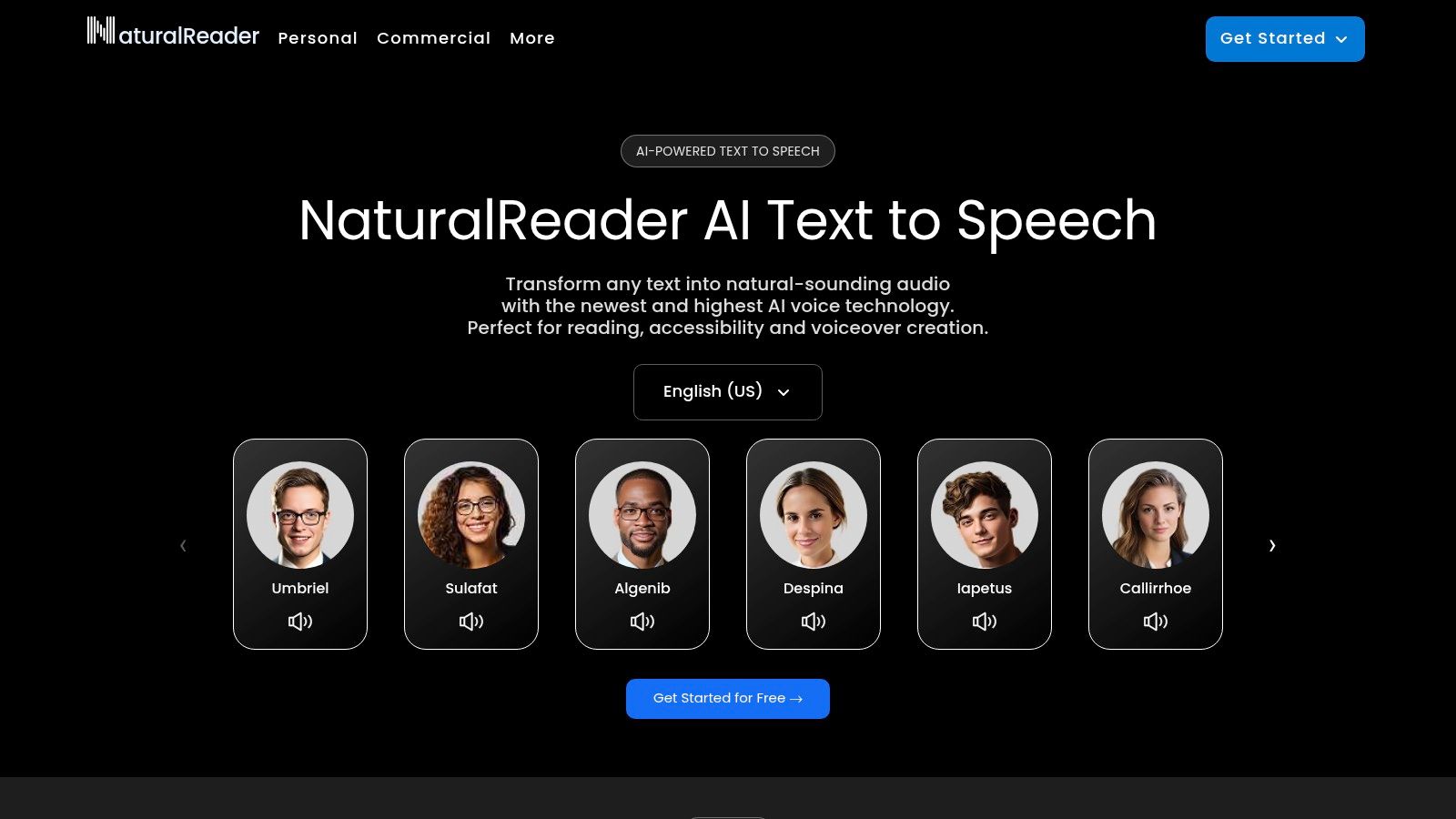

NaturalReader's Kindle route runs through the browser. Its Chrome extension can read Kindle books opened in Kindle for Web, with voice, speed, and playback controls layered on top. Its web and mobile apps also read supported documents, including EPUB and PDF, and subscription plans add OCR and additional document features for scanned or image-based files.
That combination suits readers who split time between Kindle titles and work or study documents. Read a chapter in the browser at your desk, then load a PDF report in the app later. The OCR features also help when a document arrives as scanned pages rather than selectable text.
Now the honest part. NaturalReader itself is clear that DRM-protected Kindle ebooks cannot be uploaded as ordinary files. The extension route exists precisely because direct upload doesn't work. It also notes that Kindle web compatibility may be limited or affected by changes to Amazon's site, and some extension functions may not work inside Kindle for Web.
A browser-extension workflow is only as stable as the web page it sits on. When Amazon changes Kindle for Web, the reader on top of it can break without warning.
That doesn't make it a bad tool. It makes it a tool you should test on your own books before relying on it for a course or a deadline. Open your longest, most awkwardly formatted title in Kindle for Web, run the extension, and check footnotes, tables, and chapter turns.
If it holds up, NaturalReader gives you one reader for Kindle web content and everyday documents. If it stumbles on your titles, you'll have learned that cheaply.
Pros
- Dual use: Kindle for Web reading plus non-Kindle documents.
- OCR included: Helpful for scanned pages on subscription plans.
Cons
- Unstable Kindle fit: Web compatibility can be limited or change.
- No direct upload: DRM-protected Kindle ebooks can't be uploaded as files.
7. Kindle for Windows With a Screen Reader
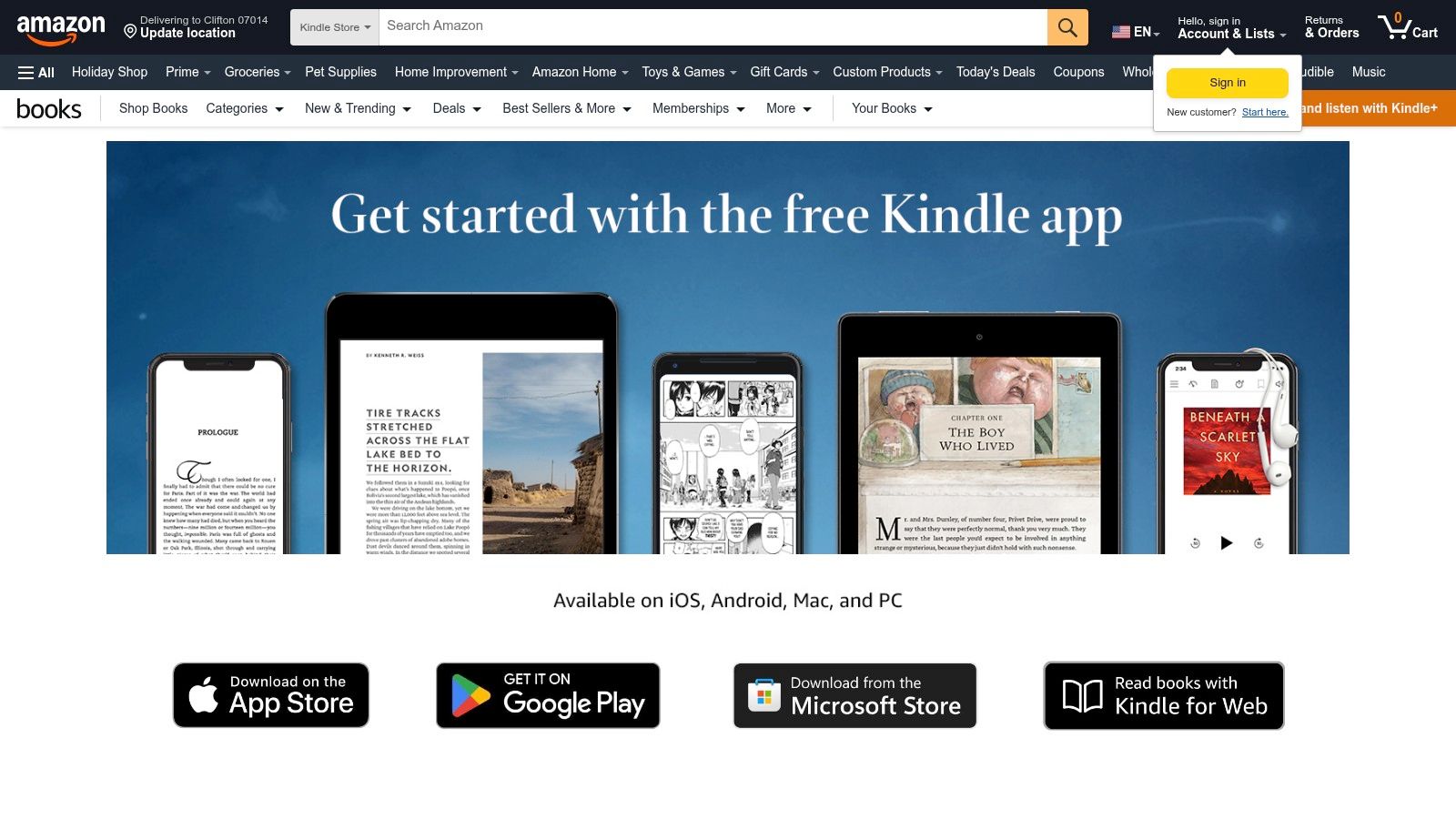

This is the first option on the list that is spoken access, not conversion. Amazon supports using Windows screen readers with the Kindle for Windows app to read compatible books aloud. Supported options include Narrator, NVDA, and JAWS, with book and library navigation built around the keyboard.
The reading modes are granular in a way audiobook players aren't. According to Amazon's Kindle for Windows accessibility guidance, Kindle for Windows can read aloud more than 6 million English-language titles, plus most titles in other languages, using screen-reader technology. Users can choose character-by-character, word-by-word, or continuous reading.
For a student checking spelling, a researcher verifying a quotation, or a blind reader who already uses a screen reader all day, that granularity is the point. You can slow down to a single word, move through the library, and stay inside tools you already know.
Check Compatibility Before You Buy
Amazon's guidance also gives you the diagnostic step most tutorials skip. Kindle product pages identify compatible books with the label "Screen Reader: Supported". Look for that label on the title page before purchase, because compatibility can vary by title and by screen reader.
The constraints are clear. It's Windows-only, it requires you to run and configure a screen reader, and it does not convert books into audio files. If you already use NVDA or JAWS daily, that's no hardship. If you don't, learning a screen reader just to hear a novel is the wrong trade. Pick a narration tool instead.
Pros
- Stays in your library: Reads compatible Kindle books in the app.
- Precise navigation: Continuous, word-by-word, and character-by-character modes.
Cons
- Windows only: No equivalent path here for other platforms.
- No audio export: Spoken access only, not a converted file.
8. VoiceOver on iPhone or iPad

VoiceOver is Apple's built-in screen reader, and for readers who already use it, it's the most natural way to get spoken Kindle access on an iPhone or iPad. It's built into supported Apple devices, provides spoken feedback and screen-reader navigation, and works with Kindle titles that are compatible with screen-reader access. There's no separate reader subscription, and the same controls work across the rest of iOS.
Go in with the right expectations, though. VoiceOver is designed to describe and operate an interface, not to perform a book. You'll hear controls and structural elements spoken as part of the experience, and interaction follows screen-reader gestures rather than a simple play button and progress bar.
That distinction is more than pedantry. A screen reader optimized for interface navigation can be less comfortable for sustained book listening than a reader built for continuous narration. Pronunciation of names and technical terms, reading order in tables and footnotes, and whether you can resume reliably all decide whether hour three feels easy or exhausting.
Language coverage is another check. Amazon's Kindle accessibility storefront describes VoiceView as a screen-reader feature with Bluetooth support in English, French, German, Italian, Portuguese, and Spanish. That's Amazon's implementation rather than Apple's, but it shows how narrow official language support can be in this category. Confirm your language before you commit to a long book.
Who Should Choose It
Choose VoiceOver if you already use it on iOS and your titles support screen-reader access. You'll find setup details on Apple's accessibility page for vision. If you're sighted and just want pleasant narration for a commute, a dedicated reader will frustrate you less. VoiceOver does not create a downloadable audiobook file, and title support varies.
Pros
- Already on your device: No extra subscription for existing VoiceOver users.
- System-wide: The same accessibility controls work beyond Kindle.
Cons
- Navigation feel: Screen-reader gestures, not an audiobook player.
- No file output: Nothing portable to take elsewhere.
9. TalkBack on Android

TalkBack is Android's counterpart to VoiceOver. It's built into Android accessibility settings, provides spoken feedback and gesture-based navigation, and can read compatible Kindle content when the title and app support it. It works across the whole Android interface, not just inside books, and there's no extra app purchase involved.
For blind and low-vision readers who already use TalkBack everywhere else, that consistency is valuable. You learn one gesture set and apply it to your library, your messages, and your settings. Spoken navigation and spoken reading come from the same system.
For everyone else, be clear about what you're signing up for. TalkBack may also speak interface controls rather than delivering clean, continuous narration. Buttons, menus, and focus changes become part of the audio. That's correct behavior for a screen reader. It's a poor fit if you wanted to press play and zone out on a train.
Setup also takes effort. Screen-reader controls require configuration and practice before gestures feel automatic, and you'll want to learn how to pause, regain focus, and exit cleanly before you start a book in public. Google's Android accessibility support pages document the gesture set and settings, and they're worth an hour of practice first.
A Fair Test
Turn TalkBack on, open a short compatible title, and read one chapter start to finish. Note how often it interrupts narration with interface speech and how reliably you can pause and resume. If that rhythm suits you, it's a capable free option. If it grates, you've learned that you need a narration app, not more persistence. Title support varies, and TalkBack is not a dedicated audiobook workflow.
Pros
- Free and built in: Part of Android accessibility settings.
- Navigation plus reading: Spoken feedback across the device.
Cons
- Interface speech: Controls are spoken along with book text.
- Setup curve: Gestures and settings take practice.
10. TTS Reader Pro
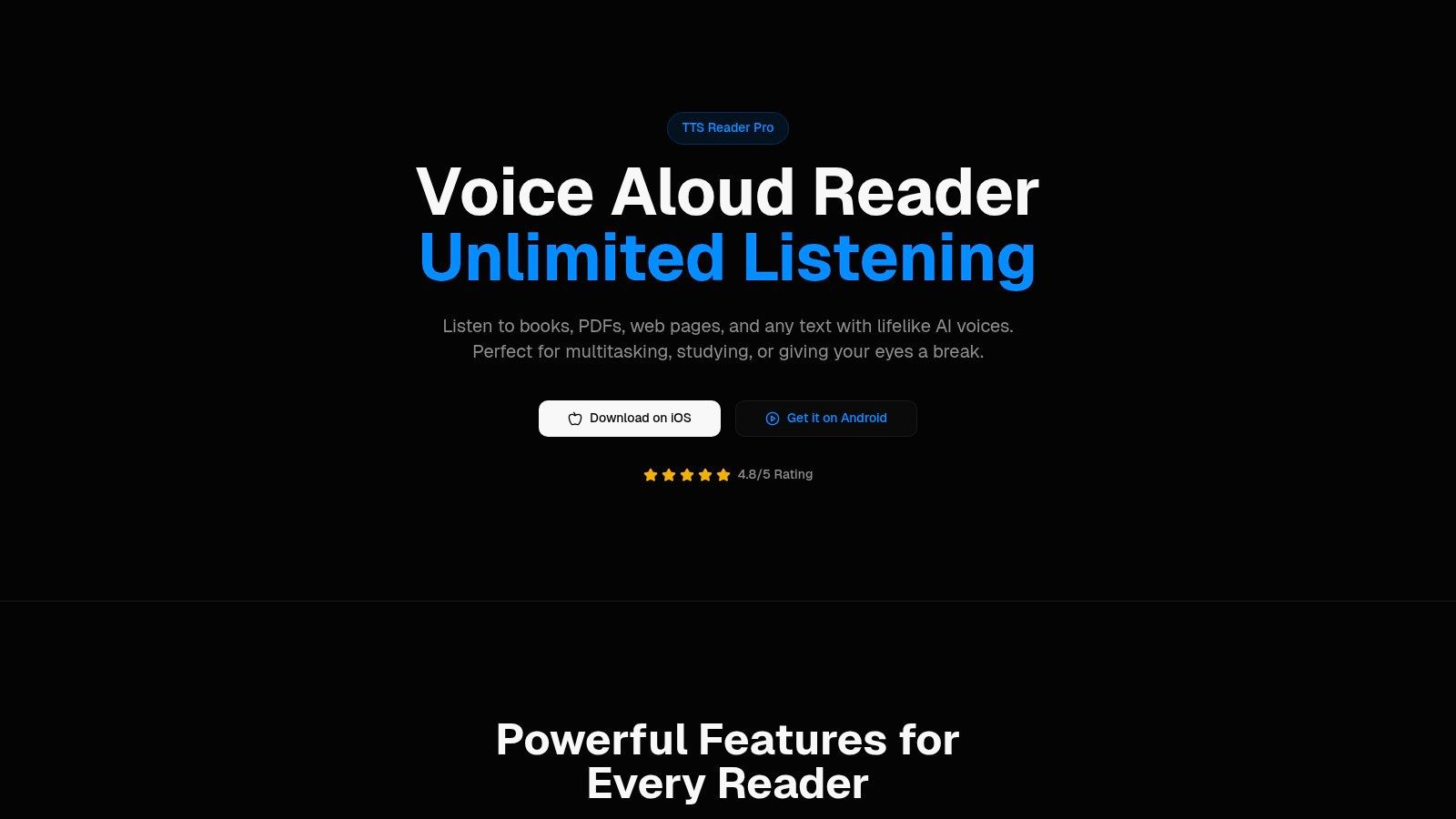

TTS Reader Pro handles Kindle books alongside other reading material. It can sync a Kindle library for hands-free listening, read aloud the Kindle books you own, and sync reading progress with the Kindle app. Kindle Unlimited is supported too. Title access may depend on Amazon's content protections, so check that your books load before relying on this workflow.
The same app reads PDFs, EPUBs, TXT files, and web pages. You can paste an article or webpage link, or scan printed pages, notes, and other text to create audio. It offers premium AI-generated voices in more than 50 languages, with adjustable listening speeds and voice choices. Pronunciation settings let you correct words the voice handles poorly.
Mark wrote, “Compared to other text to speech apps I have tried, this is the most accurate and consistent.” Joy, in an App Store review, called changing the voices “a great feature.” These are individual opinions. Test a chapter with your own titles and listen for pronunciation, pacing, and whether playback resumes at the expected point.
Verify Before You Rely on It
Log in to your Amazon account to connect the Kindle library. If books fail to load, support can show you how to refresh the login. Test a real Kindle title, a PDF with awkward formatting, and a scanned page before settling on one routine for all three.
TTS Pro has a free version. Check the app listing for current in-app purchase terms and feature limits; its listing includes the copyright notice © 2025 TTS Pro.
Pros
- Multiple content types: Kindle books, documents, webpages, and scanned text.
- Listening controls: Choose voices and adjust playback speed.
Cons
- Kindle access: Amazon content protections can affect which titles load.
- AI narration: Voices are AI-generated, not human narrators.
How the Kindle Audio Options Compare
These methods differ in what they do with a Kindle book: some sync a library for in-place listening, some read eligible titles through Kindle or accessibility features, and some handle Kindle content only through a specific app or browser workflow. None of the entries below promises an exported audio file for Kindle books.
| Item | Platforms | Kindle Access Method | Audio File Export |
|---|---|---|---|
| TTS Pro | iOS, Android | Syncs a Kindle library, including Kindle Unlimited titles; reads books the customer owns and syncs reading progress with the Kindle app | Not available |
| Kindle Assistive Reader | Kindle app on supported devices | Built-in read-aloud for eligible books | Not available |
| ElevenReader | iOS, Android, web | Reads supported Kindle books online in its in-app browser | Not available for Kindle books |
| Amazon Alexa | Alexa-enabled devices and app | Reads eligible books from an Amazon library | Not available |
| Speechify | Web, mobile, browser | Depends on the app or browser workflow | Not available |
| NaturalReader | Web, mobile, Chrome extension | Reads books opened in Kindle for Web | Not available |
| Kindle for Windows with a screen reader | Windows | Screen readers read compatible books in the Kindle app | Not available |
| VoiceOver on iPhone or iPad | iPhone, iPad | Spoken access to compatible Kindle content | Not available |
| TalkBack on Android | Android | Spoken access to compatible Kindle content | Not available |
| TTS Reader Pro | iOS, Android | Syncs a Kindle library, including Kindle Unlimited titles; reading progress syncs with the Kindle app | Not available |
For a listenable file, the table offers no Kindle-book export option. TTS Pro and TTS Reader Pro instead sync Kindle libraries for in-place listening, while screen readers provide spoken access to compatible content. Kindle title eligibility still depends on the book.
Choosing the Method That Fits Your Books and Your Rights
If you want a separate audio file, first check whether the book is available to download without DRM. If you want to listen without leaving the Kindle app, choose an in-place reader. If you need spoken access to the screen and its controls, use a screen reader. The right method depends on your book rights, device, and listening workflow.
Since January 20, 2026, verified purchasers can download EPUB and PDF files for confirmed DRM-free books, while DRM-applied books remain excluded from those downloads. Amazon's Kindle Direct Publishing documentation on DRM explains the distinction. Use only files or access paths you're permitted to use.
Book compatibility can vary. Amazon's Kindle accessibility help for Assistive Reader describes accessibility support for Kindle titles, but a feature available for one book may not work with another. Check the product page and test the exact title before relying on a particular reading method. Fixed-layout, image-heavy, older, or publisher-restricted books may be harder to read aloud.
For hands-free reading of books you own, TTS Pro can sync a Kindle library and read compatible titles with AI voices. It also supports Kindle Unlimited, though title compatibility can vary. If a book fails to load, the app requires an Amazon account login; support can show you how to refresh it. TTS Pro offers a free version, several voice choices, adjustable speeds, and pronunciation settings.
Choose by the task, not just the app name. Kindle Assistive Reader and Alexa read eligible books in place. Screen readers, including VoiceOver, TalkBack, and Windows screen-reader setups, provide spoken access to compatible Kindle content and interface controls. Readers such as ElevenReader, NaturalReader, Speechify, and TTS Reader Pro offer other ways to listen, but access depends on the title and the reader's workflow.
Before settling on a method, listen to one chapter on the device you plan to use. Check whether navigation is manageable, names and specialist terms sound right, and chapter breaks and formatting remain clear. If you follow the text on screen, check whether highlighting keeps pace. Then pause and resume to confirm the app returns to the right place.
The trade-off is practical: in-place reading avoids managing a separate file, while an exported file may offer more flexibility only when the book's rights allow it. Screen readers can provide detailed spoken navigation, but they may also read interface elements aloud. Test the setup against your actual book and listening routine.


No Comments
Leave a comment Cancel