
The usual advice to “just turn on TalkBack” isn't the best starting point for everyone. Kindle books aren't audiobooks, and Android's screen reader isn't a dedicated audiobook player. You can read Kindle books aloud on Android through several routes, but they differ in book compatibility, voice quality, navigation, and how much tapping they require.
Your Kindle books can talk. The useful question is whether you want whole-book listening, help with an occasional passage, or a synced library with natural-sounding AI voices. Kindle's Assistive Reader is the simplest built-in option for eligible titles, Alexa offers voice-driven access, and Android accessibility tools handle different reading needs. Third-party readers add flexibility, but some only work with compatible, unprotected files.
For a visual setup reference, watch the Kindle read-aloud walkthrough video. Then choose a method based on the books you own, not just the voice you like.
Table of Contents
- 1. TTS Pro
- 2. Kindle App Assistive Reader
- 3. Amazon Alexa App Kindle Assistive Reader
- 4. Android TalkBack
- 5. Android Select to Speak
- 6. @Voice Aloud Reader
- 7. ReadEra
- 7 ways to read Kindle books aloud on Android at a glance
- Pick Your Listening Route and Start Today
1. TTS Pro
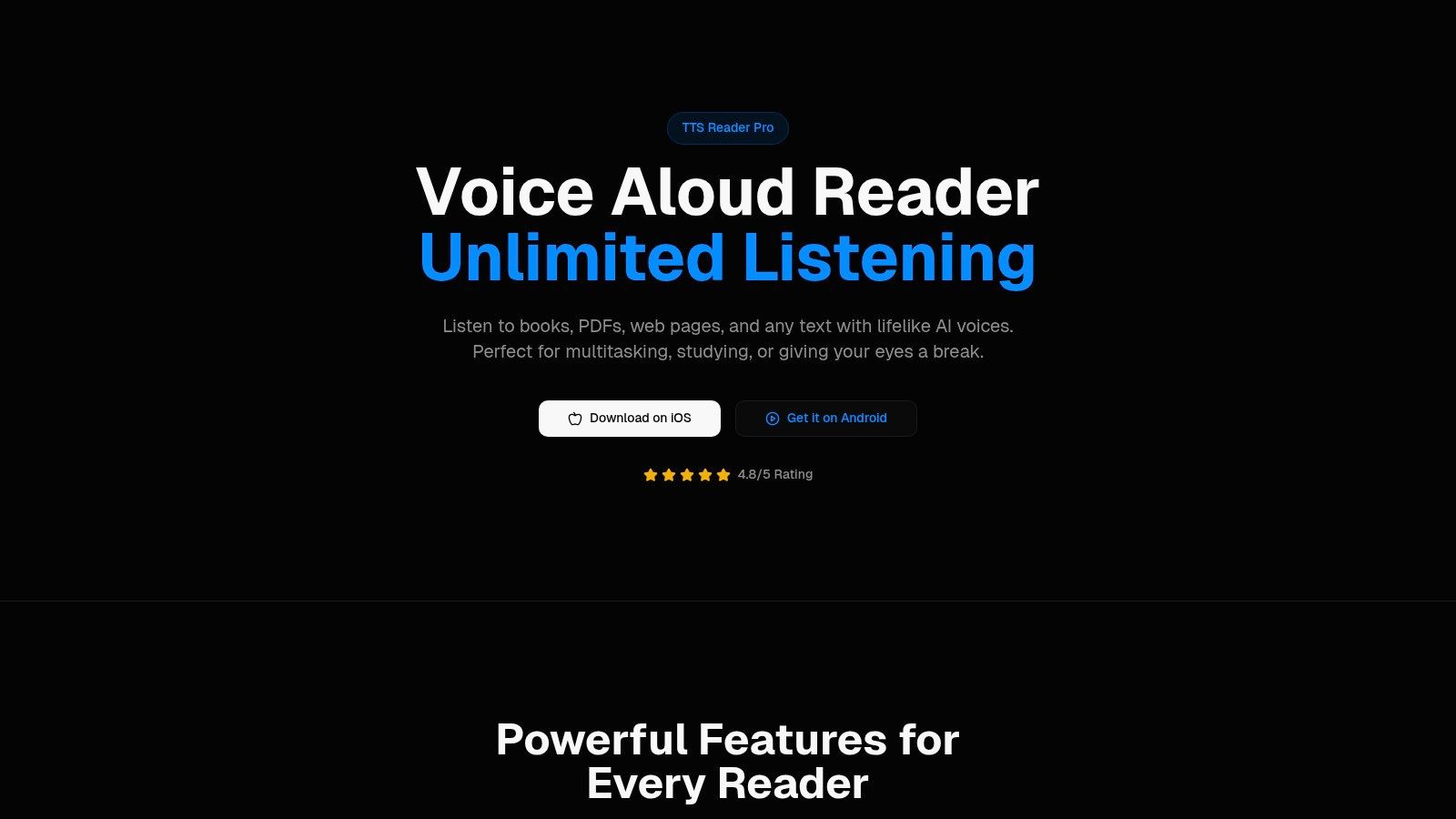

TTS Reader Pro is the strongest fit here when you want Kindle listening alongside documents, notes, and articles. Our app syncs a Kindle library, reads the Kindle books you own with premium AI voices, and syncs reading progress with the Kindle app. It also supports Kindle Unlimited, so the workflow isn't limited to purchased titles.
The distinction from a conventional file reader matters. You don't have to treat your Kindle library as a folder of EPUB files or assume you can export protected downloads into another app.
Set up your Kindle listening workflow
Download the Android app from Google Play, open its Kindle connection, and sign in to your Amazon account. Choose a book from the synced library, select a voice, and adjust the listening speed before starting a longer session.
If books fail to load, refresh the Amazon login. Our support can show you how to refresh that connection rather than leaving you to troubleshoot file conversions that aren't part of this workflow.
- Beyond Kindle: Read PDFs, EPUBs, TXT files, web pages, and pasted article links, or scan printed notes into spoken content.
- Listening controls: Choose among AI voices, adjust speed, and change pronunciations in settings.
- Cross-device use: The app also has an iOS version on the App Store, useful if you switch between phone platforms.
- Limits to understand: AI-generated speech isn't human audiobook narration. Don't assume every voice or feature has the same subscription requirements.
There's a free version, but review the purchase screen before choosing a paid option. We haven't specified supported accessibility features, so readers who depend on screen-reader navigation should assess that separately from speech quality.
TTS Pro isn't affiliated with or endorsed by Amazon.
2. Kindle App Assistive Reader
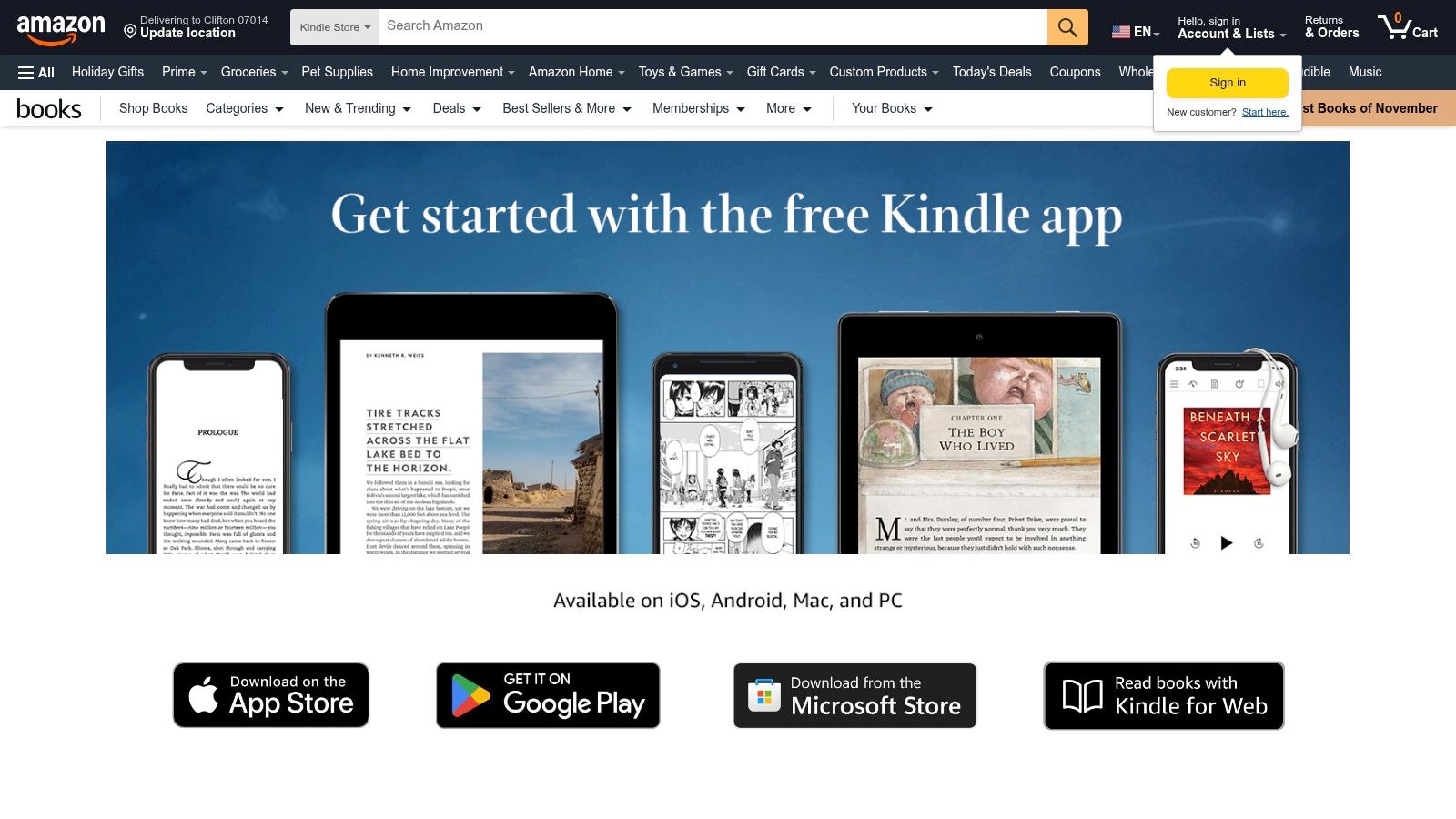

Start with Assistive Reader if you want the shortest route from an open Kindle book to spoken text. It stays inside the Kindle app, so there's no import step or separate library to maintain.
Amazon's Assistive Reader documentation confirms Android support, synchronized highlighting, and playback using the device's operating-system text-to-speech engine. Eligibility depends on Enhanced Typesetting, and the book's language must be supported by that speech engine.
Find the built-in player
Open your book, tap the page to reveal the reading controls, then choose Aa > More > Assistive Reader. Enable it, return to the page, and bring up the player to start listening or adjust playback.
Qualifying purchased, borrowed, and Family Library titles can provide a convenient in-app experience. However, being visible in your library doesn't automatically make a book eligible.
- Best feature: Highlighting lets you follow the text while listening, which is useful for study or language practice.
- Main limitation: An unsupported edition won't become compatible just because you install another Android voice.
- Troubleshooting order: Update Kindle, check the book's Enhanced Typesetting information, try another eligible title, then check the installed speech language.
Practical rule: If Assistive Reader works with your book and you like the voice, you may not need another app.
Playback can pause when you open navigation or create an annotation. That's reading-context behavior, not necessarily a broken audio connection.
3. Amazon Alexa App Kindle Assistive Reader
Alexa suits a different habit: asking for a book instead of opening a reading screen. If you already use Amazon's voice assistant, the Amazon Alexa app is worth testing before adding a separate document reader.
Use the Amazon account associated with your Kindle library. In Alexa's settings, look under Accessibility for Kindle Assistive Reader, enable it where available, and ask Alexa to read the book by title.
Test the title, not just the voice command
Availability can vary with the account, region, device, app version, and book. If Alexa can't read a title, repeating the same request with slightly different wording won't resolve an eligibility problem.
- Good fit: Voice-controlled listening while cooking or doing something that makes screen tapping inconvenient.
- Trade-off: Don't choose it expecting the same visible reading workflow as Kindle's highlighted text.
- Failure point: A book in your Kindle library isn't a guarantee that Alexa can narrate it in your setup.
Synthetic reading and Audible narration are different products. VentureBeat's coverage of Kindle and Audible integration describes Whispersync for Voice as linking an ebook to its corresponding professionally narrated audiobook and synchronizing reading position.
Alexa's assistive reading doesn't turn a synthetic voice into that professional performance. If expressive character voices matter more than flexibility, check whether a matching audiobook exists instead.
For hands-free use, test starting, pausing, and resuming before relying on Alexa during a commute. Successful playback at home provides more useful evidence than just finding the accessibility setting.
4. Android TalkBack
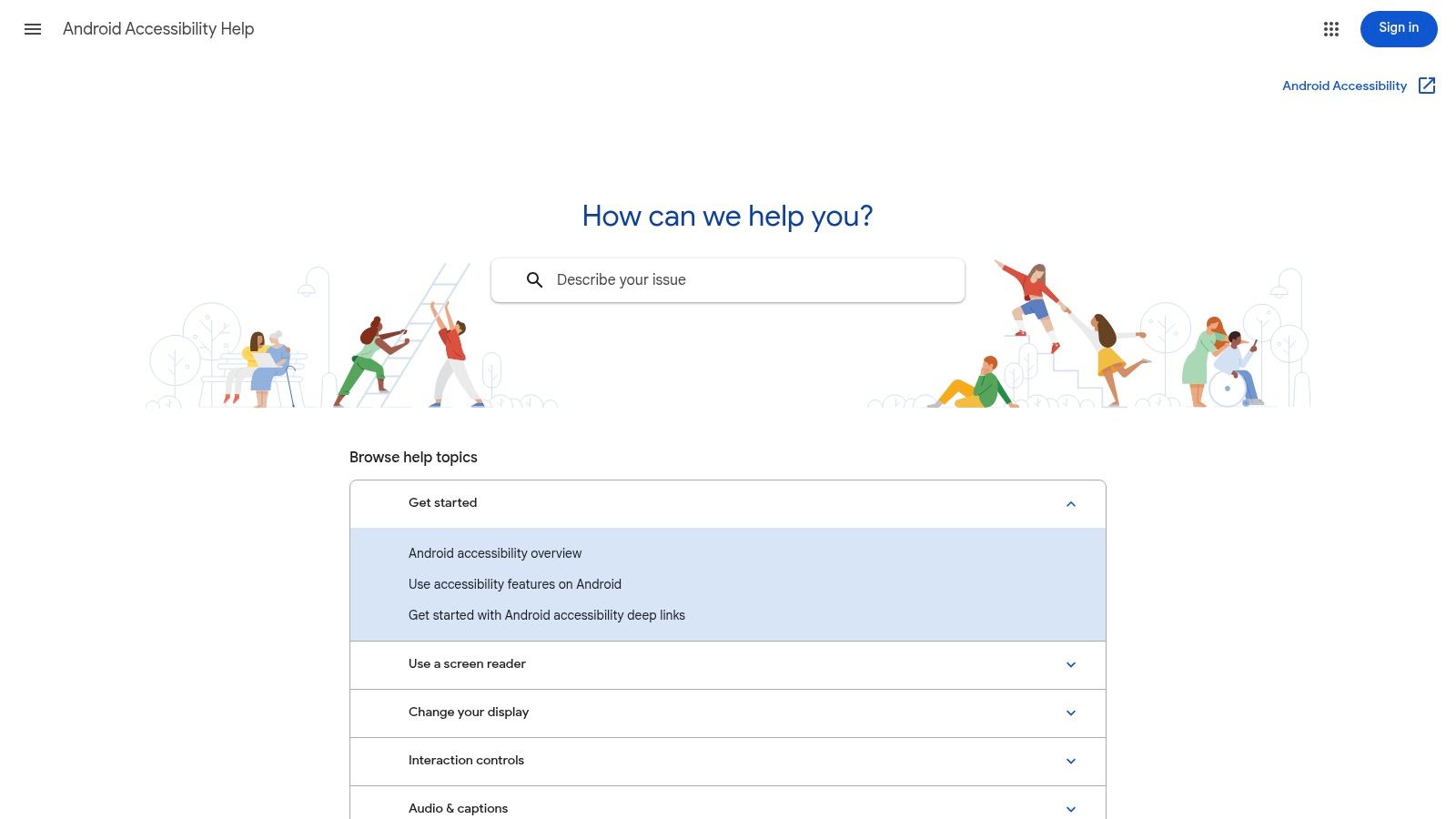

TalkBack isn't merely a fallback audio player. It's Android's screen reader, designed to help you operate the phone through spoken feedback.
Amazon's Kindle accessibility guidance documents Kindle support and continuous reading through TalkBack's Read from focused item command, including automatic page turns. That makes it more capable than a tool that only reads the visible paragraph.
Enable it without getting stranded
Open Settings > Accessibility > TalkBack and review the navigation tutorial before switching to Kindle. TalkBack changes touch interaction, so learn how to move focus, activate a focused control, and turn the service off.
Open your book, focus the text where you want to begin, and use TalkBack's reading command. Adjust the speech engine, language, and rate through Android's accessibility or text-to-speech settings.
Choose TalkBack because you need spoken navigation, not because someone described it as a hidden audiobook button.
The advantage is system-wide access. You can move through your library and controls, not just hear the book itself, with further setup guidance available through Android Accessibility Help.
The trade-off is that TalkBack also announces buttons, menus, and focus changes. That's useful feedback for someone navigating without sight, but distracting for a sighted listener who only wants a chapter narrated.
Check the book's screen-reader compatibility before purchasing. Even with a supported app, the specific title's accessible text and your chosen speech engine affect the result.
5. Android Select to Speak

Say you're reviewing a textbook and want to hear a difficult paragraph again. Select to Speak is often a better fit than enabling a full screen reader because the task is a passage, not phone navigation.
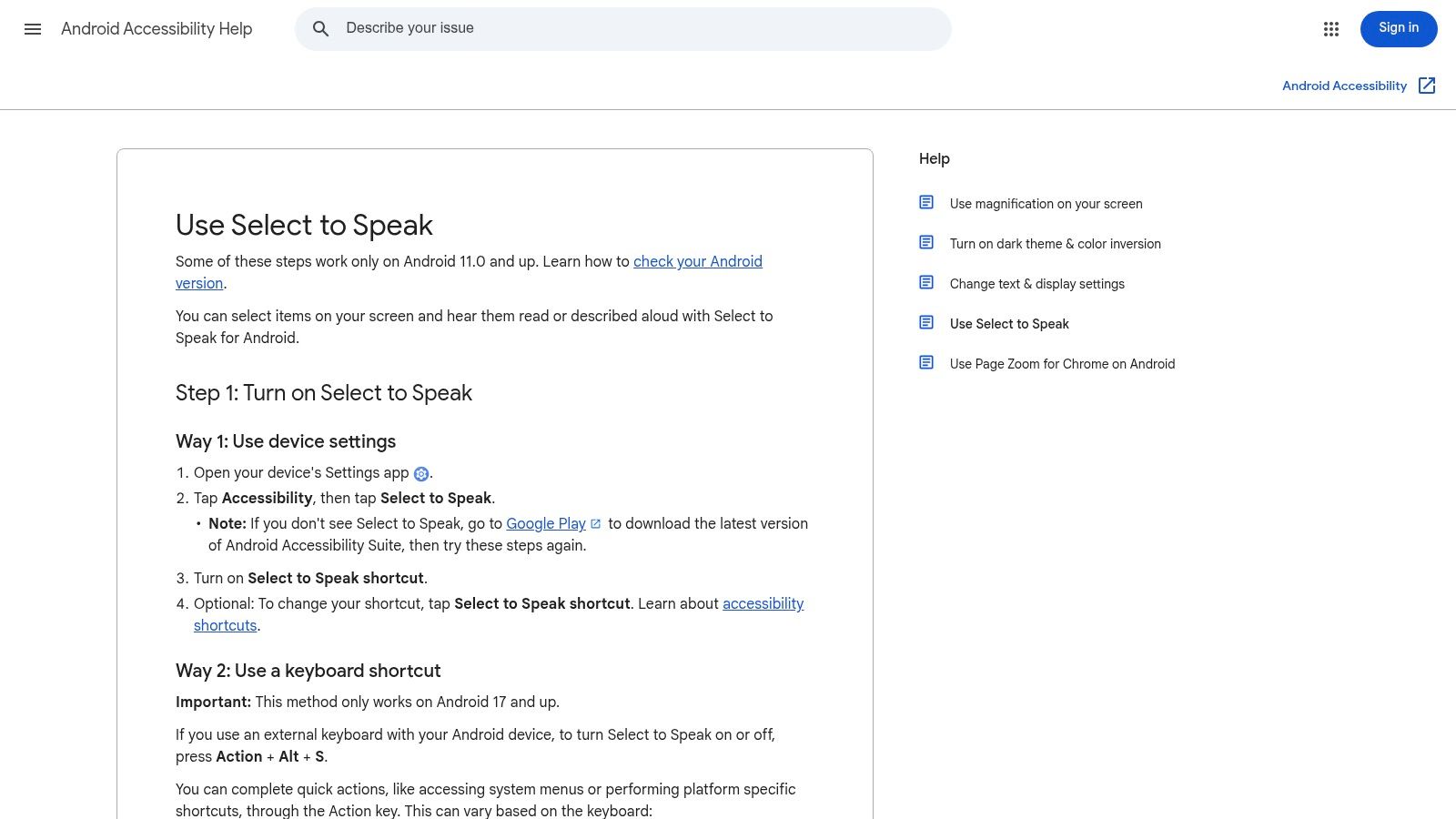
Google's Select to Speak instructions explain how to enable the feature through Settings > Accessibility > Select to Speak, launch its accessibility shortcut, and tap or drag across on-screen text. The same guidance covers Android speech settings, including engine, language, rate, and pitch.
Use it for snippets
Enable the shortcut, return to your Kindle book, activate Select to Speak, and select the passage you want read. Depending on your device and how Kindle exposes the text, selecting text may also offer a Read aloud command.
If the feature is missing, check whether Android Accessibility Suite needs installing or updating. Menu names and available controls can differ across phones.
- What works: Hearing a definition, paragraph, or short section without exporting the book.
- What doesn't follow automatically: Reliable chapter-length playback, automatic page progression, or an audiobook-style resume workflow.
- What to test: Whether the actual book text is selectable and exposed to Android's accessibility service.
Don't mistake reading the current screen for reading the whole book. If you're repeatedly turning pages and reselecting text, you've reached this method's practical limit.
For occasional passages, that manual interaction is reasonable. For a long walk or an uninterrupted study session, a dedicated reading player is usually the more comfortable choice.
6. @Voice Aloud Reader
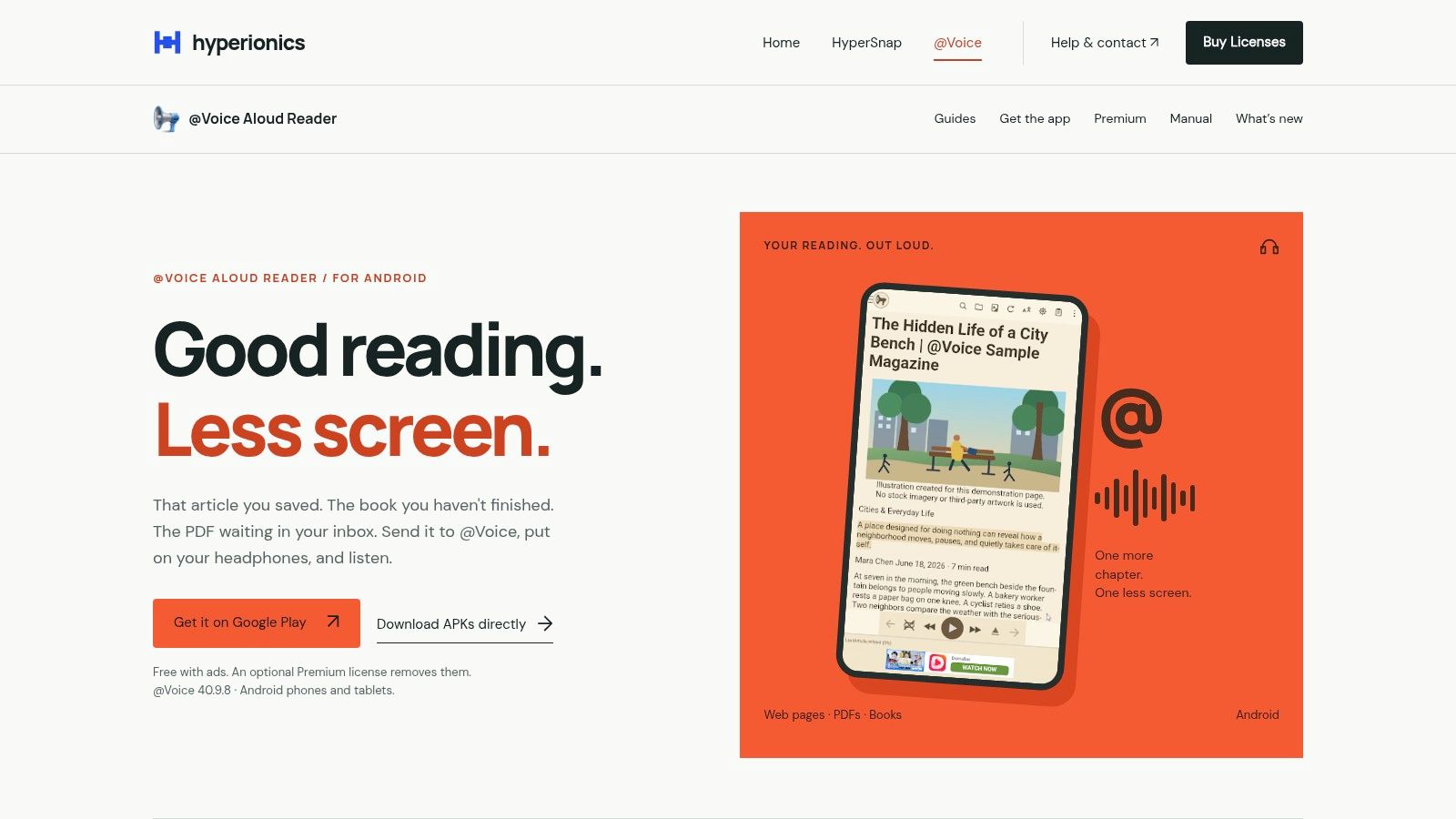

@Voice Aloud Reader is useful when you already have a compatible, unprotected file. It's not a direct doorway into your protected Kindle library.
The @Voice Aloud Reader website describes a document-focused Android reader with support for ebooks, PDFs, web content, and text. Its playback controls make it a practical option for combining reading material from different places.
Start with a file you can actually open
Download a DRM-free ebook or document to your phone, open it in @Voice, and choose an installed Android speech voice. You can also use Android's sharing workflow for supported web pages or text.
Set the speech rate conservatively at first, then use highlighting and bookmarks to check that you can follow the document. A sleep timer and audio-saving features give it more listening flexibility than a basic screen-selection tool.
- Strength: Detailed playback controls for compatible documents and longer listening sessions.
- Cost trade-off: The free version includes ads; an optional Premium license removes ads and adds extras.
- Hard boundary: It can't directly open DRM-protected Kindle books.
Compatibility check: A book being yours doesn't mean its downloaded file is readable in every ebook app.
For a PDF, check the reading order before committing to a long session. Columns, headers, and scanned pages can produce awkward speech even when the document opens successfully.
I recommend @Voice for personal documents and DRM-free books, not as a promise that any Kindle purchase can be imported. The selected Android speech engine also determines much of the voice quality.
7. ReadEra
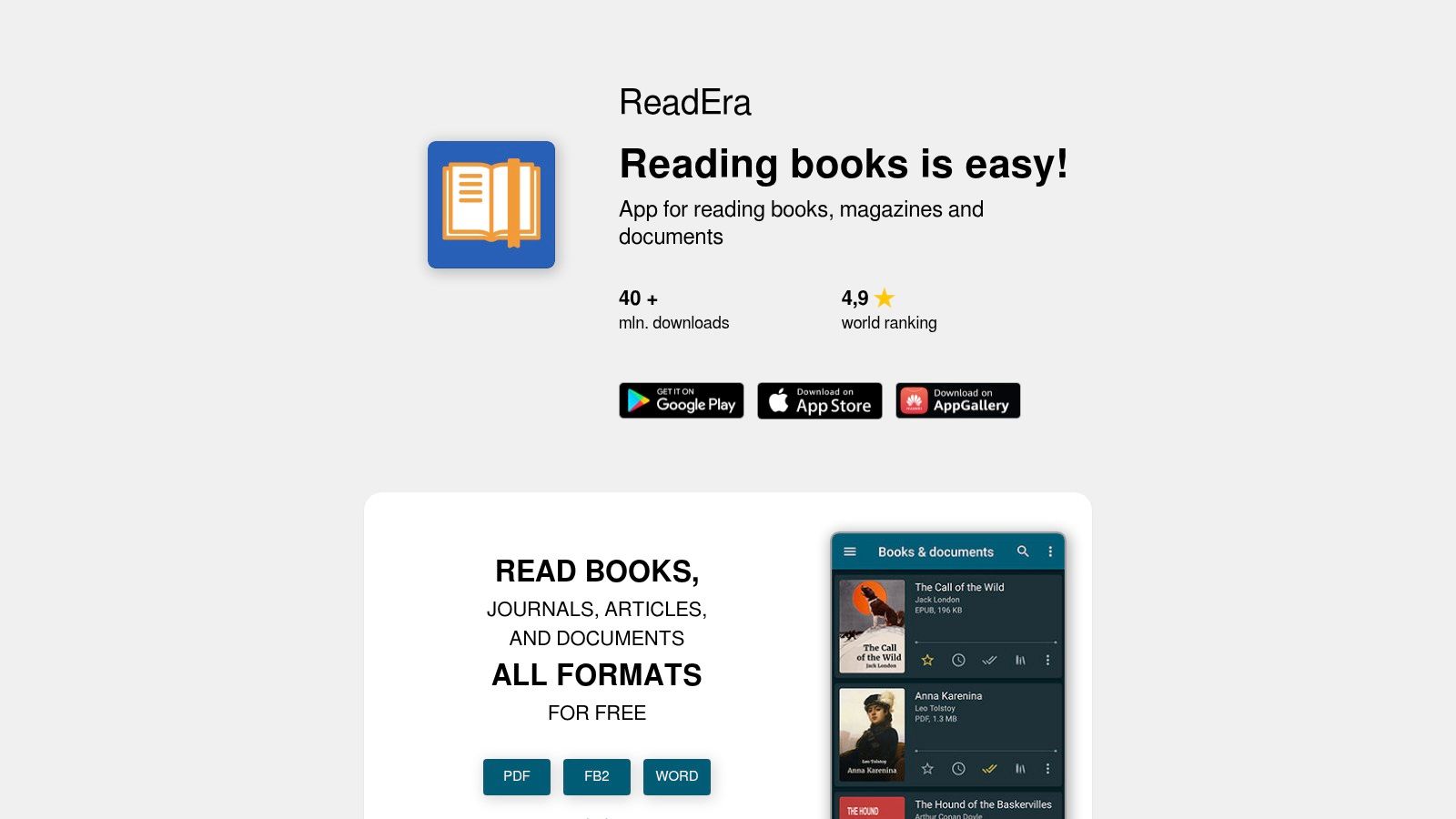

ReadEra makes sense if organizing a local ebook collection matters as much as listening. Its support for EPUB, PDF, MOBI, AZW3, and other formats can be helpful when your reading material comes from several legitimate download sources.
However, format support isn't permission or technical access to protected Kindle downloads. A MOBI or AZW3 label alone doesn't tell you whether ReadEra can open the file.
Build a local listening library
Start with a compatible, DRM-free file saved on your phone. Open it in ReadEra, check that the text displays correctly, then use the text-to-speech features available in the appropriate edition.
The ReadEra website distinguishes its reading app from Premium features, including background text-to-speech and listening with the screen locked. That distinction matters if your main use is listening with the phone in your pocket.
- Best fit: Readers who want local ebook organization plus audio for supported files.
- Useful extras: Reading-progress and notes synchronization through Google Drive can support a personal document workflow.
- Main limitation: Background text-to-speech requires Premium, and protected Kindle-library access isn't included.
Before buying Premium for a particular book, confirm that the free reader can open that file and display usable text. Then evaluate the available speech voices separately.
ReadEra is a sensible document-library choice, but it's not a substitute for Kindle account integration. Choose it when you already control compatible local files, not when you need an app to retrieve protected purchases from Amazon.
7 ways to read Kindle books aloud on Android at a glance
Compare the rows side by side before installing anything: setup effort varies, and only some methods reach your Kindle purchases directly.
| Method | Setup effort | Works with Kindle library | Best for |
|---|---|---|---|
| TTS Pro | Install app and sync library | Yes, syncs your Kindle library and reads the books you own with AI voices | Listening to Kindle books and other content with AI voices |
| Kindle app, Assistive Reader | Enable in reading settings | Yes, for eligible titles | Simple in-app listening with synchronized highlighting |
| Amazon Alexa app, Kindle Assistive Reader | Enable in Alexa settings or use a voice request | Yes, for eligible titles | Hands-free listening and voice control |
| Android TalkBack | Enable Android accessibility feature | Yes, with the supported Kindle app | Screen reading and broader Android accessibility |
| Android Select to Speak | Enable in Android accessibility settings | Partly; reads selected on-screen text | Listening to short passages |
| @Voice Aloud Reader | Install app and open a compatible file | No, not directly with DRM-protected books | Listening to DRM-free ebooks, PDFs, and webpages |
| ReadEra | Install app and open a compatible local file | No, not with protected Kindle downloads | Reading local ebook files with background TTS |
Select to Speak is the partial case: it reads whatever text is on screen, so it covers a Kindle page only while that passage stays visible.
Pick Your Listening Route and Start Today
Start with Kindle's Assistive Reader when your book qualifies. It keeps you in the reading app, highlights spoken text, and avoids transferring files. If the option is missing, check the edition's Enhanced Typesetting support and your phone's speech language before changing tools.
For occasional passages, Select to Speak is enough. Use TalkBack when you need accessible navigation throughout Kindle and Android, rather than just an audio player. Alexa is worth trying if voice requests already fit your routine, but test the specific book and playback controls first.
Match the method to the source
The key distinction is account-connected books versus local files. A reader that opens EPUB or AZW3 files doesn't necessarily open protected Kindle purchases, and a screen-reading tool doesn't necessarily provide comfortable continuous listening.
- Eligible Kindle title: Try the built-in player before installing anything else.
- Short passage: Use Android's selection-based speech tools.
- Personal ebook or PDF collection: Consider @Voice or ReadEra, after checking file compatibility.
- Synced Kindle-library listening: TTS Reader Pro suits readers who want continuous AI-voice listening, reading-progress synchronization, and access across Android and iOS.
Amazon's accessibility overview is a useful reminder that dedicated reading features and system-wide accessibility tools serve different needs. Choose based on the interaction you need, not merely whether an app can produce speech.
Before relying on any method, play a representative passage, pause it, leave the reading screen, and resume. Check pronunciation, reading position, and whether the controls remain usable in your normal setup.
Pick the simplest route that handles your actual book. A comfortable voice matters, but so do reliable progress, accessible controls, and not having to restart the narration every time you turn a page.
TTS Pro offers Kindle-library syncing, premium AI voices, and reading-progress synchronization with the Kindle app, alongside audio for PDFs, notes, and web articles. Visit TTS Pro to try your own Kindle books on Android and choose a voice and listening speed that suit your daily reading.


No Comments
Leave a comment Cancel