
You're on the bus with a Kindle book open, your headphones connected, and a chapter you'd rather hear than stare at. You tap the page, check the volume, and still nothing speaks. The missing piece may be the book's format, not your headphones.
Learning how to have Kindle app read to you starts with choosing the right player. Assistive Reader handles eligible book text, screen readers add spoken navigation, and a separate text-to-speech app can offer another listening route for books you legitimately access. None of those choices means every scanned textbook will suddenly become readable.
Table of Contents
- Which Kindle Read Aloud Method Fits Your Device
- Turn On Assistive Reader in the Kindle App
- Listen With VoiceOver TalkBack or VoiceView
- Why Read Aloud Vanishes on Some Books
- Sync a Kindle Library to TTS Reader Pro
- Listening Habits That Keep Narration Clear
- Choose a Player and Start the Next Chapter
Which Kindle Read Aloud Method Fits Your Device
A book can stay silent even when your device's speakers work. Start by checking whether the title supports the reading method you want, then choose a player that fits your device.
For book narration, try Assistive Reader in the Kindle app if the title supports it. It uses your device's speech engine and highlights words as they're read. Amazon's Assistive Reader guide describes how to start playback.
For spoken menus and buttons, use your device's screen reader: VoiceOver on iPhone or iPad, TalkBack on Android, or VoiceView on compatible Kindle hardware. Check the book's “Screen Reader: Supported” label first. Support varies by title and screen reader, so a device that can speak its menus may still be unable to read a particular book.
Kindle read-aloud methods by device
| Method | Where it works | Best for | Hard limit |
|---|---|---|---|
| Assistive Reader | Kindle app on iPhone, iPad, Android, Mac, and Fire tablets; Kindle 11th generation and newer, Scribe, Colorsoft | Eligible text with word highlighting and speed control | Requires Enhanced Typesetting; unavailable for print-replica or image-based fixed-layout titles |
| VoiceOver | Kindle app on iPhone and iPad | Spoken navigation and supported text | Check the title for Screen Reader: Supported |
| TalkBack | Kindle app on Android phones and tablets | Spoken navigation and supported text | Compatibility depends on the title and screen reader |
| VoiceView | Compatible Fire tablets and Kindle e-readers | Spoken interface navigation and supported text | Requires compatible hardware, software, language, and title |
| NVDA | Windows with Kindle | Accessible Store titles | Compatibility depends on the title and screen reader |
| TTS Reader Pro | iPhone, iPad, Android | Listening to owned Kindle and Kindle Unlimited titles | Uses AI voices, not human narrators; it is not an Amazon product |
The device matters too. Amazon's e-reader documentation lists Assistive Reader for Kindle 11th generation and newer, Kindle Scribe, and Kindle Colorsoft. VoiceView is available on compatible Kindle hardware; Amazon introduced it on e-readers in 2016.
A screen reader speaks the controls as well as supported book text. A dedicated TTS app offers another way to listen to Kindle titles. Choose based on whether you need spoken navigation, narration within the Kindle app, or a separate listening player.
Turn On Assistive Reader in the Kindle App
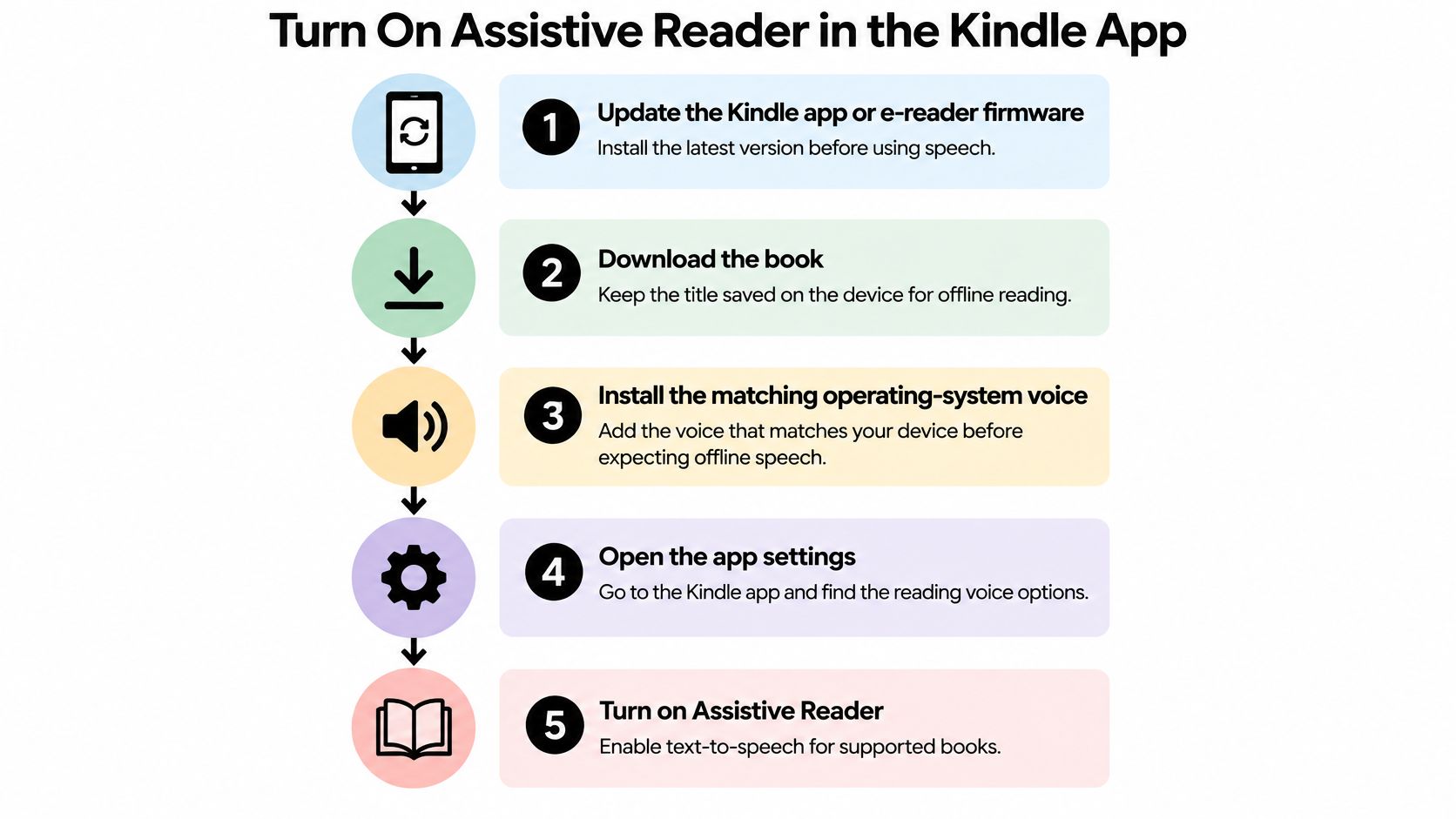
Prepare the device before you leave home. A downloaded book alone isn't enough if the matching speech voice still needs an internet connection to download.
- Update Kindle: Install the current app version or supported e-reader firmware.
- Download the book: Open the title and make sure its contents are saved locally.
- Install the language voice: Add the appropriate operating-system speech voice before expecting offline narration.
The visual checklist summarizes preparation, but the control you need lives inside an open book, not on the library screen.

Open the player inside your book
Amazon's Kindle app instructions give this workflow for iPhone, iPad, Android phones and tablets, Mac, and Fire tablets, including a 30-second rewind:
- Open the book, rather than staying in your library.
- Tap the top-center of the page to reveal reading controls.
- Select Aa, the reading-settings menu.
- Choose More.
- Switch on Assistive Reader.
- Tap the page to reveal the player, then press Play.
- Use Pause, the speed control, or Rewind as needed.
- To start at a particular passage, press and hold a word, then choose Play.
Start with a familiar paragraph so you can judge pronunciation and pacing. For a dense chapter, reduce the speed until you can follow the argument without repeatedly stopping. If a sentence slips past, use rewind rather than dragging through the chapter and losing your place.
The long-press shortcut is especially useful after checking a footnote or revisiting a definition. You can resume from the word you want instead of listening again from the page's beginning.
Understand what changes during playback
Assistive Reader highlights text in real time. It also pauses when you open a navigation menu or create an annotation, so silence immediately after adding a note doesn't necessarily mean playback has failed.
Voice quality, pronunciation, supported languages, and available speed settings come partly from your device's installed speech engine. Changing the Kindle font won't replace that voice. Look in your operating system's speech settings when the words are readable but the narration sounds wrong.
On a supported e-reader, the same Aa > More > Assistive Reader route reveals a bottom player. If the switch is missing, confirm Enhanced Typesetting before treating the app as broken.
First checkpoint: A missing narration switch is a reason to inspect the title's compatibility before resetting audio settings.
Listen With VoiceOver TalkBack or VoiceView
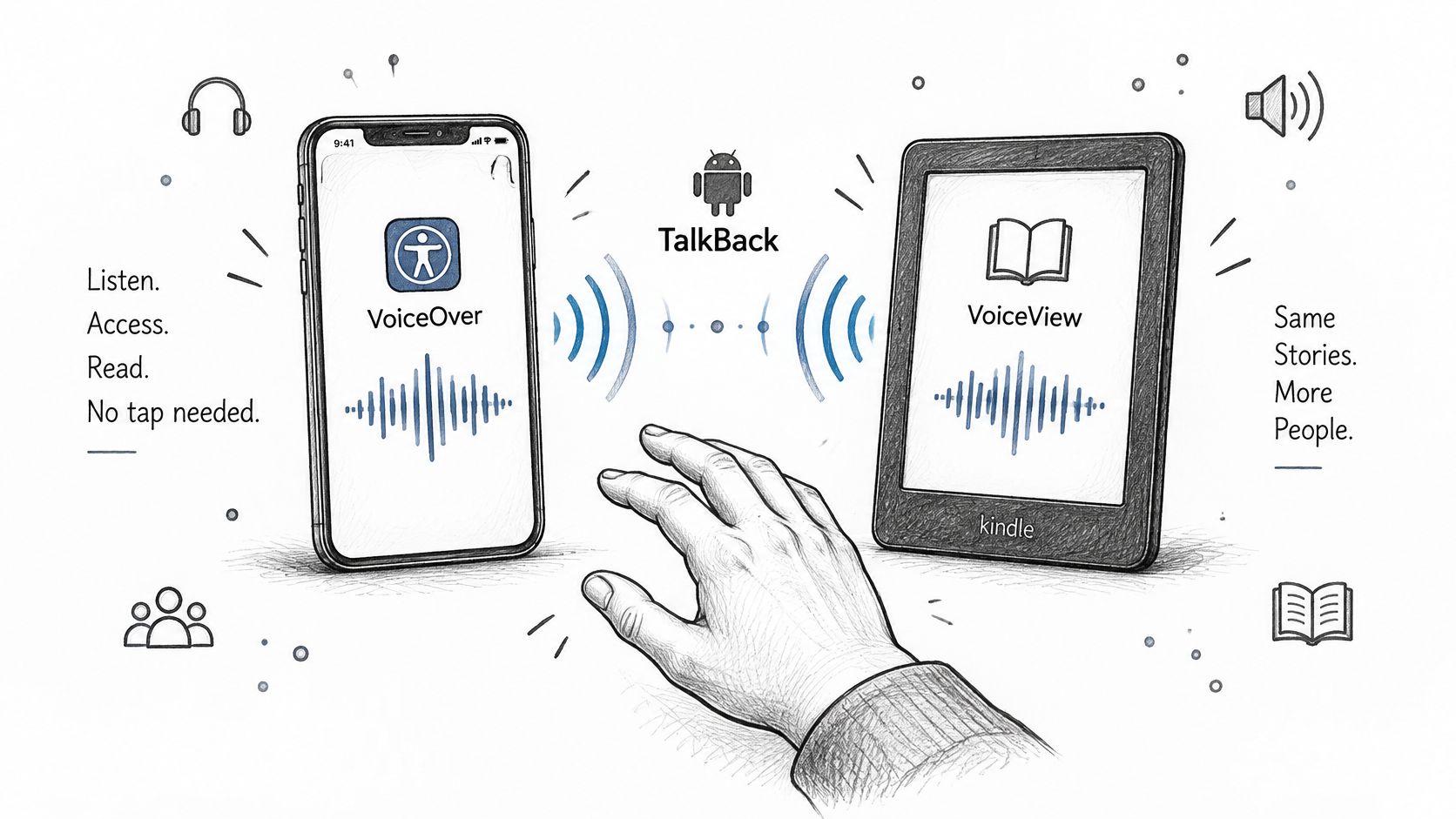
A screen reader does more than narrate paragraphs. It announces controls, menus, and other screen content, which matters when finding and operating a visual player is itself a barrier.
Amazon distinguishes VoiceView from Assistive Reader in its Kindle e-reader accessibility guidance. VoiceView supports spoken interface navigation and compatible Bluetooth audio; Assistive Reader focuses on supported book text and highlighting.
The same distinction applies when choosing your phone's accessibility tools.

On iPhone iPad and Android
On iPhone or iPad, open Settings > Accessibility > VoiceOver and enable it. Open Kindle, swipe to move between items, and double-tap to activate the selected item. Use the VoiceOver rotor to choose available navigation options within supported content.
On Android, open Settings > Accessibility > TalkBack. Enable TalkBack, then use swipes to move focus and a double-tap to open the selected title or control. Menu wording can differ between Android manufacturers.
Turning on a screen reader changes how touch gestures work. Learn the selection and activation gestures before starting a long chapter, especially if you're helping someone configure their device.
On Fire tablets and Kindle e-readers
Amazon's accessibility overview describes Fire tablet text-to-speech support on Fire OS 5 or later, with built-in speakers or wired earphones, and identifies six VoiceView languages: English, Spanish, French, Italian, German, and Portuguese. On a compatible Fire tablet, enable VoiceView through Accessibility and adjust its speaking rate separately from an in-book player.
For compatible Kindle e-readers, VoiceView supports linear and touch navigation. Choose a slower speaking rate while learning controls, then increase it for familiar material.
Older hardware needs special attention. Amazon's seventh-generation Paperwhite instructions require software 5.7.4.1 or higher, the Kindle Audio Adapter, and compatible headphones or speakers; only VoiceView-compatible books are available through that setup.
Validate in this order:
- Software: Update the app or firmware.
- Book: Confirm screen-reader compatibility.
- Reader: Enable the device's accessibility tool.
- Audio: Test speakers where available, then the intended wired or Bluetooth connection.
Don't test an e-reader's nonexistent speakers. Use the audio output that its hardware supports.
Why Read Aloud Vanishes on Some Books
A novel narrates normally, but your next textbook has no Assistive Reader switch. That contrast points toward title compatibility, not a suddenly broken speaker.
Amazon's explanation of Kindle accessibility says Assistive Reader needs Enhanced Typesetting, a supported language, and a supported app or device. It also says print-replica and image-based fixed-layout books aren't readable with read-aloud or braille tools.
Readable text isn't the same as a picture of text
A scanned textbook page may look clear to you while offering no usable text to the reader. Comics, PDFs, and multi-column academic material need closer inspection because their format alone doesn't tell you whether meaningful text is available.
Even when ordinary paragraphs narrate, an equation, chart, or diagram may lack a text alternative. Hearing the surrounding prose doesn't prove you've received all the information on the page.
Before buying course material, check the product page's accessibility and formatting information. Look for Screen Reader: Supported and prefer a suitable reflowable edition where possible. Screen-reader support and Enhanced Typesetting answer different compatibility questions; one label shouldn't be treated as a guarantee of every narration feature.
Kindle narration symptoms and fixes
| Symptom | Likely cause | Fix |
|---|---|---|
| Assistive Reader missing inside one book | No Enhanced Typesetting, or print-replica or image-based fixed layout | Check accessibility information and try a reflowable edition |
| No read-aloud control on the e-reader | Model outside Assistive Reader support | Use VoiceView if the model supports it |
| Silence on an older Paperwhite | Required firmware or audio adapter missing | Update software and connect the appropriate adapter and headphones or speakers |
| Wrong language or flat voice | Missing or unsuitable operating-system voice | Download and select the book's language voice |
| Speech stops mid-chapter | A menu or annotation is open | Close it and resume playback |
| Bluetooth stays quiet | Audio routing hasn't been verified | Test speakers where available, then reconnect Bluetooth |
A flat voice doesn't always mean a voice is missing. It may be the installed voice's delivery, so audition another available voice before downloading the book again.
Accessibility check: Test a page containing a diagram or table, not just the opening paragraph, before relying on narration for study.
Language support also follows the device's speech engine, so don't assume every language will work. If a legitimately obtained book remains inaccessible, try an accessible edition, a supported library-sync workflow, or your own notes and documents. Removing DRM isn't a troubleshooting step, and a separate player can't be assumed to decode an image-only page.
Sync a Kindle Library to TTS Reader Pro
If a Kindle title has no read-aloud control, the issue may be the book's format rather than your speaker. TTS Reader Pro offers another route: it can sync your Kindle library and read books you own, including Kindle Unlimited titles, with AI-generated voices.

Connect the account that holds your books
The app needs access to the Amazon account associated with the titles you want to hear. If your library appears empty, check which account you used before troubleshooting the voice.
- Install TTS Reader Pro on your iPhone or iPad using its App Store listing.
- Sign in with the Amazon account that holds your books. TTS Reader Pro is not affiliated with or endorsed by Amazon.
- If titles fail to load, refresh your Amazon login. Support can show you how.
- Open the synced library, select a title, and press Play.
- Choose an AI voice and adjust the listening speed.
Reading progress syncs between the Kindle app and TTS Reader Pro, so you can switch between reading a passage on screen and listening. The voices are AI-generated, not human narrators. If a name or technical term sounds wrong, adjust its pronunciation in the app's settings.
For a visual demonstration, follow the Kindle listening walkthrough while checking that the titles you expect appear in your own synced library.
Know the scope before relying on it
The Kindle-library feature is available in English. TTS Reader Pro requires iOS 16.4 or later on iPhone, and iPadOS 16.4 or later on iPad.
A library-sync option does not make every book or page readable. Check the specific title before relying on narration for a commute or an assignment, especially if the book uses a fixed layout or image-based pages.
The app can also narrate a pasted webpage link or turn printed notes into audio using smart scan technology. For example, a student can listen to revision notes while checking textbook diagrams visually. TTS Reader Pro is free to download and includes in-app purchases.
Listening Habits That Keep Narration Clear
On a commute, start with a familiar chapter at a moderate pace. Increase speed only after character names and unfamiliar terms remain easy to follow. Reaching the next stop isn't a useful measure of comprehension.
For study, slow down around definitions and use the player's rewind control after a missed sentence. Avoid dragging blindly along a progress bar when you need a precise passage.
Match speed to the density of the page, not to how fast the commute feels.
- While cooking or exercising: Choose a player suited to continuous listening, then test its behavior with the screen locked before your hands are occupied. Don't assume every accessibility tool continues identically in the background.
- Before leaving Wi-Fi: Download both the book and its language voice. Test a passage before you disconnect.
- When pronunciation distracts you: Try another operating-system voice, or adjust pronunciation in our app's settings. Restarting the book download won't normally change how the voice interprets a word.
Keep purchased audio separate
Whispersync for Voice connects reading progress with a compatible, separately purchased audiobook. Audible or Alexa playback of that edition is audiobook listening, not an ebook-only title becoming speech.
If no audiobook edition exists, choose text-to-speech rather than searching for an audio purchase that isn't available. An AI voice can read text, but it isn't the performance of a human audiobook narrator.
Choose a Player and Start the Next Chapter
If your book offers Assistive Reader, use it and stop troubleshooting. If you need spoken menus, choose VoiceOver, TalkBack, or VoiceView for your device. If native narration is absent for a book you own, try our synced-library player and confirm that title plays.
Our app is free to download with in-app purchases; the yearly subscription costs $49.99 per year. Some purchases and subscriptions may be shared when Family Sharing is enabled. Its App Store record includes 680 ratings averaging 4.5 out of 5.
Mary describes the practical benefit: “I'm able to enjoy my Kindle books that don't offer Audible versions now.” Remember that these are AI voices, not human narrators.
Open one eligible book, turn on the matching player, and listen for two minutes before changing speed.
TTS Pro offers Kindle-library syncing and AI voices for hands-free listening, plus narration for articles and your own study material. Visit TTS Pro to explore a listening option for the Kindle books you already own and test a chapter with a voice that suits you.


No Comments
Leave a comment Cancel