
Realistic text to speech works when it is clear, consistently paced, and easy to follow without reminding you a machine is talking. Picture a good reader thinking a paragraph ahead, not someone sounding out one word at a time.
Realistic text to speech is synthetic narration you can listen to for a long stretch without constantly noticing the artificial voice behind the words.
Table of Contents
- What Makes a Text to Speech Voice Sound Realistic
- Clarity Comes Before Character
- The Source Text Still Matters
- Natural Does Not Mean Human
- Comfort Is Personal
- The Practical Standard
- From Fragments To Continuous Speech
- Models Become More Context-Aware
- From Technology To Everyday Listening
- Changes You Can Hear
- Start With Observable Performance
- Objective and Subjective Voice Checks
- Read Before You Listen
- Match the Voice to the Job
- Watch for Document Traps
- Make a Practical Scorecard
- Turn Study Material Into Audio
- Make Busy Time Productive
- Support Professional Review
- Listen to Compatible Kindle Books
- Compare AI Narration With Studio Audiobooks
- Support Multiple Ways of Reading
- Match Narration to Individual Needs
- One App for Many Reading Tasks
- Choose a Voice for the Material
- Set Up a Student Notes Workflow
- Set Up a Professional PDF Workflow
- Set Up a Commuter Article Workflow
- Handle Kindle Content Carefully
- Verify Before a Long Session
- Can Realistic Text to Speech Match a Human Audiobook Narrator
- Why Does One PDF Sound Less Natural Than Another
- Can Every Kindle Book Be Read Aloud
- How Should You Test a New Voice
What Makes a Text to Speech Voice Sound Realistic


Realism never comes from one setting. Several qualities have to work together, more like a band playing in sync than a solo act.
- Pronunciation gets names, numbers, abbreviations, and technical terms right.
- Pacing keeps the delivery steady and easy to understand.
- Pauses mark sentence endings, lists, and shifts in thought.
- Tone fits the purpose and emotional weight of the material.
A convincing voice also treats paragraphs as connected speech. It eases off when a sentence gets complicated, slows a touch for a date or technical term, then settles back into rhythm.
The real test is not whether a voice impresses you for five seconds, but whether you can follow it for twenty minutes.
Clarity Comes Before Character
A nice-sounding voice still falls flat if pronunciation wobbles or sentences blur together. Clarity has to come first, because once you are decoding every phrase, you cannot stop hearing the machine.
Modern systems offer control over voice identity, language, accent, mood, and pacing. Developers can even steer expression with plain instructions, as this overview of natural TTS for short videos describes.
That control is a big reason new voices feel far less robotic than older ones. Still, no amount of settings replaces testing with your own material.
The Source Text Still Matters
Even a natural voice cannot fix broken text, messy PDF extraction, or tangled tables. It will also stumble on an unsupported title, odd terminology, or sentences that were never structured for reading aloud.
A report is a classic example. If columns extract in the wrong order, every word might be pronounced correctly and the sequence still makes no sense.
Good realistic text to speech results really depend on two things:
- The quality of the generated voice.
- The quality and formatting of the source.
That matters for books, PDFs, articles, notes, and webpages. Before you blame the narrator, check for missing punctuation, broken sentences, footnotes, or scrambled table cells.
Natural Does Not Mean Human
Premium AI voices are generated speech, not a human narrator recorded in a studio. They can sound strikingly lifelike while handling documents that would never get a traditional audiobook.
That is actually the advantage. Generated voices make research papers, web articles, study notes, and everyday business documents easier to get through. They also unlock languages, voices, and playback speeds a small project could never afford to record.
For a deeper look at how voices are tuned for natural sound, see how AI text-to-speech voices work for video narration.
Comfort Is Personal
There is no single perfect voice. A bright, upbeat delivery can be great for language practice, while a calm voice fits a dense report better. Someone working through complex details may want it slower, while someone skimming familiar ground may want to push the speed.
That is why realistic tools should offer multiple AI voices and adjustable listening speeds. You are the final judge, picking the mix that keeps both comprehension and comfort intact.
TTS Reader Pro takes that approach. It uses premium AI-generated voices, shows the text as it narrates, and lets you switch voices and speeds on the fly.
The Practical Standard
Use this quick checklist for any voice:
- Does it pronounce tricky terms accurately?
- Are its pauses natural and consistent?
- Does it stay stable across a long chapter?
- Does the tone fit the material?
- Can you listen without getting distracted or tired?
If most answers are yes, it has moved past party trick into genuinely useful narration.
Realistic text to speech is not about fooling every listener. It is about removing friction so attention stays on the content.
The next sections walk through how neural models improved synthetic speech, which objective and subjective checks actually matter, and where natural narration fits into daily life.
Test your next voice with a real page, not a polished demo. Open the document you actually want to hear, listen for at least five minutes, and pay attention to names, pauses, tone, and speed. Then try TTS Reader Pro with your own notes, PDF, article, eBook, or webpage and see which voice keeps you listening comfortably.
Early speech tools worked a bit like a librarian cutting tape. They’d pull a pre-recorded word here, a phrase there, then glue everything together using pronunciation rules.
You could understand what was said, but you could hear the seams. Pronunciation was uneven, rhythm broke at clip boundaries, and pauses felt mechanical.
Concatenative systems took the same idea further by using larger chunks of recorded speech. The joins were smoother, but the core issue didn’t go away. A sentence built from pieces seldom sounds like one person talking straight through.
From Fragments To Continuous Speech
Neural models flipped the process. Rather than hunting down recordings, they learn the patterns of speech from large amounts of audio and create the waveform directly.
Picture the difference between cutting sentences out of ten different recordings and simply saying a whole paragraph in one breath. The second way lets the speaker plan ahead, link ideas together, and drop pauses where you’d naturally expect them.
That matters most for long material. A short alert can hide a timing glitch or two, but those awkward joins get exhausting after several pages.
Realistic text to speech depends on more than clear words. It needs continuous rhythm, contextual pauses, and a voice that remains steady across a full document.
Today’s systems also deliver more consistent pronunciation and smoother pacing. They can shift delivery for dialogue, instructions, reports, and other formats without needing a fresh recording for every line.
Models Become More Context-Aware
Newer models actually read the room — or rather, the surrounding text. A system might pick up whether a passage is a question, an instruction, a quote, or a transition, then adjust the delivery to fit.
Developers can now steer speaking style, accent, emotion, and pacing with text prompts. Google’s Firebase AI Logic text-to-speech guide shows how those controls help with language practice, hands-free instructions, accessibility, and interactive stories.
On-device models are making this faster and more private, too. Google says its ML Kit model can start speaking in about 100 milliseconds, generate 24 kHz audio at up to 50 times real time, and produce a 27-second paragraph in roughly 500 milliseconds.
Those are lab numbers, not listening tests, but they explain why instant playback is now realistic. The Google AI Edge overview also notes that some models can run fully offline.
From Technology To Everyday Listening
The text-to-speech market has grown right alongside these upgrades, though estimates vary because some reports track only engines and software, while others roll in cloud APIs, enterprise platforms, accessibility services, and embedded apps.
That growth is meaningful because it points to real use, not just novelty. Natural narration turns books, PDFs, articles, notes, and webpages into audio you can actually enjoy on a commute, a workout, or a study session.
TTS Reader Pro puts this technology to work with premium AI-generated voices, multiple voice choices, and adjustable playback speeds. It can read aloud text, eBooks, PDFs, EPUB files, TXT files, and web pages.
You can also:
- Paste in an article link
- Scan printed material
- Sync a Kindle library, subject to book compatibility and supported reading access
Together, those options turn realistic text to speech from a technical feat into an everyday way to read.
Changes You Can Hear
The move from rule-based assembly to neural generation isn’t only about smoother sound. It changes how a voice handles context, pacing, emphasis, and consistency over long passages.
For listeners, the payoff is straightforward: less time spent noticing the mechanism, and more time following the content. That’s what makes narration genuinely useful for learning and daily review, not just impressive in a 10-second demo.
Model development moves quickly, so it’s worth checking concrete narration voice model changes before you judge a new release.
Test a realistic voice on a full chapter, not a polished sample. Listen for steady pacing, sensible pauses, accurate names, and a comfortable tone, then pick the voice and speed that makes you want to keep listening.
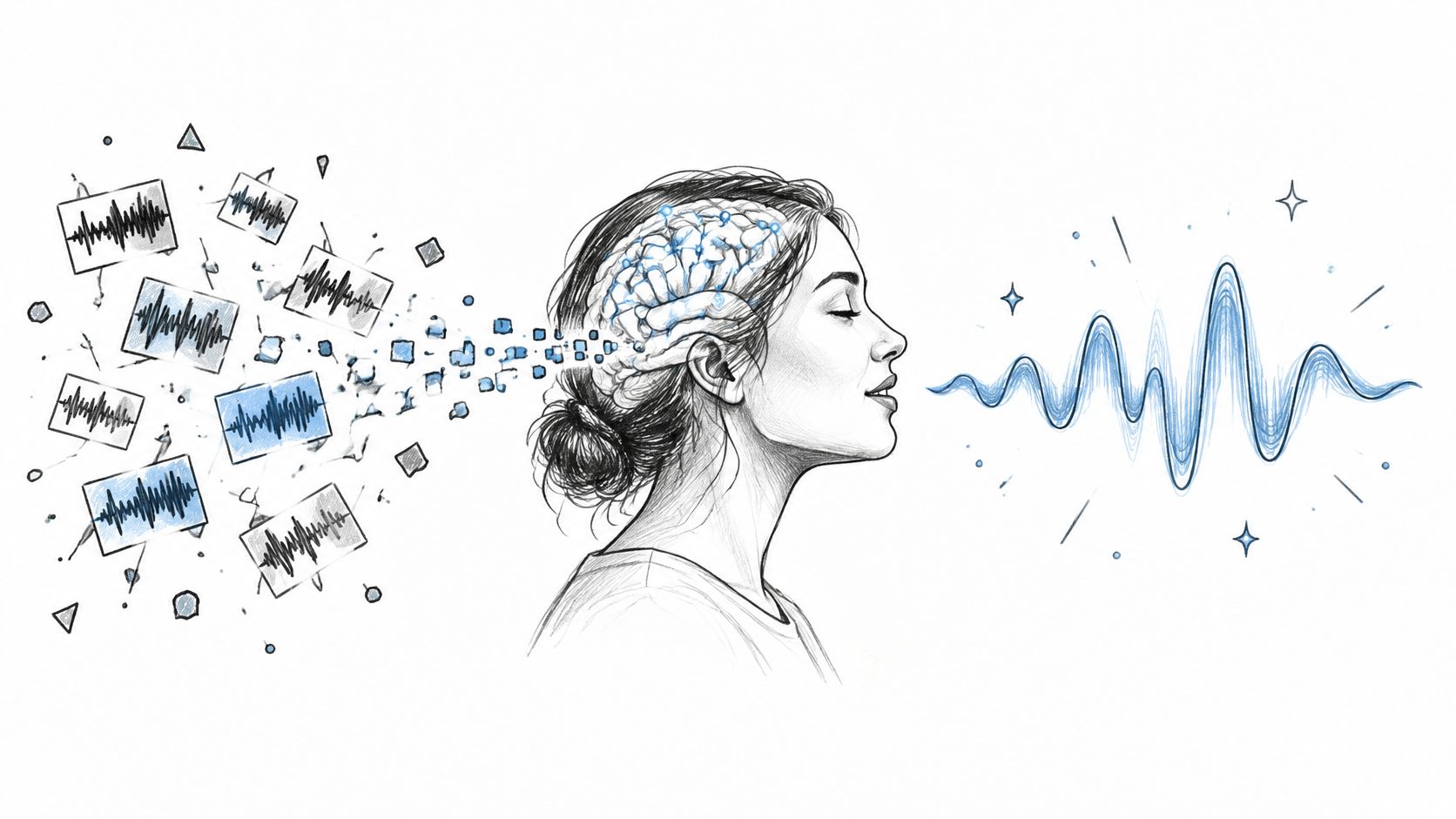

A great realistic text to speech voice does more than impress you in a demo. Plenty of voices sound warm for 15 seconds.
Then they fall apart on a real document — pacing slips, pauses land in the wrong place, and listening starts to feel like work.
A realistic voice should make the content easier to follow, not give your attention extra work.
Start With Observable Performance
Objective checks catch the problems anyone would notice. How does the voice handle names, dates, percentages, measurements, abbreviations, and those oddball terms every field has?
Pay attention to the pauses, too. Do they fall where sentences and paragraphs naturally break? Turn the speed up a notch. It should still be clear. And across a full chapter, volume, tone, and pronunciation shouldn't wander.
Objective and Subjective Voice Checks
Before you pick a voice for long-form listening, run it through both kinds of tests. The objective side catches errors. The subjective side tells you if you can actually live with it for an hour.
| Check | Objective or Subjective | Pass Signal | Fail Signal |
|---|---|---|---|
| Pronunciation | Objective | Names and numbers sound correct | Terms vary or become garbled |
| Pauses | Objective | Breaks support sentence structure | Pauses arrive late or disappear |
| Pacing | Objective | Speed changes remain clear | Words blur or feel rushed |
| Stability | Objective | Voice stays consistent across a chapter | Tone or volume drifts |
| Tone | Subjective | Voice suits the material | Style feels distracting |
| Comfort | Subjective | Attention stays on the content | Fatigue appears after 10 to 20 minutes |
Think of it this way: accuracy versus preference. You might simply not like a brighter voice, even when its pronunciation and pacing are spot on.
Read Before You Listen
Here's a simple test that works well. Read a paragraph on screen first. Then listen to that same paragraph without looking ahead.
Notice where the spoken version adds emphasis, shifts the meaning slightly, or breaks your flow. Try it with two very different samples — say, a clean research summary and then a messy passage full of abbreviations and citations.
One friendly intro line won't tell you if a voice can stay precise across pages of technical material.
Test the same content in two voices, then compare names, boundaries, pace, and comfort rather than judging personality alone.
Match the Voice to the Job
Voice choice matters because realism has a purpose. There's no single best voice, only the right fit for what you're doing.
A bright, energetic delivery can be perfect for language practice. A calmer, steadier one is usually better for reports and study notes. Fiction can handle more expressive pacing — just not full stage performance.
Speed settings play into this as well:
- Study notes: Clear tone, moderate pace, natural sentence breaks.
- News update: Neutral delivery, firm pacing, restrained emotion.
- Language practice: Distinct voice, deliberate pace, clear pronunciation.
- Long report: Stable tone, reliable numbers, comfortable speed.
Faster works great for skimming familiar material. Technical sections? Slow it down and let comprehension catch up.
Watch for Document Traps
Even a lovely voice will stumble on dense tables, footnotes, or poorly extracted PDF text. If columns get read out of order, perfect pronunciation still gives you the wrong message.
So check the source before you blame the voice. Missing punctuation can turn a question into a flat statement. Stray symbols and jumbled line breaks interrupt sentences. With text to speech realistic quality, the document matters just as much as the voice.
Make a Practical Scorecard
Keep it simple. Score each voice from one to five on:
- Pronunciation
- Pauses
- Pacing
- Stability
- Tone
- Comfort
Test at least two voices on the same page, then repeat with a full chapter. TTS Reader Pro makes this easy with multiple AI voices, adjustable speeds, and on-screen text highlighting while supported books play. Try it on your own PDF, notes, EPUB, TXT file, or webpage first.
Choose the voice that stays accurate, suits the material, and lets you listen without fatigue. Open a real document, listen for at least five minutes, compare two options, and keep the one that protects both understanding and comfort.
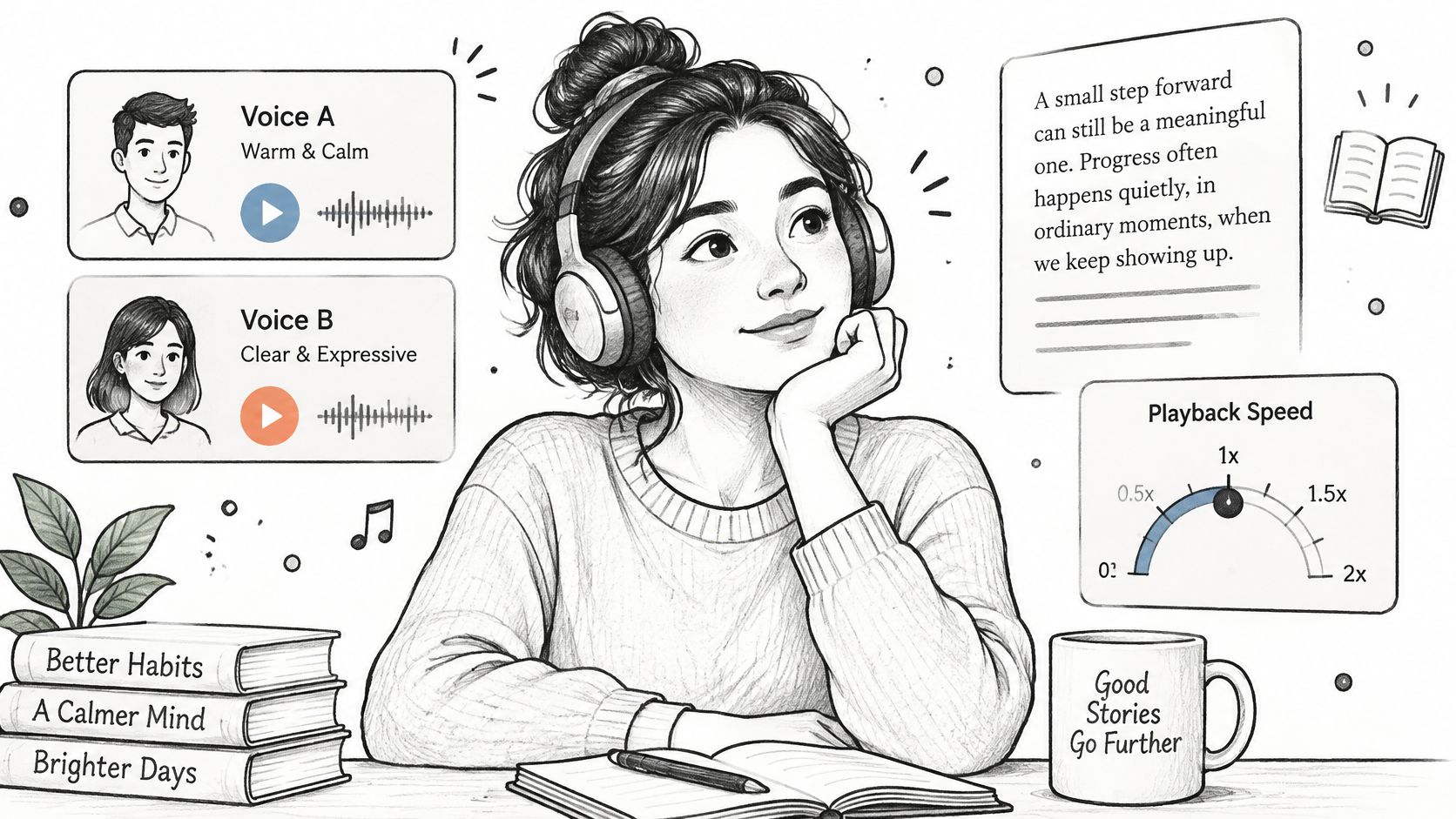

A truly realistic voice earns its keep by solving a real listening problem. It lets you get through study notes, digest a long report, follow steps, or enjoy a supported book without being glued to a screen.
The best setup always comes back to the task at hand, how much time you have, and what kind of source you're starting with.
Turn Study Material Into Audio
Most students are buried in more reading than they can finish. Turning notes, articles, and papers into audio opens up a second way into the same material.
Picture hearing a chapter on a walk, then opening the text later to revisit the tricky parts. That only works if the voice gets names, citations, and technical terms right.
For language learners, steady narration doubles as a pronunciation model and listening practice. Current systems handle multiple languages, accents, and pacing controls, as outlined in Google's overview of Gemini text-to-speech use cases.
Listen once for understanding, then return to the source for details.
Make Busy Time Productive
Audio shines when your hands and eyes are busy elsewhere. A commuter can drop in an article link and listen on the train. Someone in the kitchen can hear recipe steps without touching the phone with messy hands.
A dense report feels lighter on a workout, as long as the pacing stays even. Hands-free listening also fits neatly around chores and errands.
That takes more than a good 10-second demo. Realistic Text to Speech has to hold up over long passages, respect the document's structure, and stay comfortable to listen to.
Pair the format to the moment:
- Commute: Short articles and news updates at a moderate speed.
- Cooking: Clear instructions with tighter pauses between steps.
- Exercise: Familiar material where smooth flow matters more than fine detail.
- Housework: Reference files you can easily pause and replay.
Support Professional Review
Professionals live in PDFs that are long, dense, and painful on a phone screen. Hearing a report while traveling or between meetings makes that first pass much faster.
It's a solid fit for research papers, project briefs, procedures, and meeting notes. It won't replace a close read of figures, contracts, or exact language, but it gives you a dependable overview.
Source quality still matters a lot. A PDF with jumbled columns can sound smooth while reading things out of order. Always open the file and check the extracted text before a long session.
TTS Reader Pro converts PDFs, EPUB files, TXT files, web pages, pasted articles, and scanned notes into spoken audio. On-screen highlighting lets you follow along as the narration plays.
Listen to Compatible Kindle Books
Kindle readers can sync progress between the Kindle app and TTS Pro. You can also connect a Kindle library for hands-free listening with AI voices.
But availability still depends on book compatibility and supported reading access. Just because a title shows up in your library doesn't mean it can be narrated.
Synthetic narration sits alongside downloaded audiobooks and full studio performances. It's most helpful when compatibility allows, or when a book simply has no recorded edition.
Compare AI Narration With Studio Audiobooks
A traditional audiobook takes recording sessions, direction, editing, sound work, and revisions. Need another language or a new edition? That's another booking, more studio time, more cost.
AI voices can narrate at scale across documents and languages. They can also be regenerated in minutes when the source changes, which is ideal for guides or reports that get updated often.
Generated speech expands what can be narrated, while human performance remains valuable for character, interpretation, and finished artistry.
AI narration isn't here to replace studio work. It fills the gaps studio production would never cover.
Choose the right format for the job. Use AI narration for flexible review, supported Kindle books, hands-free learning, and living documents. Stick with professionally narrated audiobooks when acting, character work, and direction matter most. To try synthetic narration, open a real document in TTS Reader Pro, test pronunciation and pacing, then pick the voice and speed that suit your task.
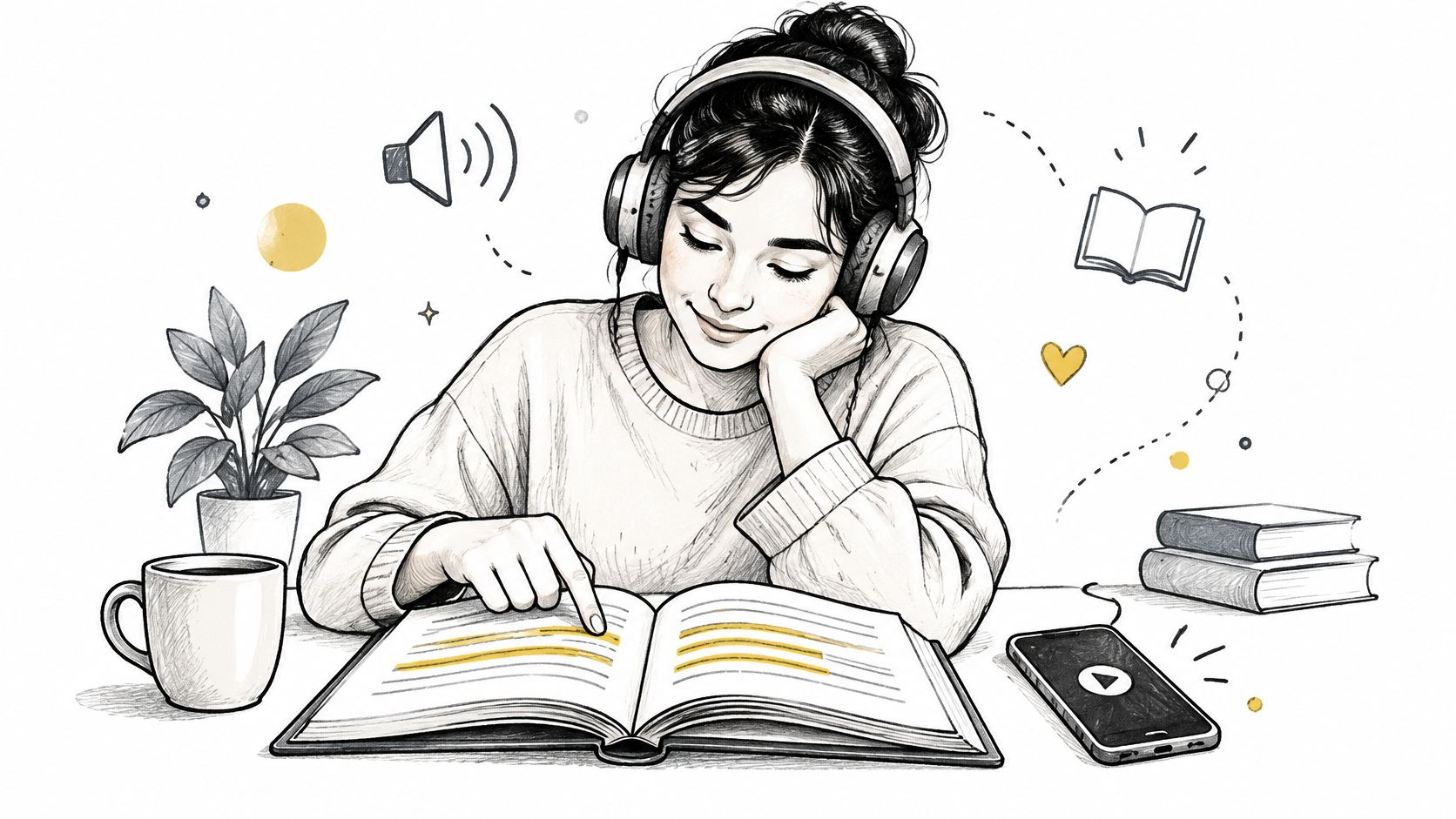

Natural-sounding narration changes what reading feels like. Instead of staring at a screen line by line, you can listen while the text stays in front of you.
For some people, that's a preference. For others, it's the difference between accessing information or missing it entirely. Either way, it makes long sessions less tiring and a lot more independent.
This is especially relevant for people with visual impairment or blindness, readers with dyslexia or learning differences, and anyone dealing with eye strain and screen fatigue. Those labels describe scale, though — not how any one person actually reads.
Older assistive tools often meant specialized hardware, expensive devices, or waiting for a prepared audiobook version. And the mechanical voices made extended listening exhausting. Mobile AI narration for accessibility flips that model by turning a regular phone or tablet into a flexible reader.
Realistic text-to-speech is one accessibility layer that can narrow the gap between content and comprehension for some listeners.
Support Multiple Ways of Reading
With realistic text to speech, you don't have to choose between seeing and hearing. You can listen while keeping the document visible, follow along word by word, and pause to re-read a tricky sentence without losing your spot.
That dual input lowers the visual effort. Think of it like having a second path to the same meaning.
- Smart scanning converts printed pages and handwritten notes into audio
- PDF, EPUB, TXT, and web links become listenable content in seconds
- Link narration turns a pasted article into a clean audio track
- Hands-free playback works for commuting, resting, or doing chores
Listening without looking also helps when your eyes are simply done. A long PDF feels less demanding when you're not tracking every line on a small display.
Speed plays a bigger role than most people expect. It's not about finishing faster — it's a comprehension control. Slow down for dense sections, replay unfamiliar terms, and find a pace that actually helps you absorb.
Match Narration to Individual Needs
No two readers come to the same document the same way. Someone with dyslexia might need to hear a sentence while seeing its structure. Someone with low vision may rely on audio completely.
Someone else might just want a break from the screen during a commute.
- Keep text visible and follow each spoken sentence
- Switch to hands-free listening to reduce eye strain
- Adjust speed to give complex material more time
- Check source compatibility, since results depend on file access
What makes this approach practical is that you're not limited to published audiobooks. You can scan a notebook, open a PDF, import an EPUB, load a TXT file, or paste a link that was never designed for audio. As long as the source is clear and supported, you can listen.
Realistic text-to-speech can narrow an access gap, but it cannot guarantee that every document, voice, or listener will work perfectly.
Try TTS Reader Pro with your own material instead of a polished sample. Import a PDF, open an EPUB, scan a page, or paste an article link.
Then compare a few voices and speeds. Listen for several minutes, notice how names and pauses are handled, and adjust until it feels right.
TTS Reader Pro puts those text to speech realistic tests to work on the documents people actually read every day. It relies on AI text-to-speech and premium AI-generated voices, not human studio recordings, to turn supported books and other files into spoken audio.
That difference is important. Source material changes all the time. A report might get revised this afternoon, while a web article may never get a full audiobook version.
Realistic speech is judged by pronunciation, pacing, pauses, and consistency, not by whether the voice is technically human.
One App for Many Reading Tasks
TTS Reader Pro can turn any text, eBook, PDF, EPUB, TXT file, or web page into speech. Just paste in an article or a webpage link, then listen hands-free.
Printed books, class notes, and other paper documents can become audio too through smart scan technology. It’s a practical option when there is no digital file to start with.
The reading view keeps the text on screen while the narration plays. That setup works well for both background listening and follow-along reading, especially when a tricky passage needs a visual check.
The text stays visible, so you can follow, pause, and go back without losing your place.
You can pick from several AI voices and fine-tune the listening speed. That flexibility helps, because the right voice for a technical report probably won’t be the right one for a novel — and comfortable speed can shift from chapter to chapter.
Choose a Voice for the Material
The app includes free access, unlimited listening, and availability on iOS and Android. Its 4.8/5 rating is a helpful starting point, though no single score can promise every voice will fit every document.
Individual reviews fill in the gaps. Mark called TTS Reader Pro “the most accurate and consistent” compared with other text-to-speech apps he’d tried.
Chris noted it was “one of the only text to speech book readers that reads your Kindle books.” Those are personal experiences, not guarantees, but they’re a good reason to test the app on your own library.
Set Up a Student Notes Workflow
A student can scan printed lecture notes, choose an AI voice, and start listening while the scanned text stays in view. It’s handy for review on a walk or during other tasks that don’t need your eyes.
- Start with a short page full of names, dates, and technical terms
- Check how those details sound before starting a full study session
Set Up a Professional PDF Workflow
For work documents, open the PDF and skim the extracted text before you press play. Clean column order matters, because even a smooth voice can’t fix content that arrives out of sequence.
- Pick a clear, steady voice at a moderate speed
- Slow down for dense findings, legal wording, or figures that need exact attention
Set Up a Commuter Article Workflow
A commuter can paste an article or webpage link, pick a voice, and listen hands-free on the way to work. The same setup carries over easily to cooking, chores, or a workout.
- For longer listens, test unlimited playback against the full length of the piece
- Make sure your content and account access will cover the session you have planned
Handle Kindle Content Carefully
Reading progress can sync between the Kindle app and TTS Pro. You can also sync a Kindle library for hands-free listening with AI voices.
Still, narration depends on book compatibility and supported reading access. Just because a title shows up in a synced library doesn’t mean it can be narrated.
Verify Before a Long Session
Before you settle in for an extended listen, sample one representative page. Pay attention to proper names, numbers, sentence endings, and pauses between paragraphs, then try a second voice if needed.
Then adjust the speed and make sure the text is still easy to track. That quick check is what turns a good demo into a reader you can rely on daily.
Open your actual notes, PDF, EPUB, TXT file, webpage, or supported Kindle title in TTS Reader Pro, listen to one full page, and pick the voice and speed you can comfortably follow.
Can Realistic Text to Speech Match a Human Audiobook Narrator
Not quite — at least not across the board. A human narrator brings training, direction, and intent to every line. They know when to pause, when to lean in, when to let a moment land.
A realistic voice can get remarkably close for everyday listening. It stays steady through long documents, holds pronunciation together, and can narrate in many languages without re-recording anything.
Even so, it’s still generated speech. Modern systems now handle style, accent, emotion, and pacing surprisingly well, as shown in Google’s overview of Gemini text-to-speech use cases.
So the real question is simpler: is it clear and pleasant to follow? If you need full acting or nuanced character work, a human narrator is usually still the better pick.
Why Does One PDF Sound Less Natural Than Another
Often, the voice isn’t the problem. The file is. Messy extraction can jumble columns, drag footnotes into the middle of sentences, repeat headers, or drop punctuation entirely.
Scanned pages, dense tables, and odd symbols make it worse. They break the rhythm before the voice even gets a chance.
Before you switch voices, compare the extracted text to the original page. Look at:
- Column order and reading flow
- Footnotes, headings, and lists
- Punctuation and paragraph breaks
A smooth narrator can’t fix text that arrived out of order. In most cases, cleaner extraction does more for naturalness than changing the voice.
Can Every Kindle Book Be Read Aloud
Not every title will work. TTS Pro can sync your progress between the Kindle app and TTS Pro, and it can sync your Kindle library for hands-free listening.
But support still comes down to the specific book. If a synced title isn’t eligible for that kind of access, narration won’t be available.
That’s what makes library sync practical instead of overpromising. It connects the books that can be narrated to AI voices, without pretending every Kindle file becomes an audiobook.
How Should You Test a New Voice
Skip the polished demo. Start with one real page from your own material. Listen for proper names, numbers, abbreviations, and how it handles sentence endings and paragraph pauses.
Then put two voices head-to-head on that same passage. Pick the one with fewer mispronunciations and a tone that fits the subject — not just the one with more personality.
Dial the speed up or down until it’s easy to follow without effort. If words start to blur or you’re working to keep up, test again.
A good realistic text to speech setup fades into the background. You notice the information, not the engine behind it.
A voice can ace a 30-second sample and still struggle with the document you actually need. Test the source text, the delivery, and your own comprehension together. That one habit separates a genuinely useful reader from a flashy demo.
Ready to hear the difference? Open your own PDF, notes, EPUB, TXT file, webpage, or supported Kindle title in TTS Pro, then test one full page before you listen for longer at your preferred speed.


No Comments
Leave a comment Cancel