
In text, TTS almost always means text-to-speech, software that converts written words into spoken audio. For example, turning on TTS can make your phone read a message aloud.
But those three letters don't mean the same thing in every conversation. If you saw “TTS” in a chat, a game, or an app setting, the words around it can tell you whether someone means spoken narration or something specific to that community.
Table of Contents
- TTS Means Text-to-Speech in Most Contexts
- TTS Versus Similar Terms You Might See
- How TTS Turns Written Text Into Speech
- Who Benefits From Listening to Text
- Choose a Text-to-Speech App for Your Reading
- How to Start Listening to Any Document
- Common Problems and How to Fix Them
- Answers to Follow-Up TTS Questions
TTS Means Text-to-Speech in Most Contexts
Imagine you're reading a PDF on your phone and want to listen while you walk. If someone says, “Use TTS for this PDF,” they mean have software read its written content aloud. TTS names a process, not a particular app, voice, or audio-file format, so it can describe a built-in phone feature, a browser extension, or a dedicated reading app.
The phrase changes slightly with the situation. “Turn on TTS” usually means enable a read-aloud setting. “Send it through TTS” usually means convert the text into spoken audio. In each case, the written words are the starting point, and synthesized speech is the result.
Think of TTS as a narrator who reads your page out loud without changing what it says. It doesn't translate the text into another language, summarize it, or write new content. It may interpret how headings, punctuation, numbers, or abbreviations should sound, but its central job is still to turn text into speech.
The process involves more than matching each letter to a sound. The W3C's description of speech synthesis covers generating speech from text or annotated text, including processing the document and producing an audio waveform. That helps explain why a reader may need to recognize a heading or interpret an abbreviation instead of speaking every character mechanically.
Quick test: If the conversation is about listening to written material, read “TTS” as text-to-speech.
TTS Versus Similar Terms You Might See
| Term | Meaning | What It Does | Example |
|---|---|---|---|
| TTS | Text-to-speech | Converts written words into spoken audio | Enabling TTS to hear a PDF read aloud |
| STT | Speech-to-text | Converts spoken words into written text | Dictating a message instead of typing it |
| Voice cloning | Copying one specific person's voice | Makes synthetic speech sound like a particular individual | A narrator voice modeled on a real person |
| Voice message | A recording a person makes and sends | Carries human speech, not generated audio | A friend's audio note in a chat |
| TTS in other communities | A group-specific term | Uses the acronym according to that group's convention | Asking what “TTS” means in that group |
The most common mix-up is between TTS and STT, or speech-to-text. They run in opposite directions: TTS turns writing into speech, while STT turns someone's spoken words into writing. If a conversation mentions both, look for what goes in and what comes out.
Context helps with other cases, too. Phones, accessibility settings, generated voices, audio, or gaming chat can point to text-to-speech. A discussion about a recording someone sends points instead to a voice message. And “TTS voice” generally refers to synthetic narration, not automatically to a copy of a particular person's voice.
The acronym itself doesn't guarantee one universal meaning. The guide to TTS in text and chat notes that its meaning can change by community, while phone and accessibility contexts often point to text-to-speech. If the surrounding conversation doesn't settle it, ask what the group means rather than guessing.
If the sentence is about hearing written content, TTS means text-to-speech. If it's about speaking to produce writing, you're looking at speech-to-text.
How TTS Turns Written Text Into Speech
A TTS system has to interpret the page before it can read it naturally. It usually works through several connected stages:
- Read the structure. The system identifies headings, paragraphs, lists, and other document elements. Those signals help it distinguish a section title from the paragraph that follows.
- Normalize the text. It decides how to say numbers, dates, abbreviations, and symbols. “2026,” for example, might be read as a year or as a plain number, depending on context.
- Determine pronunciation. The system maps words to sounds, including names and acronyms that may not follow familiar spelling patterns.
- Assign prosody. Prosody means rhythm, stress, and intonation. It helps a sentence sound like speech instead of a flat sequence of words.
- Generate audio. The system produces the digital sound, or waveform, that you hear.
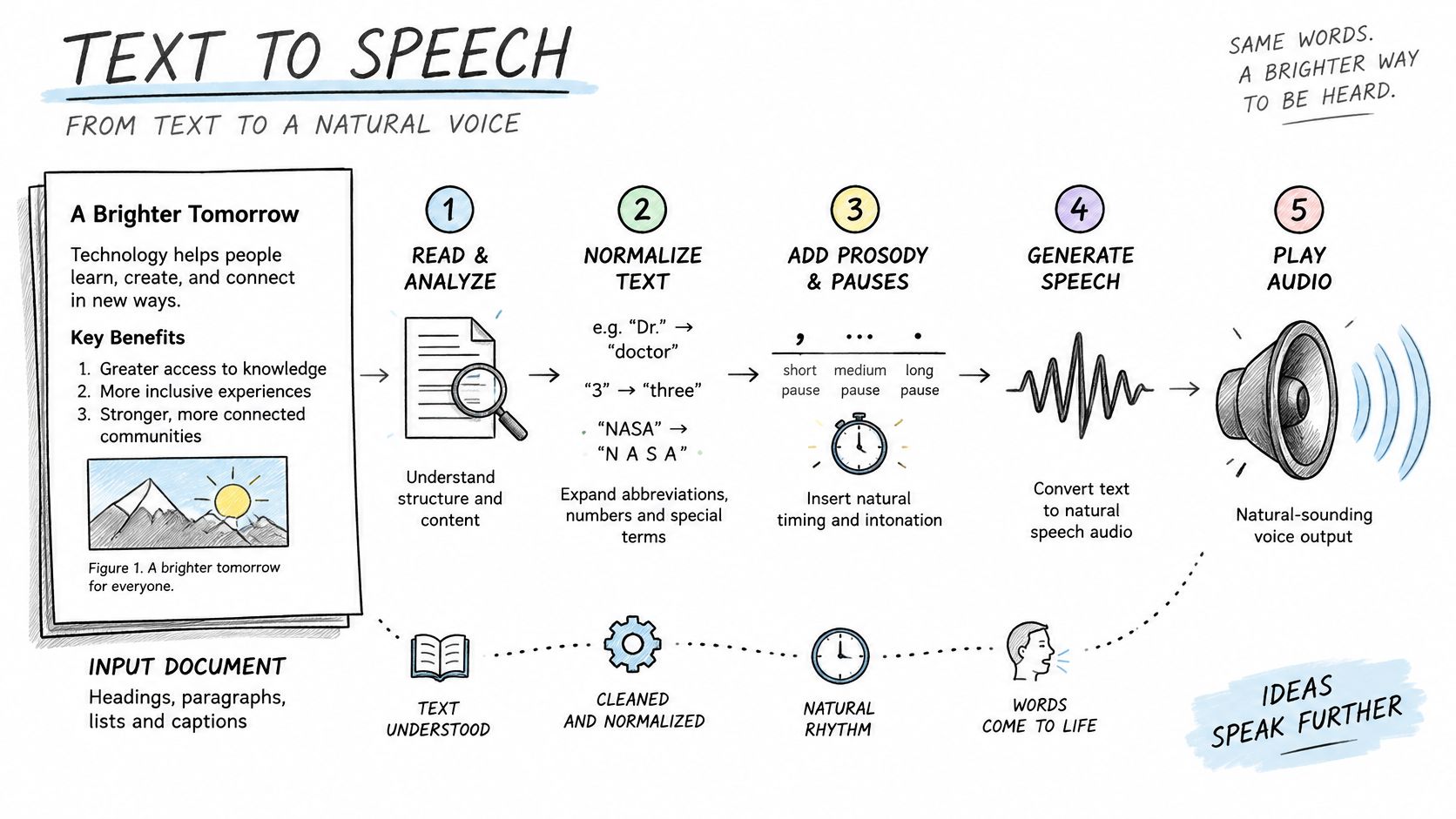

A small formatting choice can affect the result. A citation abbreviation such as “et al.” may sound awkward if the system reads it exactly as written, and a heading without a pause can run directly into the paragraph below. A pleasant voice won't fix a sentence that has been split incorrectly or an abbreviation that has been interpreted the wrong way.
How SSML Gives Apps More Control
SSML, or Speech Synthesis Markup Language, is an XML-based way to add instructions for how text should sound. An app can use it to specify pronunciation, speaking rate, pitch, volume, pauses, and related aspects of speech. The W3C's SSML specification describes these controls as a standard mechanism for shaping synthesized speech.
In practice, a pronunciation instruction can help with an unfamiliar name or acronym. A slower rate may make dense study notes easier to follow, while a pause instruction can separate a heading from the paragraph that comes after it. Different synthesis engines may support different parts of SSML, so the same instruction won't necessarily produce identical results everywhere.
The main point is that clear audio depends on the text and its preparation as well as on the selected voice.
Who Benefits From Listening to Text
A commuter can use a train ride to listen to a backlog of PDFs without keeping their eyes on a screen. A student might play study notes while cooking, then replay a difficult paragraph at a slower pace. For a language learner, hearing a sentence can make its rhythm and pronunciation easier to notice.
TTS can also make digital content easier to access for people with visual impairments, dyslexia, or screen fatigue. Listening offers another way to reach the words on a page when reading them visually is difficult or tiring. Accessibility guidance and research discussed in this study on TTS and inclusive language technology emphasize that useful support depends on more than having a voice read text aloud.
What Makes Listening More Useful
The best setup depends on the person and the material. Adjustable speed lets a listener slow down for dense notes or move faster through familiar material. Pronunciation controls help with names and specialized terms, while synchronized highlighting can make it easier to follow the current sentence on screen.
Formatting matters, too. Clear paragraph breaks and headings help organize a long document, and the option to minimize on-screen text can suit someone who wants to focus on listening. These controls can make audio more usable, but they don't guarantee that every voice or reading speed will suit every listener.
TTS also has limits. A system may stumble over a name, formula, abbreviation, or passage that switches between languages. Some languages have fewer supported voices or less reliable pronunciation than others, so language coverage matters alongside voice naturalness.
Treat TTS as a support for reading, not a universal replacement for it. It can help with review, access, or hands-free listening, while visual reading may still work better for a particular document or person. If a voice makes a passage harder to understand, change the settings or switch back to the page.
Choose a Text-to-Speech App for Your Reading
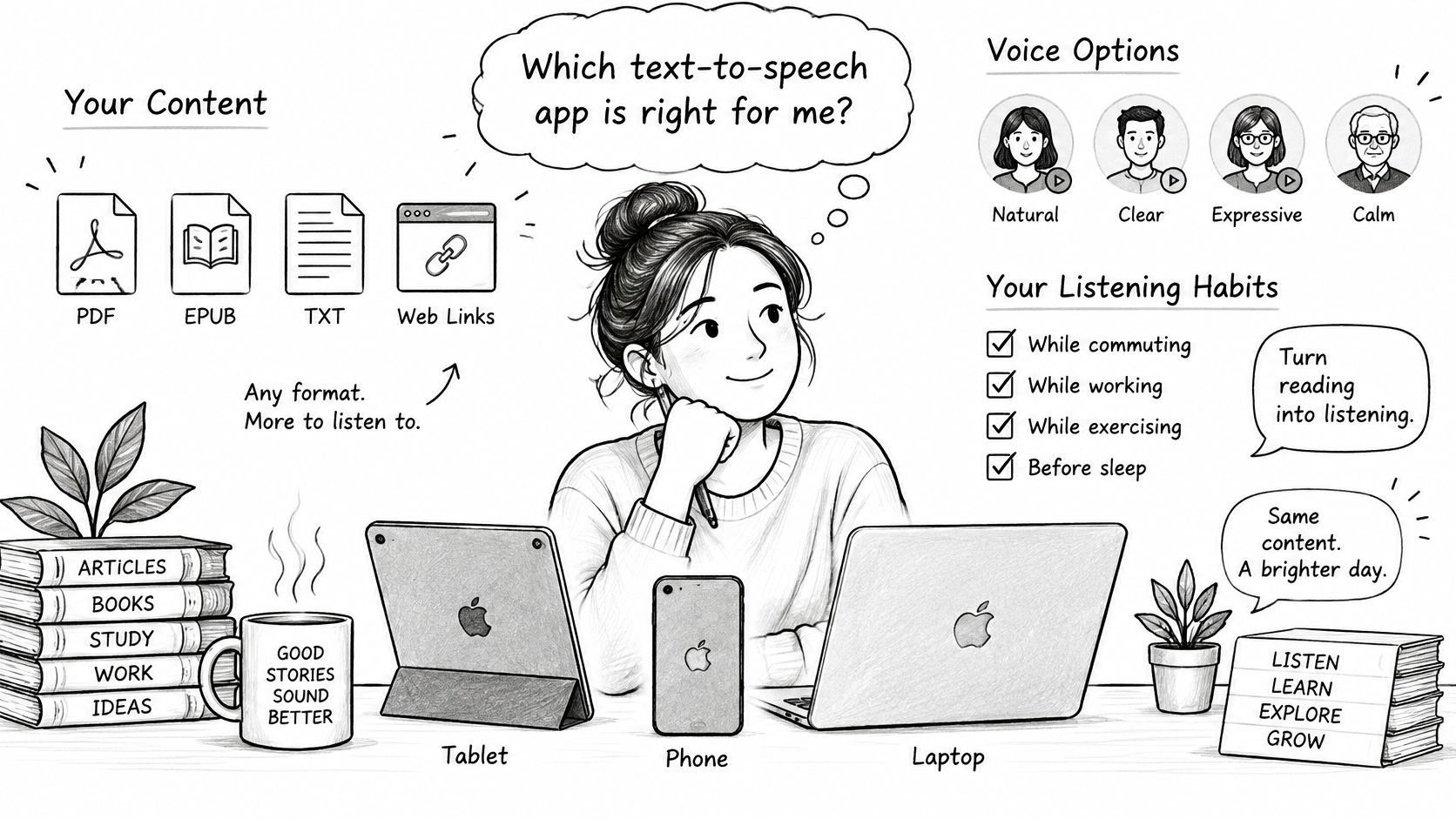
Choose an app that fits the documents you read, the voices you want, and the way you plan to listen. Before settling on one, check:
- File types: Do you need to listen to PDFs, EPUBs, TXT files, or web pages?
- Voice and language choices: Will you need more than one voice or language?
- Listening controls: Do adjustable speed and pronunciation settings matter to you?
- Cost: Would you like to try a free version first?
TTS Reader Pro is one option for these needs. It has a free version and can convert text, eBooks, PDFs, EPUBs, TXT files, or web pages into speech. It offers several voice choices and adjustable listening speeds, which can suit students reviewing notes, commuters listening hands-free, or professionals working through long reports.

Try a PDF or article with a free version this week. Listen to the opening paragraphs and decide whether the voice is comfortable to follow before making it part of your routine.
How to Start Listening to Any Document
A short trial helps you find the right voice and settings before you commit to listening to a whole book or report. Follow these steps, and make one adjustment at a time so you can tell what improves the experience.
- Pick an app that accepts your file type. Check that it can open the format you use, such as PDF, EPUB, TXT, or a web page. TTS Reader Pro is one example that handles these formats and pasted article links.
- Open your document. Load the file or paste the webpage link into the reader. This gives the app a chance to identify headings and paragraphs instead of treating the document as one unbroken block.
- Choose a voice and starting speed. Pick a voice that's easy to understand, then begin near the middle of the available speed range. For dense notes or unfamiliar material, start more slowly so you can judge comprehension rather than just pace.
- Listen to the opening paragraphs. Pay attention to names, abbreviations, and formulas that sound wrong. A short sample helps you catch problems before you've listened through a long section.
- Adjust pronunciation where needed. Use a pronunciation setting for a word the voice keeps misreading, if your app offers that control. A correction can help with later appearances of the same word, too.
- Turn on highlighting if you follow along. Synchronized highlighting can help you track where the narration is on the page. Before you stop, set a bookmark or use the app's progress-saving option so you can return to the same place.
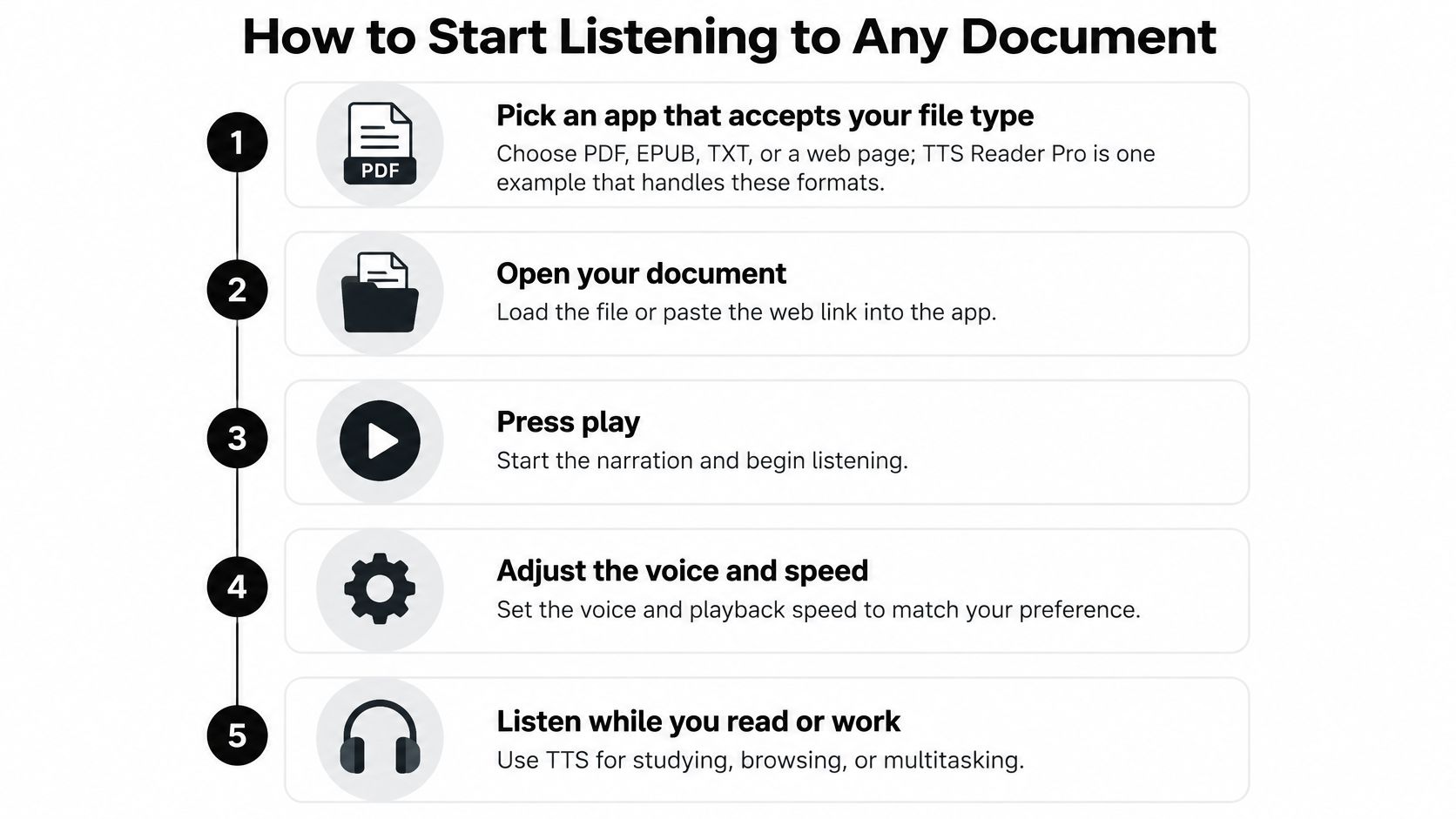

A setup is working when the voice sounds steady, the pace keeps you attentive, and you can finish a chapter without needing to return to the screen every few minutes. If one setting feels wrong, adjust it and sample the same passage again.
Common Problems and How to Fix Them
| Symptom | Likely Cause | Fix |
|---|---|---|
| Name or acronym read wrongly | Pronunciation isn't set for that word | Add a pronunciation override in the settings |
| Numbers or dates sound odd | Text normalization misreads the format | Write the number in words in the source text |
| Headings run into paragraphs | There's no pause at structure breaks | Add a line break or use a slower rate |
| Listening feels tiring | The speed is too fast for dense material | Lower the speed and listen in shorter sessions |
| Scanned page is silent or garbled | The page has no text layer | Run text recognition before listening |
Some issues are quickest to fix in the app; others need a change to the document. If the same name is mispronounced throughout a file, try a pronunciation setting. If a number or heading is interpreted incorrectly because of its formatting, edit the source text and play that passage again.
A scanned PDF can look like a page of writing to you while containing only an image for the app. Run text recognition, often called OCR, to convert the image into text that a TTS reader can process. For mixed-language passages, choose a voice suited to each language if the app allows it, or split the text into separate sections.
A setting change may take only a moment to test. Editing several passages or rerunning recognition can take longer, and you'll need to listen again to check the result. You've found a workable setup when the opening paragraphs sound natural, names are clear, and the speed stays comfortable across a chapter.
Answers to Follow-Up TTS Questions
Is TTS the same as a screen reader?
No, not exactly. A screen reader helps people use an interface and can read controls such as buttons and menus. TTS refers to converting text into audio, which may be one part of a broader screen-reading experience.
Can TTS read a scanned page?
Only after the page has been converted into text. A scan is an image, so the reader needs text recognition, or OCR, to identify the words before it can speak them.
Does TTS sound human?
It can sound natural, but it's still generated speech. TTS voices aren't human narrators, and how natural they seem varies by voice and the way the text is prepared. Listen to a sample paragraph to see whether a voice is comfortable to follow.
Does TTS work without internet?
It depends on the app and the selected voice. Some voices can be downloaded for offline use, while others need an internet connection. Check the options in your app before relying on TTS somewhere you may be offline.
The scanned-page answer changes what you need to do before listening. The voice and internet answers help set expectations about how a particular setup may sound and where it may work.
TTS Pro offers TTS Reader Pro, which turns text, eBooks, PDFs, EPUBs, TXT files, and web pages into spoken audio with several voice choices and adjustable speeds. If you want to hear how text-to-speech fits your own reading, try a document in TTS Pro and see whether listening works for you.


No Comments
Leave a comment Cancel