
You press play on a document you need to finish, put your phone away, and hear a page number, a repeated heading, then half a sentence from the wrong column. Changing the voice makes it sound friendlier, but it still doesn't make sense. The first thing to fix is usually the source file, not the narrator.
Learning how to use text to speech starts with choosing a clean input, checking what the app extracted, and only then adjusting the listening settings. That order matters whether you're reviewing lecture notes, listening to a novel on the bus, or giving tired eyes a break from a report.
Table of Contents
- What You Can Load and How Each Source Imports
- Built-in Tools Before You Install an App
- How to Set Up and Play Your First Document
- How to Choose Voices, Languages and Speeds
- Fixing Misread Words, Bad Scans and Choppy Playback
- Daily Routines for Students, Commuters and Accessibility Needs
- Using Text to Speech for Language Learning
- Pick Your First Document and Test It Today
What You Can Load and How Each Source Imports
Say a student has a lengthy lecture PDF, a commuter wants to hear a novel saved as an EPUB, and a parent needs a photographed school handout read aloud. All contain words, but they need different import methods. The PDF needs a reading-order check, the EPUB needs usable chapter structure, and the photograph needs optical character recognition, or OCR, before narration can begin.
Text-to-speech tools can accept pasted text, eBooks, PDFs, EPUBs, TXT files, and web pages. Camera scanning adds printed material, while compatible library integrations can make purchased Kindle books available for listening. Choose the input before choosing the voice, because a pleasant voice can't restore missing words or repair scrambled paragraphs.
Import options by source type
| Source | How to import | Best for | Watch out for |
|---|---|---|---|
| PDF file | Open from files or cloud storage and import | Reports, papers and study packs | Multi-column layouts and footers can read out of order |
| EPUB file | Import from files or the library | Novels and chaptered textbooks | Check that chapter headings are announced |
| TXT file | Import directly or paste the text | Lecture notes and transcripts | No formatting, so add line breaks where paragraphs should split |
| Web page link | Paste the URL and choose narrate | Articles and news pieces | Menus, ads and comments may be read unless you trim them |
| Printed page | Scan with the smart scan tool | Handouts, library books and legible handwritten notes | Lighting, skew and OCR quality affect recognition; handwriting needs close checking |
| Kindle book you own | Sync your Kindle library in a compatible reader | Books you already bought | Only titles in your own library can be read; check title availability |
Pick the most readable version
EPUB is often the sensible choice for continuous reading. Its text can reflow rather than remain locked to a printed page, making it easier to preserve paragraphs and chapter boundaries. A clean web article can also work well, provided the extraction excludes navigation, advertisements, and related-story panels.
PDF requires more scrutiny. A page may look perfectly readable while its underlying text layer stores fragments in an unexpected sequence. The reader follows that extracted sequence, not necessarily the visual arrangement you see.
Before importing a PDF, try selecting a paragraph and copying it into a plain-text editor. If the pasted result mixes columns or inserts footnotes into sentences, prepare a listening copy rather than spending time auditioning voices.
For camera imports, check the recognized text, not just the photograph. A sharp-looking image can still produce incorrect punctuation, missing words, or confused letters.
Practical rule: Audition the beginning and a representative difficult passage before committing to a long document.
Keep the original file alongside the listening copy. You'll need the original for diagrams, tables, citations, and anything whose meaning depends on page layout.
Built-in Tools Before You Install an App
Start with your device's built-in speech tools if you only need to hear an email, a short note, or an article. You don't need a document library to answer a quick question or rest your eyes during a brief reading task.
On Windows, Narrator provides screen-reader functionality, while Microsoft Edge offers Read aloud for supported content. On macOS, look for Spoken Content or similarly named accessibility settings, including Speak Selection. Menu names change between operating-system versions, so search Settings rather than relying on an exact path.
Match the tool to the job
- iPhone and iPad: Look for Speak Screen and Speak Selection in accessibility settings to hear a screen or selected passage.
- Android: Select to Speak suits occasional narration; TalkBack provides broader spoken navigation and changes how you interact with the device.
- Browsers: Try the browser's read-aloud or reading-view controls before installing an extension. Check an extension's permissions before allowing access to page content.
A screen reader and a document narrator aren't interchangeable. A screen reader helps you move among controls, links, and application interfaces; a document narrator concentrates on the reading experience. Don't activate a full navigation system just because you want to hear a paragraph unless you also need its accessibility controls.
When a dedicated app earns its place
Move beyond built-in tools when you need recurring imports, pronunciation adjustments, or a reading library. Check individual apps for bookmarks, offline storage, and support for your particular files rather than assuming every dedicated reader includes them.
If you're also comparing document listening with audio-production workflows, AI Tool Seekers' guide to AI narration software for content creators offers a useful comparison point. Reading for yourself and producing narration for publication are different jobs, so choose features around the job you have.
How to Set Up and Play Your First Document
Use a document you need to read, but avoid starting with your most complicated scan. A straightforward article or clean chapter lets you learn the playback controls without confusing import problems with setup problems.
Text-to-speech involves text analysis, normalization, pronunciation generation, prosody prediction, and waveform synthesis, as described in the ANSI overview of speech-synthesis technology. In practical terms, the app must interpret your text before it can speak it, so inspect that interpretation before settling in.
Set up the document and playback
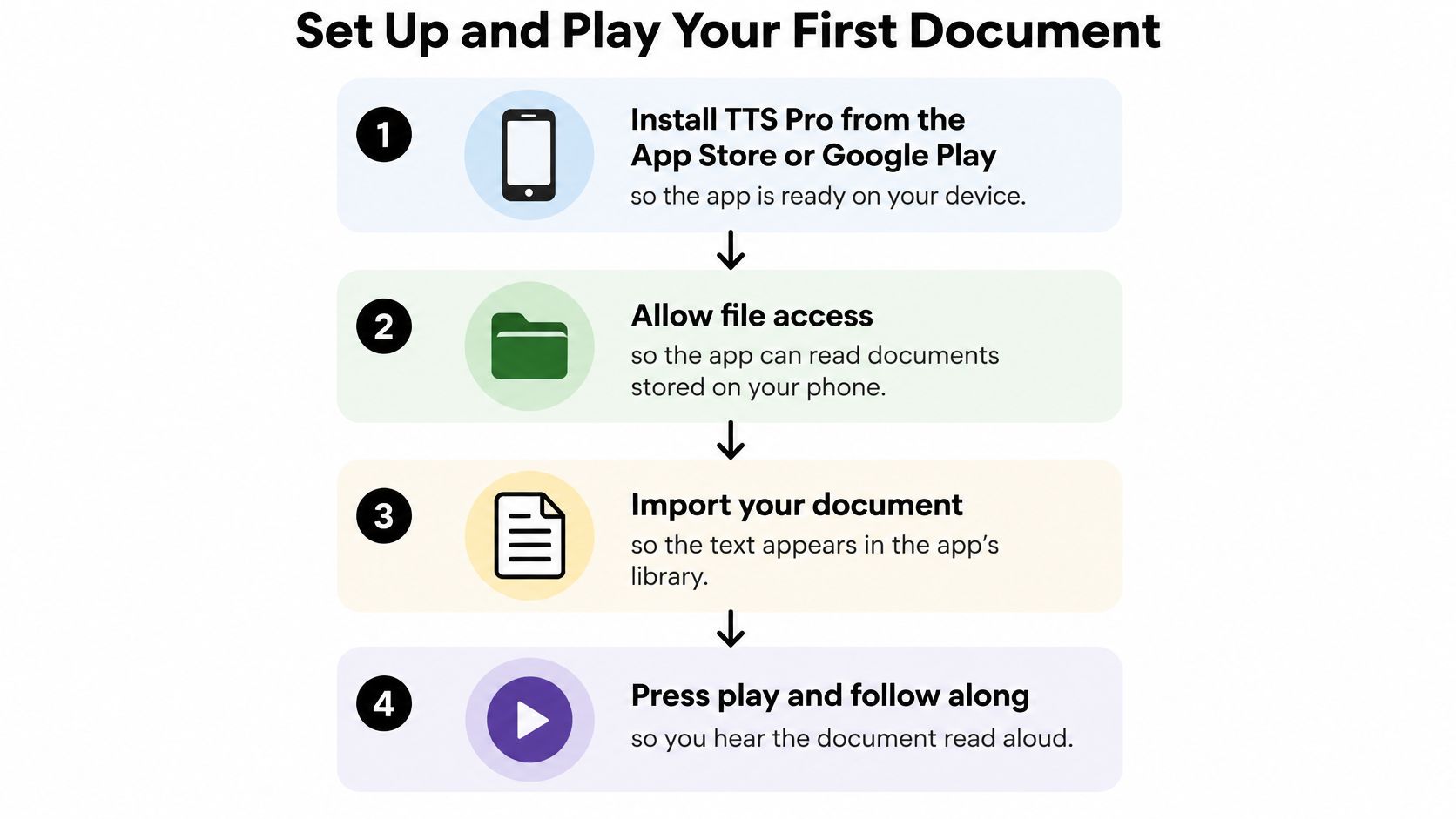
Install the reader and grant appropriate access. Use the App Store or Google Play, then allow access to the document you want to import. Where your device offers a file picker, select the relevant file rather than granting broader access unnecessarily.
Open the library and choose the import method that matches your source. Use file import for a saved document, link import for an article, and camera capture for a printed page; taking screenshots of selectable digital text introduces unnecessary recognition work.
Wait for processing, then inspect the extracted text. Check the opening paragraph, a heading, and a passage containing punctuation or specialist vocabulary. If the text contains odd characters or missing lines, stop here and repair the input instead of trying to compensate with playback settings.
Choose a language that matches the document, then select a voice within that language. A mismatched language setting can distort ordinary words throughout the passage, so resolve that before judging whether the voice sounds natural.
Begin with the default or a conservative speaking rate. If the control uses a slider, don't assume its physical midpoint represents ordinary speech. Listen through a complete passage and adjust according to how easily you can follow its meaning.
Press play and learn how the available navigation controls behave. Test sentence skipping, section navigation, and bookmarking where offered, because some controls move by text position while others move through elapsed audio.
Test travel playback before leaving. Check whether your version supports downloading the document, the generated audio, or the required voice, then try playback without a connection. A title appearing in the library doesn't prove that everything needed for listening is stored locally.
This visual summarizes the basic installation-to-playback sequence.

Make the first session a useful test
Follow the visible text during the opening playback. You're checking whether the spoken words match the document, whether sentence endings sound complete, and whether section changes are easy to recognize. Save voice preferences only after the document passes that basic check.
Then test a less cooperative passage. A clean introduction can hide problems that appear later around a list, citation, foreign phrase, or table. For a report, include the kind of material you'll need to understand, not just the easiest prose.
Don't delete meaningful content merely to make the audio smoother. Keep citations or technical details in the original, and create a separate listening copy if you need a simplified spoken version. Label that copy clearly so you don't later mistake it for the complete document.
Finally, stop playback and reopen the reader. Confirm that you can recover your place without hunting through the entire file. A good first session should leave you confident about both the narration and the controls you'll need when your attention shifts away from the screen.
How to Choose Voices, Languages and Speeds
Starting speed and voice by content type
| Content type | Voice choice | Why it matters |
|---|---|---|
| Fiction and novels | Warm, conversational voice; start at an ordinary pace | Story rhythm and dialogue carry meaning |
| Dense technical prose | Clear, neutral voice; begin slower | Formulas, names and terms need extra processing time |
| Lecture notes and review | A comfortable voice; increase pace only for familiar material | Brief replayable passages are easier to review deliberately |
| Second-language material | Voice in the target language; start slower | A slower pace lets you check pronunciation |
| Commuting and background listening | Low-fatigue voice; use a conservative pace when distracted | Noise competes with speech, so reserve faster playback for familiar material |
Treat these as starting choices, not fixed prescriptions. A familiar novel and an unfamiliar legal explanation shouldn't automatically run at the same pace because you like the same narrator.
Evaluation work in Computer Speech & Language highlights the limits of relying only on broad voice-quality ratings when modern systems receive similarly high scores. For your own listening, compare candidates on the same passage and judge what you understood, not just which voice sounded impressive.
Choose for comprehension
For fiction, listen to dialogue and narrative transitions. An expressive voice can help distinguish changes in tone, but exaggerated delivery may become tiring over a long chapter. A restrained conversational voice is often the safer starting point.
For technical material, favor clear consonants, stable pacing, and predictable sentence endings. Slow down enough to distinguish unfamiliar terms, but don't expect a slower voice to explain a formula or describe an unlabeled diagram. Some material still needs visual inspection.
Lecture review allows a different trade-off. You can move more briskly through familiar explanations, then pause at definitions or arguments you can't yet explain independently.
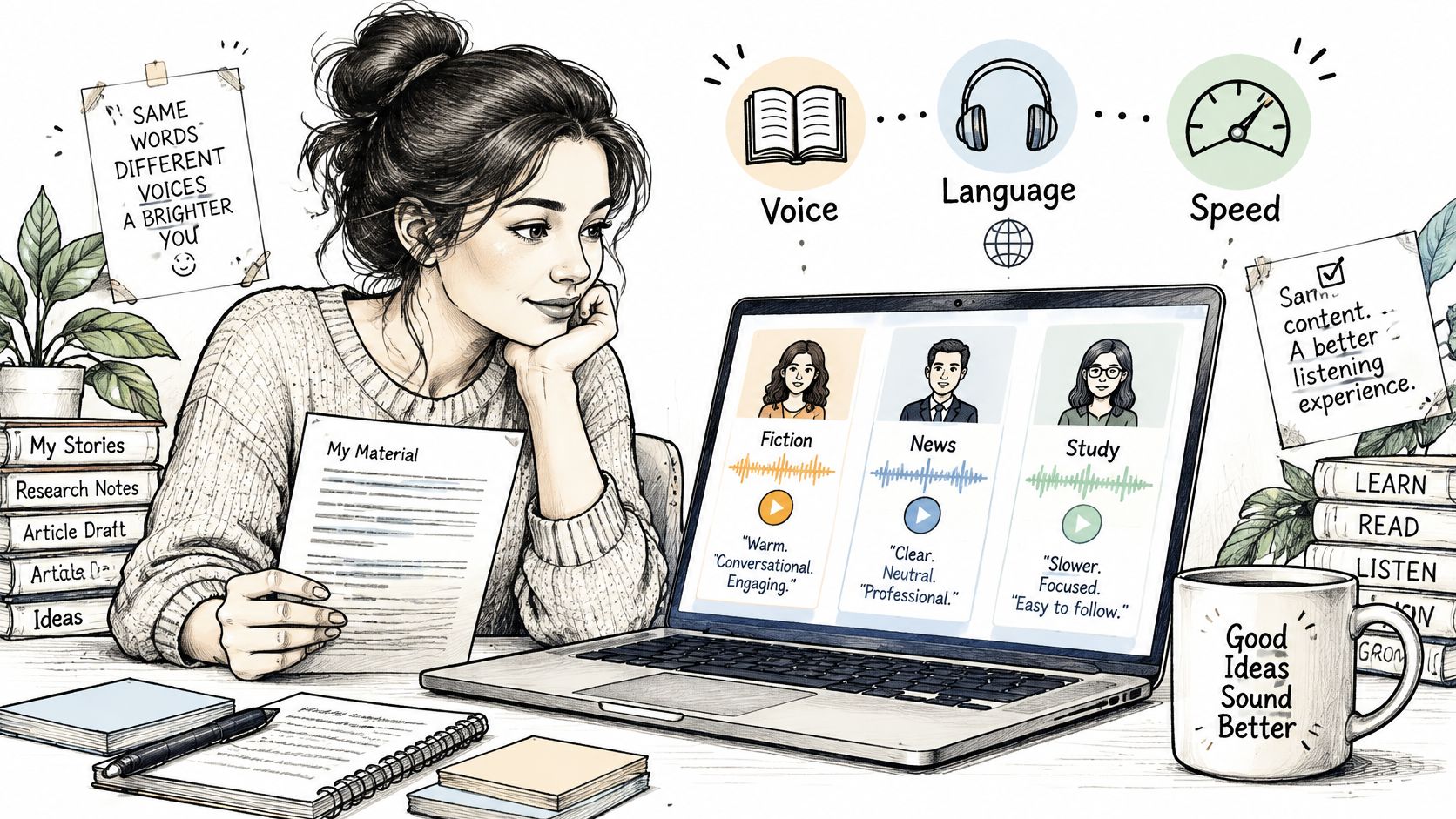
Use a realistic listening setup when comparing options.

Change one setting at a time
Compare voices before changing rate, then adjust rate without changing the voice again. Otherwise, you won't know whether improved clarity came from pronunciation, delivery, or more processing time.
- Check understanding: Pause at a section boundary and explain the main point without looking.
- Watch replay behavior: Repeatedly rewinding the same kind of passage suggests the pace or presentation needs adjustment.
- Test actual conditions: Use the headphones and environment you expect to listen in, without raising the volume to overpower traffic or announcements.
The best listening speed is the one that preserves meaning, not the highest setting you can tolerate.
For mixed-language documents, check whether the reader switches voices appropriately. If it doesn't, separate the passages by language rather than forcing a single voice through incompatible pronunciation patterns.
Fixing Misread Words, Bad Scans and Choppy Playback
The reader announces a page number halfway through a sentence, repeats the report title, and then continues as if nothing happened. That's usually an extraction problem: those elements entered the text stream, so the synthesizer treats them as content.
Remove running headers and footers from a listening copy while preserving genuine headings and paragraph boundaries. Don't strip every isolated number automatically, because some may be references, measurements, or part of the argument.
Text to speech symptoms, causes and fixes
| Symptom | Likely cause | Fix |
|---|---|---|
| Page numbers and headers read aloud | Repeated headers and footers included in the import | Remove them from the text or re-import the cleaned file |
| Name or acronym mispronounced | No suitable pronunciation override set | Add the pronunciation in settings, then replay the passage |
| Two-column PDF reads across columns | Layout order lost during text extraction | Re-import as TXT or copy one column at a time |
| Garbled words from a scan | Poor OCR caused by skew, shadow or low resolution | Rescan in good light and correct the text by hand |
| Choppy, fragmented pauses | Hard line breaks inside paragraphs | Merge lines into paragraphs before importing |
| Playback stops in the background | Battery saver or app limits | Allow background activity and keep the app updated |
Repair text before tuning speech
Hard line breaks often survive copying from PDFs. If the app pauses at each one, join lines that belong to the same paragraph, but leave a blank line between actual paragraphs. Don't flatten the whole document into a single block, because that removes useful boundaries along with the unwanted ones.
For a columned paper, copy each column in its intended order into a plain-text document. Merely saving the same scrambled extraction with a TXT extension won't repair it. Check that headings, captions, and footnotes land where a listener can make sense of them.
With scans, place the page flat, keep the camera parallel to it, and use even light without shadows across the text. Review recognition errors before importing the replacement. Handwriting, faint print, and mathematical notation deserve especially close inspection.
Handle pronunciation separately
A name that looks correct on screen but sounds wrong needs a pronunciation adjustment, not another scan. Add an override where the reader supports it, then test the word in context. An acronym may need letter-by-letter delivery, while another should be spoken as a word.
Heteronyms need context-sensitive care. The word lead can refer to guiding someone or to a metal, and a global replacement can fix one occurrence while breaking another. Edit only the affected passage in your listening copy when a universal pronunciation rule would be misleading.
For systems that accept speech markup, the W3C Speech Synthesis Markup Language specification defines controls for pronunciation, rate, pitch, volume, and pauses, including phoneme annotations. Ordinary consumer readers don't necessarily expose these controls, so don't paste markup into an app unless it explicitly supports it.
Diagnostic shortcut: Wrong words point toward extraction or OCR. Correct words spoken incorrectly point toward pronunciation or language settings.
Background interruptions need a different investigation. Check battery restrictions, background permissions, audio-output changes, and network availability rather than editing the document.
After any repair, replay a representative sample containing headings, names, numbers, and the previously troublesome passage. For recurring documents, keep a small checklist of corrected terms so a later import doesn't reintroduce them.
Daily Routines for Students, Commuters and Accessibility Needs
A useful listening routine has a clear stopping point and a way to recover your place. Leaving narration running while attention drifts creates finished audio, not necessarily understood material.
Students and commuters need different routines
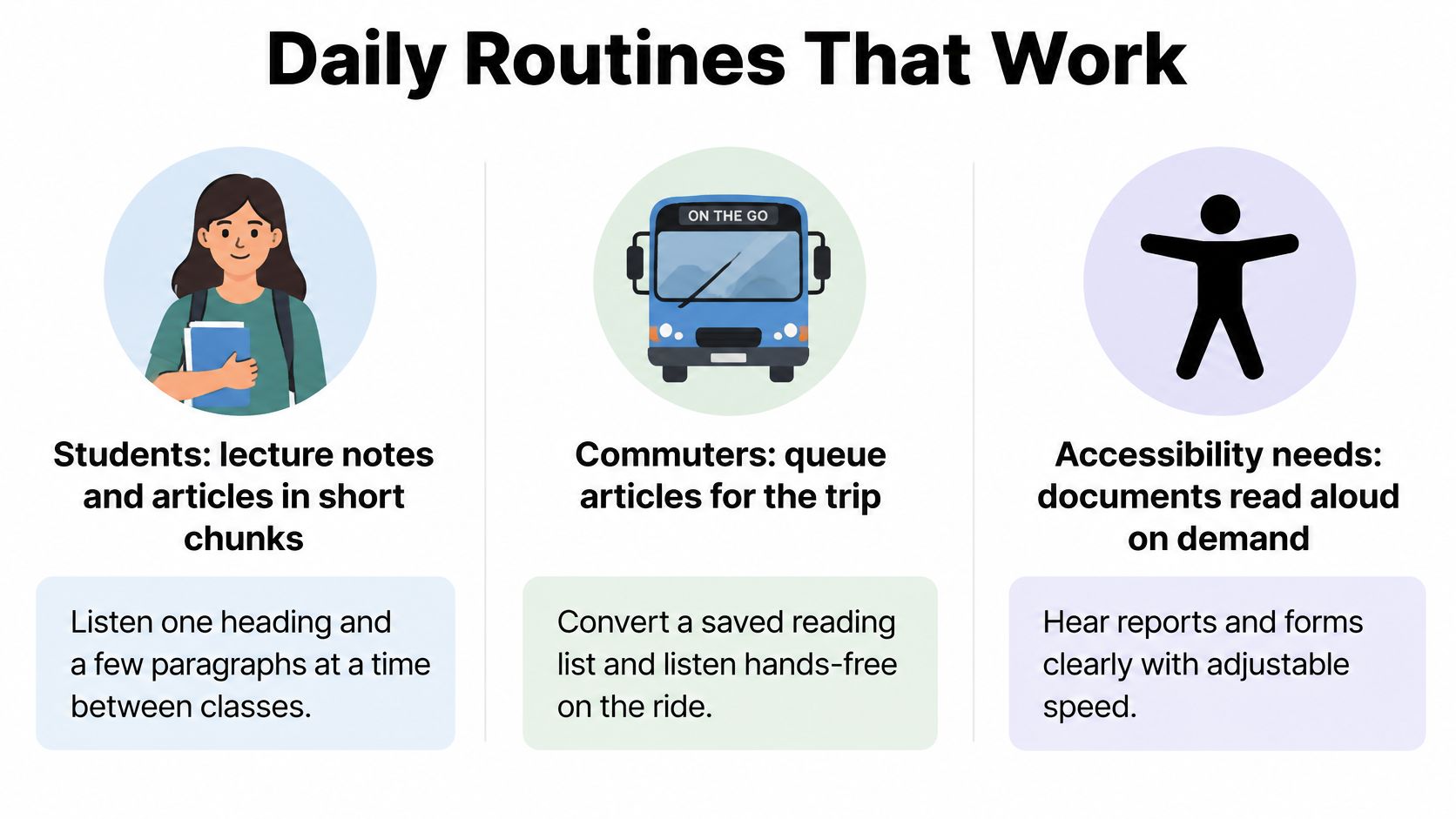
For study, listen around a question. Say your lecture notes explain competing accounts of a historical event: read the heading, decide what distinction you need to understand, then listen to the relevant explanation. Pause and state that distinction in your own words before continuing.
Keep diagrams and equations available visually. Instead of expecting narration to communicate a chart, inspect the chart and use audio for the explanation around it. Mark uncertain passages for review rather than repeatedly replaying a sentence whose underlying concept remains unclear.
For commuting, prepare before moving. Queue a manageable reading selection, verify travel playback, and set the audio output while stationary. If you're driving, don't handle document navigation or pronunciation settings on the road; leave difficult passages for a later review.
A bus passenger might choose a familiar chapter for a noisy route and save a demanding report for a quieter setting. Use section boundaries as stopping points so resuming doesn't require reconstructing an argument from halfway through a paragraph.
These examples illustrate how to fit listening around a task rather than treating every document alike.

Accessibility needs require individual adjustments
For someone with dyslexia, synchronized highlighting may make it easier to connect the spoken passage with its written form. Someone with screen fatigue may prefer mostly eyes-free listening, while someone with a visual impairment may need dependable screen-reader navigation as well as narration. Those are different requirements, not a single accessibility setting.
A Sinhala-focused assistive-system paper illustrates why regional-language support, text correction, and speech delivery need separate attention. Treat this kind of preliminary evidence as a reason to verify your particular workflow, not as proof that narration guarantees comprehension or provides a medical or educational treatment.
For regional or underrepresented languages, work carefully through the input and spoken output. Correct recognition errors and specialist vocabulary, choose the closest suitable regional voice, and verify passages where a pronunciation difference could change meaning. A voice label alone doesn't establish that local vocabulary will sound right.
Keep the routine usable
- Anchor each session: Choose a heading, task, or question that defines when to stop.
- Preserve orientation: Keep section titles meaningful and use available navigation cues consistently.
- Support dense passages: Pair audio with the original text, synchronized highlighting, or a clearly labeled summary.
- Respect attention limits: Switch to active reading when repeated replay stops helping.
- Verify consequential details: Check names, instructions, measurements, and specialist terms against the original.
The objective is practical access to material you need. A shorter passage understood well is more useful than a long document that played while you lost the thread.
Using Text to Speech for Language Learning
The most lifelike voice isn't automatically the best practice voice. If you only hear the same synthetic speaker, you can become comfortable with that delivery without being prepared for different speakers, accents, or rhythms.
A study in the International Journal of Educational Technology in Higher Education examines varied TTS voices with Arabic-speaking learners of English, making voice variation a useful consideration for structured practice. That doesn't mean switching constantly; use enough consistency to learn a passage, then introduce a different delivery to test your listening.
Practice with a short verified passage
Choose manageable material. Use a brief paragraph containing vocabulary you understand. Confirm unfamiliar pronunciation with a dictionary recording or a competent speaker before treating the synthetic version as your model.
Listen without speaking and identify phrase boundaries, stressed words, and changes in intonation. Start slowly enough to hear those features, but keep a version at a more conversational pace for comparison.
Shadow the passage aloud. Speak just behind the recording, following its rhythm rather than pronouncing each word in isolation. Replay the phrase that causes difficulty instead of restarting the whole document.
Record yourself and compare the recordings. Listen for omitted sounds, misplaced stress, and pauses that split a phrase unnaturally; if speech recognition is available, use its transcript as an additional clue rather than a definitive pronunciation score.
Add variation without copying errors
Once you can follow the passage, change the voice while keeping the text familiar. Then try new material with a voice you already understand. Separating those changes makes it easier to identify whether vocabulary or delivery caused the difficulty.
Be cautious with names, abbreviations, regional words, and passages that switch languages. Synthetic speech can deliver a mistake confidently, and repeated shadowing can reinforce it. Verify before repetition, especially when the phrase will be used in conversation.
For learners planning to learn Irish with an app, Gaeilgeoir AI provides a relevant starting point for exploring language-specific practice. Apply the same distinction between general listening convenience and reliable target-language pronunciation, particularly where dialect matters.
- At the start of the week: Select a short passage and verify its difficult words.
- During practice: Alternate listening, shadowing, and recording in brief sessions.
- Before moving on: Try another voice and check a troublesome phrase against human speech.
Use TTS to make practice repeatable, not to replace exposure to real speakers.
Pick Your First Document and Test It Today
Choose a report, chapter, or set of notes that's already waiting for your attention. Don't begin by converting your entire reading backlog. A single useful document will tell you more about your setup than a library full of untested imports.
Use a straightforward source if you have a choice, and keep the original open beside the listening copy. Your test should answer a practical question: can you follow this material comfortably enough to use audio for the next part of the task?
Run a complete listening test
- Confirm the import: Compare the extracted opening with the original and inspect a more demanding passage.
- Check a difficult term: Correct a name or acronym if it needs attention, then hear it in context.
- Choose a workable pace: Use the content type, not your ambition, to decide where to begin.
- Test understanding: Pause and explain the passage's main point without reading it again.
- Decide the next action: Continue listening, prepare a cleaner copy, or reserve the material for visual reading.
Our reader supports text, eBooks, PDFs, EPUBs, TXT files, and web pages, with smart scanning for printed material and syncing for Kindle books you own. TTS Pro has a free version, so you can test a document before deciding whether it fits your routine.
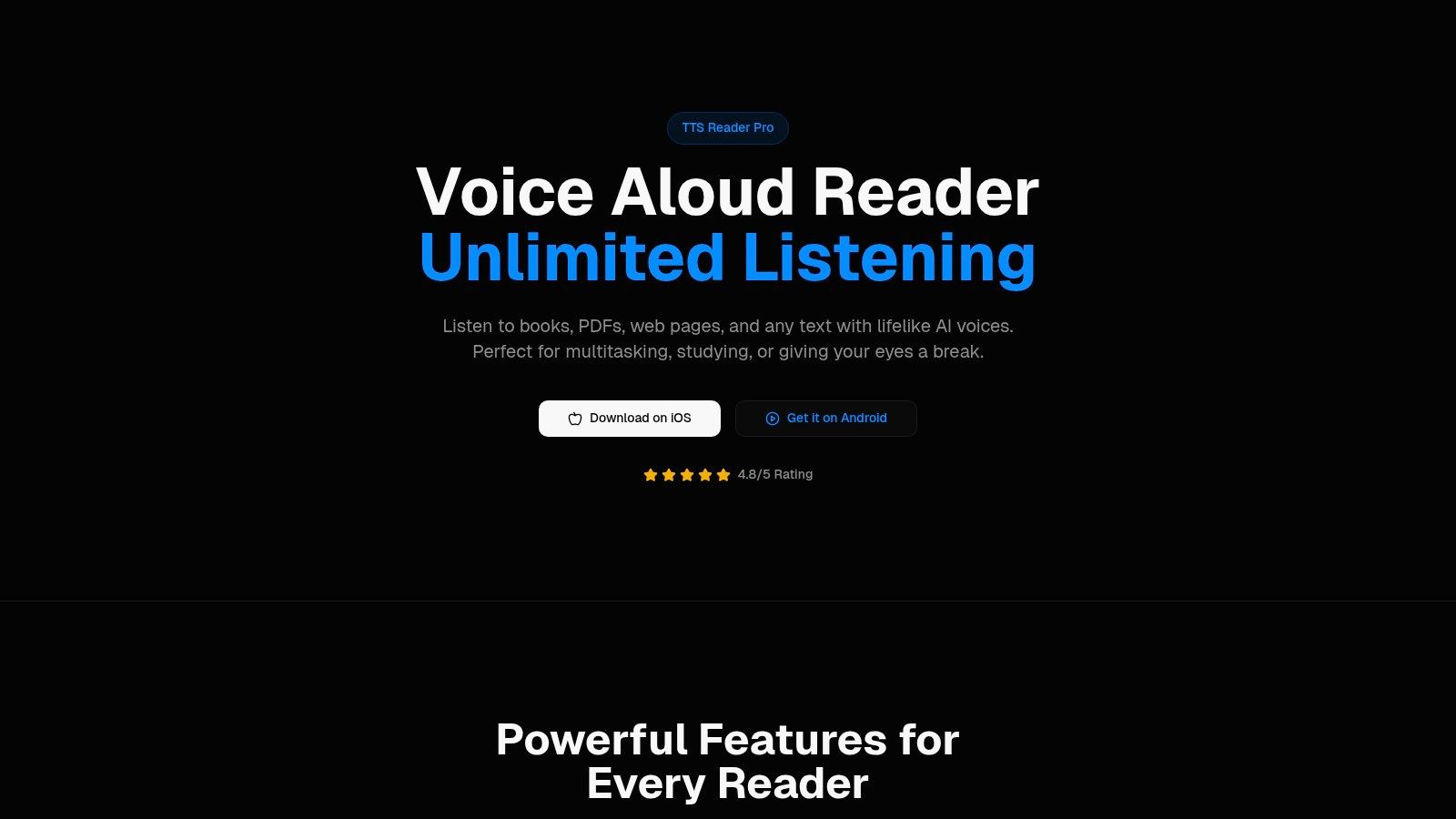
The interface is worth inspecting with your own reading task in mind.

A successful test isn't flawless performance on easy text. It's knowing whether your actual document remains understandable when spoken.
Don't chase a perfect narrator before establishing that the file works. If the words arrive in order, the section boundaries make sense, and you can explain what you heard, you have a useful starting setup. Make the next adjustment only when you can name the problem it needs to solve.
TTS Pro turns documents and web pages into spoken audio, with adjustable listening speeds and voices in more than 50 languages. Visit TTS Pro, try the free version with a document you need to read, and check its import before fine-tuning the voice.


No Comments
Leave a comment Cancel