
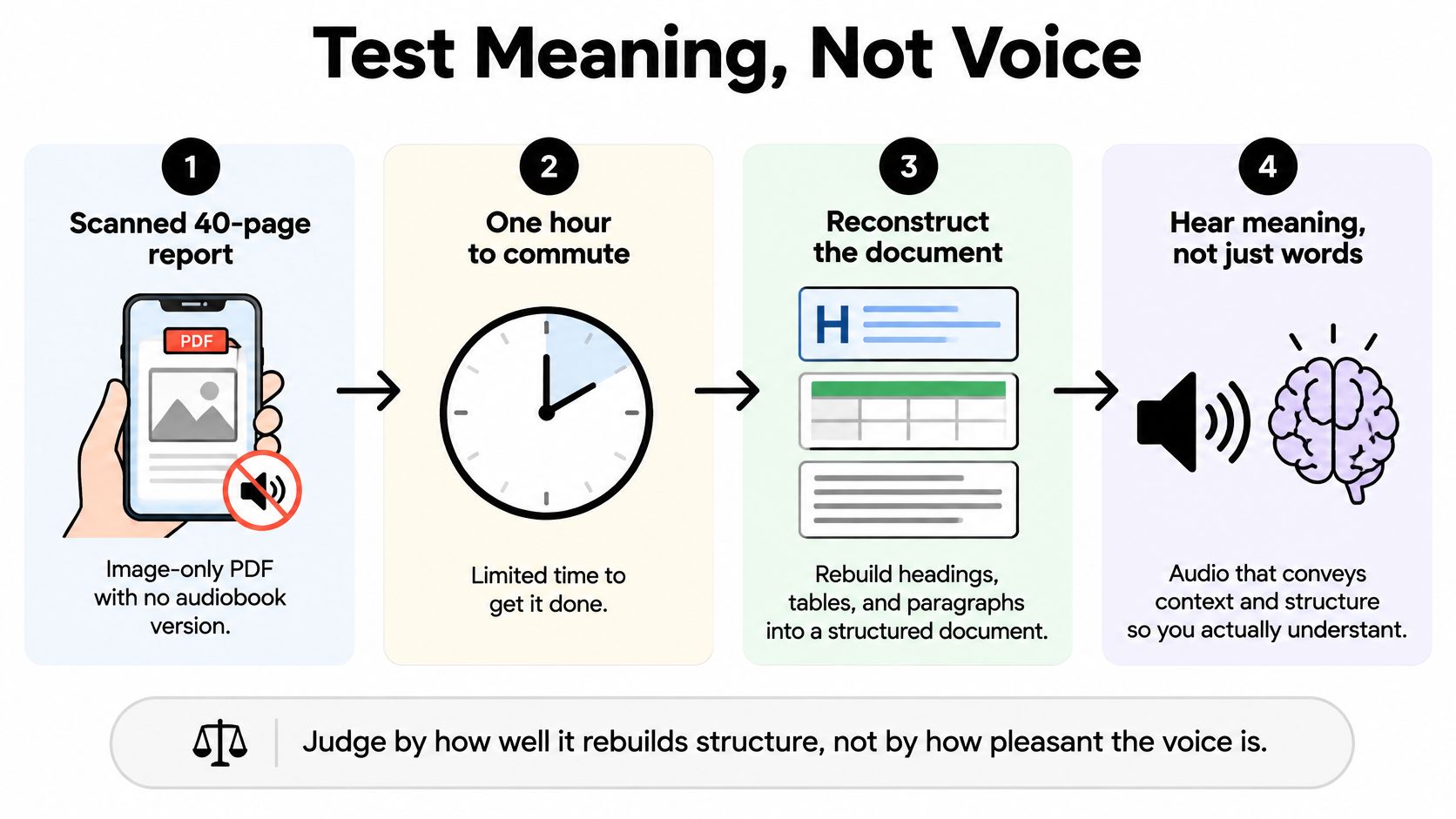
You've got a scanned project report on your phone, no audiobook version, and a commute coming up. You press play, hear a convincing voice, then realize it's reading a sidebar halfway through a sentence. The problem isn't the narrator. It's how the app interpreted the page.
A good read aloud PDF app should turn a document into coherent listening, not just speak every word it finds. That means testing your hardest files before committing to a subscription, especially textbooks, research papers, and reports with complicated layouts.
Table of Contents
- Choose a Read Aloud PDF App by Testing Meaning, Not Voice
- Install the App and Import PDFs from Every Source
- Decide Whether a Sensitive PDF Belongs in the App
- Use OCR to Turn Scanned Pages into Clear Speech
- Choose Voices, Speed and Formatting That Fit the Document
- Export Audio and Keep Your Listening Library in Sync
- Study and Accessibility Workflows That Make Listening Stick
- Fix Common Problems and Run a Two-Minute Reliability Check
Choose a Read Aloud PDF App by Testing Meaning, Not Voice
A PDF preserves a page's appearance, but that doesn't guarantee useful spoken access. The app must reconstruct the document's structure, including the relationship between headings, paragraphs, captions, and tables.
This isn't a recent complication. According to ISO's account of PDF accessibility, PDF 1.4 introduced tagged PDF in 2001, enabling assistive technologies to interpret document structure. Tags matter because extracting words and understanding their order are different jobs.
Use this selection checklist before comparing voices:
- Structure preservation: Check headings, columns, lists, and paragraph order.
- Scanned-page support: Look for OCR that turns printed pages into usable text.
- Language coverage: Test a voice in the languages you read.
- Kindle integration: Confirm that your owned books load and remain navigable.
- Export and privacy controls: Establish what you can save and what happens to uploaded material.
The practical workflow is straightforward: install the app and organize your library, import a document, determine whether it needs OCR, select its voice and language, adjust playback and formatting, then test listening, export, and synchronization.

TTS Reader Pro is available on iOS and Android, has a free version, and offers a yearly subscription at $49.99 per year. Start with your own documents rather than a polished demonstration passage.
Buying rule: A pleasant voice is worth paying for only after the app delivers the right content in the right sequence.
Treat reading order as the deciding quality test. A slightly less expressive narrator reading a coherent paragraph is more useful than a lifelike voice stitching unrelated passages together.
Install the App and Import PDFs from Every Source
Begin with a public document you can inspect visually. That lets you learn the import process without exposing confidential material or wondering whether missing content came from the file or your setup.
Build a library you can verify
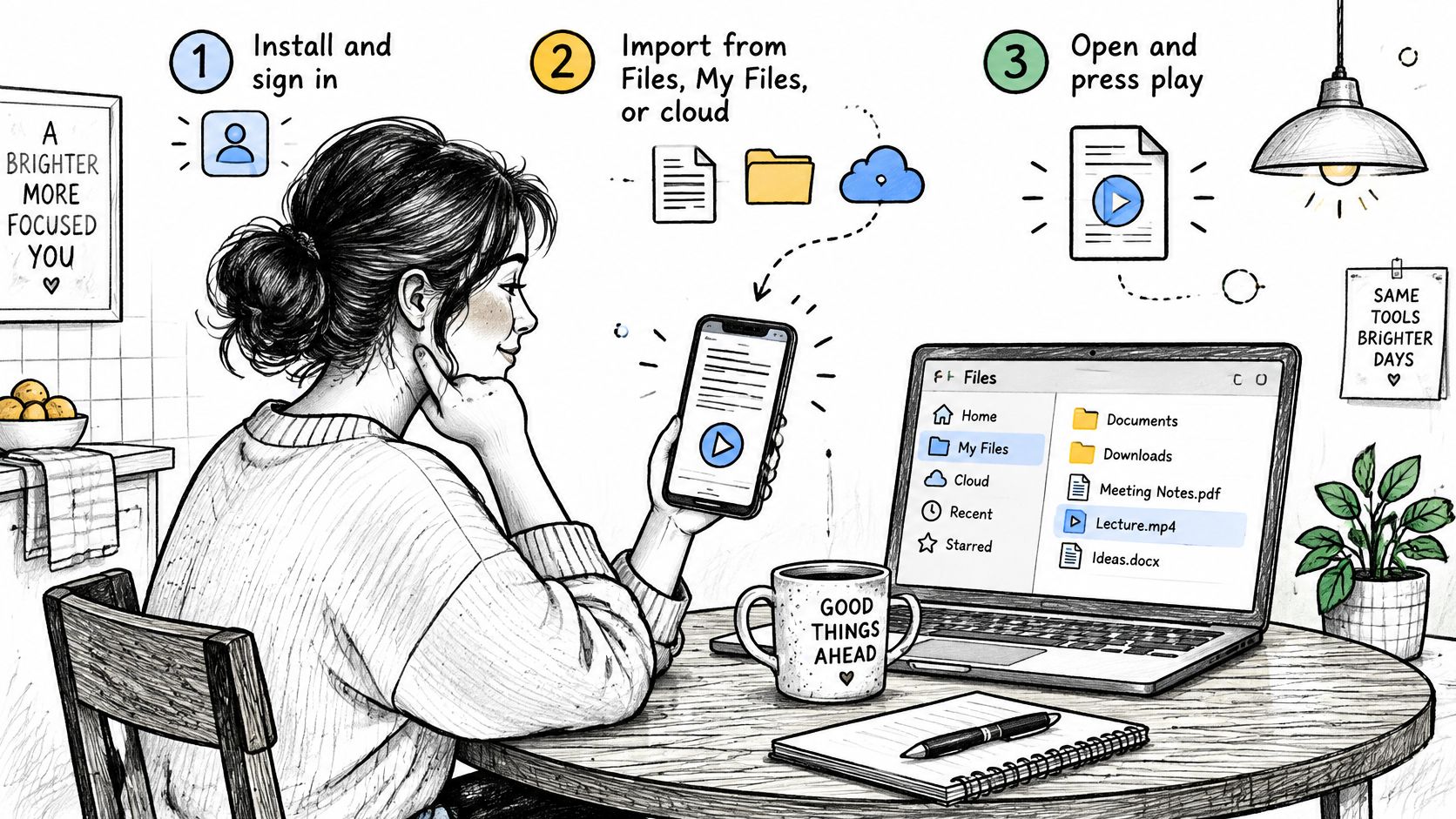
Install and open the app. Download TTS Reader Pro for your device, complete any required sign-in, and begin with the free version. Keep the original PDF available so you can compare the imported copy against it.
Import a local PDF. On iOS, locate the document in Files and use the share sheet or the reader's file picker. On Android, use My Files, your device's equivalent file manager, or the import picker. Open the preview and compare the title, final page, and a recognizable paragraph with the original.
Bring in a cloud document. Select a PDF through a supported connection or your device's cloud-aware file picker. Google Drive and Dropbox are useful starting points; iCloud files can be accessed through Files on Apple devices. Grant only the access needed, and wait until the document opens before assuming it's available for listening.
Paste an article link. The app can narrate a pasted article or webpage URL. Check that the imported text contains the article itself rather than navigation menus, a subscription notice, or a cookie message.
Connect your Kindle library. Our Kindle integration requires signing in to the Amazon account that owns the books. Let the library populate, open a familiar title, and compare a recognizable passage with the Kindle version. The app reads owned Kindle books aloud with AI voices; importing an unrelated protected ebook file isn't the same process.
Organize before adding everything. Use folders where available, or consistent title prefixes such as Courses, Reports, and Personal. Keep revised reports distinguishable from earlier drafts so you don't review an obsolete version.

Check the import, not just the cover
A thumbnail proves that a file arrived, not that its contents were extracted correctly. Scrub to the middle and end, then start playback from a specific paragraph. Check whether navigation follows the text you selected.
Password-protected PDFs: Open them with your authorized password and, where permitted, create an accessible copy for import.
Protected ebooks: Don't assume DRM-protected titles outside the connected Amazon account will sync or open.
For large textbooks, import a representative chapter first if you have a separate chapter file. That's easier to troubleshoot than discovering a conversion problem after filling the library with an entire course.
Decide Whether a Sensitive PDF Belongs in the App
A public journal article and an unpublished medical report shouldn't enter the same workflow automatically. Before importing sensitive material, examine the app settings, privacy policy, and your institution's rules.
Use the answers below as permission to proceed or a reason to stop, not as a checklist you tick without reading.
- Processing location: Does text extraction, OCR, or speech generation happen on the device, in the cloud, or through a combination?
- Derived content: What happens to recognized text, audio, document metadata, and synced library entries?
- Retention and deletion: Can you delete each item yourself, and does the policy explain when stored copies are removed?
- Security and access: Are transfers and stored files encrypted, and who can access the account or device?
- Secondary use: Does the policy address model training, third-party sharing, and permission to process institutional material?
Password protection isn't the whole decision
If you're relying on a password dialog as evidence of security, Vault9's explanation of the difference between locking and encrypting provides useful context. A restriction on opening or editing a document doesn't answer every question about how its contents are protected after conversion.
Offline processing isn't automatically safer when a phone is shared or left unattended. Cloud processing isn't automatically disqualifying either, provided its access, retention, and deletion controls meet your requirements.
Keep Amazon account permissions separate from PDF-upload permissions in your review. Connecting a library and submitting a standalone document can involve different information and authorization.
If the answers remain unclear, stick to public reading material. Keep contracts, patient information, restricted lecture notes, and unpublished work in a tool your organization has approved.
Use OCR to Turn Scanned Pages into Clear Speech
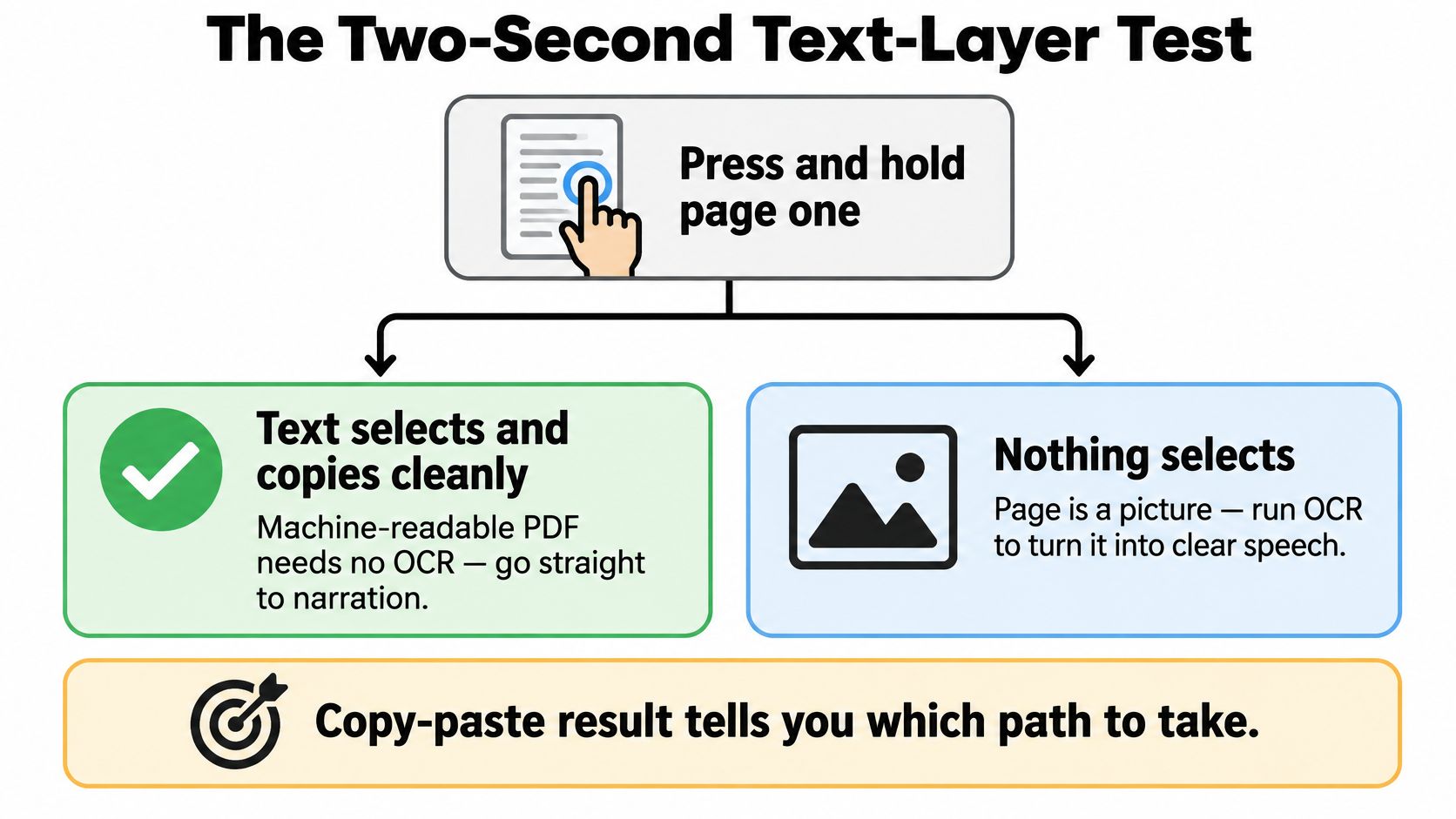
Press and hold a sentence, then copy it into a plain-text note. Clean selectable text usually means you can skip OCR on that page. If nothing selects, investigate whether the page is an image, the viewer lacks selection support, or document permissions are blocking access.
Don't stop at the opening page. A report can contain machine-readable chapters and scanned appendices in the same file.

Route each page before generating speech
Use embedded text first. Send pages with a reliable text layer through direct extraction. Re-recognizing clean text introduces an unnecessary opportunity for errors.
Recognize image-only pages. Run OCR or smart scan on scans and photographed print. Our smart scan technology can turn printed books, notes, and other printed text into audiobook-style listening.
Test a representative page. Choose a page containing the difficult material: columns, small footnotes, technical symbols, or a table. Listen before processing the rest.
Clean recurring clutter. Remove running headers, footers, and unnecessary page numbers from the listening text. Rejoin words split by line-end hyphenation without removing meaningful hyphens.
Check column boundaries. A conventional column layout should follow each column's paragraphs, not alternate between unrelated lines across the page. Use region selection or an accessible replacement when automatic ordering fails.
Separate recognition from pronunciation. Correct a misrecognized chemical term in the text first. Add a pronunciation override only when the spelling is already right.
Accuracy and speed by PDF processing route
A comparative benchmark on Nepali PDFs reported direct-parser accuracy of 99.26–100.00% with runtimes of 0.006–0.474 seconds per document, compared with OCR accuracy of 97.18–98.96% and runtimes of 0.719–23.690 seconds.
| Route | Accuracy | Runtime per document | Use when |
|---|---|---|---|
| Direct parser (PyMuPDF, PyPDF2) | 99.26–100.00% | 0.006–0.474 s | Page has a usable text layer |
| OCR engines | 97.18–98.96% | 0.719–23.690 s | Page is image-only or its text is unreliable |
These are benchmark results for those documents, not promised performance for your textbook. Their practical lesson is parser first, OCR where necessary.
For adjacent scanning tasks, Comredix can help you find an OCR app for receipts. Receipt capture and textbook narration have different priorities, though: capturing amounts correctly doesn't establish that a tool preserves academic reading order.
Clean recognition is only the beginning. Don't batch-convert a difficult book until a representative page makes sense aloud.
Choose Voices, Speed and Formatting That Fit the Document
Configure for comprehension before expressiveness. A dramatic narrator can become tiring during technical explanations, while an even voice can make a long report easier to follow.
Set language and pronunciation first
Match the document's language. Don't let the interface language decide pronunciation. Our voices cover more than 50 languages, including English, Spanish, Japanese, and Vietnamese. Check quotations and foreign-language terminology separately in mixed-language documents.
Choose a consistent narrator. Use a clear premium AI voice that handles the document's vocabulary well. Keep it consistent across chapters unless there's a specific reason to change it.
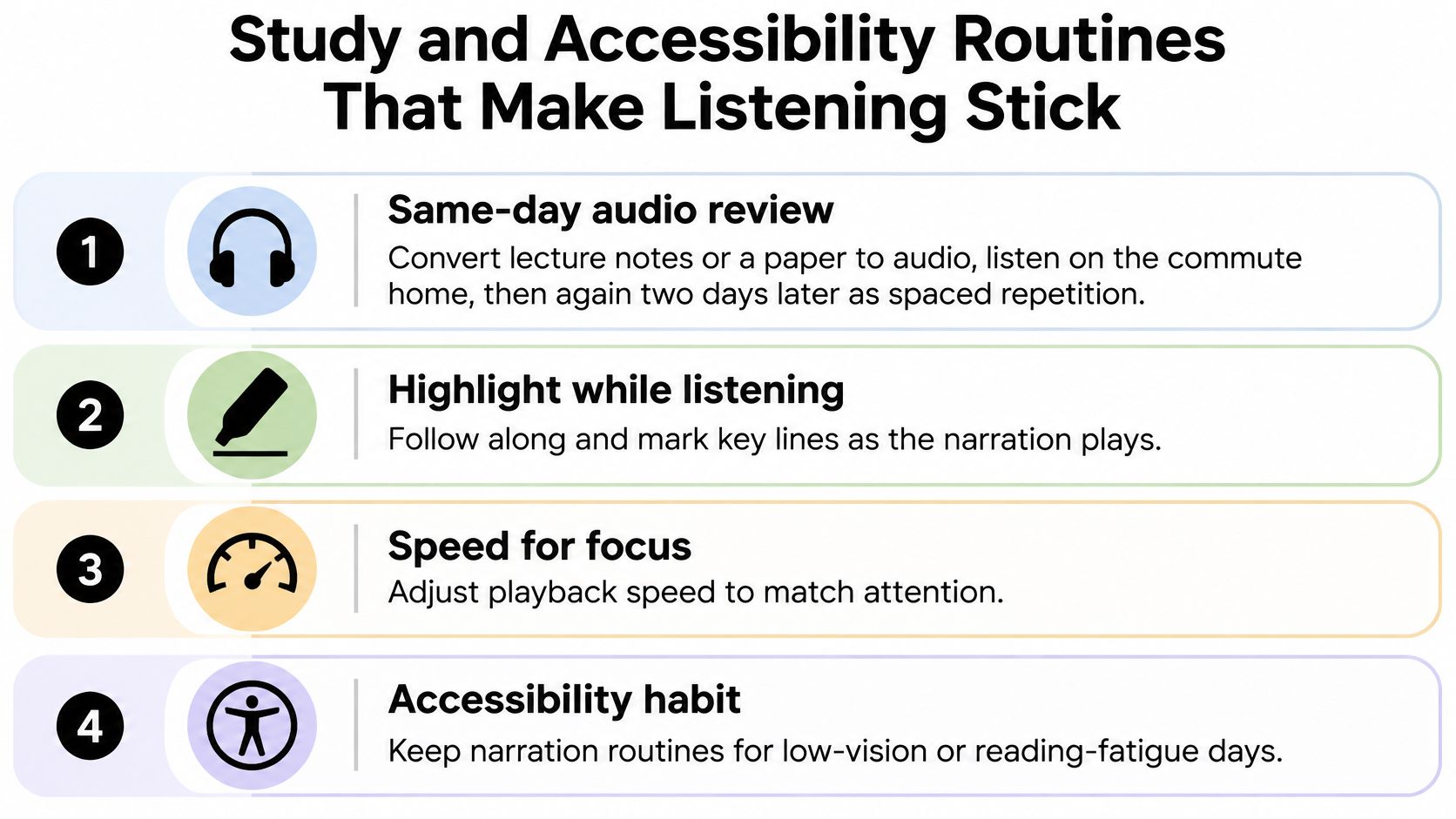
Tune speed by listening task. Start dense academic prose at normal speed. Increase playback for familiar material only while you can still explain the argument without replaying it; slow down for unfamiliar vocabulary or language practice.
Fix recurring pronunciations. Our settings let you adjust pronunciations. Prioritize names, acronyms, and technical terms that recur throughout the document, then listen to them inside a full sentence.
Inspect formatting behavior. Where controls are available, enable heading pauses and suppress running-page clutter. Keep captions with their associated material, and don't accept a table narrated as an unexplained string of values.
If you're comparing voice production tools as well as readers, FruitPunch's hands-on Speechify Studio assessment offers another evaluation context. For document listening, however, test the actual reader rather than treating a studio voice sample as proof of PDF handling.
Recommended read aloud PDF app settings by scenario
The options below are settings to look for and test, not a claim that every reader includes them.
| Scenario | Voice and language | Also enable |
|---|---|---|
| Commuting | Document language, natural AI voice | Background play, auto-advance, offline download where supported |
| Deep study | Clear neutral voice | Pause at headings, bookmark key passages |
| Low vision or dyslexia | Steady voice, even intonation | Short sections, bookmarking, minimal speed jumps |
| Language learning | Target-language voice | Sentence repeat, slower fallback speed |
| Long report review | One consistent voice | Skip headers and footers, continue across pages |
Change one setting at a time. Otherwise, you won't know whether a different voice, slower playback, or cleaner text made the passage easier to understand.
Finally, lock the screen, pause through your headphones, and resume after switching apps. Good playback settings must survive your real listening conditions, not just work while the settings panel is open.
Export Audio and Keep Your Listening Library in Sync
An offline document, a downloaded narration, and an exported audio file are different things. Check what your reader supports before relying on access without a connection. A fluent voice cannot fix a PDF whose headings, captions, or tables are read in the wrong order, so keep the original document for visual context.
Save a usable listening copy
Export only where supported. Choose MP3 for broad player compatibility, or another format accepted by your destination player. Export a short sample first and confirm it plays correctly on that device before saving a full chapter.
Name files consistently. Use a pattern such as course, chapter, and revision. Store the audio beside its notes so you can trace it to the source document later.
Check reading progress. Reading progress syncs between the Kindle app and TTS Pro. Stop at a recognizable passage, open the other app, and confirm that it resumes at the expected point.
Check listening availability. TTS Pro listening is not limited by time and has no interruptions. Separately check connection requirements and available device storage before a long session.
Verify the saved file. Play the beginning, middle, and ending on the destination device. Keep the PDF, especially when figures, references, or table structure carry meaning the audio cannot preserve.
The education-focused AI voice buying guide discusses retention limits, deletion procedures, consent controls, and restrictions on secondary training.
Treat audio as another copy of the document, not a harmless by-product.
For exported files and synced libraries, confirm storage location, account access, sharing permissions, retention, and deletion. Protect sensitive narration as carefully as the source PDF, including copies stored in another player or cloud folder. Read the audio alongside the source when document structure matters. A correctly saved file is useful only if listeners can follow what its sections refer to.
Study and Accessibility Workflows That Make Listening Stick
Listening becomes useful study practice when you give it a defined job. Playing a chapter while distracted isn't the same as checking whether you understand it.
The World Health Organization reports that at least 2.2 billion people worldwide have near or distance vision impairment. Spoken access belongs in ordinary document workflows, but narration doesn't replace accessible source design.

Choose a routine with a clear purpose
Same-day audio review: Listen to lecture notes on the journey home, then return to the same material after a gap. Before replaying, summarize what you remember so the second pass addresses omissions rather than becoming background sound.
Read-and-listen pairing: Follow the PDF while narration plays. Bookmark a confusing paragraph, finish the surrounding argument, then revisit it with the relevant diagram or equation visible. This is an option for readers with dyslexia or reading fatigue, not a guaranteed intervention.
Eyes-free navigation practice: Set up large text and high contrast where the interface supports them, then practice finding headings and returning to bookmarks without relying on visual page position. Check controls before depending on them away from your desk.
Language accuracy followed by fluency: Use a slower pass to inspect unfamiliar sounds and phrases. On a later pass, return toward normal speed and repeat difficult sentences where that feature is available.
Report-to-action review: Bookmark decisions, obligations, and unresolved questions while listening. Afterward, write the actions in your notes and verify the original wording before quoting or acting on it.
For ebook-based study, our app also syncs with Kindle Unlimited. Keep book access and your own notes distinguishable so it's clear which material you're reviewing.
Choose one routine and repeat it across your next study sessions. Judge it by what you can explain, locate, or apply afterward, not by how much audio you finished. If recall is weak, shorten the listening segment and add an active summary before increasing playback speed.
Fix Common Problems and Run a Two-Minute Reliability Check
Use a two-minute reliability check as a quick diagnostic, not an accessibility certification. Pick a difficult page and compare the spoken sequence directly with the source.
Check that paragraphs stay intact across columns, decorative pull-quotes don't interrupt sentences, captions remain associated with figures, headings follow a logical order, and table values retain their row and column context. A complex table may need a separate accessible representation rather than faster narration.
PDF accessibility guidance identifies multi-column layouts, floating elements, and pull-quotes as sources of unpredictable reading order. If the sequence fails, correct the source order, repair OCR text, or obtain a manually remediated copy.
Symptoms, causes and fixes for read aloud PDF playback
| Symptom | Likely cause | Fix |
|---|---|---|
| Flat, robotic narration | Basic engine or wrong voice for the language | Switch to a premium AI voice matching the document language |
| Sidebar or caption read before the main text | Visual position mistaken for reading order | Run the reliability check on a multi-column page and reorder or re-tag the source |
| Same header repeated every page | OCR captured running heads and page numbers | Delete repeated lines from the text before listening |
| Kindle books fail to load | Expired Amazon session | Refresh the Amazon account login, then resync the library |
| Names and jargon mispronounced | Default pronunciation rules | Add a pronunciation override in settings |
| Exported audio fails or cuts off | Unsupported format or low storage | Change the export format or bitrate, or free up space |
For stuttering between sessions, refresh the app and resync the library first. Our support can show you how to refresh the Amazon login when books fail to load; click the Beta tab for consistent continuity.
Tonight, choose your hardest real document and complete the workflow from import through playback. Consider upgrading only if it preserves the meaning at a speed you can comfortably follow.
TTS Pro offers PDF narration, smart scanning for printed pages, adjustable pronunciations, and Kindle library listening with AI voices. Visit TTS Pro, start with the free version, and test a difficult document before making it part of your daily listening routine.


No Comments
Leave a comment Cancel