
You've opened an article you need to finish, but your eyes are tired and the page is crowded with menus, adverts and a cookie banner. You press a listen button, and the voice starts reading everything except the paragraph you wanted. Getting useful audio takes more than choosing a pleasant voice. You need a way to isolate the right text, control playback and decide which tools you trust with the page.
Table of Contents
- Pick the Right Read-Aloud Method in Two Minutes
- Read Aloud on Desktop and Phone Without Installing Anything
- Extensions and Apps for PDFs, Links and Long Documents
- Fix Pages That Read Badly and Control What Gets Spoken
- Use a Two-Pass Listening Routine for Study and Recall
- Set Language, Speed and Test on a Real Article
Pick the Right Read-Aloud Method in Two Minutes
Start with a built-in reader if you mostly read in one browser or on one phone. Choose a document-reading app when your material arrives as pasted links, PDFs, EPUBs or TXT files, or when you need to resume longer reading sessions.
This is about access as well as convenience. The World Health Organization reports that at least 2.2 billion people worldwide have near or distance vision impairment. Spoken text can provide another route into information for people with low vision, older adults, readers with dyslexia and anyone dealing with screen fatigue. The right method is the one you can start and control without unnecessary effort.
Read-aloud options by device and what they do best
| Method | Platform | Best for | Setup effort |
|---|---|---|---|
| Microsoft Edge Read Aloud | Windows, macOS | Long articles inside the browser | Low |
| Chrome Listen to this page, where available | Desktop Chrome | Quick playback of a single article | Low, if the feature appears |
| Safari speech through macOS | macOS | Reading in Safari with no extra install | Low to medium, configure accessibility speech |
| Spoken Content and Speak Screen | iPhone and iPad | Supported text across apps | Medium, enable in Settings |
| Select to Speak | Android | Accessible text selected on screen | Medium, enable in Accessibility |
| Browser extensions | Chrome, Edge, Firefox | Custom controls, highlighting and speed | Low to medium |
| TTS Reader Pro | iOS and Android | Pasted links, PDFs, EPUB and TXT files | Low, paste a URL or open a file |
Practical rule: Choose by the material you need to hear, not by the voice demo that sounds most impressive.
Say a nursing student needs to hear a downloaded clinical guideline during a train journey. A document reader is a better starting point than a browser feature tied to the webpage where the file was found. If the guideline is an ordinary article instead, the browser may be enough.
Find the row that matches the device you already own. Test that method on your actual reading material before installing anything else.
Read Aloud on Desktop and Phone Without Installing Anything
Open the full article, not a search-results preview, and let the page finish loading. If there's an expandable article body, open it before starting speech. A reader can't reliably narrate text the website hasn't made available yet.
These are the main built-in routes. Menu labels can change with operating-system versions, so use Settings search if the wording on your device differs.
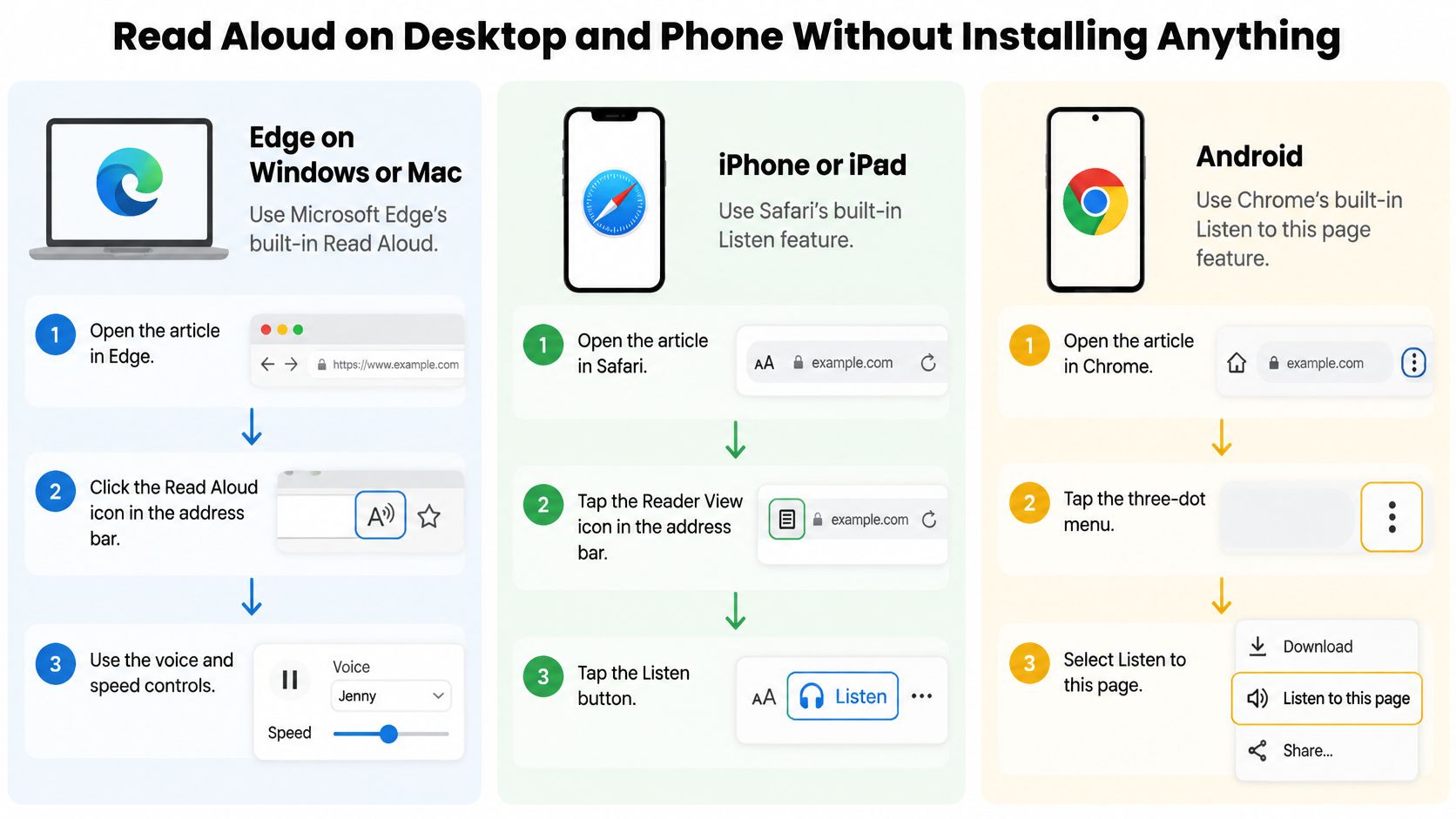

Start with the control for your platform
Microsoft Edge on Windows or macOS
Open the article and choose Read aloud from Edge's menu, or use Ctrl+Shift+U on Windows and Command+Shift+U on Mac. The playback bar provides pause, navigation and voice options. If narration starts in the wrong place, select the passage and look for the selection's read-aloud command rather than restarting the whole page.Chrome on desktop
Open the browser menu and check whether your installation offers Listen to this page. Availability and placement aren't uniform across desktop installations, so don't assume something is broken if it's absent. If Chrome offers Reading mode, check its side panel for playback controls; otherwise, use your operating system's selected-text speech or open the article in Edge.Safari on macOS
Select the passage, then choose Edit > Speech > Start Speaking where available. For keyboard-controlled speech, open System Settings > Accessibility, look for Spoken Content or Read & Speak, and enable Speak selection. Selecting a passage is useful when you want one section rather than a complete page.iPhone and iPad
Open Settings > Accessibility > Spoken Content, or Read & Speak on versions using that label, and enable Speak Screen. Open the article, then swipe down from the top of the screen with two fingers to start speech. Use the speech controller to pause or change playback; Safari may also offer Listen to Page in its page menu on supported pages.Android
Open Settings > Accessibility > Select to Speak and enable its shortcut. Activate the accessibility button or configured gesture, then tap the text or drag across the area you want spoken. If the option is missing, check whether the device needs Android Accessibility Suite; some manufacturers organize accessibility tools differently.
Keep the phone workflow simple
For a commuter listening to news on an iPhone, Safari Reader is the useful change before starting Speak Screen. Open Safari's page menu and choose Show Reader when available. That isolates the article and usually prevents navigation text from becoming the opening announcement, though it isn't a universal filter for every site.
Don't turn on VoiceOver or TalkBack merely because you want an article narrated. Those are full screen readers that change navigation and gestures, valuable when needed, but a different commitment from pressing play on an article.
If nothing starts, check the browser version, the accessibility toggle and whether you can select the text. A scanned page or image of text needs text recognition before ordinary selected-text speech can read it.
Extensions and Apps for PDFs, Links and Long Documents
Switch to an extension or dedicated reader when the built-in route can't handle your source or your playback needs. That might mean an e-book, a saved report, a queue of links or a document you need to reopen at the right passage.
The accessibility purpose is broader than audio convenience. The W3C Web Content Accessibility Guidelines describe text alternatives that can be converted into forms users need, including speech. But an app's ability to generate speech doesn't establish its privacy practices or its ability to interpret a document correctly.
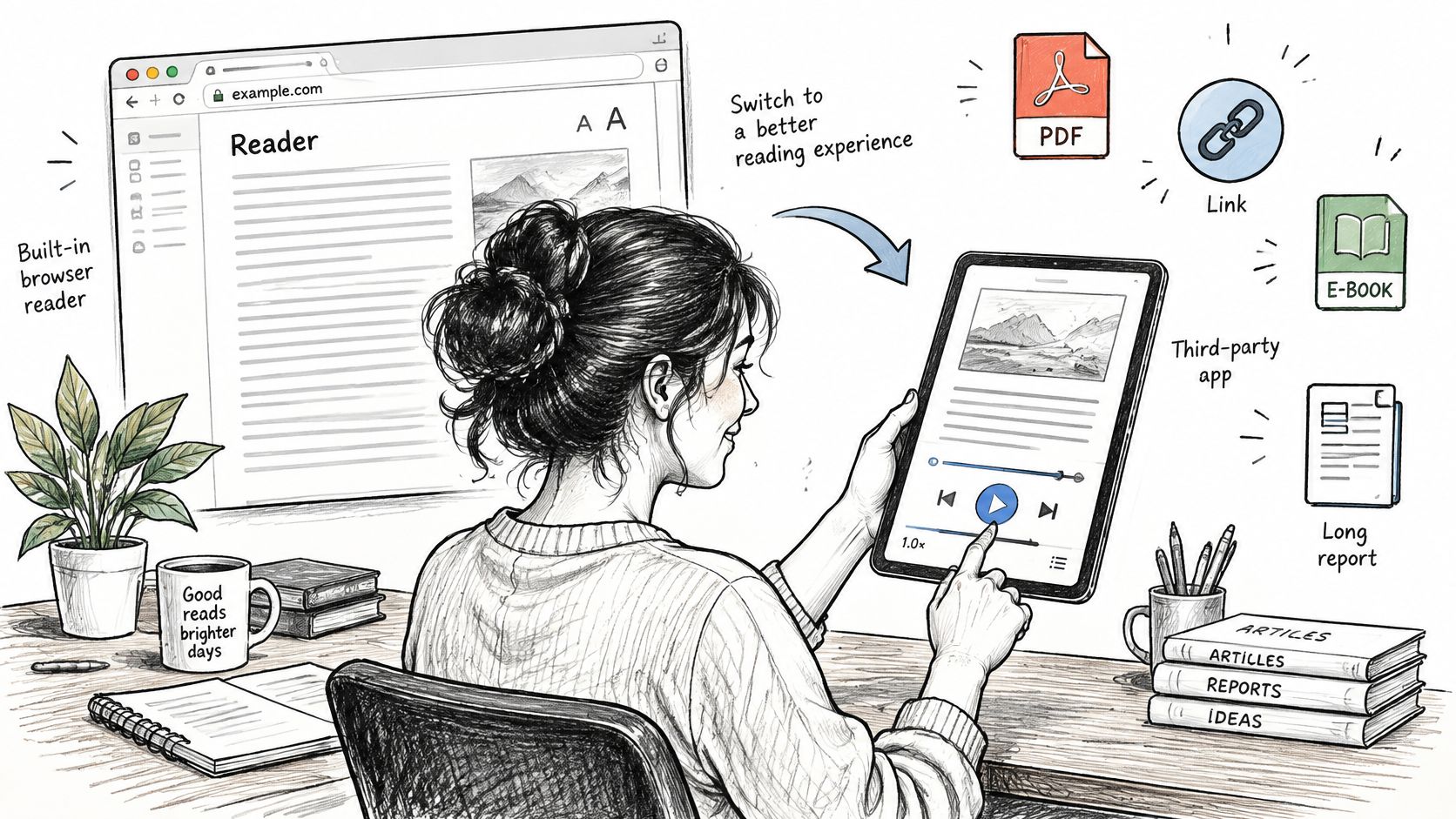

Check access before voice quality
An extension requesting permission to read and change data on all websites is asking for broad access. Depending on its permissions and browser restrictions, it may be able to inspect page content and information entered into forms. That's a serious trade-off if you also use the browser for work records, medical portals or private correspondence.
- Permissions: Prefer access on click or on specific sites where the browser allows it.
- Publisher: Check who maintains the extension and whether its privacy policy identifies the same organization.
- Maintenance: Review the update history and recent compatibility complaints.
- Processing location: Find out whether text stays on the device or goes to a remote speech service.
- Retention: Look for clear statements about storage, deletion and how submitted text is used.
An installed extension isn't necessarily a local reader. It can extract text in the browser and send that text to a server for narration. Likewise, a document-reading app may offer both downloaded system voices and network-dependent voices. Test offline playback explicitly rather than inferring it from the presence of an installed app.
For another Mac-focused option to investigate, you can browse the Speakmac profile on Awesome Tools. Treat a directory profile as a discovery aid, then verify permissions and current capabilities in the application's own documentation.
Test extraction before committing
With a mobile reader, the basic workflow is to paste an article URL or import a supported document, then inspect the extracted text before settling into playback. Check the beginning, a section boundary and a passage containing a caption or footnote.
Say a researcher imports a two-column journal PDF and hears the opening lines jump between columns. Changing the voice won't fix that. Try the reader's layout handling, or export the text and inspect its order before importing the cleaned version.
Choose on permissions, source compatibility, offline requirements and saved position. A polished voice is useful only after those needs are met.
Fix Pages That Read Badly and Control What Gets Spoken
The voice reads a navigation menu, related headlines and a cookie notice before reaching the article. That usually means the reader has extracted the wrong content region, or the website hasn't exposed a clear reading order. Speech generation and content selection are separate jobs.
Consent notices reveal why this matters. In a study of cookie-notice accessibility, 82.9% of visually presented notices could be read aloud with NVDA and Chrome, while 57.1% were announced immediately after the page title. Those findings concern that tested screen-reader setup, not every read-aloud app, but they show that something visible isn't necessarily announced accessibly.
Match the fix to the symptom
| Symptom | Likely cause | Fix |
|---|---|---|
| Menus and sidebars read before the article | No clear main-content region, or poor extraction | Use Reader View or select only the article text |
| Cookie banner read on every page | Consent choice isn't retained; announcement order may also be poor | Accept or reject once if appropriate, or isolate the article with Reader View |
| Table numbers read as one stream | Table structure isn't exposed to the speech engine | Read cell by cell or paste the table into a spreadsheet |
| Voice stops partway through an article | Content loads as you scroll | Scroll through the article, then restart from the last available paragraph |
| PDF text out of order | Multi-column layout | Export as plain text or use the reader's layout mode |
| Links read as raw URLs | Link text is missing or generic | Disable link announcements if supported, or copy text without hyperlinks |
A cookie notice repeating and a cookie notice being announced late are different failures. Don't accept tracking merely to silence narration. Make the consent choice you want; private browsing, blocked storage or site behavior may prevent that choice from persisting.
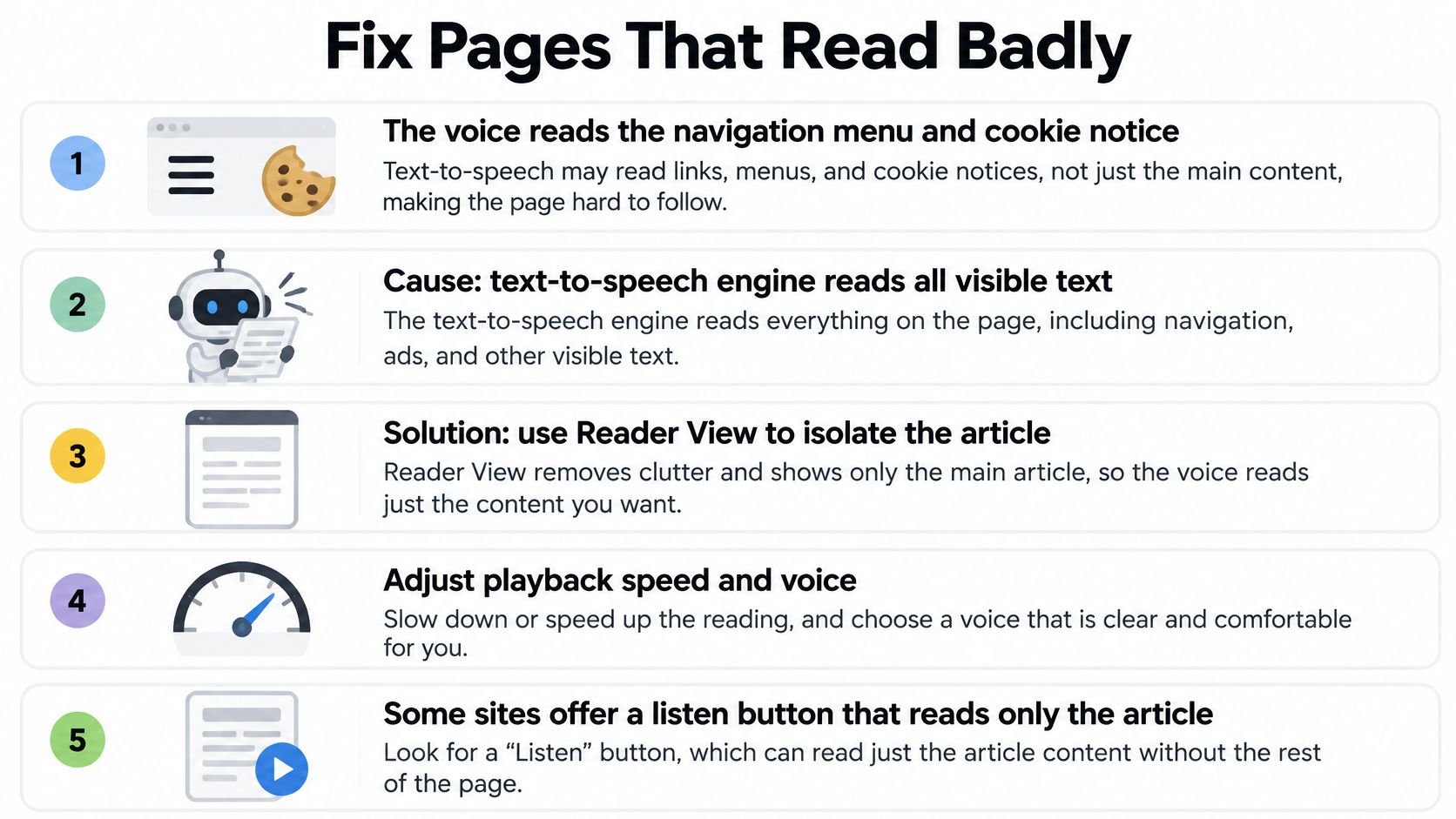

Preserve meaning while removing clutter
Reader View is a good first fix for articles, but check what it removed. Captions, warnings, footnotes and embedded explanations may matter. For precise work, compare the cleaned view with the original before relying on the audio.
Use heading navigation when your reader supports it. A heading list helps you skip repeated introductory material without accidentally skipping a qualification buried in a paragraph. Turn off raw URL announcements only when knowing the destination isn't part of the task.
Say a sales analyst hears a pricing table as an uninterrupted stream of amounts. Copying the table into a spreadsheet and reviewing each row with its column labels preserves the relationship between product, billing period and price. Faster narration would only make the confusion harder to catch.
A smoother voice can improve listening comfort. It can't restore a missing table header or invent the correct reading order.
When extraction keeps failing, use a clean text copy or request an accessible document from the publisher. No voice compensates for inaccessible HTML, and repeated playback won't repair missing structure.
Use a Two-Pass Listening Routine for Study and Recall
Audio doesn't automatically improve learning. In a study published in the Journal of Computer Assisted Learning, text-to-speech reduced mind-wandering and improved reading comprehension among 70 students, including 20 with dyslexia and 50 without. That's useful evidence, but it isn't a guarantee for every reader, document or listening routine.
Use narration to support the task rather than replace every part of reading. Getting the broad argument is different from checking an equation, evaluating a source or remembering a definition. You may need your eyes on the text for those jobs even when audio helps you stay engaged.
Separate orientation from understanding
- Listen for structure first. Use a comfortable pace and follow the argument without stopping to transcribe it. Notice the question, the main claim and where the author changes direction.
- Replay the difficult passage more slowly while following the text. Check pronouns, qualifications and unfamiliar terminology instead of letting an unclear sentence pass again.
- Write a brief summary from memory. Close or hide the passage while you explain what it means in your own words.
- Ask yourself a retrieval question, such as what evidence supports the conclusion or which condition would change the recommendation.
- Resolve the missing term. Look up anything you couldn't explain, then return to the relevant passage rather than restarting the entire document.
The playback speed is a control, not a target. Lower it when you're losing the relationship between ideas; increase it only when you can still explain what you've heard. Keep notes about the argument, not about every spoken sentence.
Study check: If you can repeat the wording but can't explain the claim, stop playback and work with the passage.
Use the summary as the stopping rule
Consider a graduate student listening to a journal article before a seminar. She reaches the discussion section but can't explain how the method supports the conclusion. Instead of adding another uninterrupted listen, she summarizes the method, checks the original and revisits the missing connection.
That's the practical test: can you explain the passage without the voice supplying the next sentence? Structured listening matters more than polishing the voice or extending playback time.
Set Language, Speed and Test on a Real Article
Choose the language before adjusting speed. Check the article's language, then select a matching voice and, where useful, an appropriate regional pronunciation. A mismatched voice can make correctly written names and ordinary words sound wrong.
Multilingual pages need particular care. A reader may handle the main language well but stumble over quoted passages in another language. If automatic switching doesn't work, select that passage separately and use a matching voice rather than changing the entire document's settings.
Starting speed and voice by type of content
Treat these as listening recommendations, not measured performance targets. Start at the reader's normal pace, then move slower or faster according to the work you're doing.
| Content type | Voice style | Why |
|---|---|---|
| News and blog articles | Conversational, then cautiously faster | Straightforward sentences are easier to follow at an increased pace |
| Study notes and textbooks | Clear and measured, normal or slower | You need space to connect unfamiliar terms |
| Legal, financial or technical reports | Deliberate, careful with numbers and acronyms | A missed qualifier or figure can change the meaning |
| Language learning | Native-language voice matching the page, slower for close practice | You're attending to pronunciation as well as meaning |
| Long leisure reading | Warm and expressive, at a comfortable pace | Sustained comfort matters more than finishing quickly |
Don't judge a voice only by a fluent introductory paragraph. Test it on the material that causes mistakes: abbreviations, dates, decimal figures, proper names and sentences with parentheses. A voice that sounds attractive in prose may be difficult to follow in a technical report.
Where your reader supports custom pronunciation, add troublesome names or abbreviations and replay the sentence to check the result. Keep the written source unchanged when accuracy matters. Replacing an acronym throughout a working document can alter quotations or make later searching harder.
For example, a policy analyst might use a measured pace for a regulatory report, add a pronunciation entry for an agency acronym and increase playback speed for familiar background material. The important distinction is between sections that introduce consequential detail and sections the analyst already understands.
Run a real-article test
- Choose something from your reading list. Use a complete article you need, rather than a demo passage selected to make a voice sound good.
- Start the built-in reader for your device. Keep the text visible during this first test so you can compare what's written with what's spoken.
- Check the opening paragraphs. Does playback begin at the article title or body? Note any missing content or unwanted announcements before changing settings.
- Adjust the voice and speed. Change one control at a time so you know which adjustment helped.
- Apply a targeted repair if needed. Use the troubleshooting table to address the specific failure, then replay the same passage to see whether it worked.
Before relying on a setup during travel or work, also check pause and resume behavior. Lock the phone, switch apps and return to the article. Verify those actions with your chosen tool instead of assuming playback will continue or preserve the exact position.
Keep a short record of the setting you changed first. If you repeatedly fix content selection, prioritize extraction controls when choosing a reader. If extraction is clean but technical language remains unclear, prioritize pronunciation and sentence-level replay.
Run the test today on an article you've been putting off. A useful setup isn't the one with the longest feature list. It's the one that reads the right text clearly, lets you recover when it goes wrong and fits the privacy requirements of what you're reading.
Our app can narrate a pasted article or webpage link and turn PDFs, EPUBs and TXT files into speech. Visit TTS Pro to try the free version with your own reading material, and review the current terms, including the pay-by-the-week subscription option, before choosing a paid plan.


No Comments
Leave a comment Cancel