
You're on the train with a research article open on your phone. Your eyes are tired, the battery is running low, and you keep rereading the same paragraph. Listening sounds easier, but only if the app can read the article in the right order, pronounce its terminology clearly, and help you understand what matters.
That's the useful test for a text to speech app. Not how impressive its sample voice sounds, but whether its audio helps you accomplish the reading you need to do.
Table of Contents
- What a Text to Speech App Does for You
- Key Features to Compare Before You Download
- How a Text to Speech App Turns Text into Voice
- Everyday Uses for a Text to Speech App
- Whether Listening Improves Comprehension
- Language Support Beyond the Language Count
- How TTS Pro Handles Real Reading Tasks
- Privacy, Cost and Platform Limits
- Choose Your Text to Speech App Today
What a Text to Speech App Does for You
A text to speech app turns written text into spoken audio using a synthetic voice. Think of it as a patient narrator that reads the material you give it. Unlike a recorded audiobook, the narration is generated from text rather than performed and recorded by a human reader.
For the student on the train, that could mean importing a journal article and listening with the phone screen locked. At home, the same student might photograph handwritten or printed study material, check the recognized text, and listen while organizing notes.
The starting point isn't always a file. Dedicated reading apps can accept documents, web links, or scanned pages, though you should confirm which inputs each app supports.
Start with the material you already have
Common reading inputs include:
- Digital documents: PDF, EPUB, and TXT files, including reports, notes, and electronic books.
- Web articles: A pasted link that the app extracts and narrates.
- Printed material: Photographed pages converted into readable text through optical character recognition, or OCR.
- Supported Kindle books: Books accessed through a compatible reading connection, rather than assumed to work because you own them.
These routes solve different problems. Importing a clean TXT file is straightforward; extracting a research paper with columns, captions, and footnotes requires more care. A beautiful voice won't fix words presented in the wrong order.
Accessibility and everyday convenience
People with visual impairments, dyslexia, reading difficulties, or screen fatigue may use spoken text to access information. The World Health Organization's assistive technology overview places technologies supporting communication, cognition, and vision within the wider accessibility picture.
A reading app isn't necessarily a full screen reader. Reading a document aloud and helping someone use every button on a device are different jobs.
Start with your goal: Decide what you want to understand, review, or finish before comparing voices.
Choosing well means answering two practical questions: how does the app turn your material into speech, and does that speech suit your reading task?
Key Features to Compare Before You Download
Use this features-to-tests comparison as a shortlist tool. The features fall into voice, playback control, content intake, and device behavior, but the deciding evidence is what happens with your own material.
| Feature | What It Does | What to Check |
|---|---|---|
| Voice quality | Natural, expressive AI voices | Listen to a technical passage, not just the demonstration |
| Voice choice | Several voices with different tones | Pick one comfortable enough for an extended listen |
| Speed control | Adjustable narration speed | Confirm a slow setting for dense passages |
| Playback control | Pause, resume, and skip | Resume mid-sentence without losing your place |
| File formats | PDF, EPUB, TXT, and similar files | Test a PDF with tables and footnotes |
| Link reading | Narrates pasted article links | Check that menus and ads are skipped |
| Scanning printed pages | Converts photos of text into audio | Scan a page in your usual font |
| Pronunciation settings | Corrects names and terms | Confirm edits persist after restart |
| Offline listening | Plays downloaded content without signal | Test with airplane mode on |
Voice and playback controls
Voice quality matters most when the novelty wears off. Listen for rushed punctuation, unnatural stress, and distracting shifts in tone. Use a passage with abbreviations and unfamiliar vocabulary rather than a friendly welcome message.
Voice choice serves a different purpose. You might prefer a restrained narrator for academic reading and a more expressive voice for fiction. The best choice isn't necessarily the most humanlike; it's the one you can follow without effort.
Speed control should let you slow a difficult explanation without making speech unpleasantly stretched. Playback controls should also work when you're interrupted. Pause during a sentence, leave the app, and return to check whether you can recover the thought without searching through the document.
Content intake and device behavior
For file formats, inspect reading order, not just whether the file opens. A PDF can load successfully while its columns become interleaved or its footnotes interrupt every sentence.
With link reading, listen to where narration starts and ends. You want the article, not navigation labels, subscription prompts, and unrelated recommendations.
For scanning, photograph material in the conditions you'll use. Curved pages, decorative type, shadows, and faint printing deserve a test before you rely on a scan for study.
Pronunciation settings matter when a repeated mistake becomes distracting. Correct a surname or subject-specific term, restart the app, and check whether the correction remains attached to the right word.
Finally, distinguish offline playback from an offline library display. Seeing a downloaded title doesn't prove that its audio or chosen voice will work without a connection.
If you're choosing for a child, the Talkio Kids app selection checklist offers a useful companion perspective on evaluating a learning app rather than judging its presentation alone.
Keep an app on your shortlist when it passes the tests that matter on your documents. Don't pay because its store demonstration sounds polished.
How a Text to Speech App Turns Text into Voice
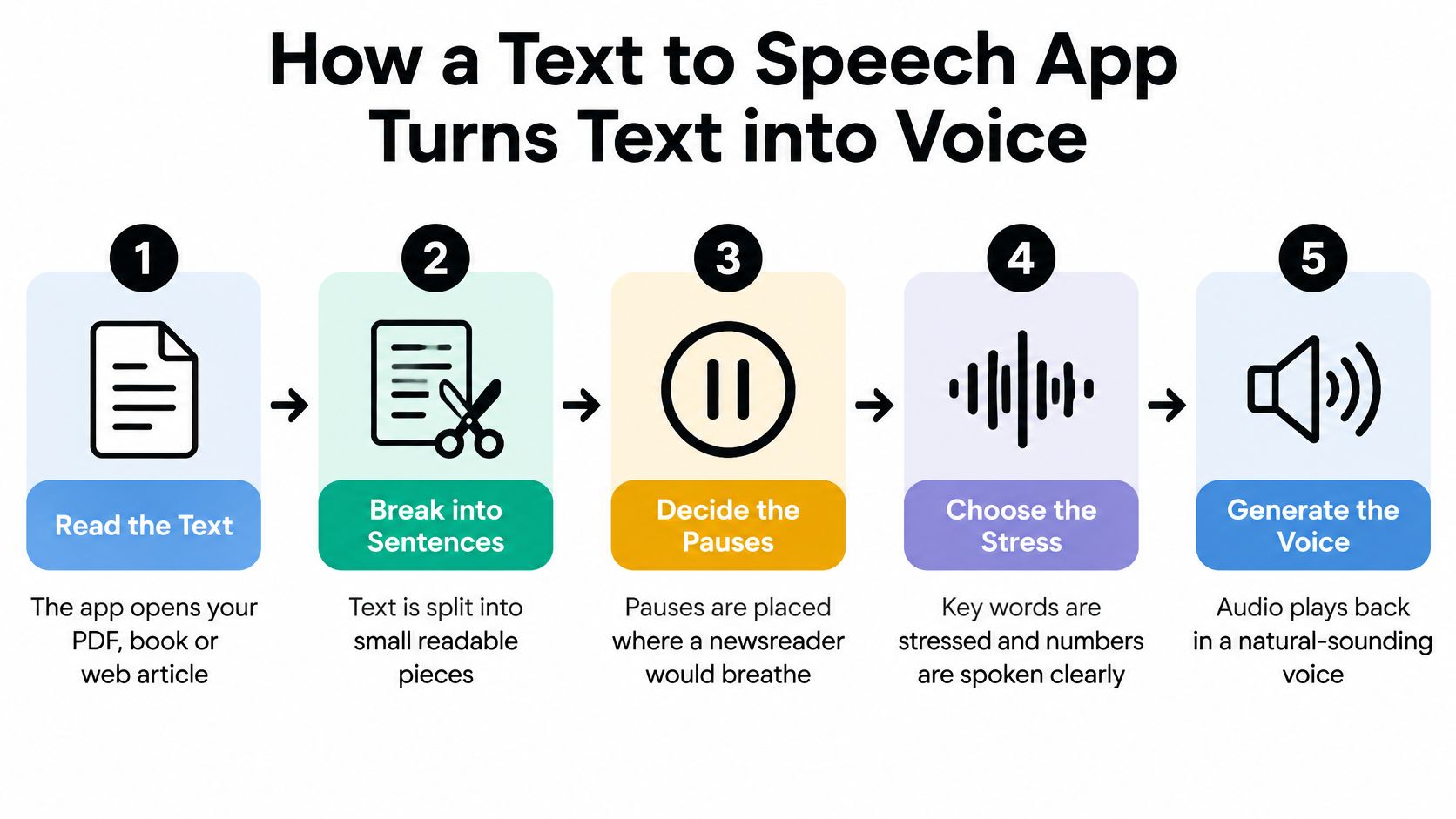
A skilled newsreader does more than pronounce words. They decide where to pause, which word deserves emphasis, and whether a string of digits represents a date, a measurement, or an identifier. A text to speech system has to make comparable decisions computationally.
Modern neural speech follows earlier rule-based, formant, and concatenative approaches; the survey of text-to-speech synthesis identifies WaveNet in 2016 and Tacotron in 2017 as important milestones toward more natural generation.
The route from document to sound
A common neural-TTS pipeline can be understood through these stages:
- Text input: The app receives the file, recognized page text, or extracted web article.
- Text normalization: Numbers, abbreviations, and symbols become words, so a distance written with a decimal and a unit can be spoken naturally.
- Linguistic analysis: The system determines sentence structure, likely pronunciation, stress, and pauses.
- Acoustic generation: A neural model predicts speech characteristics such as timing and sound features.
- Vocoder: A model converts those acoustic representations into the audio waveform you hear.
- Playback: The app sends audio to your speaker or headphones, potentially while preparing the next passage.
Implementations differ, and some systems combine stages. The important distinction is between understanding how text should be spoken and generating the sound.
This simplified visual groups those decisions into a reader-friendly flow.

What a mistake tells you
Suppose a narrator reads a measurement incorrectly but pronounces the surrounding sentence clearly. That points toward text normalization or interpretation, rather than a generally poor voice.
If the sentence contains the right words but sounds flat or stresses the wrong phrase, listen more closely to prosody, the rhythm and intonation of speech. If a paragraph sounds nonsensical, inspect the extracted text before switching voices.
A table is a useful example. Its meaning may depend on column headings and row relationships that don't survive a simple text extraction. The app might pronounce every word correctly while communicating the table badly.
Treat these as separate failures. You can sometimes fix a term with a pronunciation setting, but a document with scrambled reading order needs a cleaner input or a different extraction method.
Everyday Uses for a Text to Speech App
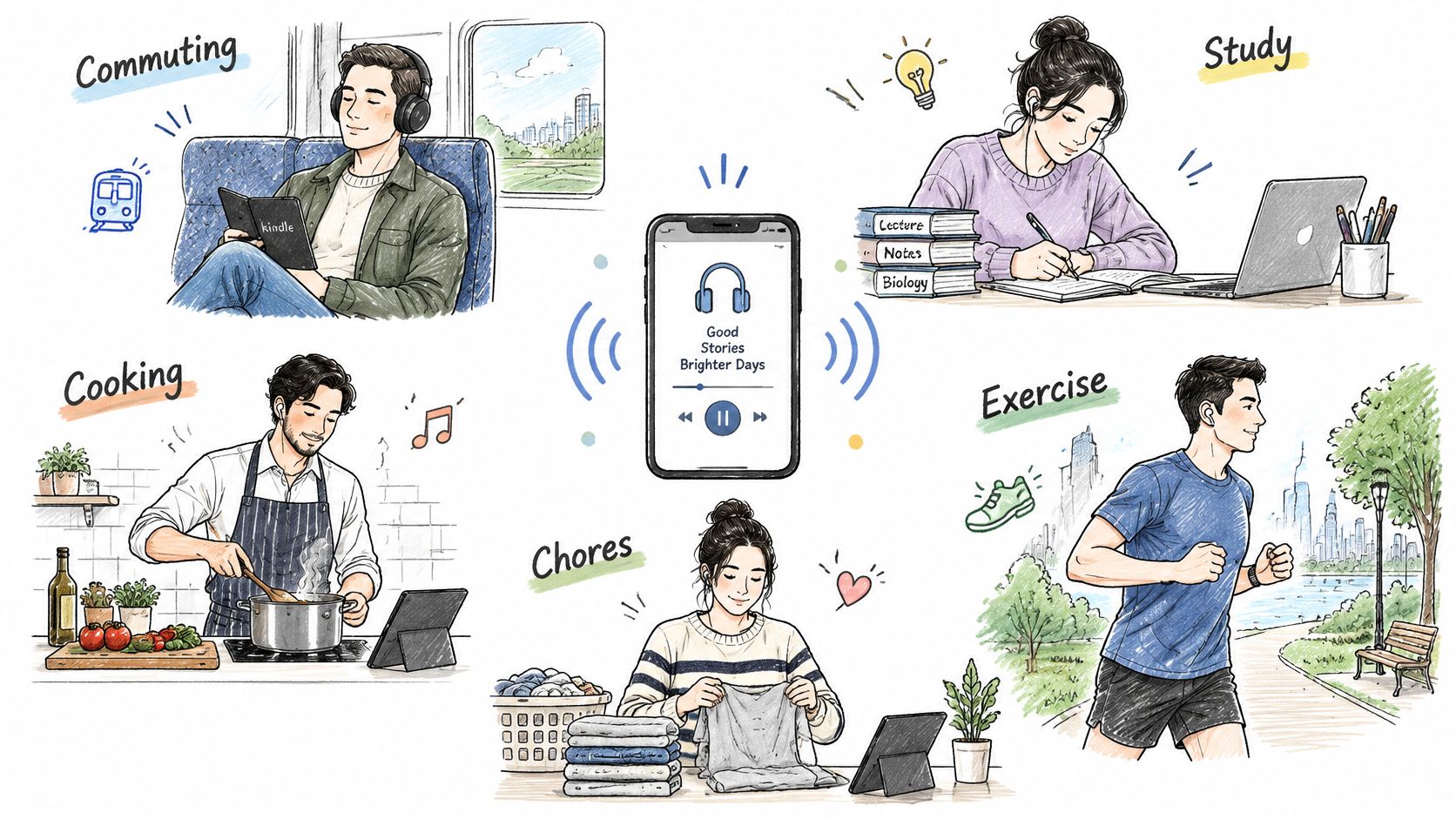
The useful feature changes with the situation. A commuter needs dependable hands-free playback; a student working through a printed handout needs a clean scan first.
Listening can fit around ordinary activities, provided the activity leaves enough attention for the material.

Commuting and studying
On a commute, a saved article can become reading time without requiring you to hold the screen in view. Link narration handles the article intake, while accessible playback controls help when an announcement interrupts you. Prepare the material before leaving rather than trying to organize it on a crowded platform.
During study, use file import for lecture notes or a journal article. Keep the source nearby when the content includes equations, diagrams, or evidence you need to inspect visually. Audio can support a review pass without pretending that every academic element translates neatly into speech.
Printed material needs another route. Our smart scan technology can turn printed books, notes, and other printed text into audiobook-style audio. Check the recognized passage before studying from it, especially where a missing word could reverse the meaning.
Reports, Kindle books, and tired eyes
For professional review, listening to a report while walking or preparing food can help you complete an initial pass. Keep a way to record sections that need closer inspection. A financial table, qualification, or recommendation may deserve a return to the page rather than repeated listening.
For Kindle reading, our app can sync a Kindle library and read aloud books the customer owns. This provides AI narration for supported reading material, not the performance from a separately produced commercial audiobook. Reading progress can sync between the Kindle app and our reader.
For screen fatigue, start with something you already wanted to read but don't need to annotate continuously. An essay or familiar chapter may fit better than an unfamiliar technical specification. The immediate benefit is less time looking at a display, not a promise that you'll learn more.
If earbuds are part of your routine, DigiDevice's guide to safe listening levels for earbuds is a useful practical companion. Don't respond to a noisy carriage by turning the volume higher.
The shared benefits are flexibility, hands-free access, and a chance to finish material that might otherwise stay unread. Whether listening also improves understanding depends on the reader and the task.
Whether Listening Improves Comprehension
Text to speech helps some readers more than others. Making words easier to access and improving understanding aren't the same outcome.
An eye-tracking study of junior-high students with reading disabilities found improved reading fluency, reduced reading time and cognitive effort, and comprehension comparable to silent reading, but no significant comprehension improvement; it also found that extra auditory load could interfere with fluent readers' understanding.
A separate meta-analysis of read-aloud and TTS interventions for students with reading difficulties found a statistically significant average comprehension benefit, with a weighted effect size of 0.35. That's an average across interventions and participants, not a guaranteed improvement for an individual learner.
Easier decoding isn't the whole reading task
Decoding means getting from written symbols to words. If identifying those words takes considerable effort, spoken text can provide another route to the content.
But understanding a passage also requires vocabulary, background knowledge, inference, and attention. A narrator can say a technical term clearly without explaining it. It can read an argument smoothly without helping you recognize a weak assumption.
Think of narration speed as cruise control. You choose a setting that suits the road, then adjust when conditions change. An easy narrative and a dense explanation shouldn't automatically use the same pace.
Finishing the audio isn't the same as being able to explain the idea.
A listening workflow for difficult material
Try a deliberate reading routine rather than pressing play and hoping that the content sticks:
- Preview unfamiliar terms: Look at headings, define essential vocabulary, and identify diagrams before listening.
- Slow the demanding passages: Adjust the pace when the author introduces a new concept or links several ideas.
- Pause to summarize: After a meaningful section, explain the main point in your own words without looking.
- Switch presentation modes: Try listening alone, following the text, and returning to visual reading where relationships are easier to inspect.
- Repeat selectively: Replay the sentence you couldn't explain, not the entire chapter by default.
Optional highlighting can help you keep your place, but it shouldn't become another demand on your attention. If following moving highlights feels distracting, try listening without them.
For a fair personal test, use comparable passages and ask the same kinds of questions afterward. Can you state the main claim, explain why the author supports it, and recall the qualification?
Choose the setting that helps you answer those questions. A slower, clearer voice with convenient navigation may serve you better than a more expressive narrator at a faster pace.
Language Support Beyond the Language Count
A study of Sinhala-speaking adults with dyslexia reported 66% transcription accuracy, 70% correction accuracy, and 65% overall system accuracy in its speech-driven pipeline. Those are results for that particular system, not ratings for all Sinhala voices or text to speech apps.
The study also noted gaps in emphasis control and fine-tuned speech settings. Its practical lesson is that available doesn't necessarily mean accessible.
Judge the language in your document
A language badge tells you a voice exists. It doesn't tell you whether the app will handle your course vocabulary, regional names, abbreviations, or scanned pages reliably.
Our voices are available in more than 50 languages, including English, Spanish, Japanese, and Vietnamese. That's a starting point for testing, not a claim that every language and document type will perform identically.
For your own language, examine:
- Text normalization: Are dates, decimals, units, and abbreviations spoken as intended?
- Names and terminology: Can you recognize people, places, and specialist vocabulary without checking every occurrence?
- Phrasing: Do sentence endings and paragraph breaks sound distinct?
- Pacing: Can you create enough space between unfamiliar ideas?
- Scan accuracy: Does the extracted text preserve words, punctuation, and reading order?
With a scanned PDF, OCR can become the limiting factor before voice quality does. A narrator can't recover a word the scanner replaced with a different word. Compare the recognized text with the page before blaming pronunciation.
Run a familiar-page test
Choose a page you know well in the language you need. Include ordinary prose and the kinds of names, numbers, or technical terms you encounter regularly.
Listen while following the original. Mark missing words, incorrect terms, awkward pauses, and places where you have to infer what the narrator meant. Then try a pronunciation correction or another voice and check whether the specific problem improves.
Mixed-language documents deserve their own test. A strong voice in each language doesn't establish that the app will switch appropriately within the same paragraph.
Also separate narration from translation. Reading a Spanish document aloud in Spanish is different from translating it into English. If your task includes spoken communication while traveling, Model Diplomat's guide to the best voice translator apps for travel addresses a different tool category.
For academic reading, choose on the basis of recognizable terminology and controllable phrasing. A language count can't tell you whether you'll understand your next assignment.
How TTS Pro Handles Real Reading Tasks
Long documents are better suited to progressive playback than an unnecessary wait for the entire file to finish processing. Chunking, preparing upcoming passages, and caching generated audio are useful architectural approaches, but they shouldn't be assumed to be confirmed features of every app.
The VocBench framework evaluates neural vocoders through both listener-rated quality and speed measurements. That distinction matters during your trial: a voice can sound excellent while the overall reading experience feels slow or unreliable.
Set up a representative reading task
Use a document that contains the difficulties you meet, rather than starting with artificially clean demonstration text.
- Install the reader from the App Store or Google Play and open it.
- Add your material by importing a PDF, EPUB, or TXT file, or pasting an article link.
- Choose a voice and adjust narration speed until the difficult passage feels manageable.
- Open pronunciation settings and correct names or terms that sound wrong.
- Try smart scan with a printed page, checking the recognized text before listening.
- Check download and offline options before a commute, then verify playback without a connection.
Our app supports pasted-link narration, adjustable pronunciations, and narration-speed controls. Use each for a particular job: clean article access, recognizable terminology, and a pace that leaves room to think.
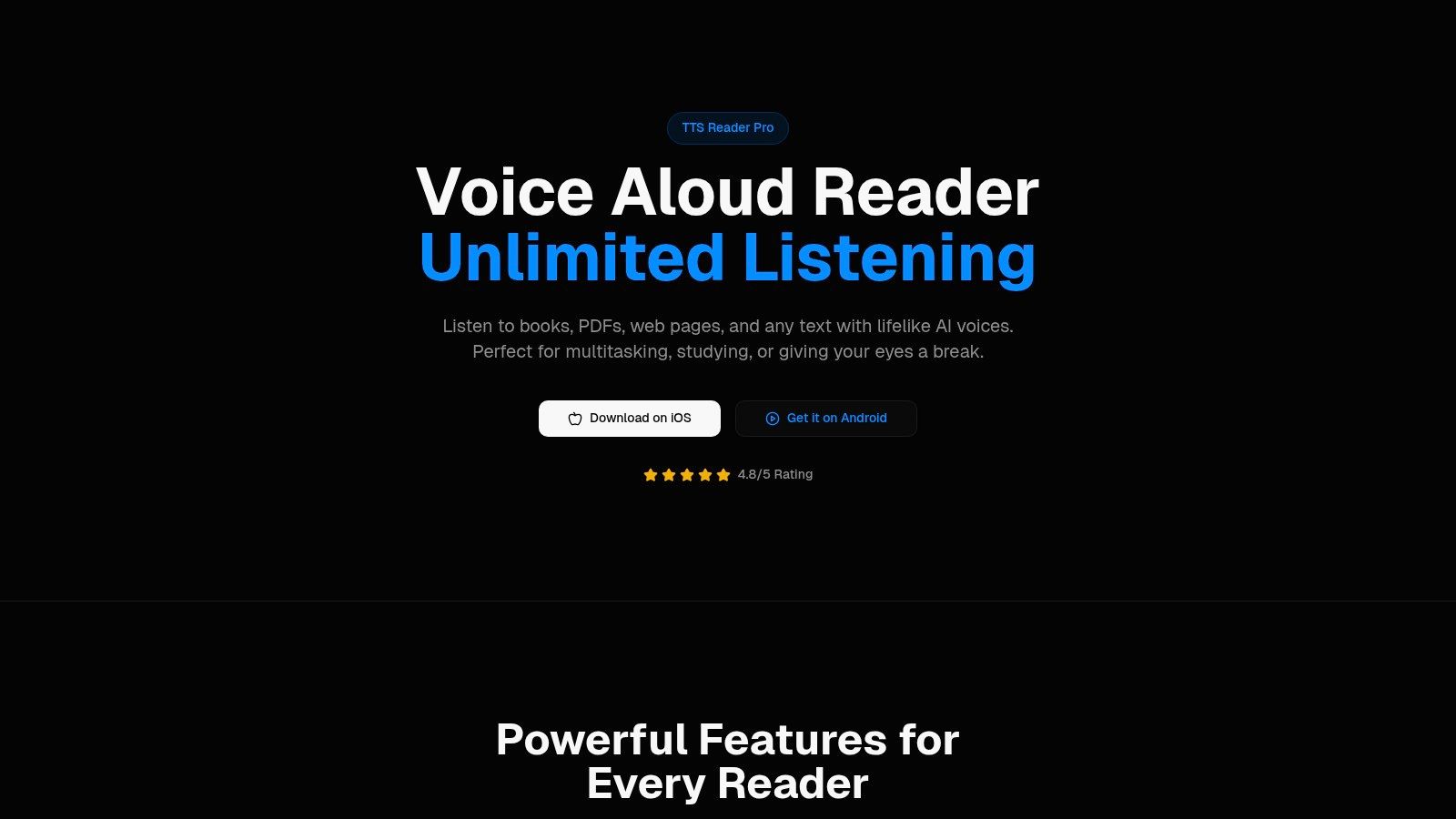
The interface is a starting point, but your document provides the meaningful test.

Notice the behavior between sentences
Pay attention to time to first audio, meaning the delay between requesting narration and hearing it begin. You don't need laboratory equipment; notice whether the wait interrupts your workflow or makes you unsure whether the app responded.
Then continue beyond the opening. Listen for gaps at paragraph boundaries, repeated text, unexpected stops, or changes in volume. Lock the screen and check how easily you can pause and recover your position.
Battery behavior matters over a real session, too. Compare what happens during your ordinary reading routine rather than judging consumption immediately after installation, when downloads or setup may still be running.
Use the pronunciation tool on the same troublesome vocabulary throughout the document. A correction isn't useful if it fixes a familiar name but makes another word confusing, so listen in context.
For study, slow the passage where you need to draw an inference and pause before checking your notes. The practical question isn't whether a speed slider exists; it's whether you can control the reading without losing your train of thought.
Record what passed, what failed, and whether the failure prevented your goal. A minor voice preference and a missing paragraph shouldn't receive equal weight.
Privacy, Cost and Platform Limits
A reading app can sound right and still be unsuitable for your documents or budget. Compare privacy, payment terms, and device access before you put it into regular use.
Use a short, non-confidential test document with realistic formatting. Don't upload an actual medical record, unpublished manuscript, or employer document merely to discover how an unfamiliar service handles files.
Make the comparison explicit
| Area | What to Establish | Practical Check |
|---|---|---|
| Privacy | Where files are processed and retained | Read the policy and locate file deletion controls |
| Cost | What triggers payment or restricts access | Try the complete test document and inspect the upgrade terms |
| Platforms | Which devices and sync functions are supported | Open the same material on the devices you intend to use |
Privacy: Distinguish on-device processing from server-based processing. Look for explanations of document storage, retention, account deletion, and any use of uploaded content. If the policy doesn't answer a requirement that matters for your material, don't treat silence as permission.
Offline playback doesn't by itself establish private, on-device processing. Audio could have been created remotely before being downloaded.
Check the complete cost and device path
Cost: Determine whether an app uses a subscription, usage-based payment, or another arrangement. Check what the free experience covers, whether a preferred voice needs payment, and whether you can finish your representative document rather than hear only a preview.
Platforms: Confirm the specific device you use, not just the operating-system family. A mobile app doesn't automatically provide an equivalent Mac or Windows experience, and account access doesn't automatically mean library or progress synchronization.
Test a handoff if you expect to read on one device and listen on another. Record these answers beside the feature comparison so you're choosing between complete reading workflows, not isolated voice samples.
Choose Your Text to Speech App Today
Start with the reading task you want to complete this week. A clear task makes it easier to reject features that sound impressive but won't help you.
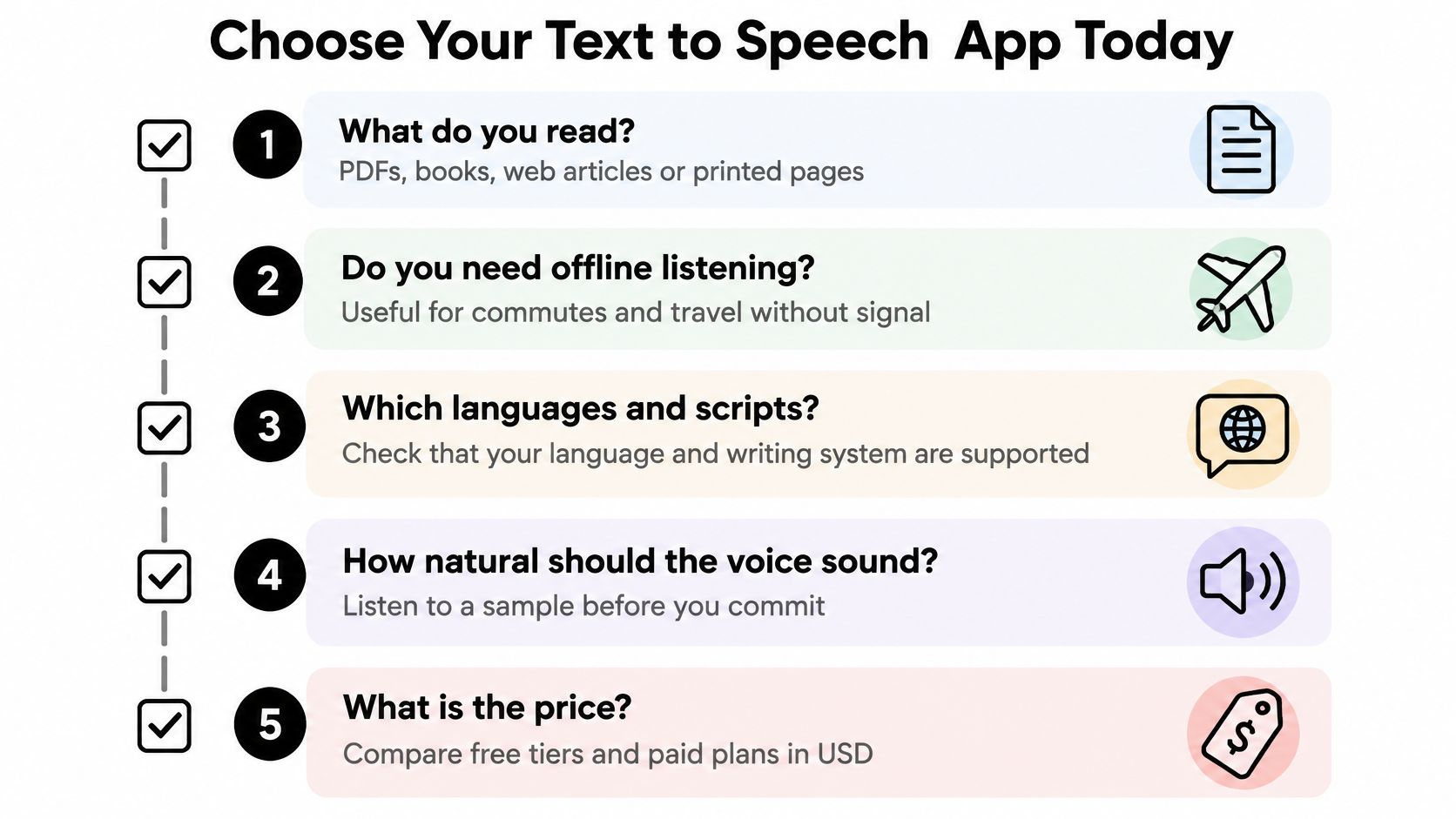
Work through these questions in order:
- What do you read? Choose the input that matters most, whether that's a PDF, book, web article, or printed page.
- Do you need offline listening? Make an actual no-signal test part of your decision if you travel through unreliable coverage.
- Which languages and scripts appear? Include mixed-language passages and specialist terms in your sample.
- Are you listening for understanding or speed? Decide what a successful result looks like before changing the pace.
- Do you own Kindle books you want to hear? Test the particular titles you plan to use.
This checklist can help you keep practical requirements separate from appealing extras.

Match your goal to the first test
| Your Reading Goal | First Test to Run | What Counts as Success |
|---|---|---|
| Understand dense study material | Listen to a difficult passage, then summarize it | You can explain the argument without replaying everything |
| Read during a commute | Prepare content and try playback without signal | Your chosen material remains available and controllable |
| Follow a non-English PDF | Compare narration with a familiar page | Words, terminology, and reading order remain recognizable |
| Review printed notes | Scan a representative page | The captured text preserves the intended meaning |
| Listen to owned Kindle books | Open and narrate your specific title | The book supports the reading access you need |
For Kindle reading, narration availability depends on book compatibility and supported reading access. Test your specific titles before relying on them for a trip or study schedule.
Our free version gives you a starting point for evaluating the reading experience. We also offer a pay-by-the-week subscription plan; confirm current plan options and included access on our site before budgeting for a short project.
Keep your decision simple. Try a document you already know, record the results beside the comparison table, and pay only when the app has demonstrated that it can do your job. The right choice should help you understand or finish the material, not merely impress you during setup.
TTS Pro offers AI narration for supported books, documents, and web pages, with adjustable speed and pronunciation settings to suit your reading. Visit TTS Pro, try a familiar document, and check whether the audio helps you reach your reading goal before choosing a plan.


No Comments
Leave a comment Cancel