
Turn on read-aloud, follow the highlighting, then increase the speed. That's common advice about text to speech for dyslexia, but it skips the most important question: what's making this particular reading task difficult? A reader who needs relief from decoding may need a different setup from someone who loses the thread of an argument or wants to connect printed words with their sounds.
The useful starting point isn't a special voice or a faster playback rate. It's choosing what work the speech tool should take over, then checking whether the reader understands the material with a manageable amount of effort.
Table of Contents
- When Spoken Text Helps and When It Does Not
- Playback Modes Matched to the Reader
- How Speech Changes the Reading Load
- What Studies Found About Scores and Effort
- Settings Worth Testing Before You Commit
- Workflows for Notes, Books, PDFs, and Scans
- Fixes When the Audio Still Falls Flat
- Choose a Tool and Run One Trial
When Spoken Text Helps and When It Does Not
A student knows the subject, recognizes the diagram, and can explain the lesson aloud. Yet the same sentence keeps needing another start. By the time the words make sense, the beginning of the paragraph has slipped away.
Text to speech, often shortened to TTS, turns written text into spoken language. For that student, it can shift effort away from identifying words and toward understanding the explanation. But another student might hear the sentence clearly and still struggle with its vocabulary or implied meaning.
Match the support to the obstacle, not just the diagnosis. Speech is an access and comprehension aid, not a replacement for structured reading instruction.
Choose the job before the settings
Start with a real chapter, worksheet, or article rather than a demonstration paragraph. Decide what the reader needs to accomplish:
- Connect print and sound: Keep text visible alongside speech when the reader wants to attend to written word forms.
- Access the content: Try audio-focused listening when identifying printed words is the main obstacle.
- Interpret the passage: Use pauses and replay when the task involves motives, causes, or implications.
Those are different jobs. Finishing a history assignment doesn't have to become a decoding lesson, and following highlighted words doesn't prove that the reader understands the argument.
Starting rule: Choose the task before changing the voice, speed, or highlighting.
The practical choices include playback mode, pacing, document preparation, and how the reader checks understanding. Notes, books, PDFs, photographed worksheets, and owned Kindle titles each introduce different access problems. Keep the first attempt narrow: use a familiar assignment and identify what a successful reading session would let the student do afterward.
Playback Modes Matched to the Reader
Playback modes by reader need
| Reader need | Start with | What it changes | Check after one page |
|---|---|---|---|
| Decoding practice while reading | Synchronized text and audio | Word form stays visible as it is spoken | Can the reader point to the word just heard? |
| Listening stronger than decoding | Audio-focused playback, highlight optional | Decoding load drops so meaning gets working memory | Literal questions answered with less rereading |
| Literal facts in textbooks | Steady audio at conversational speed | Explicit information is easier to hold | Main facts recalled without replaying every line |
| Inference or dense argument | Pauses, sentence replay, short spoken summary | Time to connect causes and implications | A why or how question answered in the reader's words |
| Long reading and fatigue | Moderate speed and short chunks | A way to test whether time and effort fall without losing accuracy | Same accuracy with a lower tiredness rating |
The rows are starting hypotheses, not promises. A dyslexia diagnosis alone doesn't tell you whether a reader will benefit most from looking, listening, or switching between them.
In a study of eighth-grade students with reading difficulties, only the subgroup whose listening comprehension exceeded decoding ability showed significant comprehension gains with TTS among 94 participants, with a reported large effect equivalent to a 1.58-grade-level improvement; gains were much stronger for literal than inferential comprehension.
That result isn't a prediction of an individual student's progress. It explains why the relationship between listening comprehension and decoding matters more than turning speech on.
Keep print visible when looking is part of the task
Synchronized text and audio let the reader see a word while hearing it. During practice, ask the student to locate an unfamiliar word after it's spoken, then inspect its spelling with the teacher.
Don't mistake moving eyes for active attention. If the reader watches the highlight but can't locate the word afterward, reduce the amount of text on screen and make the task more deliberate. The speech supplies a model; the teacher still directs attention to the relevant letter patterns.
Let listening lead when access matters most
For a content assignment, the reader may not need to inspect every printed word. Try audio-focused playback while keeping the document available for diagrams, quotations, or unfamiliar terms.
For explicit textbook facts, begin with an ordinary conversational pace. Ask the reader to explain the main information without immediately returning to the recording. Replaying every sentence may mean the material needs shorter sections, vocabulary support, or a different pace.
Dense arguments need a different rhythm. Pause at a claim, replay its supporting sentence, and ask the reader to explain the connection aloud. Speed is a comfort control, not a treatment for a mismatch between the task and the listening setup.
For a brief page-level trial, record:
- Literal accuracy: Can the reader recall the stated information?
- Interpretation: Can they answer a why or how question?
- Time and tiredness: Was completing the task manageable?
Keep the mode that serves the assignment, rather than the mode that looks most like conventional reading.
How Speech Changes the Reading Load
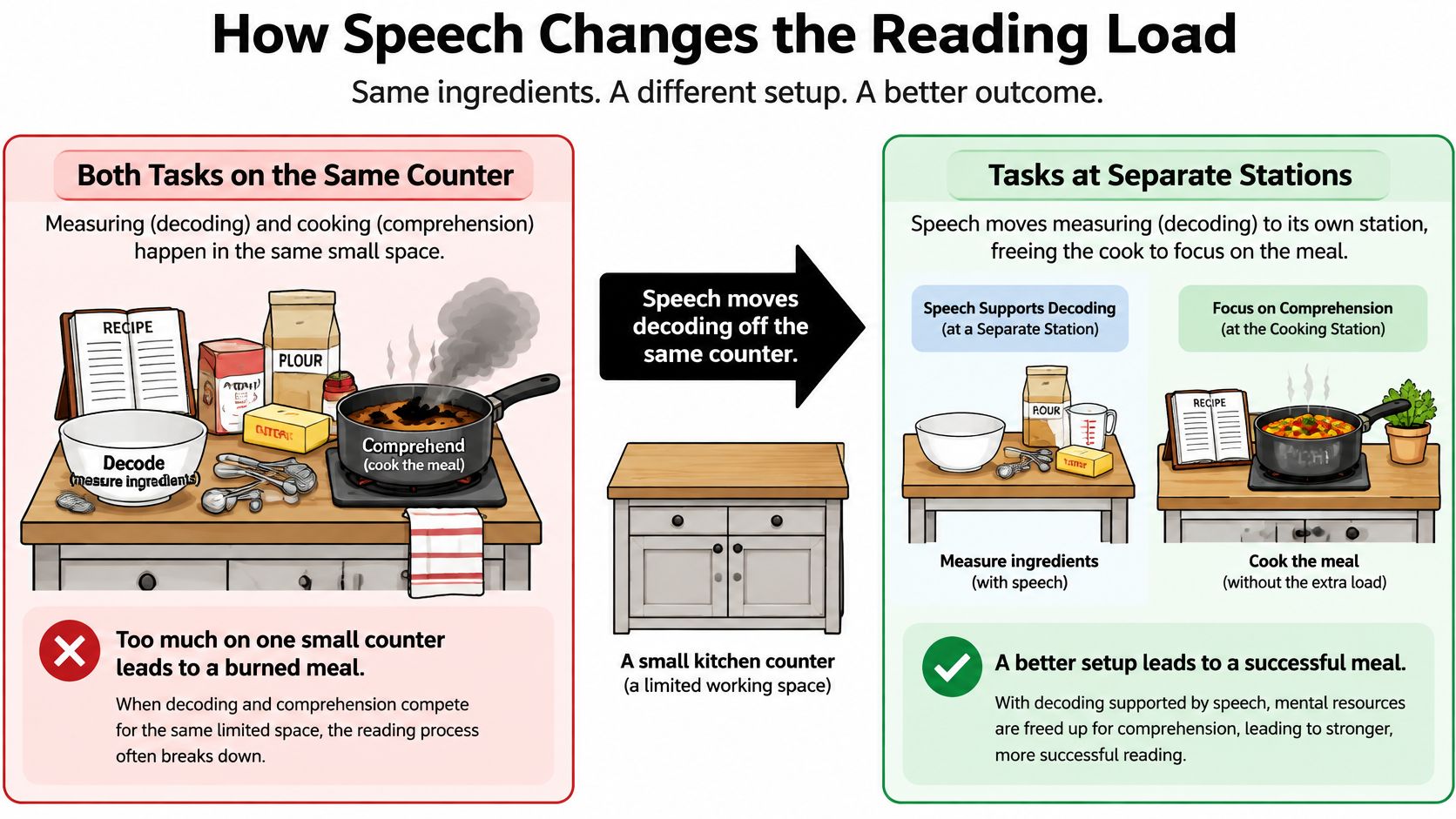
Think of preparing a meal on a small kitchen counter. Measuring ingredients takes space, and so does cooking. If the cook must repeatedly stop stirring to weigh flour on that same crowded surface, keeping the meal on track becomes difficult.
Reading can involve a similar competition for limited attention. A reader must identify written words while holding earlier information in mind and working out how the sentence fits together. Speech moves some of that word-identification work away from the same mental workspace.

What the voice supplies
With print, the reader coordinates eye movements, recognizes familiar words, and assembles sounds from letters when a word isn't immediately recognizable. For a reader with dyslexia, working out those sound patterns can require substantial effort.
A clear spoken version supplies the word's pronunciation. The reader can then devote attention to what the word means, how it relates to the sentence, and why the author included it.
Consider a science passage about evaporation. A student who repeatedly stops to identify technical words may lose the explanation connecting heat with a change of state. Hearing the passage can let that student concentrate on the relationship rather than repeatedly rebuilding the sentence.
The intended load shift is from identifying words to working with ideas. Useful signs might include finishing a passage without repeated restarts or having enough energy left to write meaningful notes. Treat those as outcomes to check, not automatic benefits.
What remains the reader's work
Speech doesn't supply missing background knowledge. A smoothly pronounced explanation of evaporation won't clarify the concept if the student doesn't understand what a change of state means.
Nor does narration explicitly teach spelling patterns or explain an unstated motive. A student can hear that a character hid a letter and still need help reasoning about why.
Separate the remaining work:
- Vocabulary: Stop and explain a term the reader can hear but doesn't understand.
- Connections: Ask how the current sentence relates to the previous idea.
- Word study: Inspect relevant spelling patterns during dedicated instruction, rather than expecting playback to teach them incidentally.
Attention also needs its own support. A steady voice may provide something to return to, but passive listening can become background sound if the student has no purpose for the passage.
For complementary routines, Kohru's guidance on how to improve reading focus for students offers a useful place to consider the reading environment alongside the audio setup. Give the reader a concrete listening purpose, such as finding the author's explanation for an event.
If identifying words crowds out meaning, let speech carry more of that work. If the lesson concerns letter patterns, keep those patterns visible and teach them directly.
What Studies Found About Scores and Effort
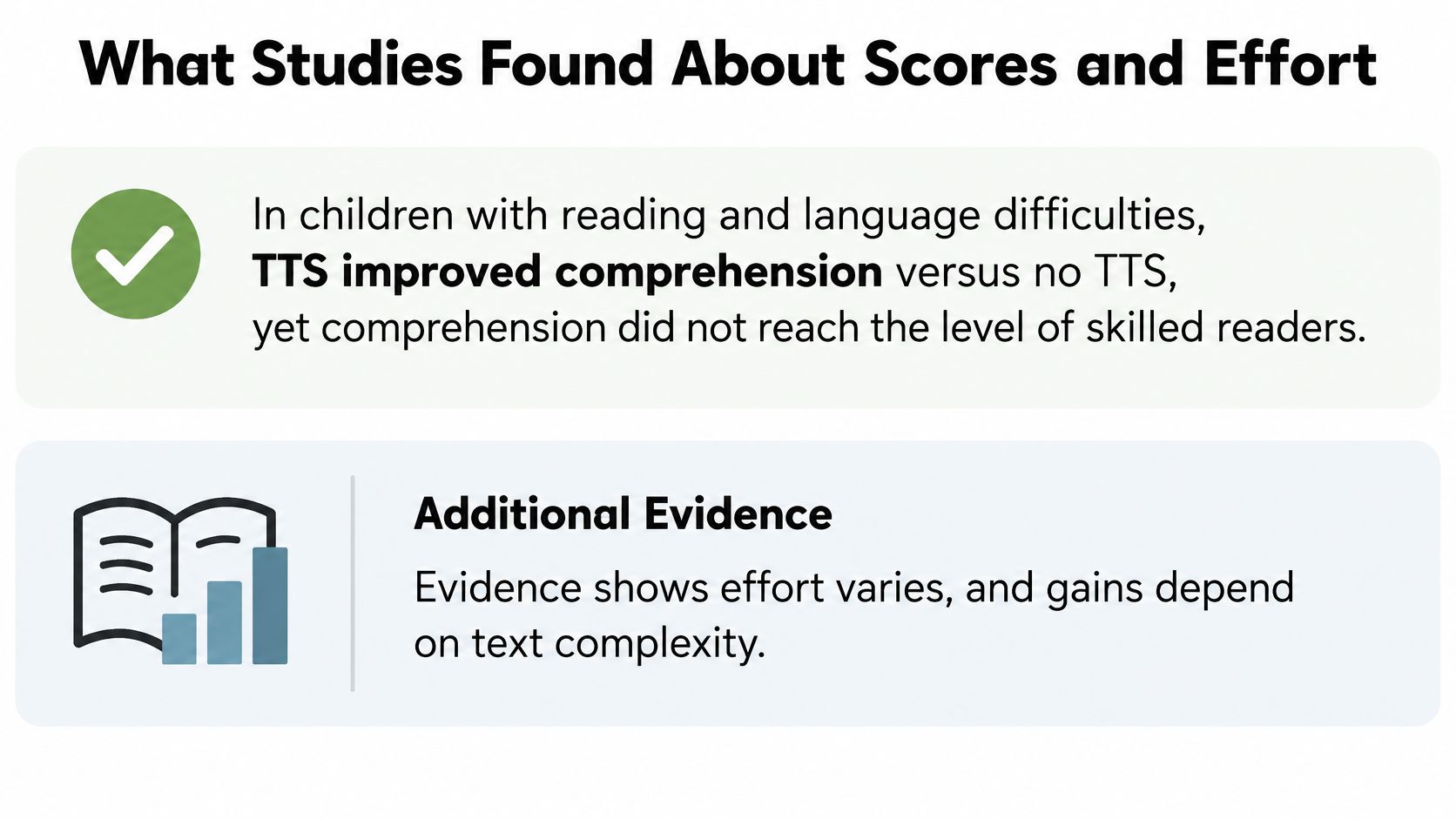
An unchanged comprehension score can still accompany a useful reading session. If a student understands comparable material with less effort, the tool may help them complete the assignment without exhausting their capacity for the work that follows.
The distinction matters when evaluating claims about highlighting and specialized voices. A feature can feel comfortable without improving a test score, and a tool can be useful without producing a higher score.
The PubMed-indexed evidence on TTS and reading outcomes describes improved comprehension with TTS versus no TTS among children with reading and language difficulties, but no significant comprehension difference between highlighted and unhighlighted TTS; the evidence summary also includes comparable comprehension with reduced reading time and cognitive effort among dyslexic students, alongside findings of reduced mind-wandering and better comprehension during TTS.

Separate a useful preference from a score claim
These findings don't establish a universal winning presentation. In particular, the highlighting comparison doesn't justify treating a moving word marker as essential for every learner.
A voice, highlight color, or tracking style should earn its place through the reader's results. Don't assume a setting is a comprehension intervention merely because a menu describes it as suitable for dyslexia.
A student who reaches the same understanding with less exhaustion hasn't failed to benefit because the score stayed level.
The right success measure follows the assignment. For factual review, recall may matter most. For a demanding school day, fatigue may be the practical constraint. For a student who repeatedly loses the thread, sustained attention deserves explicit tracking.
Run a manageable comparison
Compare silent reading, audio with highlighting, and audio without highlighting. Use a short passage for an initial usability check, then confirm the preferred setup on comparable unfamiliar material, since repeated exposure makes the original passage easier.
Record the same categories for each condition:
| Check | What to record |
|---|---|
| Comprehension | Correct facts and a brief explanation of the passage's meaning |
| Time | Time spent completing the passage and questions |
| Fatigue | A consistent personal rating from comfortable to exhausted |
| Attention | Noticed lapses and where they occurred |
Keep the questions similar in difficulty. Don't give the audio condition a simple fact question and the silent condition a demanding inference question, then attribute the difference to speech.
For a younger reader, ask for the fatigue rating before offering your own judgment. An adult may see apparently successful reading while the student feels drained.
This is a practical classroom comparison, not a diagnostic assessment. It can help select a working setup, but it doesn't establish long-term literacy growth or justify withdrawing explicit reading instruction.
Settings Worth Testing Before You Commit
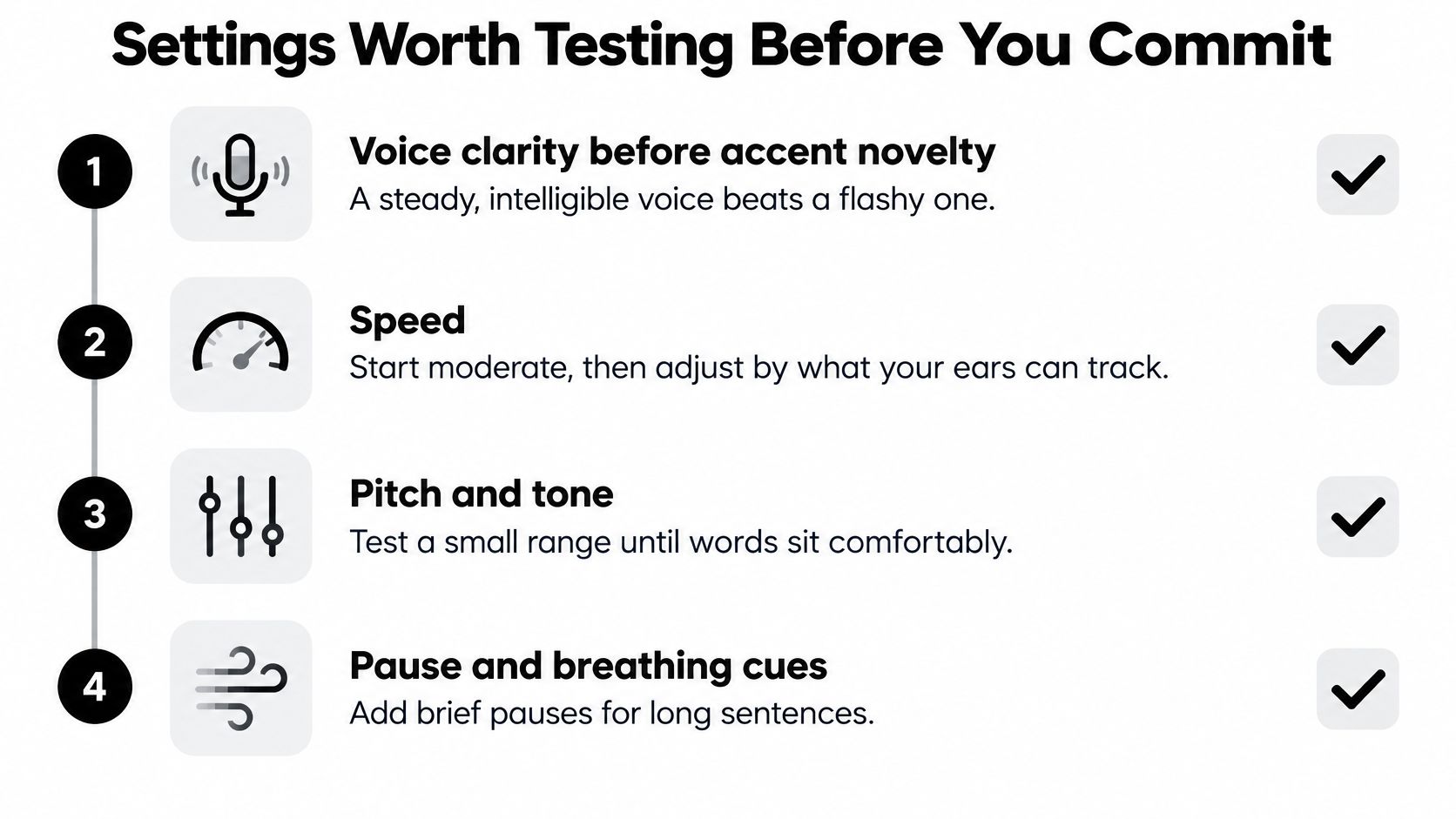
Start with intelligibility, not how impressive a voice sounds. Listen to a paragraph containing ordinary sentences and the names or technical terms the assignment uses. Choose a voice whose words are easy to distinguish without extra concentration.
Then adjust pace. Begin near conversational speed and make small changes only after the reader can explain a complete paragraph. Faster completion isn't useful if the student can no longer describe the relationship between its ideas.

Give each control a specific job
Settings to keep or drop
| Setting | Job it does | Keep it if | Drop or ignore it if |
|---|---|---|---|
| Clear speaking voice | Supplies an intelligible word form | Names and ordinary words are understandable | The voice is theatrical but harder to follow |
| Listening speed | Sets pace after accuracy is stable | A full paragraph still makes sense | Meaning collapses or inference disappears |
| Word highlighting | Optional visual pointer | The eyes need a place to land | The moving bar distracts or adds effort |
| Text on or off | Chooses practice versus unloading | The goal is either decoding practice or hands-free review | The screen fights the listening goal |
| Pause and sentence replay | Makes room for inference | A why question can be answered after a replay | The reader only restarts without summarizing |
| Pronunciation override | Fixes names and jargon | Repeated terms sound right | The whole voice is being swapped for one word |
| Type size, spacing, background | Comfort while text is visible | The page is calmer to look at | It is expected to raise the comprehension score by itself |
Highlighting deserves a direct comparison, not an assumption. Ask whether the moving marker helps the reader find their place or creates another thing to watch.
Text visibility should also be easy to change. A student might inspect unfamiliar vocabulary with the page open, then put the screen aside during review. That's a deliberate change of task, not inconsistent tool use.
Check the document as well as the voice
Before evaluating playback, check that the tool has readable text. Try selecting a sentence in a PDF. If the page is only an image, it needs optical character recognition, or OCR, to turn the image into text.
With columns, headers, or captions, listen to the beginning of the document while checking the reading order. A well-spoken jumble is still a jumble. Use reflow, select an individual column, or prepare a clean text version where access permits.
Match the narration language to the document rather than automatically accepting the device's default. If repeated names sound wrong, use a pronunciation adjustment when available instead of abandoning an otherwise clear voice.
Treat larger type, wider spacing, and preferred backgrounds as comfort options. Keep changes that make the visible page easier to use, without expecting appearance alone to improve understanding.
Save a workable configuration before exploring more controls. Retain a setting when it supports accuracy, reduces unnecessary time, or makes the task less tiring. Ignore options that add setup work without helping the reader complete the assignment.
Workflows for Notes, Books, PDFs, and Scans
A useful workflow starts before playback. The reader needs clean text, a sensible stopping point, and somewhere to save their position or response. Otherwise, document preparation can consume the effort that speech was meant to spare.
Choose the path that matches the material on the desk. Don't reorganize an entire library before testing whether the workflow helps with today's assignment.

Study notes
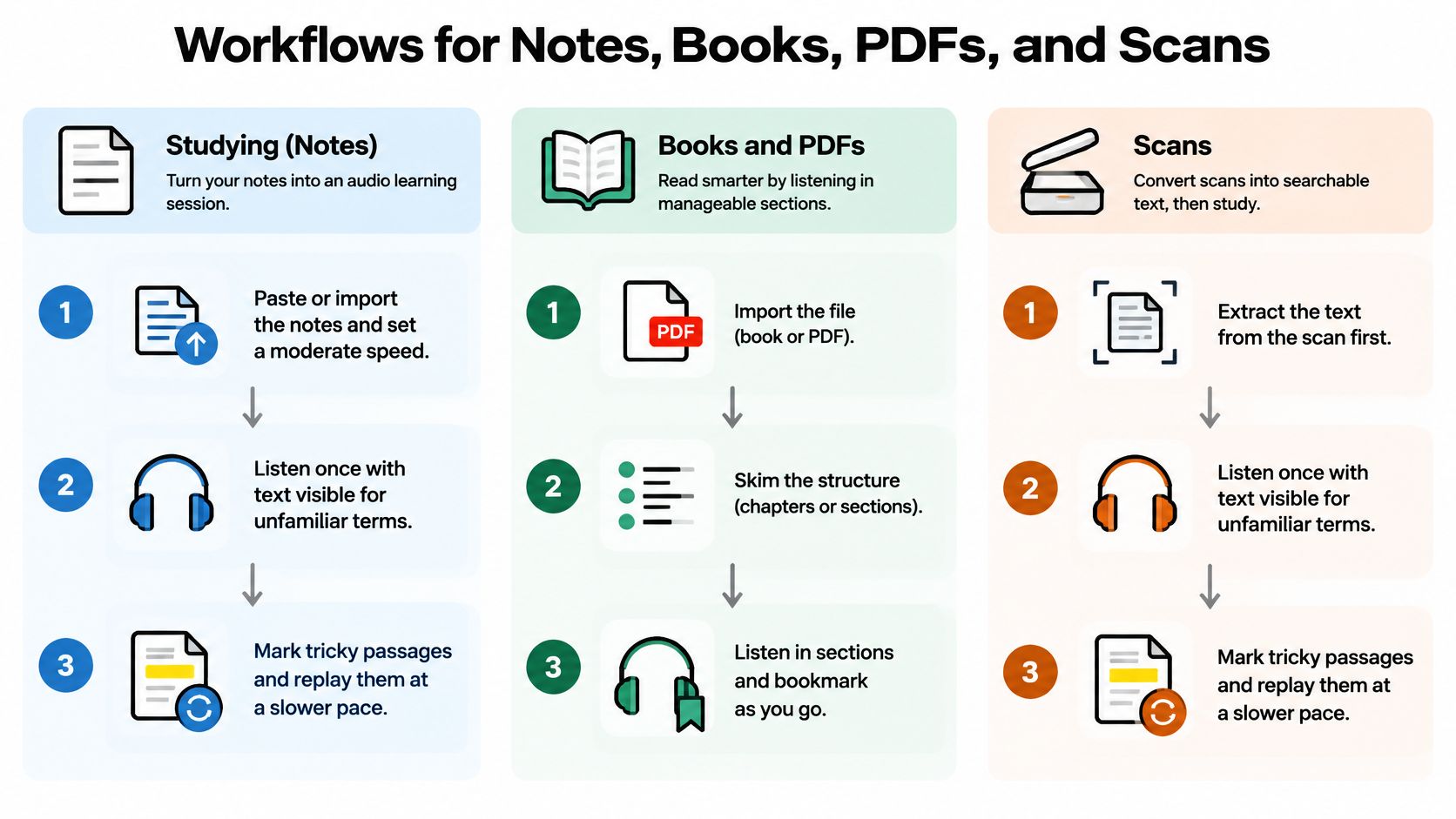
- Import the notes into a reader so the material is available in a reusable form.
- Set a moderate pace that leaves room to follow the explanation rather than merely recognize individual words.
- Listen with the text visible when unfamiliar terms need inspection.
- Write a brief summary after each heading to turn playback into an active study task.
- Try audio-focused review when revisiting familiar material and looking at print no longer serves the assignment.
For example, biology notes may contain abbreviations that make sense on paper but sound confusing aloud. Expand ambiguous shorthand in the listening copy while preserving the original notes.
Keep summaries in the student's own language. Copying the heading doesn't show whether they understood the section.
Books and PDFs
- Check that the text is selectable before troubleshooting the voice.
- Correct the reading order when columns or repeated headers interrupt the paragraph.
- Bookmark chapter starts so the reader can return without searching through a long recording.
- Pause at meaningful transitions to check the developing argument or narrative.
In literature, stop when a speaker changes, a character makes a decision, or the scene shifts. Ask what changed and what clues support that interpretation, rather than interrupting at arbitrary intervals.
For textbooks, keep diagrams available. Narration of the surrounding prose doesn't necessarily communicate information contained in an unlabeled image, graph, or visual relationship.
Printed pages and photographed worksheets
- Photograph the page flat in even light so letters aren't distorted by shadows or curvature.
- Crop the surrounding surface to reduce irrelevant material in the recognition process.
- Inspect the recognized text for names, symbols, and numbers before trusting the narration.
- Correct recognition errors so the reader doesn't have to mentally repair them while listening.
- Save the converted document in a form the student can reopen for revision.
A plausible-sounding error can be harder to notice than an obviously broken word. Compare important details against the page, especially when the assignment depends on an exact term or value.
Owned Kindle books
- Open a title the reader owns using supported reading access.
- Check narration compatibility before planning the assignment around audio.
- Confirm the reading position so listening begins at the intended passage.
- Choose screen-visible or hands-free use according to whether the task requires inspecting the print.
Ownership doesn't guarantee that every title works with every narration route. If access fails, resolve the compatibility issue rather than repeatedly changing playback settings.
Trying a single workflow for the day is enough. A repeatable route from document to meaningful response is more valuable than configuring every possible file type.
Fixes When the Audio Still Falls Flat
Start with what the reader can observe: the sentence stops making sense, attention wanders, or factual answers are accurate while explanations remain weak. Those symptoms don't necessarily have the same cause.
Treat the causes below as working diagnoses, not conclusions about the learner's ability. Test the most plausible explanation before deciding that speech itself is unsuitable.
Listening problems and the next change
| What happens | Likely cause | Change one thing |
|---|---|---|
| Names or jargon sound wrong | Pronunciation, not the whole voice | Add an override for the repeated term |
| Meaning drops out | Speed is ahead of comprehension | Slow down and pause at paragraphs |
| Highlighting feels noisy | Tracking steals attention | Turn the highlight off and keep audio |
| Mind leaves on long chapters | Chunk is too long | Stop each page for a one-sentence recap |
| Facts stick but why questions fail | Inference needs time, not faster audio | Replay the causal sentence and say the implication |
| PDF is read in a jumble | Columns or headers are in the text order | Select one column or reflow, then listen |
| Scan invents words | Photo or recognition error | Reshoot flat, correct the text, then play |
| Owned ebook stays silent | Title access or compatibility | Use a file that can actually be opened |
Respond to the missing understanding
When meaning disappears, don't increase the rate to get through the assignment. Reduce the pace and stop at paragraph boundaries. If the passage remains unclear, ask whether the vocabulary or sentence structure needs explanation.
When attention leaves during a long chapter, give the reader a stopping rule. A brief recap at the end of a page creates a reason to stay engaged and makes it easier to locate where understanding broke down.
If facts stick but why questions fail, identify the sentence that connects the cause with the outcome. Ask the student to finish a statement such as “This happened because…” or “That suggests…” using evidence from the passage.
Troubleshooting discipline: Change a variable, then test the same short passage before making another adjustment.
Separate access failures from learning needs
An invented word in a scan is a document problem. A silent ebook may be an access problem. Neither tells you whether the student can understand spoken language.
For recognition errors, repair the source text before adjusting the voice. For an inaccessible title, use a supported copy or ask the school or library about an accessible alternative without bypassing access restrictions.
Log completion time, a consistent fatigue rating, and any missed implications. Add a short note describing the change you made. That record is more useful than remembering that a session felt vaguely better or worse.
Choose a Tool and Run One Trial
Choose a tool that can carry out the intended workflow with little preparation. A browser reader may be enough for an online assignment; a photographed worksheet requires a route from image to recognized text. Test tomorrow's actual material, not just the sample text in an app.
Use the representative options below as a shortlist. Device support, document access, and available controls need checking before the student relies on a tool for a deadline.
Representative tools for the trial
| Tool | Where it works | Cost | Best fit |
|---|---|---|---|
| Microsoft Edge Read Aloud | Web pages and browser-opened PDFs | Built in; check current availability | Quick trials of synchronized text |
| Apple built-in speech features | Selected text and supported apps on Apple devices | Built in; check device availability | Hands-free review on Apple devices |
| Kindle read-aloud | Compatible Kindle titles with supported narration access | Kindle purchase rules apply | Finishing owned ebooks by ear |
| TTS Reader Pro | Our app converts text, eBooks, PDFs, EPUB, TXT files, and web pages into speech, turns printed pages into audio through smart scan, and syncs a Kindle library for hands-free AI narration where compatible | We offer a free version; check the current plan's included features | Bringing notes, digital documents, scans, and compatible owned books into a shared workflow |
Make the trial easy to judge
Set a short trial period using the same kind of assignment. Keep the playback mode and tool stable long enough to distinguish a genuine fit from the novelty of a new interface.
Before listening, write down the intended outcome. That might be recalling the main explanation, completing the reading without excessive fatigue, or supporting an interpretation with evidence.
- Check accuracy: Separate stated facts from implied meaning.
- Record effort: Ask the reader how demanding the task felt.
- Notice attention: Mark where they lost the thread rather than blaming general distractibility.
- Review practical access: Include time spent importing, correcting, or finding the document.
Decide what to keep
Continue when the reader can complete the relevant task with acceptable understanding and manageable effort. Don't require every measure to improve, but don't overlook lost comprehension just because playback finishes sooner.
If fatigue, misunderstandings, or repeated failures persist, bring the trial notes to a reading specialist or educational psychologist. Ask whether the reader needs a different access method, explicit language support, or a revised instructional plan. Keep structured literacy teaching in place while access needs are addressed.
TTS Pro offers spoken access to study notes, digital books, PDFs, web pages, and scanned printed material, with voice and speed choices for different listening preferences. Visit TTS Pro and try a real assignment using the playback approach that fits your needs, then check understanding, attention, and fatigue before making it part of your routine.


No Comments
Leave a comment Cancel