
A two-finger swipe is the advice almost every guide gives for getting an iPhone to read a PDF aloud. The gesture is real, and it has been part of the phone for years. Apple shipped VoiceOver with the iPhone 3GS on June 19, 2009, then added Speak Screen in iOS 8 in 2014, as Apple's Spoken Content guide still describes. That history made the phone a serious place to listen to books, articles, and reports. It did not make every PDF speakable.
The swipe only narrates text the file exposes. A scan of a printed page stays silent. A journal article can jump from the left column into a footnote and then into the right column. Selectable text is not the same thing as a usable reading order. I would not start a 200-page listen until a one-page test shows the spoken order matches the page on screen.
Table of Contents
- Choose the Right Method for Your PDF
- How to Turn On Speak Screen and Read a PDF
- Why Some PDFs Sound Wrong and How to Test One
- Use VoiceOver for Structured Listening
- Listen to Long PDFs in TTS Reader Pro
- Keep Long Listening Going
Choose the Right Method for Your PDF
Pick the method from the file, not from the feature you already know. A short selectable PDF goes to Speak Screen. A single paragraph, citation, or definition goes to Speak Selection. A tagged report, where you need headings, lists, and tables, goes to VoiceOver. A long study paper, or any stack of printed pages, goes to a player that can keep going after you leave the current screen. Our app can convert any text, eBook, PDF, EPUB, TXT file, or web page into speech, which is the row you want once the listen is longer than one screen.
| Method | Best for | Handles scanned pages | Continues across pages |
|---|---|---|---|
| Speak Screen | Short text PDFs opened in Files or Books | No, OCR needed first | Reads the current screen only |
| Speak Selection | A single paragraph, citation, or definition | No, OCR needed first | Highlighted text only |
| VoiceOver | Tagged reports, navigating headings and tables | No, OCR needed first | Yes, with gesture navigation |
| TTS Reader Pro | Long reports, study papers, listening on the move | Yes, through smart scan | Yes, with playback controls |
What the table cannot tell you
Speak Screen needs no document preparation, and that is its strength and its limit. Open a text PDF in Files or Books, swipe, and the phone reads what is on the current screen. There is no library, no saved chapter, and no promise that the next page will follow when you lock the phone. Use it for a handout, a one-page brief, or a quick check that a file has words at all.
Speak Selection is narrower on purpose. You highlight a passage and tap Speak. It is the right tool when a citation, a definition, or one dense paragraph is all you need, and when the rest of the page is footnotes and running headers you do not want in your ear.
VoiceOver earns its place on structured files. It can move by headings, lists, links, and table cells instead of pouring the whole screen into one stream. The cost is a real learning curve, plus announcements of controls and page labels you would rather skip during a commute.
TTS Reader Pro is the row for length and for paper. It imports the file and keeps playback controls for a long document. Printed pages that have no text layer can be captured with smart scan before narration starts. If you are also weighing cloud readers with studio-style voice tools, KeenVerdict's Speechify Studio verdict is a useful outside look at how a different product handles voices and imports.
Practical rule: Check the text layer before you choose a row. If you can select a sentence with your finger, built-in speech has something to read. If the page is a picture, OCR or smart scan comes first, and no gesture will fix that.
How to Turn On Speak Screen and Read a PDF
For a text-based PDF, the path lives in Settings, not inside the PDF app. Apple's iPhone user guide puts Speak Screen and Speak Selection under Accessibility, with the speaking rate and voice sitting in the same place. Scanned or image-only pages still need OCR before iOS can extract the words. The steps below assume the file already has selectable text.

Turn the feature on
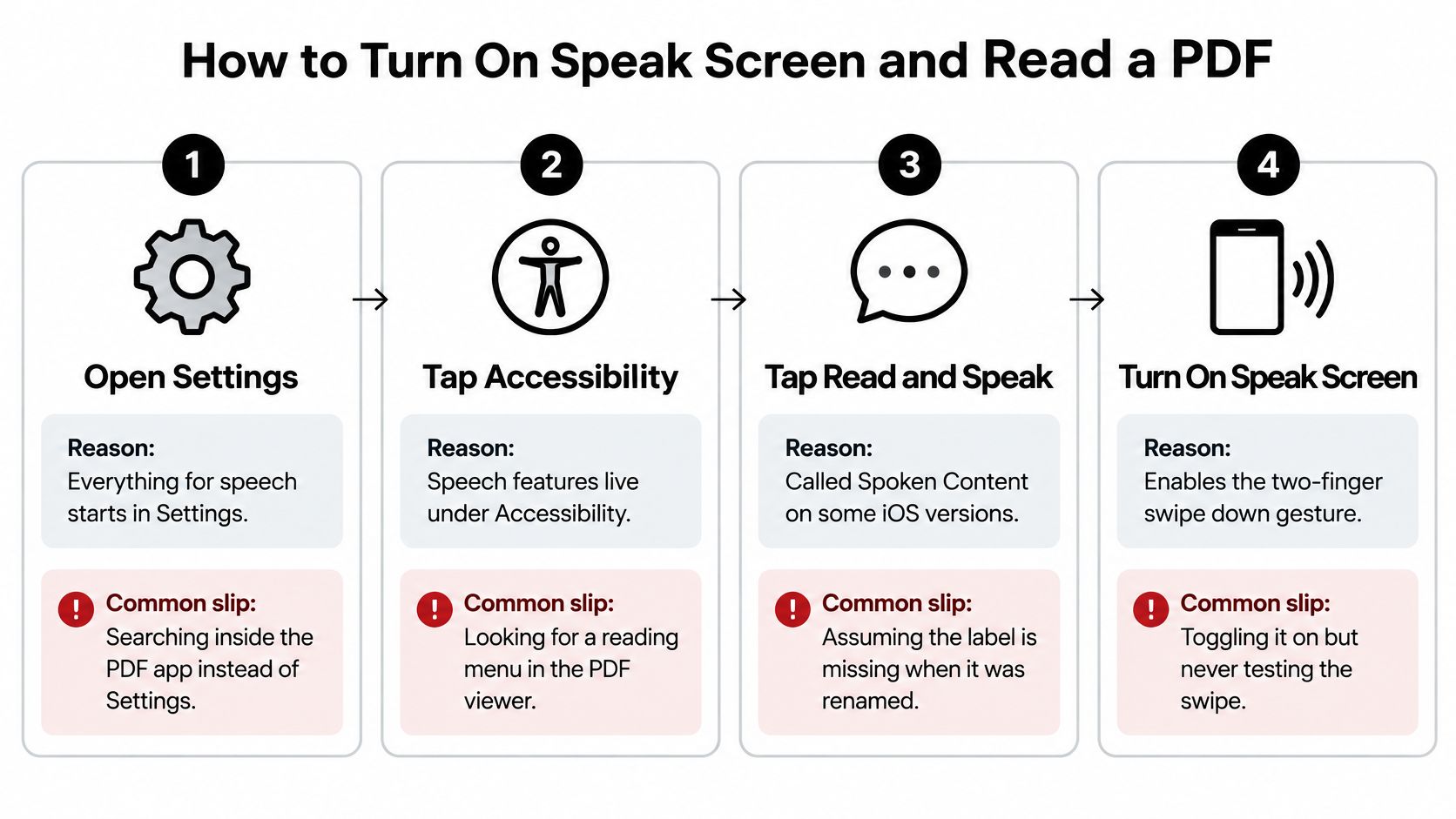
Open Settings, tap Accessibility, then tap Read & Speak. On some iOS versions that menu is still labeled Spoken Content. Speak Screen lives there, and you can set the voice and speaking rate before you ever open a file. The common slip is hunting for a reading menu inside the PDF viewer. It is not there.
Turn on Speak Screen. That single switch enables the two-finger gesture. Toggling it on and never testing the swipe is the usual miss, so stay in Settings only long enough to confirm the switch is green.
Open the PDF in Files or Books. Those apps expose the text layer to iOS speech. A viewer that shows the page as an image will give you silence even when Speak Screen is on. If you can drag to highlight a sentence, you are in the right app.
Start the voice and check the page
Swipe down with two fingers from the very top edge of the display. The speech controller should appear. Swiping from the wrong place opens Notification Center or Control Center instead, so start on the bezel, not an inch below it.
Use the controller to pause, skip forward or back, change the rate, or turn on Speak on Touch. Speak on Touch lets you tap a line and hear that line, which is handy when a header or a page number has just been read and you want to jump back to the paragraph.
For one passage only, turn on Speak Selection, highlight the text, and tap Speak. Leave Speak Screen for full pages. Selection is cleaner when you only want a citation or a definition and the rest of the page is furniture.
Confirm the first sentence of the page starts, then watch whether the controller moves when you go to the next page. If speech stops at the page edge, that page probably has no text. Do not keep swiping. Move to the diagnosis below and treat the file as a scan or a broken text layer.
Voices for mixed-language papers
Research PDFs often mix English prose with names, formulas, and citations in another language. In the same Accessibility menu you can pick voices and dialects, set a default language, turn on language detection, and add custom pronunciations. Set the default to the language of the paper, then add a pronunciation only for the names that keep coming out wrong. Changing the voice mid-document is fine for a test. For a long listen, pick one voice and one rate and leave them.
A working session is quiet and obvious. Audio starts within a second or two of the swipe. The controller stays on screen. Pause holds your place on that screen. If any of those three fail, the gesture is not the problem. The file is.
Why Some PDFs Sound Wrong and How to Test One
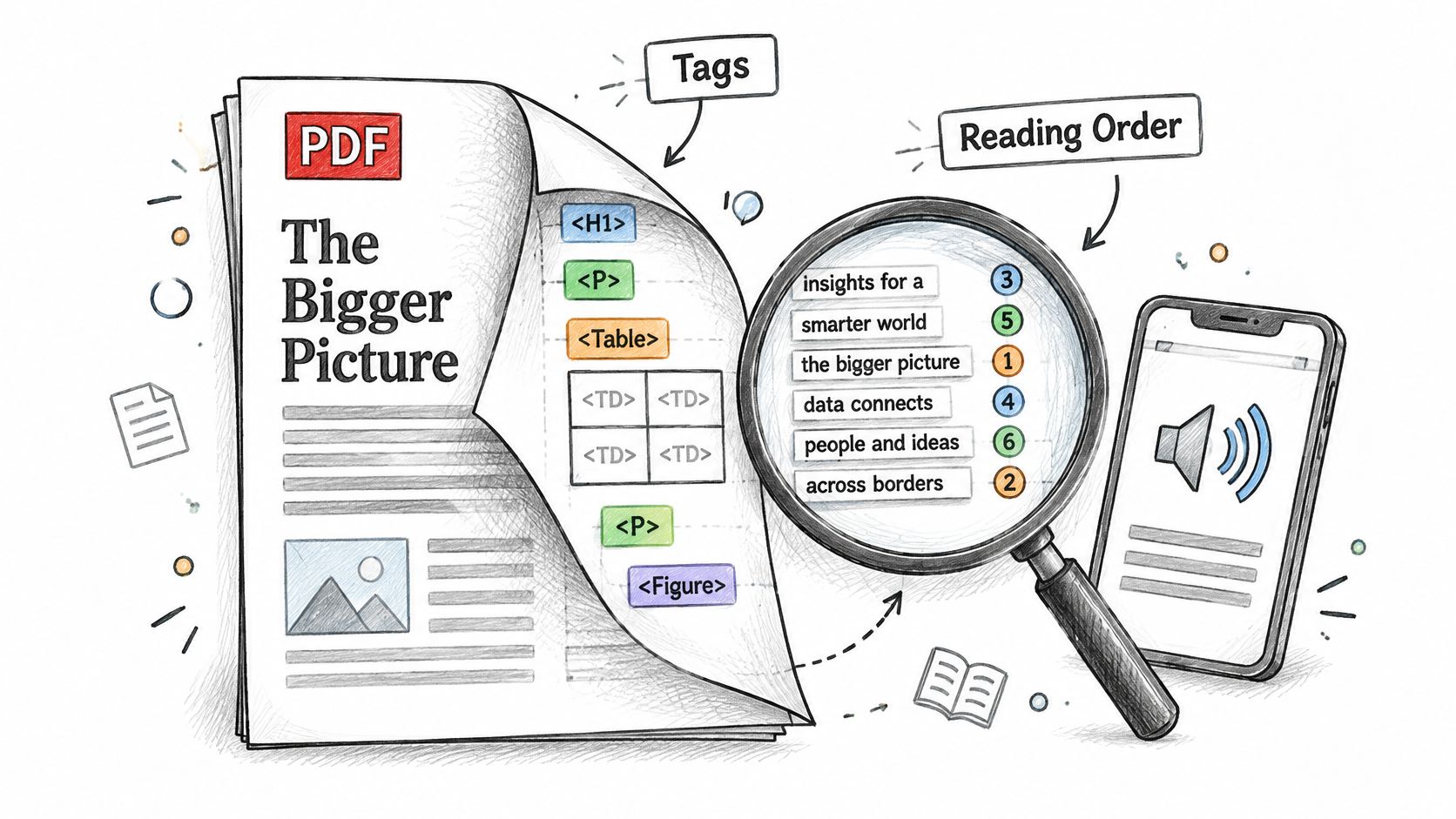
Silence is the failure people notice first, and it is rarely the voice. The page is a picture. After that, the failures get subtler, and they come from missing structure. Adobe's guide to accessibility features in PDFs explains that screen readers and text-to-speech tools depend on PDF tags to identify headings, paragraphs, sections, tables, and the intended reading order. Without those tags, a multi-column article is spoken in whatever order the text happened to be stored.
The scale of that gap is large. An accessibility research report hosted by arXiv states that only about 2.4% of assessed PDFs met all five accessibility criteria, and in the WebAIM Screen Reader User Survey 75.1% of screen-reader users in the 2019 survey said PDF documents were very or somewhat likely to create significant accessibility issues, based on 1,197 respondents. The format does not hand a screen reader headings, image labels, or a reading order on its own. On an iPhone, Speak Screen or VoiceOver can read a well-structured text PDF well. Missing tags, a scrambled order, or image-only pages need a different route before the voice matters.

Match the sound to a fix
| What You Hear | Likely Cause | Fix to Try First |
|---|---|---|
| Silence on the page | Scanned image with no text layer | Run OCR or use TTS Reader Pro smart scan |
| Sentences jump between columns | No reading-order tags in a two-column layout | Read with VoiceOver or use a reader that keeps the order |
| Footnotes read mid-sentence | Headers, footers, and footnotes in the reading order | Read in Speak Selection paragraph by paragraph |
| Table cells run together | Table structure lost in the text layer | Read the table in VoiceOver or skip to the summary text |
| Playback stops at one page | Non-text page or an interrupted session | Check the page, then restart from its page number |
| Names and terms mispronounced | Technical or foreign terms | Adjust pronunciations in the app settings |
OCR creates searchable words. It does not create tags. A scan that becomes selectable text can still read the right column before the left, or dump a caption into the middle of a sentence. Pronunciations can be adjusted in the app's settings when the words are correct and only the names are wrong. That fix does nothing for a scrambled table.
Run the one-page test
Pick one page that contains a table, a two-column layout, a citation, and a scanned figure caption. Start speech. Listen to the first three sentences, then the table, then the citation.
If the spoken order matches the visual order, the file is fit for a long listen with the method you already started. If the table scrambles or the page stays silent, stop. Hours of audio will only repeat the same error.
Apply the result as a short rule. A short selectable PDF stays on Speak Screen. A long tagged report is easier if you use VoiceOver to find sections, then a player for continuous listening. Scanned pages go through smart scan or another OCR pass before either of those. Students commuting with a paper, researchers reviewing a methods section, and anyone cutting screen time all lose the session the same way: they trust a file they never sampled. One ugly page is enough to decide.
Use VoiceOver for Structured Listening
Use VoiceOver when you need to move through a document, not when you want the phone to talk in the background while you cook. Long reports, forms, tables, and lists are where the learning curve pays for itself. You can jump to a heading, land in a form field, or hear a list as a list. Linear speech cannot do that, because it has already flattened the page into one string.
Apple's VoiceOver guide states that VoiceOver can read PDFs in Books and Files and describe structural elements such as forms, tables, and lists. The trade-off is blunt. VoiceOver also announces interface controls, page labels, and layout metadata. That extra speech helps you orient. It gets in the way of uninterrupted narration. Treat VoiceOver as navigation, then hand a clean section to a player when you want to listen straight through.
Gesture path
- Open the PDF in Files or Books so the text and the tags, if any, are available to the screen reader.
- Go to Settings, then Accessibility, and turn VoiceOver on. You can also ask Siri, but the Settings path lets you confirm the feature before the whole interface starts speaking.
- Return to the document. Move through headings, links, form fields, and page content with the standard VoiceOver gestures. A flick right or left moves item by item. The rotor lets you switch what that flick targets, including headings when the PDF has them.
- If you already use a keyboard or a Braille display, keep using it. The same structure is available there, which matters more than learning a new touch gesture on top of tools you trust.
A cleaner view for supported text
Accessibility Reader is the quieter option when the text comes from a supported app rather than a messy PDF. It presents that text full screen, with fonts, layouts, and background colors you can change, and it can play the text aloud. Turn on Autoplay and speech starts without a second tap. It will not repair a bad PDF. It will make a clean passage easier to hear and to see at the same time.
Sample the same kind of page you would distrust in any other method: a table, two columns, a citation, and a scanned caption. If words are missing or the sequence is wrong, the file needs text extraction, OCR, or a reader that can hold the structure. iOS documents the controls. It does not publish a success rate for arbitrary PDFs, so your sample page is the only benchmark that applies to your file.
I would use VoiceOver to find and check a section, then switch to a player for the long listen. Navigation and background audio are different jobs, and one feature does both of them poorly.
Listen to Long PDFs in TTS Reader Pro
Built-in speech is the right first test. It is a weak way to finish a long file. Speak Screen reads the current screen, and even a well-tagged report still asks you to manage page turns yourself. Apple's own accessibility documentation, updated in 2026, states that Speak Screen and Speak Selection support more than 60 languages and locales, according to Apple's accessibility features page. Language coverage is not the gap. Continuity is.
TTS Reader Pro is the workflow I use once the one-page test says the document is worth hours, or once Speak Screen stays silent because the pages are pictures. The app requires iOS 16.4 or later on iPhone. Printed books, notes, or printed text can be turned into audiobooks using smart scan technology.

Import, then scan only what needs it
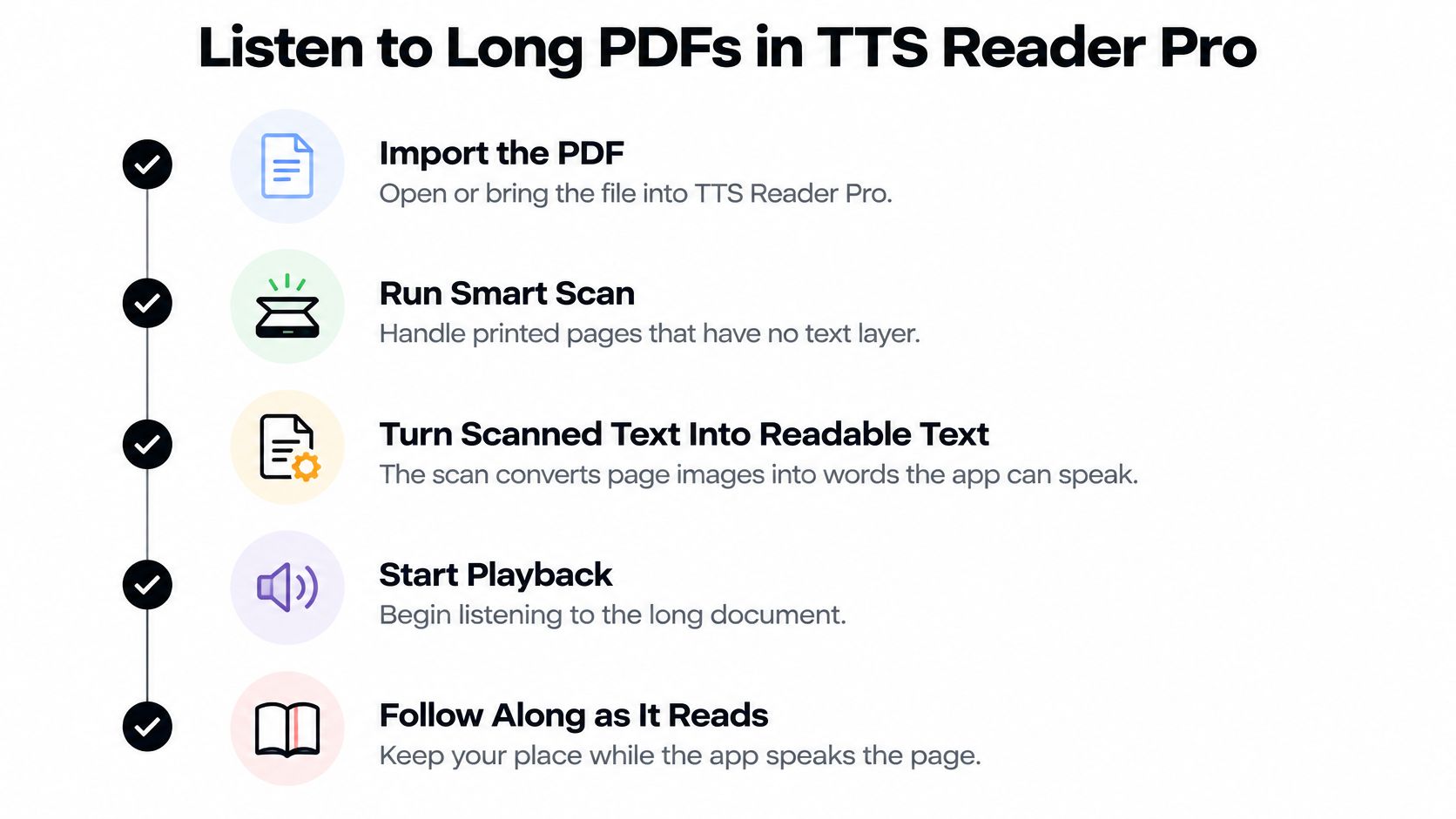
Open the PDF from Files, or import it into the app, before you touch the voice. If the one-page test already played cleanly, leave the text layer alone and go straight to playback. If the test page was silent, use smart scan on the printed or photographed pages. The scan is what turns a picture of a page into words the app can speak. Scan the pages that failed, not the whole file by habit. A mixed PDF often has a clean text body and a handful of image plates.
Listen to the first scanned page immediately. Garbled characters, a missing caption, or a column read backwards means the scan needs another pass or a tighter crop. Do not queue 80 pages of a bad scan. You will only discover the error an hour in, with no clean place to restart.
Pick a voice you can stand for an hour
The app offers several voice choices and adjustable listening speeds, and the voices are AI-generated, not human narrators. A voice that feels lively for five minutes can grate across a methods section. Play the same paragraph in two voices, then commit. Set the speed on that same paragraph. Dense prose usually wants a modest increase. Slide decks and bullet-heavy notes can go faster because the sentences are short.
You can show the book text while narration reads it, which helps when you are checking a formula or a name against the audio. For a Kindle book you already own, the app can read that book aloud and can sync a Kindle library for hands-free reading, with progress syncing between the Kindle app and TTS Pro. Narration still depends on book compatibility and supported reading access, so a title that will not open for reading will not open for speech either.
A short checklist before a long session
- Test the first two pages. Confirm words, order, and that a page turn does not stall.
- Set the voice and the speed once. Changing either later makes a resumed session feel like a different recording.
- Confirm page order on a two-column page and on one table. If those hold, the rest of a consistently produced file usually holds.
- Note the resume point. A page number or a heading is enough. Do not trust memory after a commute.
Students can drop lecture notes or a research article into the same app and review them as audio. A pasted article or webpage link can be narrated the same way, which is useful when the reading is a browser page rather than a file you downloaded. The first test page still decides whether the full document is worth converting. If that page fails, fix the file. Do not negotiate with it for 200 pages.
Keep Long Listening Going
Continuity fails in ordinary ways. You lock the phone, a notification steals focus, or a page with no text ends the stream. Test that before you leave the house, not on the train.
- Start playback on a known page. Lock the phone for a full minute. Open it and confirm the voice is on the same page, not back at the start and not stopped.
- Switch to another app, wait, then return. If playback has stopped, restart from the saved page number. Do not scrub from the top of a long file to find your place.
- With Speak Screen, remember that only the current screen is in the stream. After each page turn, glance at the controller and confirm it moved with you before you put the phone away.
- For offline listening, download the voice ahead of time from the iPhone's spoken content settings. Turn on airplane mode and play the same page. A voice that streams will not be there when the signal drops.
- For study, listen in 20-minute blocks. Pause at the end of each block and write one sentence of summary. The next day, resume from the saved position with the same voice and the same speed so the session feels continuous instead of like a new recording.
Commuters lose time when a locked screen kills the audio. People with visual impairments, dyslexia, or screen fatigue lose more than time, because restarting a badly ordered file means hearing the same wrong sequence again. A one-minute lock test and a saved page number prevent most of that.
TTS Pro builds TTS Reader Pro for exactly this job: turning PDFs, notes, books, and web pages into audio you can keep playing after the first screen. If your one-page test says the file is worth a long listen, or the pages are scans that Speak Screen cannot read, import them and let smart scan and adjustable AI voices carry the rest. Visit TTS Pro to try TTS Reader Pro on your own documents.


No Comments
Leave a comment Cancel