
You pick up your phone to check one message. Twenty minutes later you're still scrolling, you've opened three other apps, and you can't quite remember what you picked it up for. That's not a character flaw, and it isn't proof you lack discipline.
Your phone is built to win that contest. Feeds refresh endlessly, notifications arrive on someone else's schedule, and every app offers one more thing to tap. Willpower loses because you're asking motivation to beat a system designed around your attention, hour after hour.
The ways to reduce screen time that hold up don't rely on trying harder. They change your schedule, your environment, or the medium itself. They make the screen harder to reach, easier to stop using, or unnecessary for the task in front of you.
That's the thread running through the nine tactics below. Several use a simple swap that works well for students, professionals, and anyone tired of staring at text. You turn reading time into listening time, so the content stays but the screen goes. Others block out time, cut interruptions, or move the phone out of reach. Pick the ones that match where your own minutes are leaking, and don't try to run all nine at once.
Table of Contents
- 1. Replace Screen Reading and Passive Scrolling with Audio
- 2. Time-Block Your Screen Use
- 3. Set App Limits with Built-In Digital Wellbeing Tools
- 4. Turn Off Non-Essential Notifications
- 5. Use Grayscale Display Mode
- 6. Create Device-Free Zones and Charge Phones Outside the Bedroom
- 7. Replace Screen Leisure with Physical Activities
- 8. Read on E-Ink or Print for Long Documents
- 9. Build a Digital Sunset Routine
- 9 Ways to Reduce Screen Time at a Glance
- Start with Two Tactics, Not Nine
1. Replace Screen Reading and Passive Scrolling with Audio
Start with the screen time you value. Long articles, PDFs, EPUBs, study notes, and saved web pages keep your eyes locked on a display even when you don't need to look at charts or annotate anything. Converting that material into narration lets you listen on a train, during a workout, while cooking, or on a walk.
This works because it replaces the behavior instead of only restricting it. A meta-analysis of screen-time-reduction interventions found an average reduction of 4.63 hours per week across interventions, though results varied a great deal by program and population. Treat that as a population benchmark, not a personal promise. Your win is smaller and more concrete. The reading still gets done, but it no longer requires a lit screen.
Build a Queue Before You Need It
Don't convert files in the moment you want to listen. You'll end up browsing instead. Set aside one short session each week to load the queue.
- Start familiar: Pick a novel or an article you've already read, so you can learn the voices without fighting new material.
- Set speed by density: Use 1.2x to 1.5x for familiar content, and slow down for dense research you need to retain.
- Keep a paper notepad nearby: Jot ideas by hand instead of opening your phone and falling into another app.
- Import saved links in batches: Use URL or web page import for the articles sitting in your browser tabs.
Say a researcher loads three journal articles on Sunday. She listens while walking, then opens only the two sections worth reviewing visually. She has cut the screen portion of the task and kept the parts where looking matters. Track listening minutes against scrolling minutes for a fortnight. That comparison tells you whether the swap is real or just extra consumption layered on top.
2. Time-Block Your Screen Use
Open-ended checking is where most minutes disappear. You don't decide to spend forty minutes on email and social feeds. You drift there between other tasks, repeatedly, with no planned stopping point.
Time-blocking gives screen tasks an address on your calendar. Email gets a window, research gets a window, and social media gets a short one if you want it at all. Outside those windows, the default answer is no. A 2012 systematic review in Obesity found that 29 of 47 studies, or 62%, reported statistically significant reductions in television viewing or total screen-media use after behavioral interventions built on clear limits and monitoring. The lesson for your calendar is practical. A defined target you can measure beats a vague intention to use devices less.
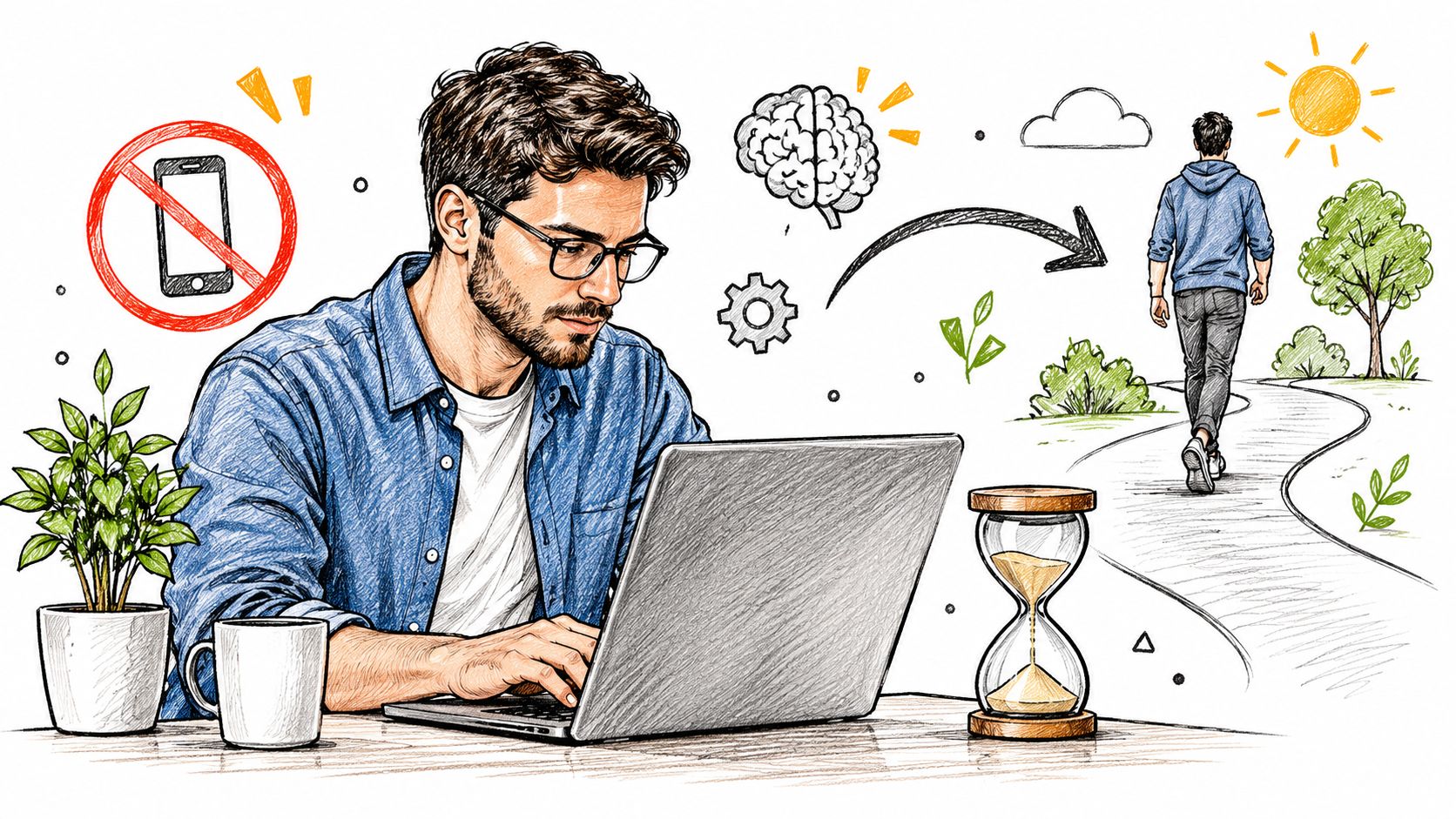

The Pomodoro Technique, developed by Francesco Cirillo in the late 1980s, is a version anyone can start today. Work in focused intervals, then take a short break that doesn't involve another feed.
A Workable Daily Shape
- Begin with two or three blocks: Don't rebuild your whole day. Protect your worst leakage points first.
- Make breaks physical: Stretch, walk to get water, or step outside instead of opening a short-video app.
- Move listening into gaps: Assign converted lecture notes or reports to commutes and breaks, not to focused desk time.
Say a student runs 25-minute study blocks with 5-minute breaks and listens to converted notes during a walk between sessions. The phone stays in a bag during the block because the next check already has a scheduled time. That's the trade-off worth understanding. Time-blocking feels rigid for the first few days, then it removes dozens of small decisions you used to lose.
3. Set App Limits with Built-In Digital Wellbeing Tools
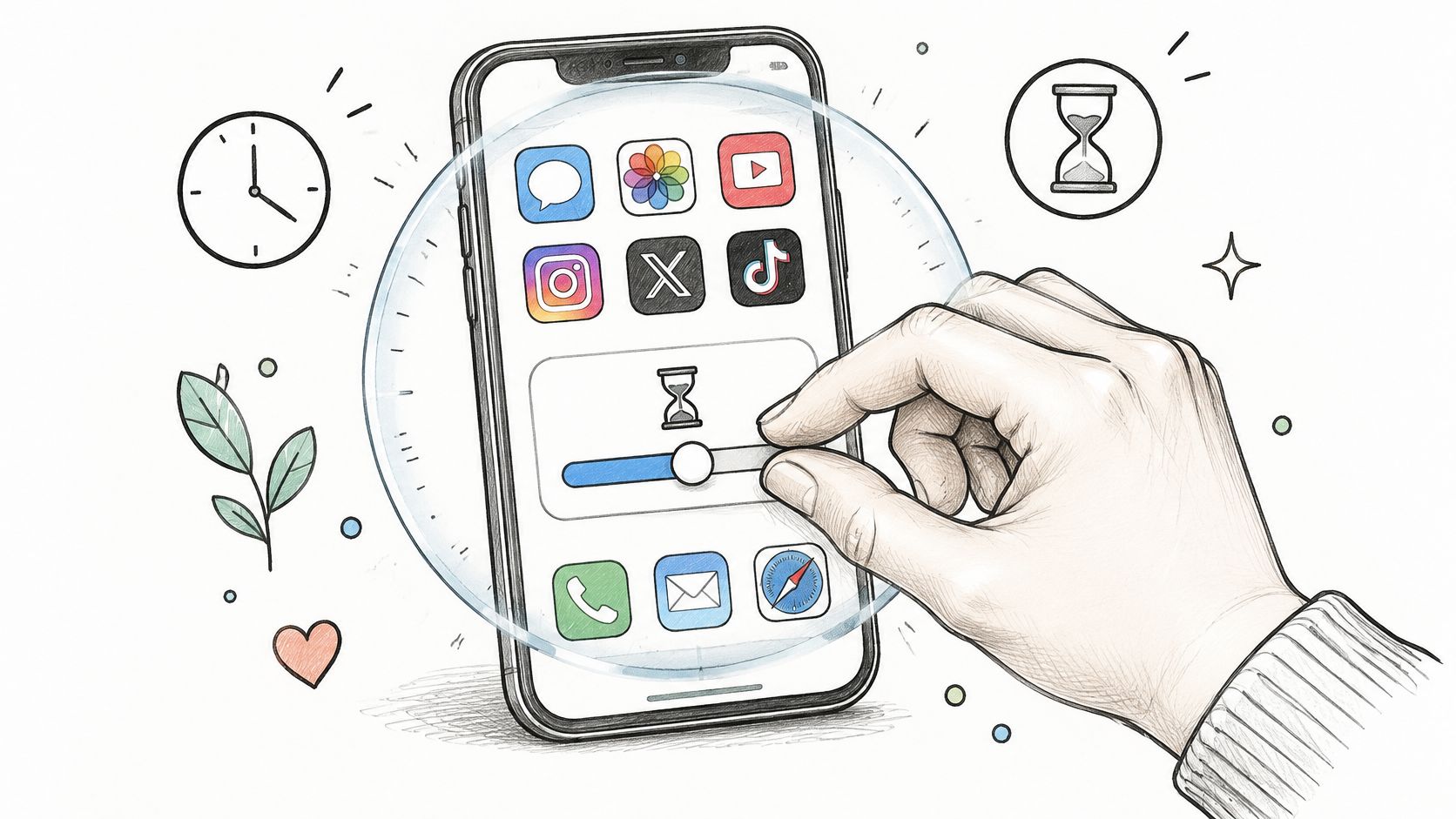
You don't need a new app to add friction. Apple's Screen Time, introduced with iOS 12 in 2018, and Google's Digital Wellbeing, introduced with Android 9 Pie in 2018, already track usage, set daily per-app limits, and schedule downtime.
Awareness alone rarely changes much, though. A systematic review of 12 mobile-use-reduction apps analyzed 145,454 user reviews and found that 21.81% explicitly reported reduced phone use. Acceptance was real but uneven, which matches everyday experience. A report you glance at once is easy to ignore. A limit that interrupts you at the moment of overuse is harder to wave away.

Set Limits You Won't Bypass on Day One
- Read the weekly report first: Find your top two or three time sinks instead of limiting everything.
- Cut slightly below your average: Tighten gradually over weeks, so the limit feels like a nudge rather than a punishment.
- Use a separate passcode: Hand it to a partner or store it somewhere inconvenient, so overriding requires a deliberate act.
- Rearrange your home screen: Move reading and audio apps to the first page, and bury feed apps in a folder.
Say you average an hour a day across two social apps. Set a combined daily target that trims that total, keep an override log if your tool offers one, and review it every Sunday. If you're overriding most days, the limit is decoration. Loosen it to something you'll respect, or pair it with scheduled blocking during study and sleep windows.
A limit you bypass daily isn't a limit. It's a notification you've trained yourself to dismiss.
4. Turn Off Non-Essential Notifications
Every alert is an invitation to start a session you didn't plan. You respond to one message, notice two badges, check a feed while you're there, and five minutes vanish. Cutting notifications doesn't just save the seconds spent reading them. It prevents the longer sessions they trigger.
You're not alone in reaching for this lever. A 2025 YouGov survey found that 37% of U.S. adults had turned off notifications to take a break from their phone, while 33% had used Do Not Disturb mode. Those are popular moves because they're fast, reversible, and don't require deleting anything.
Keep only what can't wait. For many people that's calls from favorites, urgent messages from a small circle, and calendar reminders. Everything else can arrive in a batch you check on purpose.
Run a Weekly Notification Audit
- Disable what you never act on: If an alert hasn't changed your behavior in a week, it goes.
- Use summary delivery: Let shopping, news, and social apps collect into one scheduled digest instead of interrupting all day.
- Silence by context: Use focus modes during study or work hours that allow only class or project contacts through.
Say a professional kills social and news alerts on Monday morning. She still checks both once each afternoon in a planned batch, so nothing important is missed. By Friday, her screen wake-ups have dropped because the phone stopped starting conversations she never asked for. The trade-off is mild anxiety in the first days. It fades quickly once you learn how little was urgent.
5. Use Grayscale Display Mode
Color is part of the hook. Bright thumbnails, red badges, and saturated video are built to pull your eye and keep it moving. Switch the display to grayscale and the same phone becomes noticeably dull. Feeds flatten out, games lose their sparkle, and habitual checking delivers less reward.
This is the cheapest tactic on the list. Grayscale is a standard accessibility option on iOS and a wind-down option on Android. You install nothing, pay nothing, and can reverse it in seconds.
How to Set It Up
- On iOS: Go to Accessibility, then Display and Text Size, then Color Filters, select grayscale, and add it to your Accessibility Shortcut so a triple-click toggles it.
- On Android: Open Digital Wellbeing's Wind Down or Bedtime mode and enable grayscale on a schedule.
- Protect readability: If color helps you read text-heavy material, toggle grayscale off for that task and back on afterward.
Say you schedule grayscale from 9 p.m. onward. Late-night browsing gets boring fast, and you find yourself putting the phone down without a fight. A parent can use the same trick during homework, when games and video lose much of their pull in black and white.
Be honest about the limits. Grayscale won't stop you reading messages or finishing an article you care about, and it can annoy you when you need to view photos or maps. Treat it as friction for mindless sessions, not as a lock. It works best on a schedule tied to your weakest hours instead of left on all day.
6. Create Device-Free Zones and Charge Phones Outside the Bedroom
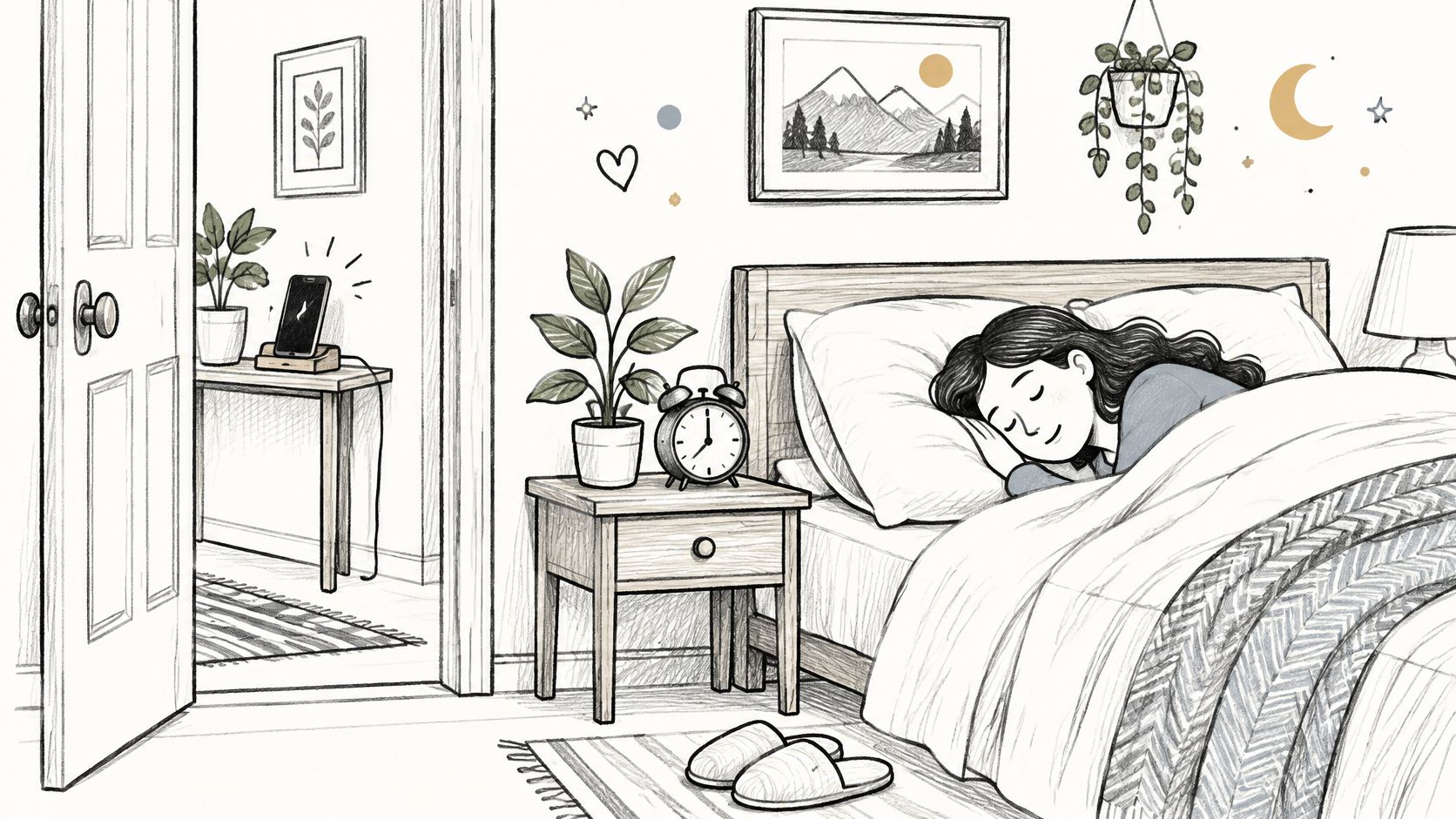
Environment beats intention. A phone on your nightstand is the last thing you touch at night and the first thing you grab in the morning. Move the charger and you remove both sessions without a single act of self-control.
Households already lean on boundaries like this. Pew Research Center reported in 2024 that 47% of U.S. parents limit the amount of time their teenager can spend on a phone. A physical zone makes that kind of limit easier to keep, because the rule is about a place rather than a stopwatch nobody wants to police.

Start with One Room
- Buy a physical alarm clock: This removes the most common excuse for keeping a phone by the bed.
- Set a shared charging station: A kitchen counter or hallway shelf gives every device a home that isn't a bedroom.
- Add one shared rule: Dinner is phone-free for everyone, adults included, or the rule collapses within a week.
Say a family parks all phones in the kitchen at night and plays an audiobook while preparing dinner instead. The meal gets conversation, the bedrooms get quiet, and nobody negotiates minute by minute. Keep audio content ready in the rooms where you do chores or exercise, so the replacement is within reach. Expand to a second zone only after the first one feels normal rather than imposed.
7. Replace Screen Leisure with Physical Activities
Restriction leaves a hole. If your evening scroll disappears and nothing takes its place, boredom will refill it within days. The durable version of this tactic adds something first, then lets the screen time shrink around it.
The numbers support pairing limits with substitutes. A U.S. Community Preventive Services Task Force review of 49 studies found that among children, interventions reduced combined television and other recreational screen time by a median of 26.4 minutes per day compared with control groups. Many of those programs combined screen limits with physical activity or healthier routines. Released time that's actively redirected tends to stay released. Time that's merely removed tends to creep back.


Pair Movement with Listening
- Choose one daily replacement: A walk, a cooking session, gardening, or a short workout beats an ambitious program you'll abandon.
- Match voice and speed to the activity: Slower narration suits cooking with interruptions, faster playback suits a familiar walking route.
- Prepare files in advance: Save your listening before you head out, so the activity starts with a press of play rather than a browsing session.
Say an office worker takes audio reports on a lunchtime walk instead of scrolling at a desk. The report still gets reviewed, the afternoon slump softens, and that scrolling slot loses its reason to exist. Language learners can do the same with articles read in different voices while they cook. Start with one anchored slot in your day. A replacement that happens at the same time daily needs far less motivation than one you must choose fresh each time.
8. Read on E-Ink or Print for Long Documents
Some reading needs your eyes. Dense arguments, material you'll annotate, and text you plan to quote all reward close visual attention. The problem isn't reading itself. It's reading on a device that also holds your messages, feeds, and browser tabs.
E-ink readers solve a different part of the problem than audio does. They reflect ambient light rather than shining a backlight at you, and a dedicated reader like a Kindle carries no social apps competing for your attention. Many people find long sessions easier on the eyes, and there's less to wander off into.
Print does the same job for study material. A student who prints the key sections of two journal articles can read, underline, and summarize them at a table with the phone in another room. The pages can't buzz.
Use Each Format Where It Fits
- Keep the e-reader single-purpose: Load books on it and don't install browsing or social apps, even if the device allows them.
- Print selectively: Print the sections you'll annotate or cite, not whole documents you'll only skim once.
- Split the workflow: Listen to a document first for the overall shape, then read the important sections on e-ink or paper.
Practical rule: If you need to understand it, listen. If you need to argue with it, put it on paper or e-ink and pick up a pen.
The trade-offs are real. E-readers cost money, handle PDFs and color figures poorly, and print isn't free or waste-free. That's why this tactic suits long-form reading you'll return to, not every short article that crosses your screen.
9. Build a Digital Sunset Routine
Evening screen time does double damage. It eats the last unstructured hour of the day and pushes bedtime later, because there's always one more video or thread. A digital sunset sets a fixed point, usually one to two hours before bed, when entertainment screens stop and lower-stimulation activities take over.
Cutting late use appears to matter for how people feel, not just for their schedules. A 2025 randomized controlled trial of 111 university students limited smartphone use to 2 hours daily for three weeks, in a group starting at an average of 276 minutes per day, and recorded small-to-medium improvements in depressive symptoms, stress, sleep quality, and well-being. You don't need that exact cap to borrow the principle. Protecting the final hour is a smaller, more sustainable slice of the same idea.
Make the Last Hour Easy to Keep
- Set a sleep timer on audio playback: Narration stops on its own, so you don't reach for the phone half asleep.
- Swap video for narration: Listen to a book or a calm article in bed with the screen off instead of watching one more episode.
- Charge the phone out of reach: Across the room works. Outside the bedroom works better.
Say a student switches from video lectures to audio review of the day's notes after dinner. Revision still happens, but the bright screen and the recommendation sidebar are gone. Keep the sunset time identical every night, weekends included. A routine that moves around is just a daily negotiation, and you'll usually lose it when you're tired.
9 Ways to Reduce Screen Time at a Glance
| Method | Main Lever | Effort to Start | Best For |
|---|---|---|---|
| Replace Screen Reading and Passive Scrolling with Audio | Listen to planned content instead of reading or browsing on-screen | Some setup to build an audio queue | Commuters, multitaskers, and people with screen fatigue |
| Time-Block Your Screen Use | Schedule defined windows for screen tasks | Low; plan a few daily blocks | People seeking more focus and less reactive checking |
| Set App Limits with Built-In Digital Wellbeing Tools | Limit app time and schedule downtime | Low; configure built-in settings | People who want usage data and gradual app-use reduction |
| Turn Off Non-Essential Notifications | Silence or batch non-urgent alerts | Low; adjust notification settings | People distracted by frequent alerts |
| Use Grayscale Display Mode | Remove color to make screens less engaging | Low; enable a display setting | Habitual checkers, especially during focus or evening hours |
| Create Device-Free Zones and Charge Phones Outside the Bedroom | Keep devices out of designated spaces | Moderate; establish household routines | Households seeking better sleep and fewer interruptions |
| Replace Screen Leisure with Physical Activities | Swap screen-based leisure for movement or hands-on activities | Moderate; choose and prepare alternatives | People who want active, rewarding screen-free leisure |
| Read on E-Ink or Print for Long Documents | Use reflective e-ink displays or printed pages | Moderate; obtain a device or print materials | Long-form readers and students who want fewer distractions |
| Build a Digital Sunset Routine | Stop entertainment screen use before bed | Moderate; set and maintain a cutoff | People seeking a calmer evening and healthier sleep routine |
Start with Two Tactics, Not Nine
Attempt all nine tactics on Monday and you will probably be back at your old screen total by Friday. Every tactic on this list asks for a small setup effort and a few days of adjustment. Stack too many at once and you lose the ability to tell which one helped, which one annoyed you, and which one stopped working.
Pick two that attack different parts of the problem. First choose one scheduling tactic: time-blocked screen windows during the day, or a digital sunset that protects your evening. Then choose one environment or replacement tactic: device-free zones with charging outside the bedroom, or audio reading that moves content off the display entirely. The pairing matters because the two tactics cover each other's weakness. The schedule decides when screens are allowed, and the replacement decides what you do with your eyes and ears when they are not.
Run the pair for two weeks before judging it.
The first few days feel awkward in almost any new routine, and early discomfort is a poor predictor of whether a habit will stick. At the end of the fortnight, check three things. Look at your weekly screen minutes. Confirm your reading and study tasks still got finished. Ask whether the replacement was satisfying enough to repeat without forcing yourself. A tactic that cuts minutes while leaving work undone or evenings miserable will not survive the month.
Add a third tactic only if the first two are holding. Bring in app limits if one feed still breaks through your blocks. Try grayscale if late-night sessions remain your weak point. Move long documents to e-ink or print if a multipurpose device keeps pulling you back. Sequencing beats intensity, because each addition lands on a routine that already works.
For the replacement half of the plan, I recommend TTS Reader Pro by TTS Pro as the audio companion that makes several tactics above practical. It turns books, PDFs, EPUB files, web pages, and study notes into narration you can queue before a commute, a walk, or your digital sunset. Several voice choices and adjustable listening speeds mean dense research and light fiction do not have to sound the same. A pay-by-the-week subscription plan lets you test the habit without a longer commitment, and a subscription may be shareable with a family group when Family Sharing is enabled, which suits households running shared device-free rules.
Hold on to the principle underneath every tactic here. White-knuckled abstinence loses to devices built to hold your attention. Lasting reduction comes from replacement: a walk, a printed page, a quiet bedroom, or a voice reading to you while your phone sits dark in another room. Start with two replacements this week and let the minutes follow.
Turn saved articles, PDFs, and study notes into a listening queue for your commute or your next screen-free evening. Download TTS Reader Pro from the App Store or Google Play to start replacing screen reading with eyes-free listening this week.


No Comments
Leave a comment Cancel